Quote Automation
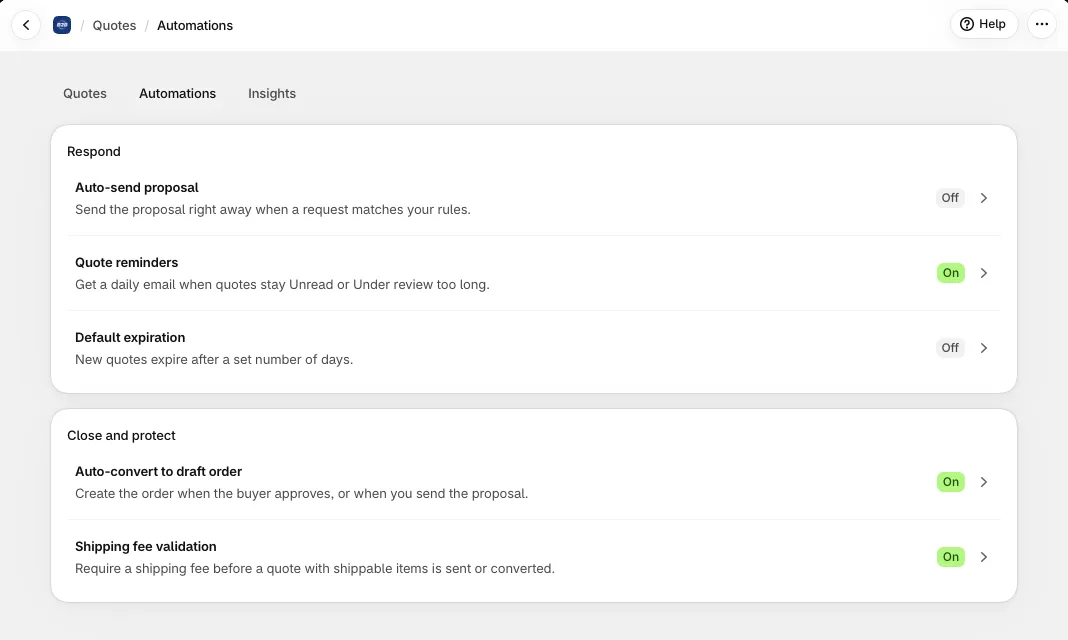
Quote automation takes routine steps out of the path from a quote request to an order. Open Quotes in the app menu and click the Automations tab (next to Quotes and Insights) to see every automation on one page, with an On or Off label for each. A disabled automation does not run on any quote.
You can open and set up every automation on any plan. Turning on the ones marked with a plan name needs that plan: Auto-send proposal, Auto-convert to draft order, Default expiration and Quote reminders need the Business plan or higher. Shipping fee validation is available on every plan.
The three automations
Section titled “The three automations”| Automation | What it does | Plan |
|---|---|---|
| Auto-send proposal | Sends the proposal email right away when a quote request matches your conditions, so your team does not send it by hand. | Business or higher |
| Approve or reject quotes (Auto-convert to draft order) | Adds Accept quote and Decline buttons to the proposal email, so buyers answer in one click without logging in. Creates the order when the buyer accepts, or when you send the proposal. | Business or higher |
| Shipping fee validation | Requires a shipping fee before a quote with shippable items can be sent or converted to an order. | All plans |
They work together: Auto-send proposal sends the email, the buttons in that email let the buyer answer, and Shipping fee validation keeps a quote that still needs a shipping fee from being sent automatically or converted to an order.
Also on the Automations page
Section titled “Also on the Automations page”The page groups the automations in two sections, Respond and Close and protect. Two more automations sit in Respond:
- Quote reminders: get a daily email when quotes stay Unread or Under review too long. A preview shows when the first reminder goes out and that it repeats every day until the status changes.
- Default expiration: new quotes expire after a set number of days.
Each automation page has a Status card to turn it on or off.
Stuck? The ? button on each page opens the matching guides, and the Help center lists them all.