
Reorder Page & Order Tabs
Learn how customers view, navigate, and manage their past purchases and pending draft orders on your store’s Re-Order page.
This guide explains the storefront Re-Order portal (/pages/reorder), including the default Order tab for completed purchase history, the Waiting for Checkout tab for pending draft orders, independent tab pagination, and access restrictions for guest or excluded buyers.
1. Before You Begin
Section titled “1. Before You Begin”To ensure your customers can access and navigate the Re-Order page smoothly, verify the following prerequisites:
- Page Published: The Re-Order page status must be set to Published in your app admin (
Reorder > Reorder Settings). - Theme App Embed Active: The B2B Portal app embed must be enabled in your active Shopify theme editor.
- Customer Account Login: Customers must be logged into their Shopify customer account on your storefront to view their order history and pending draft orders.
- Customer Access Eligibility: The logged-in customer must meet your configured eligibility rules and must not be excluded by tag or specific customer rules.
2. Storefront Access & Restricted Access Screen
Section titled “2. Storefront Access & Restricted Access Screen”When a customer navigates to your store’s Re-Order URL (/pages/reorder), the portal automatically verifies account login status and customer eligibility before displaying order history.
- The customer opens
/pages/reorder. - The app checks access:
- Not logged in or not eligible: the Restricted Access screen with a login button.
- Logged in and eligible: the Reorder page with the Orders and Waiting for Checkout tabs.
Restricted Access Screen Overview
Section titled “Restricted Access Screen Overview”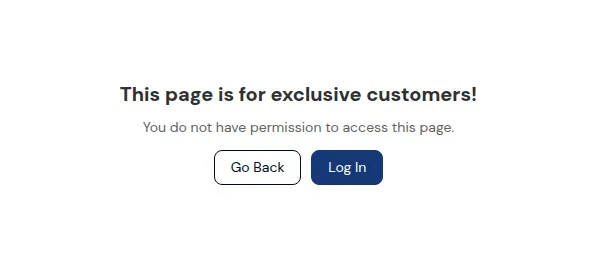
If a visitor is unauthenticated or does not meet your store’s customer eligibility rules, access to order history is protected, and the Restricted Access screen is rendered:
- Access Warning Header: Clear heading informing the visitor that login or account eligibility is required (e.g., “Access Restricted”).
- Instructional Copy: Friendly message explaining why access is restricted and guiding the customer on how to log in.
- Log In Button: Primary action button redirecting unauthenticated visitors directly to your Shopify login page (
/account/login). - Go Back Button: Secondary action link returning visitors to your store homepage.
3. Re-Order History Interface & Tabbed Navigation Overview
Section titled “3. Re-Order History Interface & Tabbed Navigation Overview”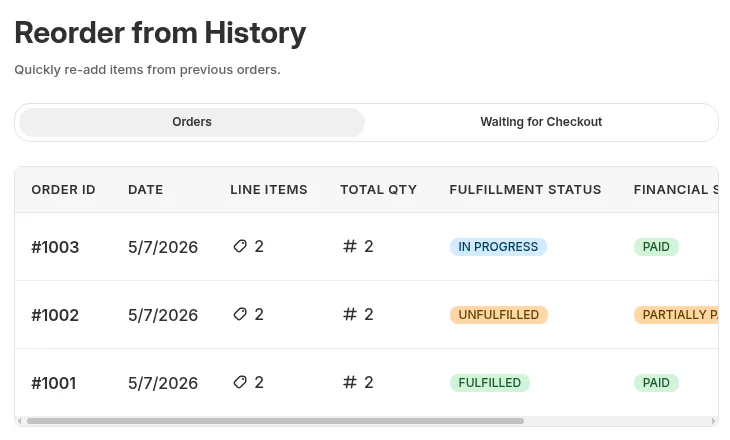
Preview from the template editor with sample orders.
When an eligible, logged-in customer accesses /pages/reorder, they arrive at the main Re-Order History Hub. The top of the page features a dual-tab Switch Bar allowing buyers to toggle between two distinct order lists:
- Order Tab (Default): Displays past completed Shopify production orders with instant reorder triggers.
- Waiting for Checkout Tab: Displays pending Shopify Draft Orders created via reorders or quote requests, enabling buyers to inspect draft details or proceed directly to payment.
| Tab | What it lists |
|---|---|
| Orders (default) | Completed past orders: order name, date, items, subtotal and a Reorder button. Has its own pagination |
| Waiting for Checkout | Pending draft orders: draft order name, date, subtotal and status (Open, Invoice sent, Completed). Has its own pagination |
4. The “Order” Tab
Section titled “4. The “Order” Tab”The Order tab is active by default when a customer visits the Re-Order page. It retrieves and displays all past completed Shopify production orders associated with the customer’s account.
Interface Columns & Field Breakdown:
Section titled “Interface Columns & Field Breakdown:”| Column | Meaning | Notes |
|---|---|---|
| ORDER ID | The official Shopify order number identifier | e.g. #1120, #1118 |
| DATE | The timestamp when the original purchase was placed | e.g. 12/16/2026 |
| LINE ITEMS | Total number of unique product line items in the order | e.g. 14, 1 |
| TOTAL QTY | Combined physical unit count across all line items | e.g. # 22, # 21 |
| FULFILLMENT STATUS | Badge displaying shipping fulfillment state | e.g. UNFULFILLED, FULFILLED |
| FINANCIAL STATUS | Badge displaying order payment state | e.g. PAID, PENDING |
| ACTIONS | Interactive triggers on each order row | • View Details Icon ( |
Step-by-Step Customer Journey on Order Tab:
Section titled “Step-by-Step Customer Journey on Order Tab:”- Customer logs into their storefront account and opens
/pages/reorder. - On the default Orders tab, they locate the past order they wish to repeat.
- Customer clicks the Reorder button next to the desired order.
- The system validates item availability in real time and opens the Review & Edit modal, pre-loaded with eligible products.
5. The “Waiting for Checkout” Tab (Pending Draft Orders)
Section titled “5. The “Waiting for Checkout” Tab (Pending Draft Orders)”The Waiting for Checkout tab gives buyers total visibility over their pending, unpaid draft orders. This eliminates buyer confusion over whether a reorder or custom quote has been submitted, invoiced, or completed.
Interface Columns & Field Breakdown:
Section titled “Interface Columns & Field Breakdown:”| Column | Meaning | Notes |
|---|---|---|
| ORDER ID | Displayed in official draft order format | e.g. #D2107, #D2106 |
| DATE | The timestamp when the draft order was generated | e.g. 7/28/2026 |
| LINE ITEMS | Total number of unique product line items in the draft order | e.g. 1, 3, 10 |
| TOTAL QTY | Combined physical unit count across all draft line items | e.g. # 1, # 3, # 15 |
| STATUS | Visually distinct status tags indicating current draft order state | • Open ( |
| ACTIONS | Interactive triggers on each draft row | • View Details Icon ( |
Empty State Presentation
Section titled “Empty State Presentation”If a customer has no pending draft orders, the Waiting for Checkout tab renders a clean, friendly empty state graphic with the message: “No pending draft orders found.”
Step-by-Step Customer Journey on Waiting for Checkout Tab:
Section titled “Step-by-Step Customer Journey on Waiting for Checkout Tab:”- Customer clicks Waiting for Checkout on the tab switch bar.
- The page loads their pending draft orders (e.g.,
#D2107underOPENorINVOICE SENTstatus). - The customer can either:
- Click the View Details icon (
[👁]) or order row to open the Draft Order Detail Page, inspect itemized pricing, and click Checkout to complete payment. - Click the Reorder button (
[🔄 Reorder]) to open the Review & Edit Reorder Modal and modify line items to place a fresh order.
- Click the View Details icon (
6. Related Topics
Section titled “6. Related Topics”- Reorder Overview: High-level feature vision, architecture flow, and customer journey.
- Full Setup Guide: Configuring admin settings, customer eligibility, exclude rules, and publishing options.
- Draft Order Detail Page: Deep dive into inspecting draft order items, unit prices, checkout links, and back navigation.
- Reorder Review & Edit Modal: Line item editing, search-and-add products, stock validation rules, and post-submission outcomes.
- Template Customization: Customizing element visibility toggles and color schemes for all 4 storefront screens.
- Storefront Translation: Customizing storefront copy, button labels, and dynamic placeholders.