
Manage Templates
The Templates Management area allows merchants to create, organize, preview, and apply standardized layout presets across multiple Quick Order pages.
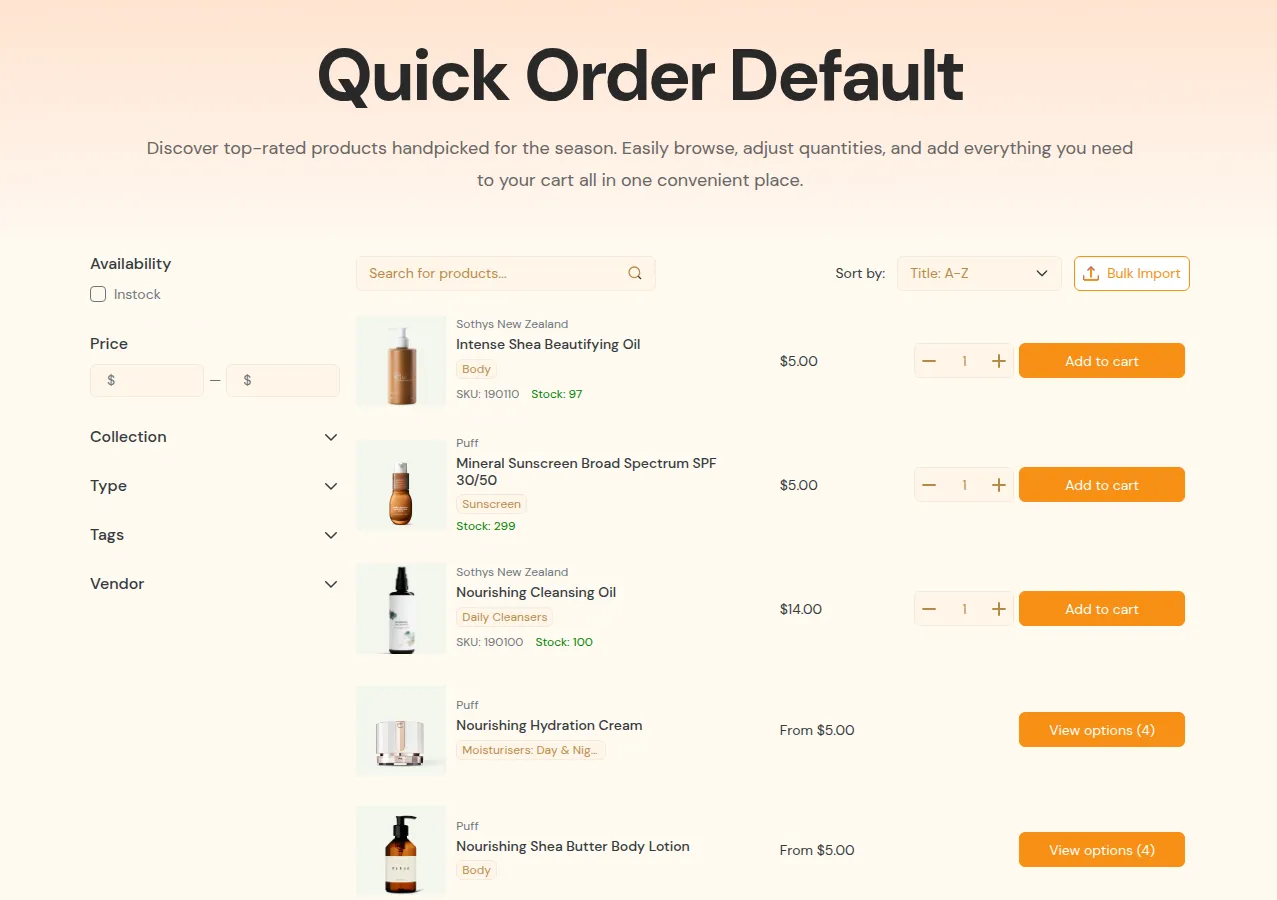
What your customers see on the storefront.
1. Overview & Key Benefits
Section titled “1. Overview & Key Benefits”Instead of reconfiguring search bars, filter sidebars, banner styling, and column options for every new page, Templates allow you to save and reuse proven layouts.
- Standardized Layouts: Maintain a consistent brand experience across different wholesale categories.
- Separation of Design & Scope: Templates store visual layout, search rules, colors, and table columns without being locked to specific customer lists or product collections.
- Rapid Deployment: Launch new Quick Order pages in under 60 seconds by deploying pre-built presets.
2. Template Categories (Built-in vs My Templates)
Section titled “2. Template Categories (Built-in vs My Templates)”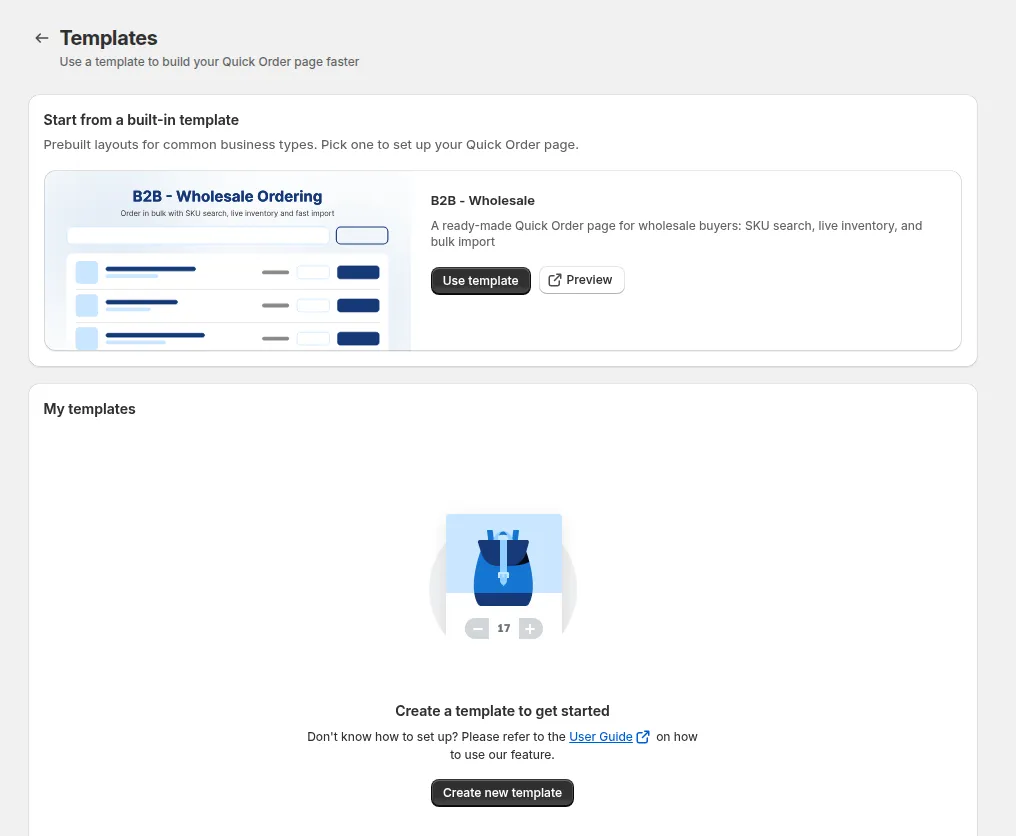
In Shopify Admin, navigate to BSS B2B Quote > Quick Order > Templates to access two dedicated tabs:
2.1 Built-in Templates
Section titled “2.1 Built-in Templates”- B2B - Wholesale: A production-tested preset optimized for B2B wholesale reordering. Features high-density product variant rows, SKU display, stock indicators, and inline quantity inputs.
- Interactive Live Preview: Click Preview on any built-in template to inspect exactly how the table, filters, and mobile view render on the storefront before applying it.
- One-Click Page Creation: Click Use Template on a built-in preset to instantly create a new Quick Order page pre-populated with optimal layout settings.
2.2 My Templates (Custom Presets)
Section titled “2.2 My Templates (Custom Presets)”Manage the custom layout templates created specifically for your store:
- Create Template: Design a new reusable layout preset with customized columns, search filters, and styling.
- Edit Template: Update table structure, colors, and filter visibility. Edits apply to future pages created from the template without altering existing published pages.
- Delete Template: Remove obsolete presets. Deleted templates are retained for 30 days in soft-delete protection before permanent purging.
- Use Template: Deploy the custom preset directly to create a new live Quick Order page.
3. How to Deploy and Apply Templates
Section titled “3. How to Deploy and Apply Templates”You can deploy templates through two straightforward workflows:
Flow 1: Create a New Page from a Template
Section titled “Flow 1: Create a New Page from a Template”- In Quick Order > Templates, select either the Built-in or My templates tab.
- Find the desired preset and click Use Template.
- The system opens the page builder with all layout and design settings pre-filled.
- Select your Product Source (Collections, Tags, or Specific Products) and Customer Eligibility.
- Click Publish to launch your storefront page.
Flow 2: Apply a Template to an Existing Page
Section titled “Flow 2: Apply a Template to an Existing Page”- Open any existing Quick Order page from your page list.
- Click Apply Template from the configuration toolbar.
- Select a preset from your template library.
- Confirm the prompt to immediately update the page layout while preserving your custom product sourcing and customer access rules.