
Advanced Settings
This section is where you control your B2B communications, email deliverability, automated reminders, and official PDF quote documents.
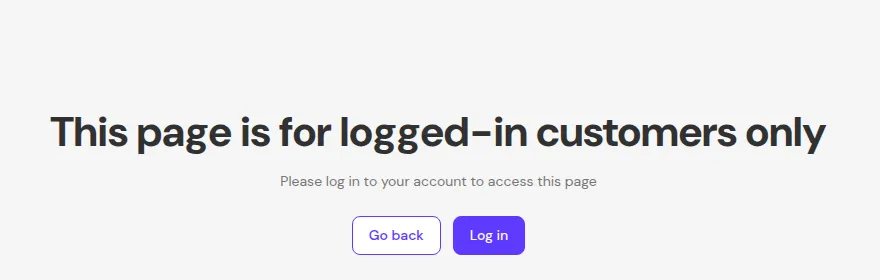
What your customers see on the storefront.
To access these settings, navigate to Request for Quote → Advanced Settings in your app admin. The page has four tabs: Notifications, Quote PDF, Quote History Page and Quote Reminder. The default expiration is set in Request for Quote → Quote Automation → Default Expiration.
1. Notifications & Email Deliverability
Section titled “1. Notifications & Email Deliverability”Manage all transactional email communications and verify your custom sender domain to prevent quote emails from landing in spam.
1.1 Notifications for Store Admin
Section titled “1.1 Notifications for Store Admin”- Admin New Quote Notification: Alerts your sales team immediately when a buyer submits a new quote request.
- BCC Recipient List: Add internal team email addresses to receive quote notifications simultaneously. Type an address and press Enter.
1.2 Notifications for Customers
Section titled “1.2 Notifications for Customers”- Quote Confirmation Email: Sent automatically to the buyer immediately after they submit a quote request.
- Quote Proposal Email: Sent when you send a proposal or updated pricing from the Quote Details screen.
1.3 Email Sender Configuration & DNS Verification (SPF / DKIM)
Section titled “1.3 Email Sender Configuration & DNS Verification (SPF / DKIM)”Configure a custom sender email address (e.g., [email protected]) to build merchant trust:
- Public Domains (Gmail, Outlook, Yahoo): Automatically verified without manual DNS setup.
- Custom Company Domains:
- Enter your custom email address (e.g.
[email protected]). - The app generates official SPF and DKIM TXT records for your domain.
- Add these records in your domain registrar’s DNS settings.
- Click Verify to validate DNS propagation and update status to Verified.
- Enter your custom email address (e.g.
1.4 Send Test Email
Section titled “1.4 Send Test Email”After configuring your sender email, use the Send test email tool:
- Enter a recipient test email address.
- Click Send Test Email to check inbox delivery, formatting, and verify
Reply-Toheaders before going live.
1.5 Edit Email Templates & Dynamic Placeholders
Section titled “1.5 Edit Email Templates & Dynamic Placeholders”Click Edit Template to open the visual email editor:
- Dynamic Placeholders: Insert real customer and quote data (e.g.
{{ customer.name }},{{ quote.id }},{{ quote.url }},{{ quote.expired_date }}). - Attach PDF Option: In Auto-sent Proposal Email settings, enable “Attach PDF” to automatically generate and attach the quote PDF document to the proposal email.
2. Quote Reminder Automation (Plan Business+)
Section titled “2. Quote Reminder Automation (Plan Business+)”Prevent lost sales opportunities by automatically tracking quotes that remain in Unread or Under Review states for too long without conversion.
Navigate to Advanced Settings → Quote Reminder to configure two independent automation cards:
| Setting Option | Description |
|---|---|
| Status Toggle | Enable or disable reminder rules independently for Unread and Under Review quotes. |
| Remind After N Days | Set the threshold number of inactive days before triggering a reminder (e.g., 3 days for Unread, 7 days for Under Review). |
| Recipient Email | The primary email address of the sales rep or manager responsible for quotes. |
| CC Emails | Additional email addresses separated by commas to keep team members informed. |
How Reminders Run:
Section titled “How Reminders Run:”- A daily background cron scans quote records.
- If quotes exceed your day threshold, the system sends one consolidated email digest listing all stalled quotes and pushes one notification bell alert inside Shopify Admin CMS.
- Clicking the notification opens the Manage Quote list filtered directly to those quotes.
- Quotes converted or rejected are automatically excluded from reminders.
[!TIP] Dashboard Reminder Banner: If your store has pending quotes that risk becoming stalled, the app displays a proactive reminder banner on the main Dashboard to ensure your team configures or responds to overdue deals promptly.
3. PDF Template
Section titled “3. PDF Template”The PDF Template tab controls how exported quote PDF documents look and what content they include.
3.1 PDF Layout & Translation
Section titled “3.1 PDF Layout & Translation”- Customize document headers, company logo, footer terms, and currency formats.
- Translate PDF labels (e.g., Quote ID, Expired Date, Subtotal, Shipping, Tax, Total) into your store’s primary language.
3.2 PDF Styling
Section titled “3.2 PDF Styling”- Configure brand colors, font sizes, table borders, and margins to match your company’s corporate identity.
4. Default Expiration Duration Settings
Section titled “4. Default Expiration Duration Settings”To configure the default expiration window for new quotes, navigate to Request for Quote → Quote Automation → Default Expiration:
- Set a global default expiration duration (e.g., 30 days).
- All newly generated quotes automatically calculate and display an Expired Date based on creation date + default duration.
- Expired dates automatically sync to proposal emails, PDF quotes, and storefront quote history.
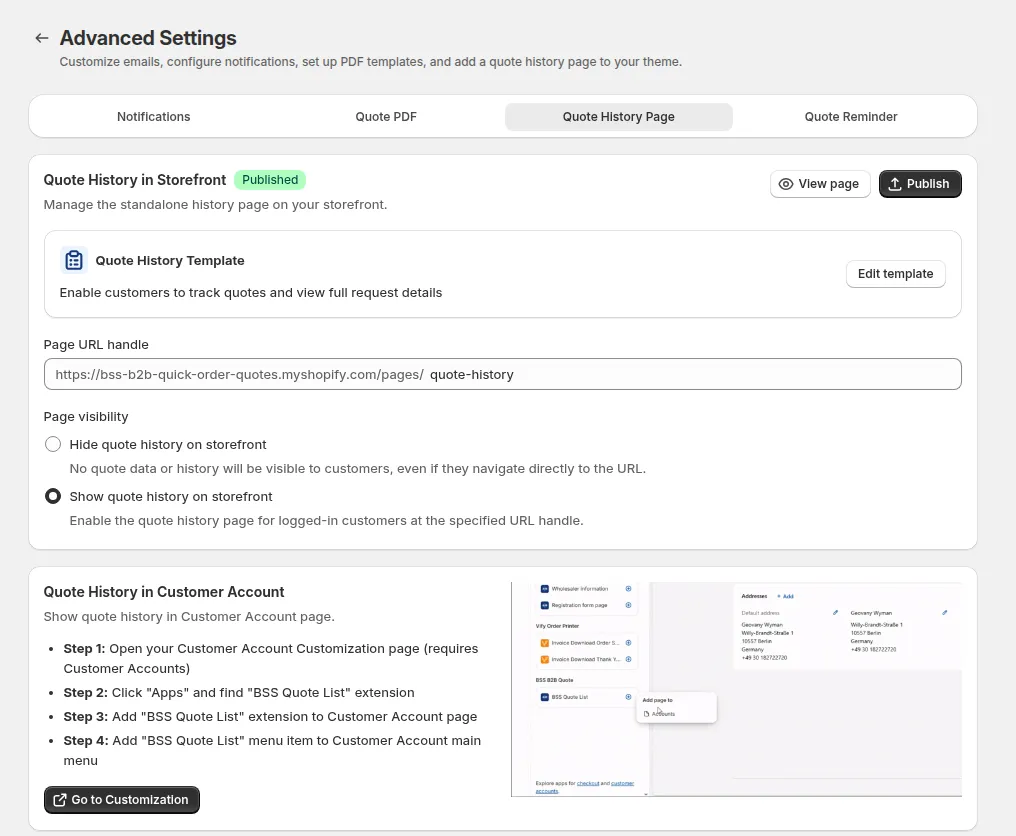
5. Quote History Page
Section titled “5. Quote History Page”Open the Quote History Page tab to manage the storefront page where logged-in customers track their quotes:
- Quote History in Storefront: shows whether the page is Published, with View page and Publish. Click Edit template to change the page layout.
- Page URL handle: the address of the page, for example
/pages/quote-history. - Page visibility: Hide quote history on storefront or Show quote history on storefront (for logged-in customers).
- Quote History in Customer Account: add the BSS Quote List extension to the new customer account pages, following the four steps shown, then click Go to Customization.
The Approve / Reject buttons in proposal emails need this page to be published.
6. Installations
Section titled “6. Installations”Use the Installations tab if the “Add to Quote” button requires manual placement or troubleshooting on custom themes:
- App Embed Verification: Ensure the main theme app embed is active.
- Manual Snippet Insertion: Guidance for placing quote buttons within custom liquid templates.