
Set Up Prices & Buttons
This page explains how to control price visibility and quote button display for your quote logic.
1. Overview
Section titled “1. Overview”The Set Up Prices & Buttons tab has two main purposes:
- Decide whether product prices and default buying buttons (Add to Cart, Buy It Now) should be shown or hidden.
- Configure where the Quote button appears and how it looks.
The tab is divided into:
- Hide Price Setting
- Button Setting
A live preview in the app shows how your configuration appears on product pages and collection pages.
2. Hide Price Setting
Section titled “2. Hide Price Setting”Use this section to control the visibility of product prices and default Shopify purchasing options.
In the current editor, the hide price setting is part of each Quote Catalog (tab Set Up Quote Visibility & Quote Catalogs). Hide price, also hide Add To Cart & Buy It Now buttons is available from the Growth plan.
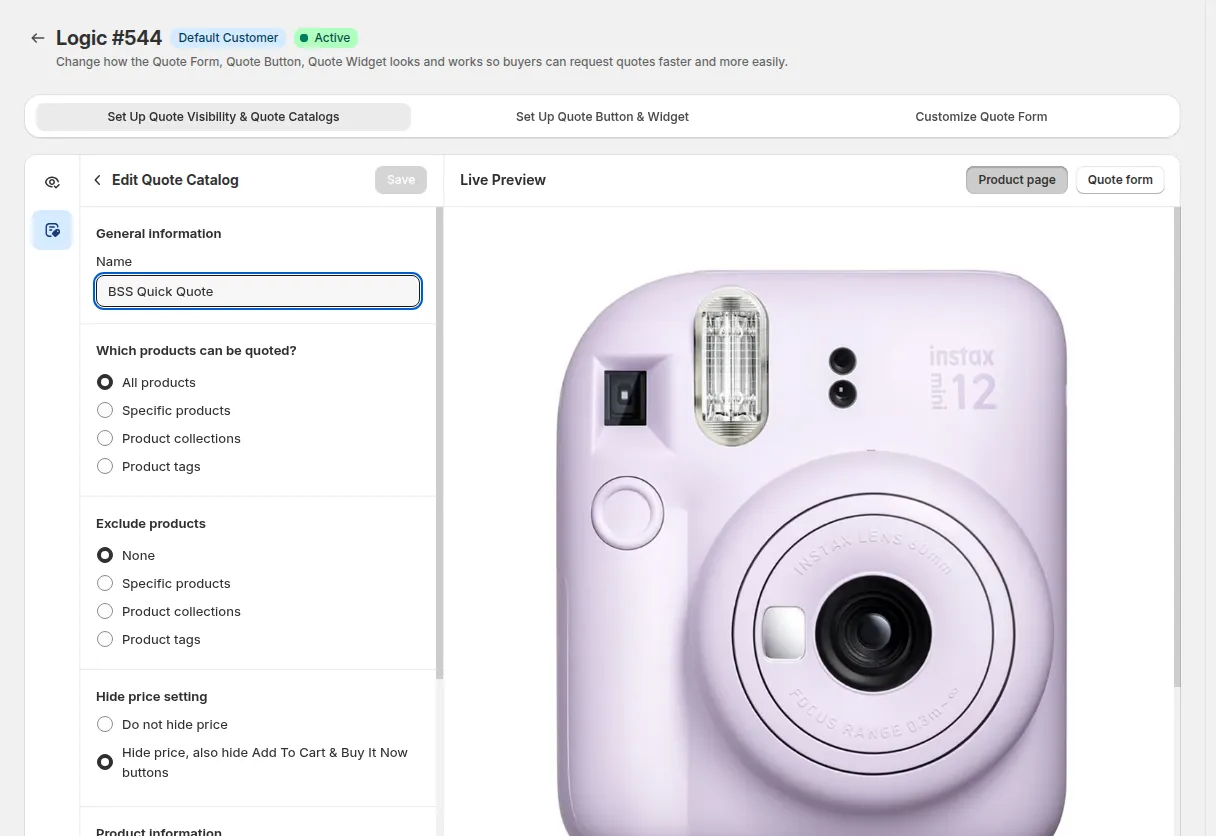
2.1 Do not hide price
- Product prices remain visible.
- You can choose to:
- Keep or hide Add to Cart
- Keep or hide Buy It Now
Typical use case:
- Show standard prices for transparency.
- Add a quote button as an extra option for special requests or large orders.
2.2 Hide price and buying buttons
- Price is hidden from the customer.
- Add to Cart and Buy It Now buttons are also hidden.
- Customers must use the Quote button to request pricing.
Typical use case:
- B2B/wholesale stores with negotiated pricing per customer.
- Products where pricing is never shown publicly and always requires a quote.
3. Button Setting
Section titled “3. Button Setting”This section defines where the quote button appears and how it is styled.
The button settings are in the Set Up Quote Button & Widget tab.
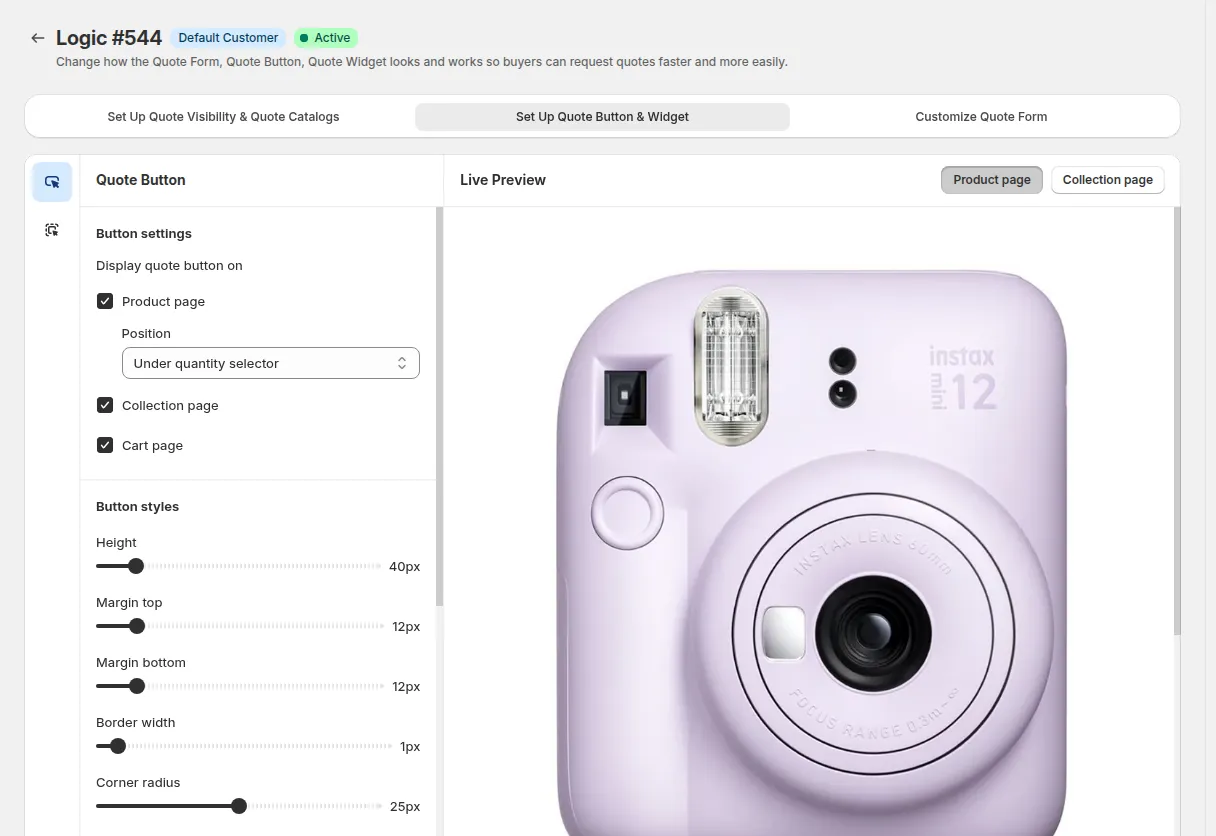
3.1 Display Quote Button On
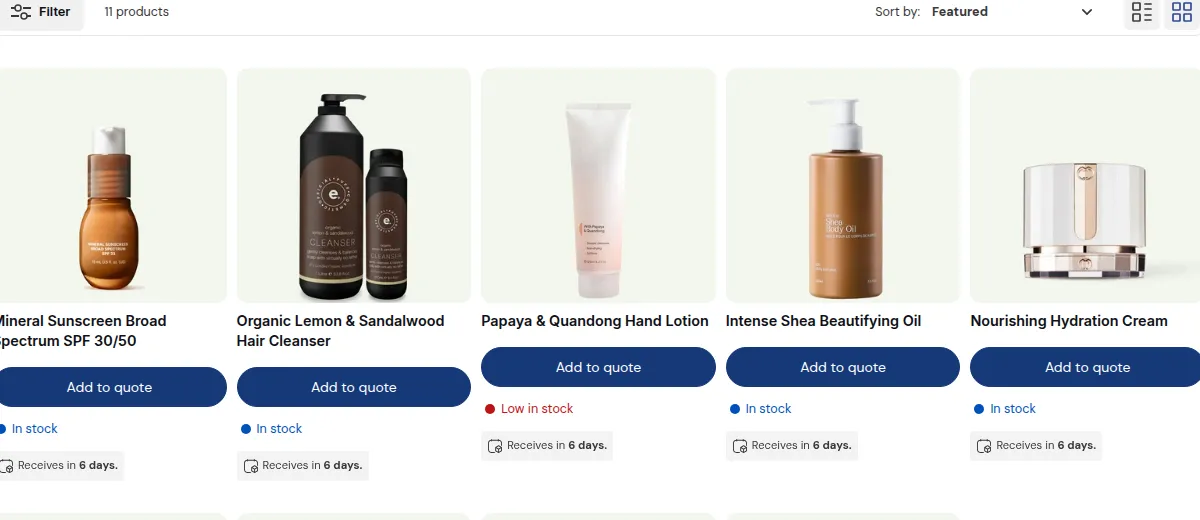
You can enable the quote button on:
- Product page
- Appears on the product detail page.
- Collection page
- Appears in collection or grid views next to each product.
- Cart page
- Appears on the cart page.
3.2 Position
Choose the position of the quote button on the product page to fit your design and flow:
- Under product title
- Under product price
- Under variant picker
- Under quantity selector
- Under “Add to cart” button
- Under “Buy it now” button
This allows you to:
- Place RFQ near the main purchase action (for optional quoting)
- Or place it where you want to encourage quoting before normal purchase.
3.3 Button Styles
You can customize the quote button to match your brand:
Basic style controls
- Height – vertical size of the button
- Margin top/bottom – spacing above and below the button
- Border width – thickness of the button border
- Border radius – corner roundness (square vs rounded button)
- Font size – size of the button text
Advanced style controls
- Text formatting: bold, italic, underline
- Background color – normal state
- Border color – normal state
- Text color – normal state
Hover styles
Customize how the button looks when hovered:
- Background hover color
- Border hover color
- Text hover color
Use the preview toggles to switch between:
- Product page view
- Collection page view
Adjust styles until the quote button feels consistent with your theme and is visually clear for customers.