
Install Quick Order on a Theme
Each Quick Order page uses its own page template and section inside your theme. When you publish a page, the app adds these files to the theme that is live at that moment. Other themes, including a new theme you switch to later, do not get them automatically.
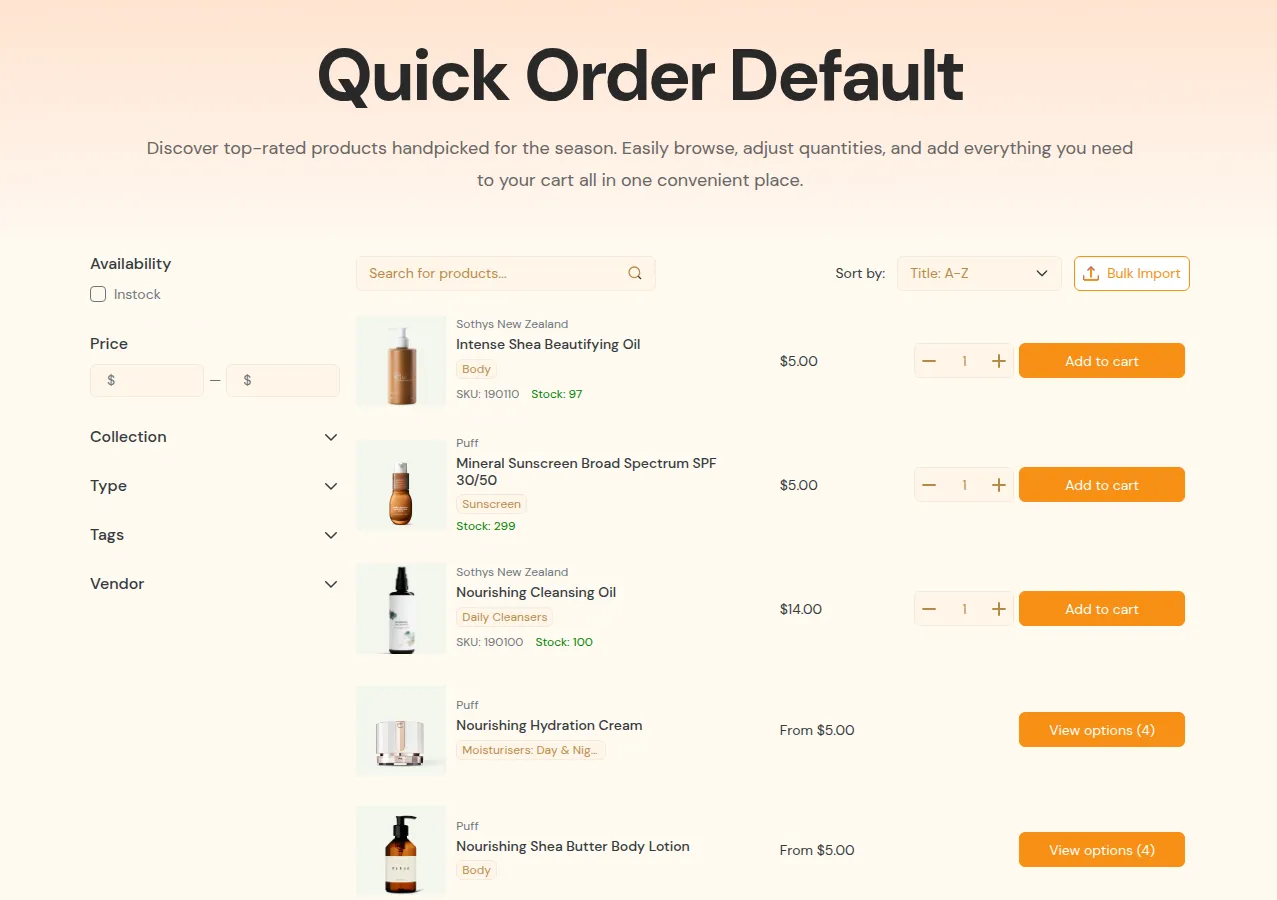
What your customers see on the storefront.
Use Theme installation to add, update or remove the Quick Order files on any theme.
When to use it
Section titled “When to use it”- You switched to a new live theme and your Quick Order pages stopped working.
- You are preparing a new theme (for example, a duplicate you are editing) and want Quick Order ready before you publish it.
- A theme shows the status Needs update.
- You want to remove Quick Order from a theme you no longer use.
Open Theme installation
Section titled “Open Theme installation”- In the app, go to Quick Order.
- On the Advanced Settings card, click Manage settings.
- Click Theme installation.
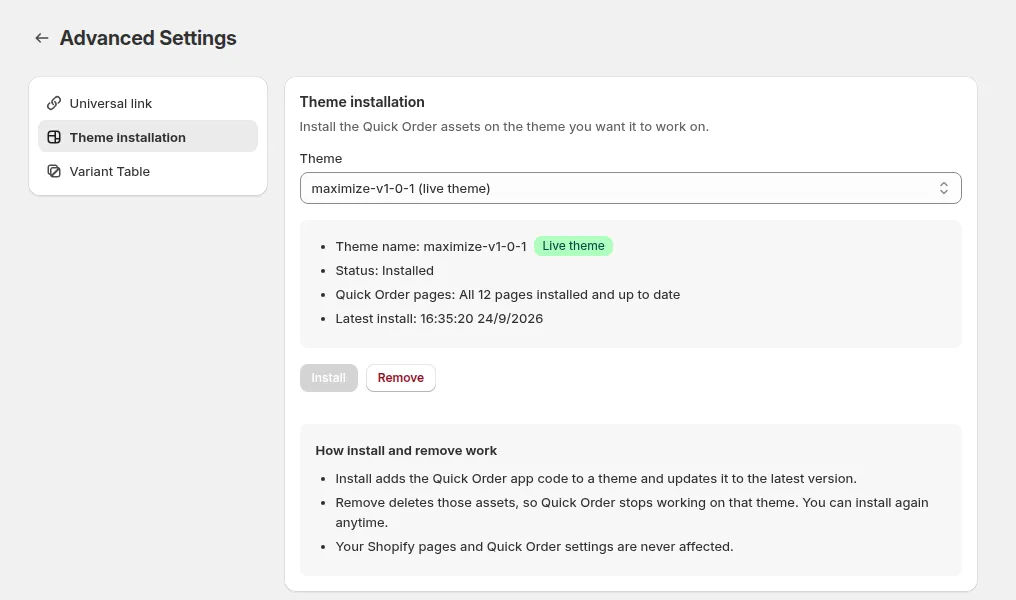
Install on a theme
Section titled “Install on a theme”- In Theme, select the theme. Your live theme is marked (live theme).
- Check the details:
- Theme name, with a Live theme badge for your live theme.
- Status: Installed, Needs update or Not installed.
- Quick Order pages: how many of your pages are installed on this theme, for example “3 of 5 installed, 2 need Install to update”.
- Latest install: when the theme was last installed.
- Click Install. The app shows its progress, for example “Installing… 2 of 5 pages processed.”
- When it finishes, you see “Install completed successfully on theme …” and the status changes to Installed.
Install is disabled when the theme is already Installed.
What the statuses mean
Section titled “What the statuses mean”| Status | Meaning |
|---|---|
| Installed | Every Quick Order page has its files on this theme. |
| Needs update | Some pages have their files on this theme and some do not. Click Install to add the missing ones. |
| Not installed | No Quick Order page files are on this theme. |
Remove from a theme
Section titled “Remove from a theme”- Select the theme.
- Click Remove.
Remove deletes the Quick Order files from that theme, so Quick Order pages stop working on it. You can install again at any time. Remove is disabled when the theme is Not installed.
Switching themes: a quick checklist
Section titled “Switching themes: a quick checklist”- Before you publish the new theme, open Theme installation, select the new theme and click Install.
- Turn on the B2B Portal app embed in the new theme’s editor.
- If you use the product page variant table, add the BSS Product Page Variant Table block to the new theme’s product template.
- Publish the theme and open one of your Quick Order pages to check it.
Related pages
Section titled “Related pages”- Create Quick Order Page
- Enable the App Embed and Check Theme Compatibility
- Quick Order Page Not Showing