
Test quote and store check
Use this page to see quotes the way your buyers do, before they do. You send a test quote from your own store, and you run the Storefront check when something does not show. Both work before you choose a plan.
1. Send a test quote
Section titled “1. Send a test quote”A test quote goes through the same quote form as a real one. It is marked as a test and never reaches a buyer.
- Open your store from the app:
- On the quote logic page, click Preview on store.
- On Home, in the setup guide step Send a test quote, click Preview on store.
- In the first-run setup, click Preview on my store.
- Your store opens in a new tab on a page the quote logic covers. A banner at the top shows that you are in preview. Click Exit preview to leave it.
- Add a product to the quote list and submit the quote form.
- Go back to the app and open Quotes. Your test quote is in the list.
The preview link lasts 24 hours. After that, open Preview on store again. It works only in the browser where you opened it, so buyers and other browsers see nothing from the app until you go live. If your online store has a password, enter the storefront password first, then open the preview. If the quote form is for logged-in customers, such as company customers, log in to your store as that kind of customer first.
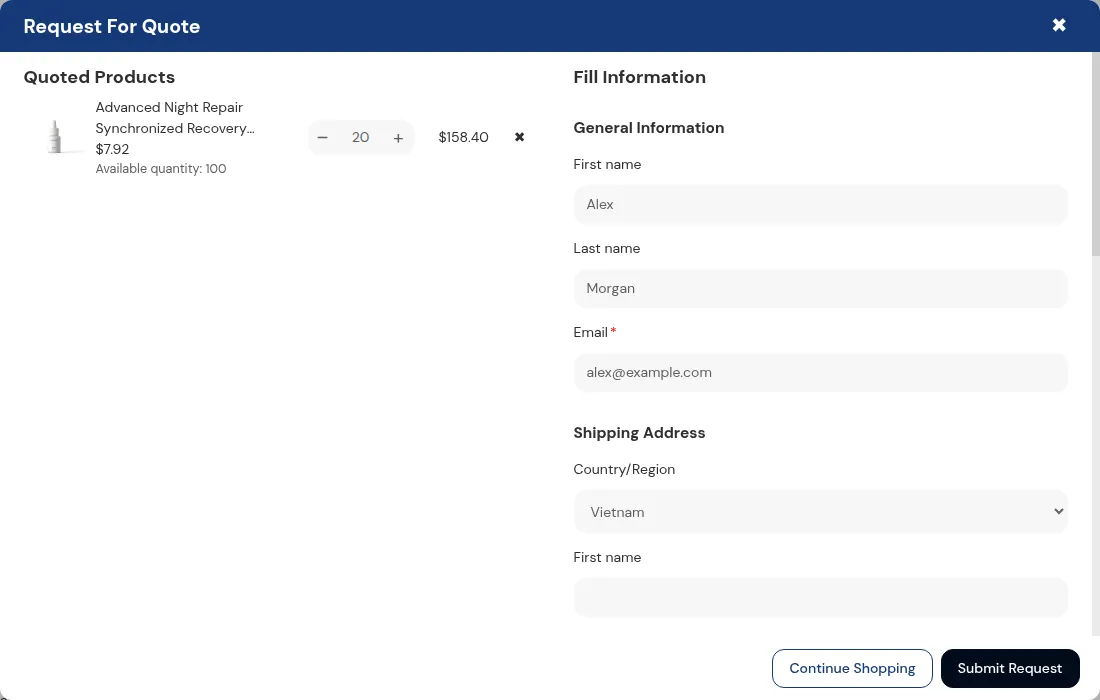
What a test quote does
Section titled “What a test quote does”- It shows a Test badge in Quotes.
- The email to you has [TEST] at the start of the subject. Your buyer gets no email, and the quote’s email log says Test quote. The buyer isn’t emailed.
- It is not counted in Insights or in the Home statistics.
- You can open it like any quote to look at the details and the email log.
- A store without a plan can send 5 test quotes in 24 hours, and 10 in total. When you reach a limit, the app tells you: after the 10th, open a test quote you already sent or choose a plan to receive real quotes; after the 5th in a day, try again tomorrow. On a store with a plan, a quote sent through the preview link is also a test quote, and these limits do not apply.
2. Run the Storefront check
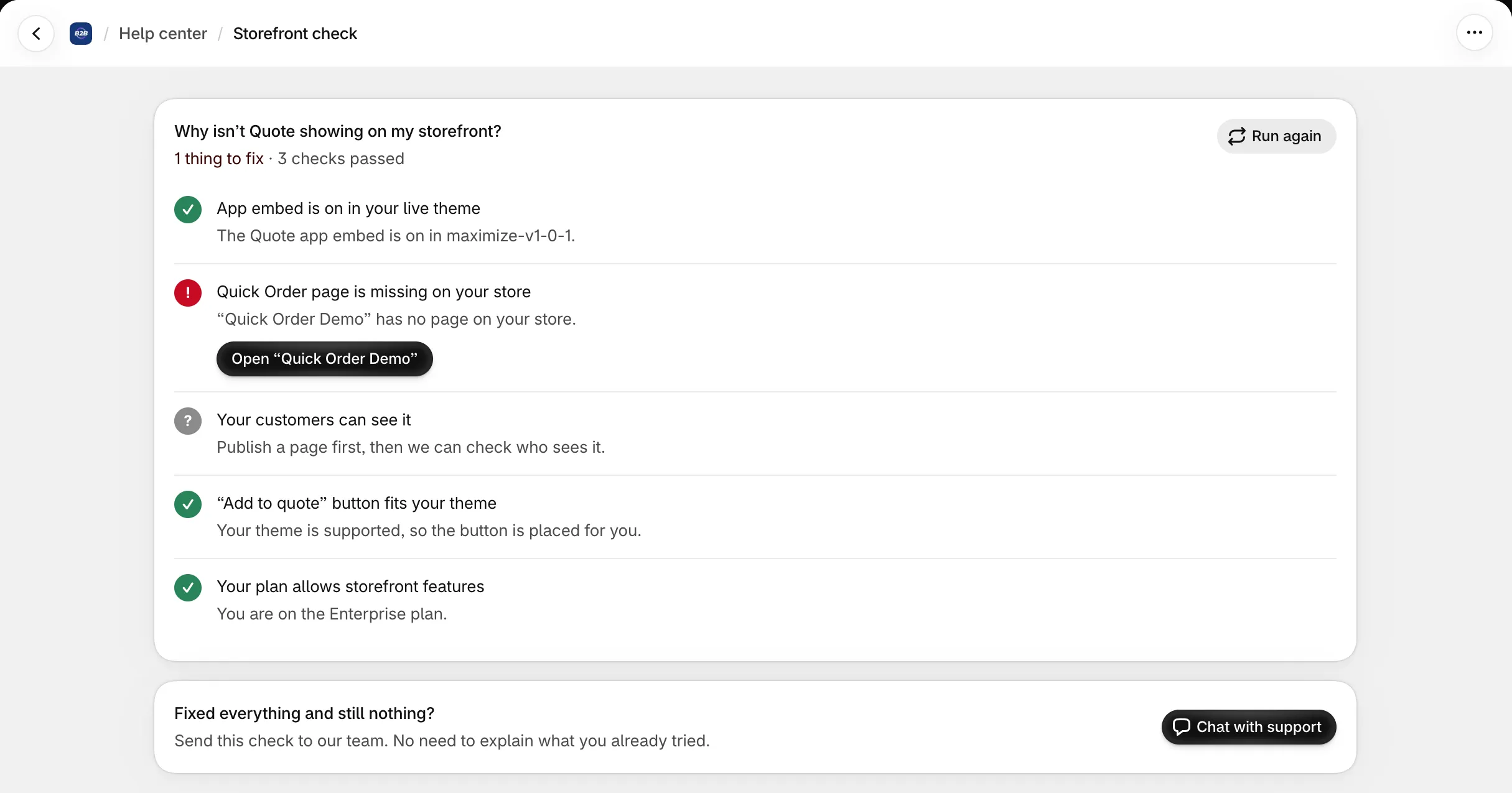
Section titled “2. Run the Storefront check”If you or a buyer cannot see the quote button, run the Storefront check. It reads your live theme and your quote setup and answers Why isn’t Quote showing on my storefront?
Open it in one of these places:
- Help center: under Nothing shows on your storefront?, click See what to check. See Help center.
- Home: the status line under the setup guide shows Nothing to fix and your Live theme when all is well. Otherwise, the Needs your attention card shows what to fix.
- Quote logic page: click Don’t see the quote button? for a short checklist.
The check covers five things: the app embed in your live theme, a published Quick Order page, who can see it, whether the Add to quote button fits your theme, and whether your plan allows storefront features. Each one shows Passed, Check this or Needs a fix, with the reason and a button to fix it, such as Turn on the app embed or Add the block.

After you fix something, click Run again. When everything passes, the check says Nothing to fix. If you still see nothing, click Chat with support: our team gets the check result, so you do not need to explain what you already tried.
What buyers see
Section titled “What buyers see”On a store without a plan, nothing yet. Until you go live on a plan, only you see the quote button, and a test quote never reaches a buyer. After you go live, buyers see the button on the pages your quote logic covers and get the Quote Request Sent Successfully message after they submit.