
Buyer Edit Window
The Buyer edit window lets a buyer fix a quote request after sending it, for example a wrong quantity, without asking you to cancel it and start over. You choose how many hours the window stays open. When it closes, or as soon as you send a proposal, the request is locked.
1. Turn it on
Section titled “1. Turn it on”- In the app, go to Settings → Buyer account.
- Find the Buyer edit window card.
- In Edit window, enter the number of hours the buyer can edit a request. Use a whole number from 1 to 720. Enter 0 to turn the feature off.
- Click Save in that card.
The hours are counted from the moment the buyer submits the quote.
- A new number applies to quotes submitted after you save. Quotes already submitted keep the edit deadline they got when they were submitted.
- 0 turns editing off right away, also for quotes that are still open. If you turn it back on, a quote submitted while it was on can be edited again until its own deadline. A quote submitted while it was off has no deadline and stays locked.
- On a plan below Business, the field is read-only and shows 0 with an upgrade note. If you later move to a lower plan, editing closes for open quotes too. The number you saved is kept and applies again when you upgrade.
2. What buyers see
Section titled “2. What buyers see”Buyers need to be logged in to a customer account. Guests (buyers who are not logged in) cannot edit a request.
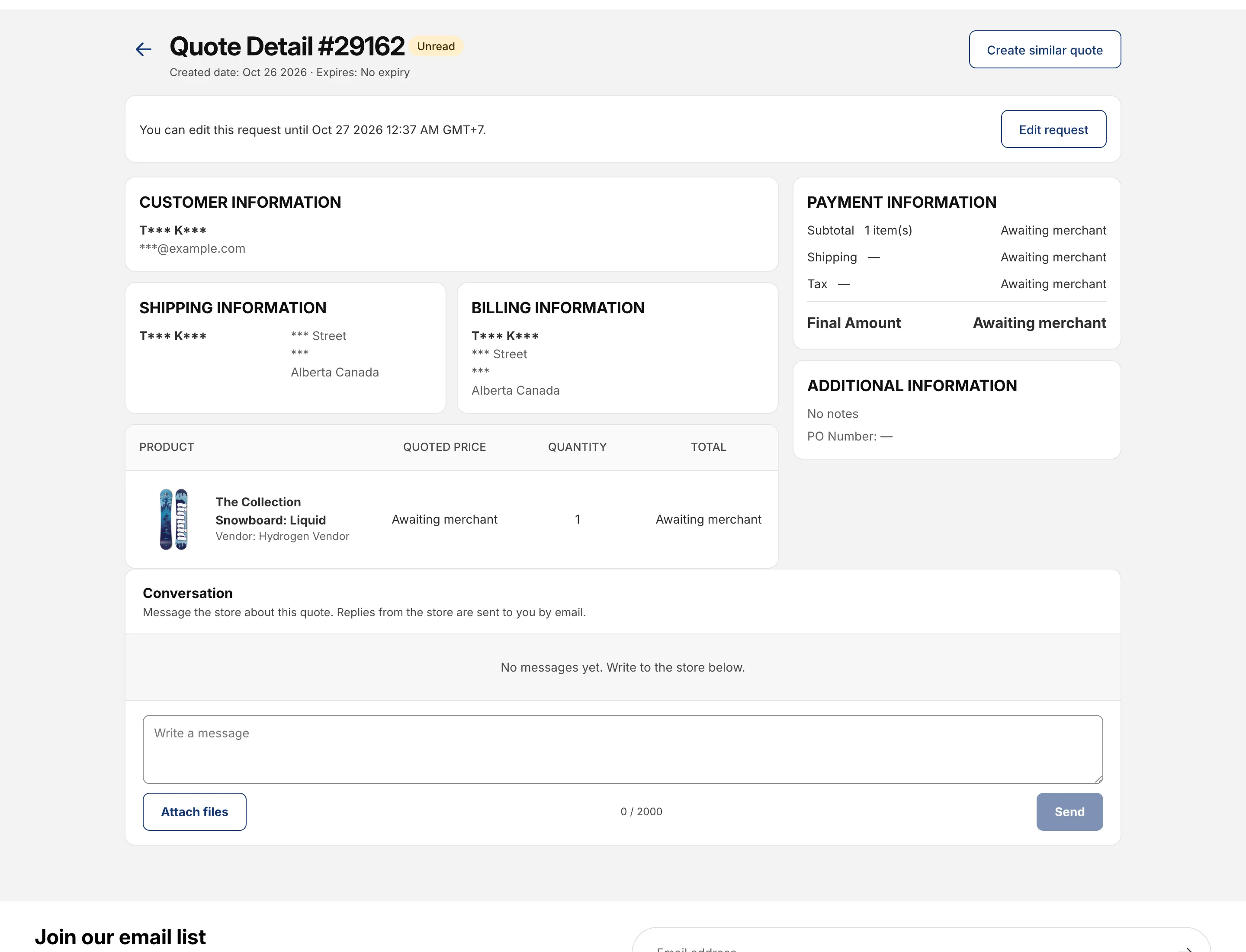
While the window is open, the Quote Detail page shows the line You can edit this request until followed by the deadline in the buyer’s own time zone, and an Edit request button. In new customer accounts, the quote also has an Edit request link, as long as the quote page or the quote history page is published (see Customer Quote History).
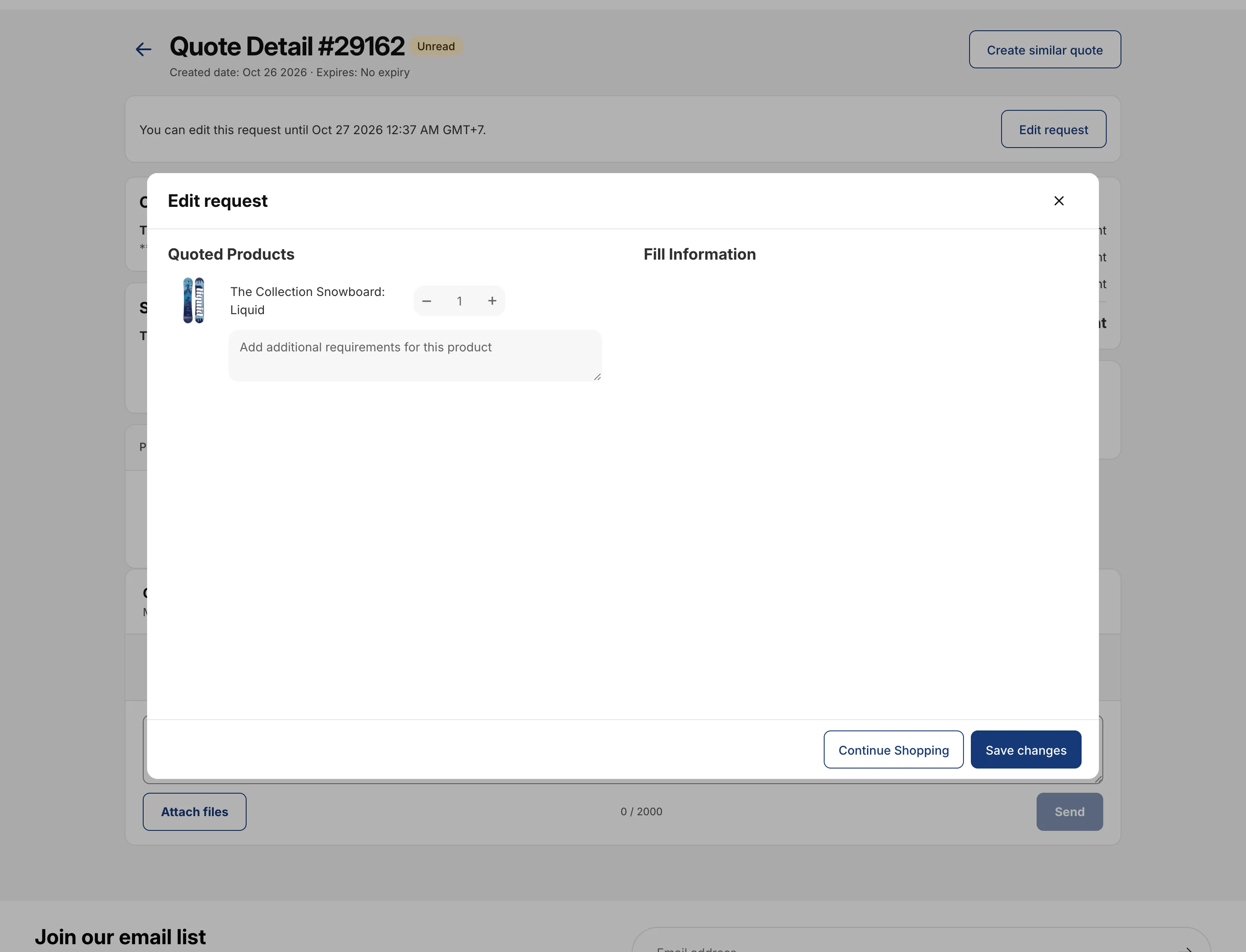
Clicking Edit request opens the Edit request window. When the buyer clicks Save changes, the quote is updated and the buyer sees Your changes were saved.
What the buyer can change
Section titled “What the buyer can change”- The quantity of each product.
- Removing a product line. At least one line must stay on the request.
- The note under each product and the note for the whole request.
- The values of the custom fields of your quote form.
What the buyer cannot change
Section titled “What the buyer cannot change”- The default form fields: email, name and address. If one of these is wrong, the buyer sends you a message in the quote Conversation.
- Prices, shipping and taxes. These are set by you in the proposal.
- Adding new products or uploading new files to the request.
3. When editing is locked
Section titled “3. When editing is locked”A request is locked when any of these happens:
| Moment | What the buyer sees |
|---|---|
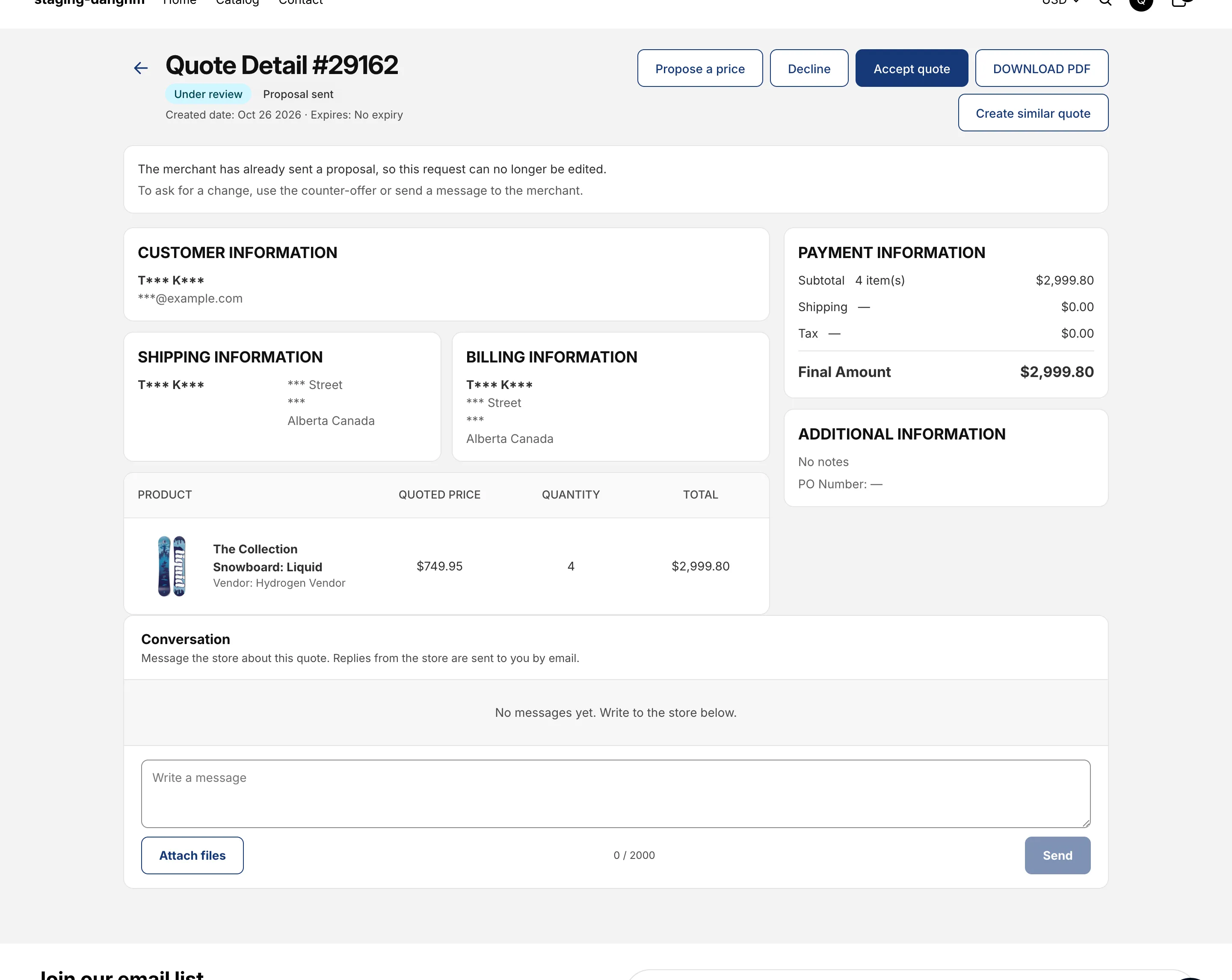
| You send a proposal | The lock is immediate, even if hours are left in the window: “The merchant has already sent a proposal, so this request can no longer be edited.” |
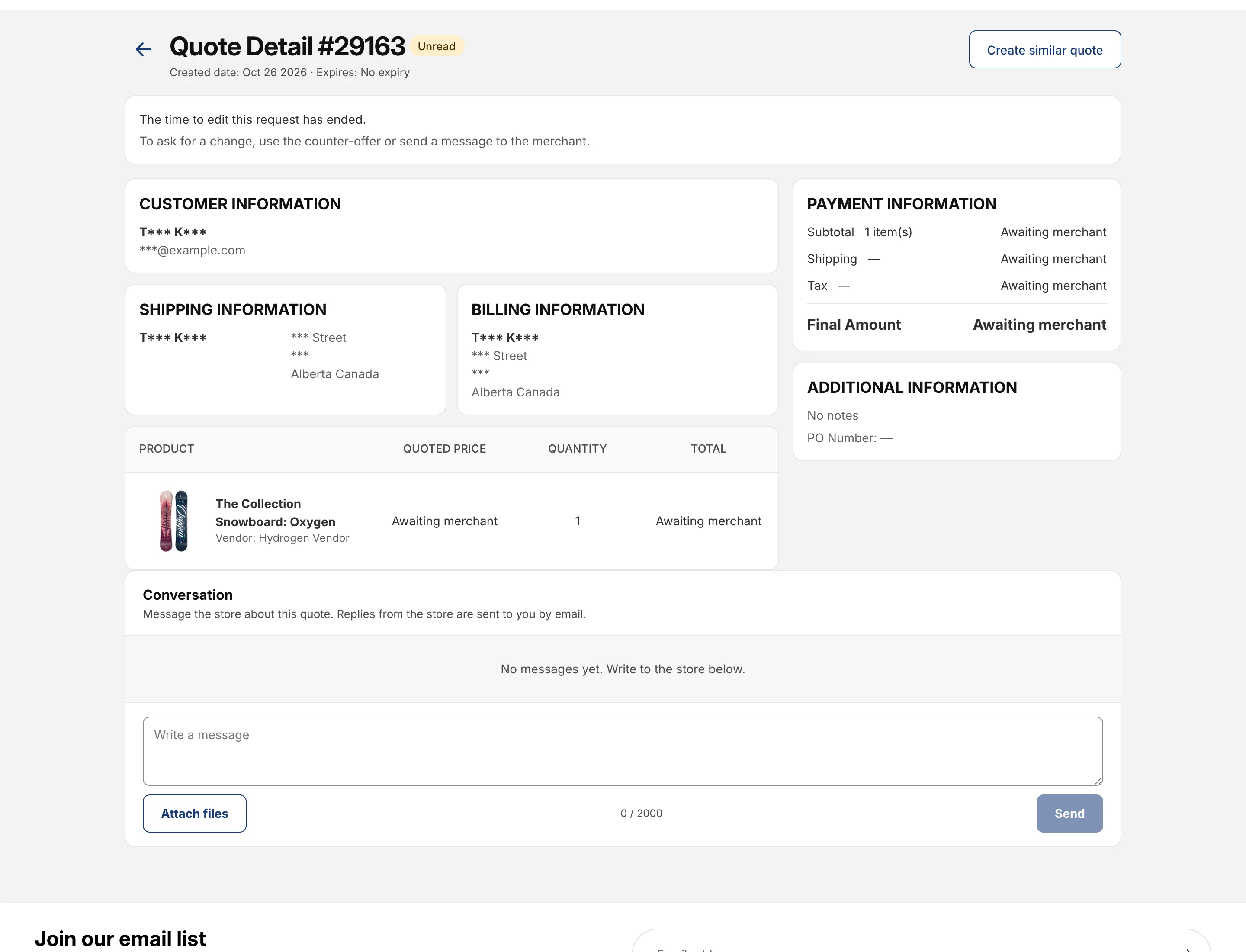
| The window ends | “The time to edit this request has ended.” |
| The quote is Accepted, Converted or Rejected | Only quotes that are Unread or Under review can be edited. The Edit request button is not shown on the other quotes. |
| A draft order exists for the quote | “This request can no longer be edited.” |
| You turn the setting off | Editing closes for the quotes that were still open. |
When the buyer sees a lock message, the next step is shown below it: “To ask for a change, use the counter-offer or send a message to the merchant.” See Counter-offers and Quote statuses and lifecycle.
If the quote changed while the buyer was editing (for example you sent a proposal a moment before), the buyer sees The request has changed or Editing is closed and the latest version is loaded. Nothing the buyer typed is saved in that case.
4. What you see as a merchant
Section titled “4. What you see as a merchant”When a buyer saves changes, the quote in your admin shows it in three places.
- Activity timeline: a Buyer edited the quote entry lists what changed, such as quantity changes and notes. These entries are only visible to your team, never to the buyer. See Activity.
- Edited by buyer badge next to the quote.
- Banner on the quote detail page: “The buyer changed this quote after submitting it. Open the Activity timeline to see what changed.”
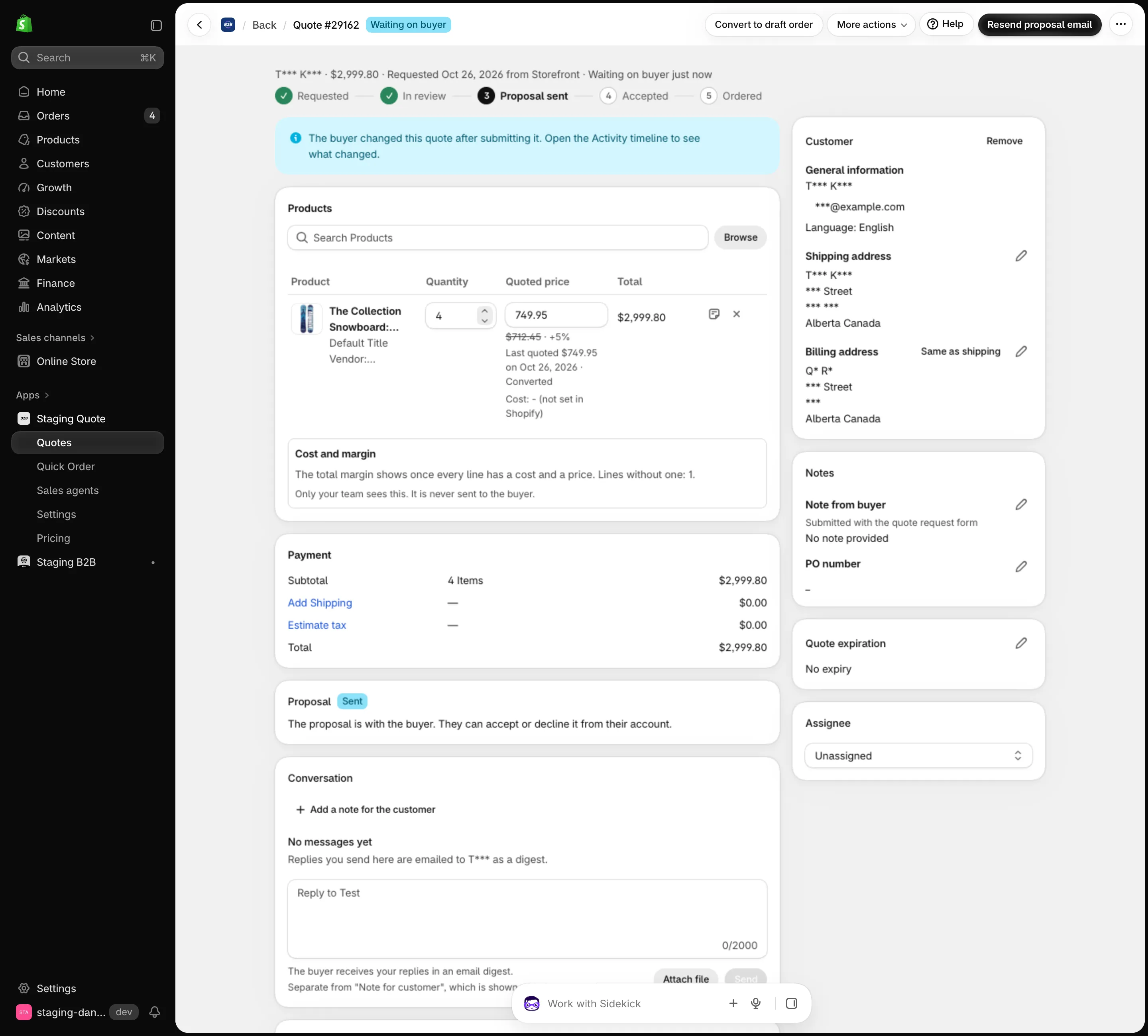
You also get an email, Your customer edited quote #
To avoid a flood of emails, edits are grouped: the first edit starts a 10-minute window, and all edits in that window are sent as one email. See Quote Emails and Reminders.
5. Tips
Section titled “5. Tips”- Pick a window that fits how fast you answer. Short windows (for example 24 hours) cover typos, and long ones suit buyers who check with colleagues.
- Tell buyers in your quote confirmation message that they can edit the request, and until when.
- After a proposal is sent, buyers use counter-offers or the quote Conversation to ask for changes.