
Create an Order in Backend with Discounts (Manual Orders)
Create wholesale draft orders on behalf of customers with all B2B pricing rules automatically applied.
Create, edit and place orders for your B2B customers from the admin, with all wholesale pricing, discounts, taxes, shipping and extra fees applied correctly. The Manual Orders workflow is built for sales reps, support staff, and anyone who needs to place custom or phone orders on behalf of customers.
Use this guide to: set up draft orders, apply the right wholesale rules, adjust prices in Shopify’s draft order editor when necessary, and finalize orders without losing pricing accuracy or auditability.
What this tool does (at a glance)
Section titled “What this tool does (at a glance)”- Create a draft order for any existing or new customer.
- Automatically apply Price List, Custom Pricing, Volume Pricing, Shipping Rate, Discount Code, Net Terms payment terms and tax-exempt status based on the selected customer and products.
- Extra Fee, Buy One Get One, Order Limit and Quantity Increment are not applied: they work on the storefront cart, and a manual order has no cart. Add those lines yourself if the order needs them.
- Support discount codes on draft orders (according to your rules).
- Finalize the draft into a real Shopify order (invoices, notifications and order history behave like a normal order).
Before you start
Section titled “Before you start”- Make sure your user role in Shopify has permission to create and edit draft orders.
- Confirm the B2B modules you rely on are enabled (Custom Pricing, Price List, Volume Pricing, Tax Exempt, Shipping Rate, Extra Fee).
- Test pricing rules first on a sandbox account or by creating draft orders for an internal test customer: this prevents surprises for real clients.
Step-by-step: Create a manual order with correct discounts
Section titled “Step-by-step: Create a manual order with correct discounts”1) Start a new draft order
Section titled “1) Start a new draft order”- In the app, go to B2B orders & discounts > Manual Orders.
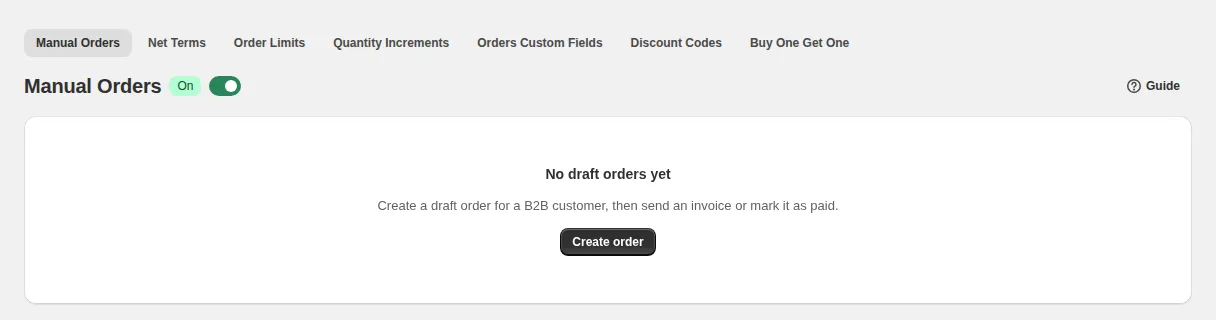
- Click Create order to open the order builder. The list shows your draft orders with their status (Open or Completed); Sync Order Data refreshes totals and statuses from Shopify.
2) Select or create the customer
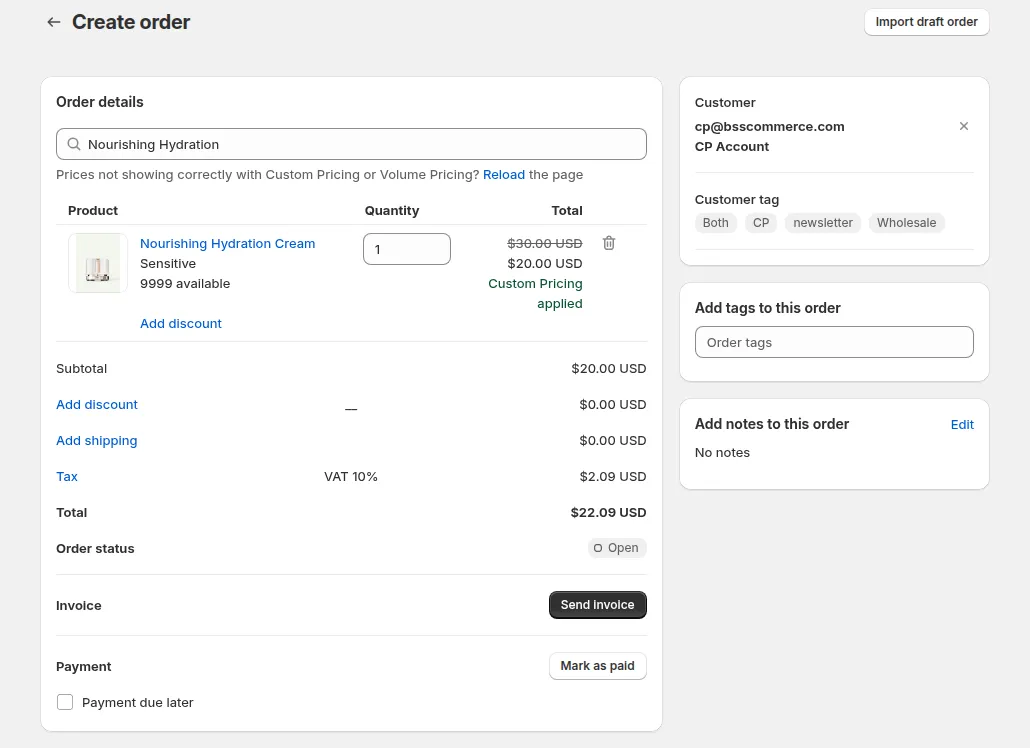
Section titled “2) Select or create the customer”- Choose an existing customer from your store or create a new customer record.
- The system will detect the customer’s tags and status (tax-exempt, wholesale tag, etc.) and apply the matching pricing rules automatically.
- Tip: If you want a special price that applies only to a group, ensure the customer has the correct tag (e.g.,
wholesale,VIP).
3) Add products / variants to the draft
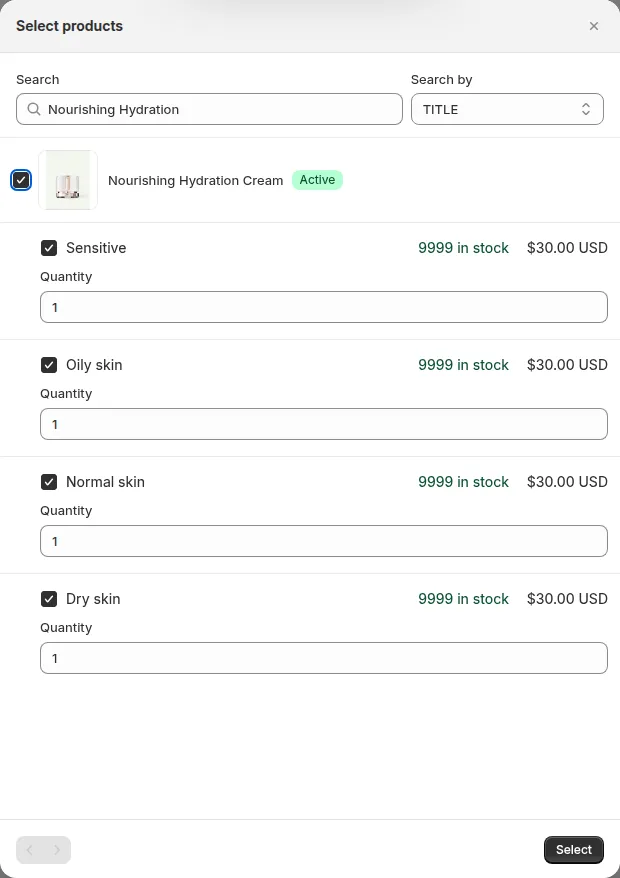
Section titled “3) Add products / variants to the draft”- Search and add the products/variants the customer orders.
- Quantities: enter the number of units for each item. If you add quantities that match your Volume Pricing thresholds, the discounted pricing will recalc instantly.
- The line item price shown is the price that applies given the active rules for that customer.
4) How pricing rules are evaluated (priority & behavior)
Section titled “4) How pricing rules are evaluated (priority & behavior)”The app calculates each line in this order, the same way as on your storefront:
- Price List: if a Price List rule matches the customer and product or variant, its price is used and Custom Pricing is skipped for that line.
- Custom Pricing: otherwise, the matching Custom Pricing rule sets the line price.
- Volume Pricing: tier discounts (by quantity or value) are then applied on top of that price.
The result is sent to Shopify as a discount on each line, so the draft order shows the original price and the B2B discount. If the price does not update after you change the customer or quantities, click Reload above the product list.
5) Apply discount codes or extra discounts
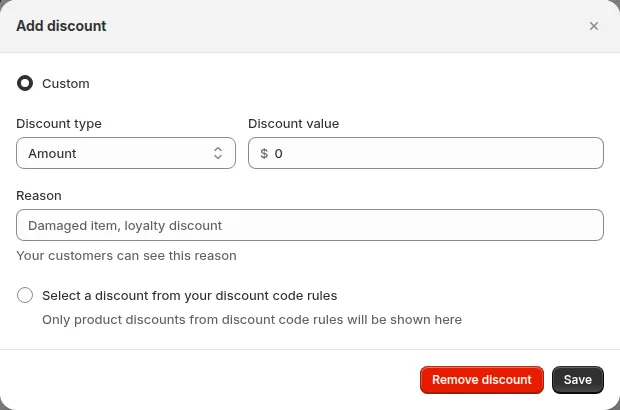
Section titled “5) Apply discount codes or extra discounts”- In the discount popover, choose a Discount Code rule (one of your B2B discount codes, checked against the products in the order) or a Custom Discount (percentage or amount).
- If you need a one-off negotiated price that your pricing rules don’t cover, save the draft order first, then open it from the View link and edit the line price directly in Shopify’s native draft order editor. Important: do not reopen and re-save this order from the Manual Orders screen afterwards: doing so recalculates every line from your active pricing rules and will silently overwrite the price you just edited in Shopify.
6) Confirm taxes, tax-exempt status and extra fees
Section titled “6) Confirm taxes, tax-exempt status and extra fees”- Tax: the draft order will calculate taxes normally. If the customer is tax-exempt AND has a validated VAT/EIN/ABN/etc., tax will be removed as configured (or the tax portion will be applied as a discount if your store uses tax-inclusive pricing).
- Extra Fee: Extra Fee rules are not applied to manual orders.
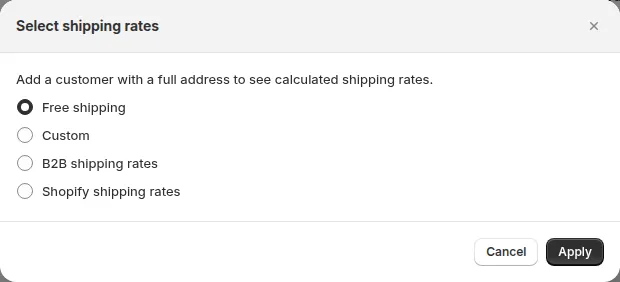
- Shipping: click Add shipping and choose Free shipping, Custom (your own rate name and value), B2B shipping rates (calculated from your Shipping Rate rules, using the lowest or highest rate as in your Shipping Rate settings) or Shopify shipping rates (needs a customer with a full address).
- Add taxes
7) Add notes, attachments or custom fields (optional)
Section titled “7) Add notes, attachments or custom fields (optional)”-
Add PO numbers, internal notes, or custom order fields so sales or fulfillment teams have context.
-
If your app is configured to record additional fields on draft orders (like delivery instructions), fill them in here.
-
Additional note for the order
-
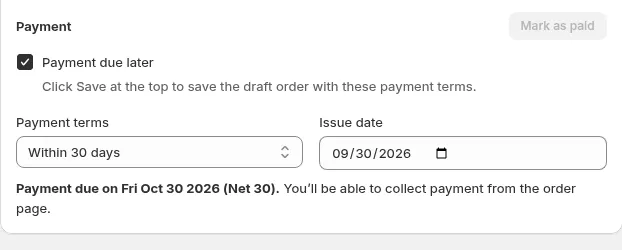
Payment terms: tick Payment due later, then choose the Payment terms: Due on receipt, Within 7 / 15 / 30 / 45 / 60 / 90 days, Custom days (1 to 366 days from the issue date) or Fixed date. Set the Issue date; the Due date is calculated for you.
- With Payment due later ticked, Send invoice and Mark as paid are turned off: the customer pays later against the payment terms.
8) Preview & validate the draft
Section titled “8) Preview & validate the draft”- Check the totals (subtotal, discounts, shipping, taxes, final total) and use Preview invoice to see what the customer will receive.
- Confirm the invoice, customer email, and any custom message you want the customer to receive.
- For completed orders, you can download a professional invoice via the Sufio: Professional Invoices integration: see Manual Order > Order History > Download Invoice for details. Learn how to set up the Sufio integration →
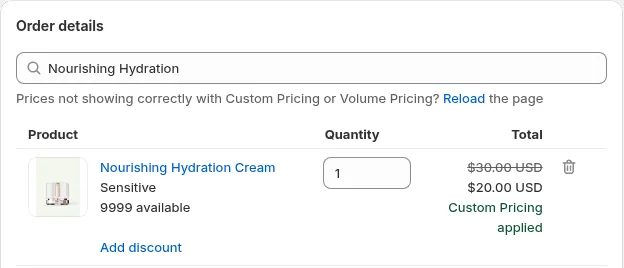
Since this product and this customer are eligible for a discounted price, the new price is displayed here:
9) Finalize the order
Section titled “9) Finalize the order”- Click Create order to save the draft order in Shopify. Then either Send invoice (with an optional custom message) so the customer pays online, or Mark as paid to turn the draft into a paid Shopify order.
- The order will appear in Shopify orders like any other, with the wholesale pricing and discounts recorded. Invoices and notifications will follow your store’s normal settings.
Examples
Section titled “Examples”Example 1: Price List and Volume Pricing together
Section titled “Example 1: Price List and Volume Pricing together”- Customer A has a Price List with Product X at $7 each, and a Volume Pricing rule gives 10% off from 20 units.
- For 25 units, the Price List sets $7, then Volume Pricing takes 10% off: the line shows $6.30 each.
Example 2, Volume Pricing applied on draft
Section titled “Example 2, Volume Pricing applied on draft”- Customer B orders 25 units of Product Y.
- Volume Pricing tier for 20 to 49 units gives 15% off. The draft recalculates automatically and shows the discounted line price and new totals.
Example 3: Tax-exempt customer
Section titled “Example 3: Tax-exempt customer”- Customer C is validated as tax-exempt. When added to the draft, tax is removed and, if required by your settings, the tax portion is shown as a discount on tax-inclusive pricing.
Import Draft Orders from Shopify Admin
Section titled “Import Draft Orders from Shopify Admin”Save time creating repeat manual orders by importing existing draft orders:
- On the Create order page, click Import draft order at the top right.
- Select from the available import modes:
- Import to create: Select an existing draft order to pre-populate all customer information, addresses, and line items into a brand-new order, instantly applying your current B2B pricing rules.
- Import to edit: Open an existing draft order to edit it; saving recalculates the lines from your current B2B pricing rules.