
Editing Orders from the Backend
Modify existing draft orders directly from the app: adjust quantities, update customer details, change pricing, or apply discounts before converting to a live order.
Managing and updating draft orders directly from your Shopify Admin is straightforward. Whether you need to adjust product details, update customer information, or modify pricing, the process is designed for efficiency.
Two Methods to Edit Orders
Section titled “Two Methods to Edit Orders”Method 1: Import to Edit
- Navigate to Manual Orders within BSS B2B Solution and click Create order.
- Click on the Import draft order button located at the top right corner.
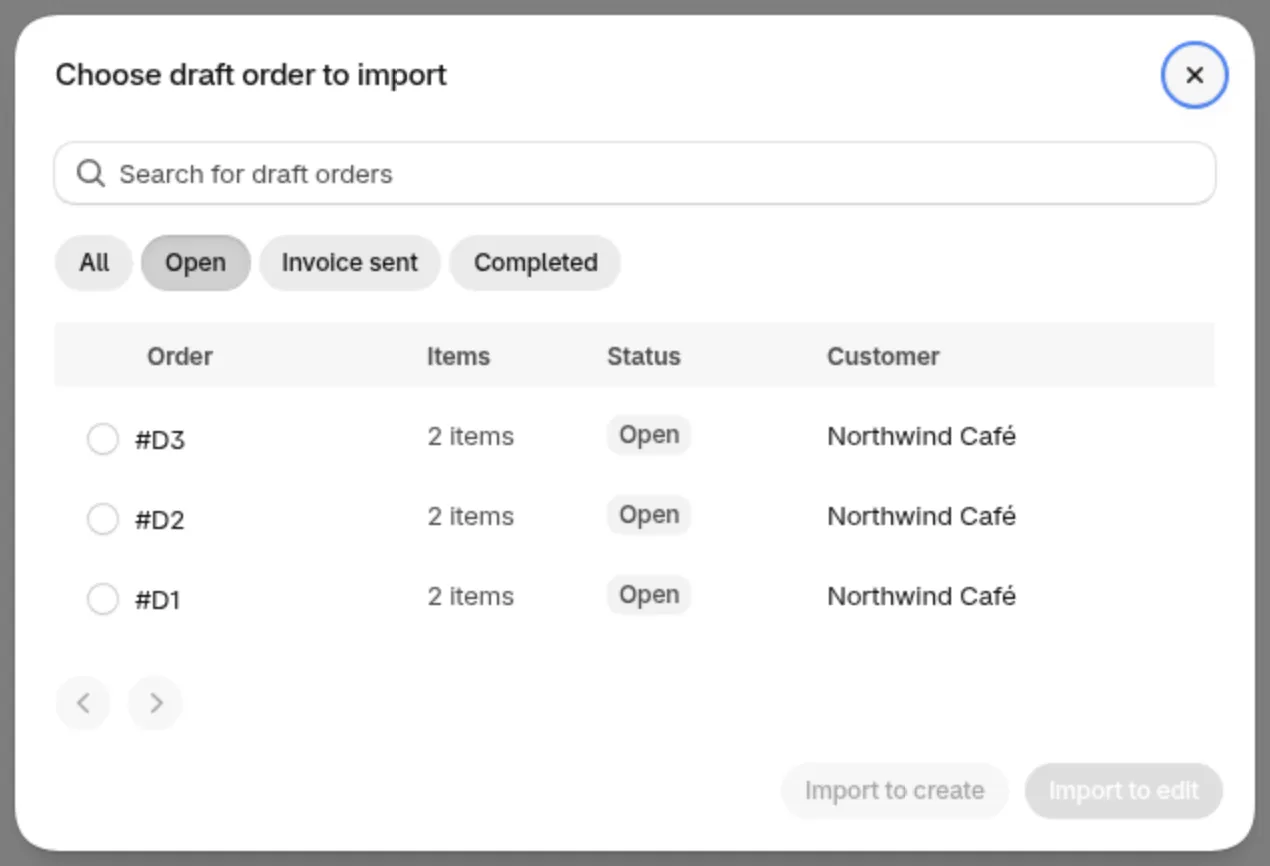
- A pop-up window will appear; select the draft order you wish to edit.
- Choose Import to edit. This action will open the selected draft order, allowing you to make necessary modifications.
Method 2: Edit from the Order list
- On the Manual Orders page, find the Order list.
- Locate the draft order you wish to edit.
- Click on the pen icon in the Action column of the order. This will open the draft order editor, where you can update product quantities, customer details, discounts, shipping information, and more.

Editing Order Details
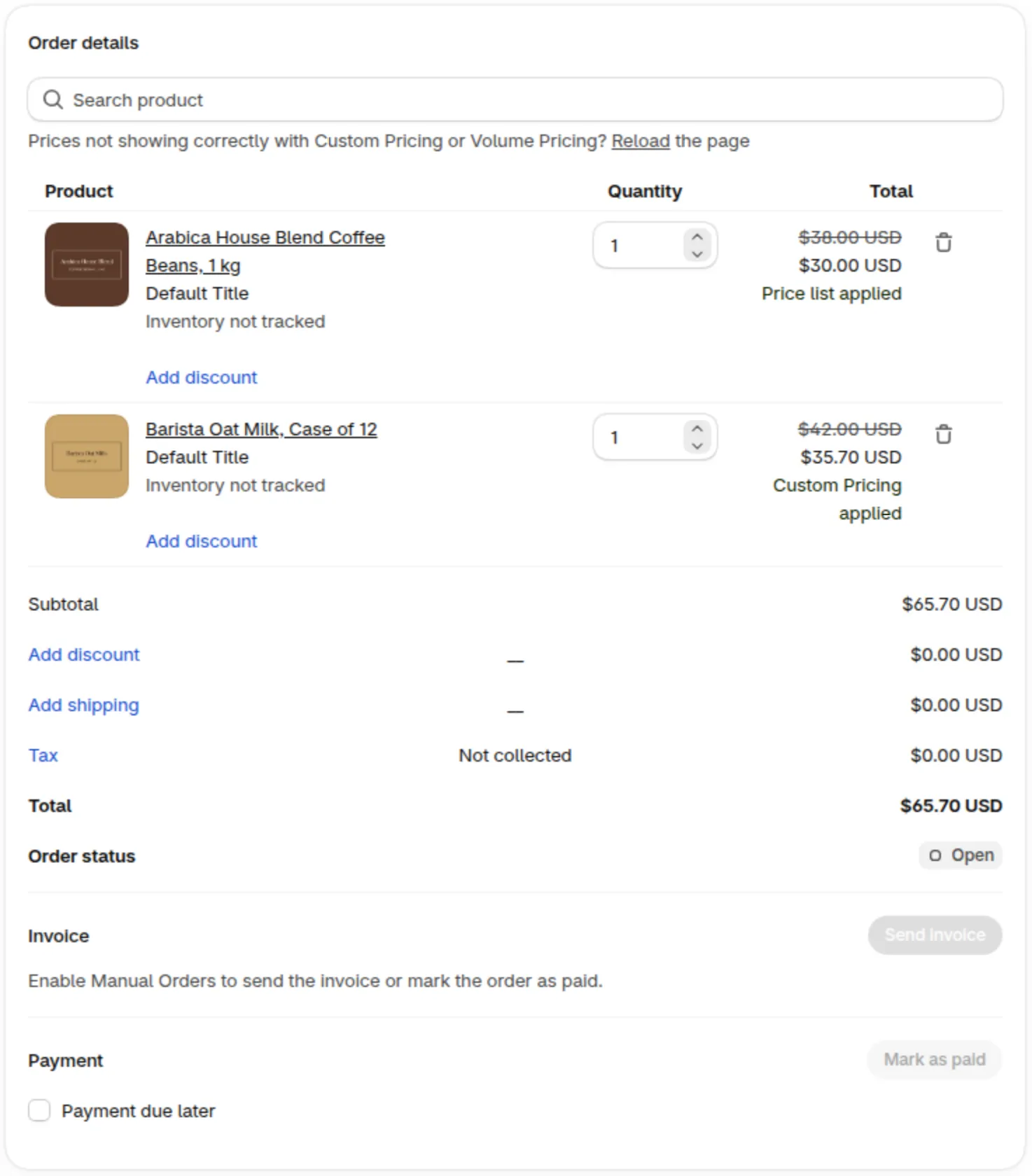
Section titled “Editing Order Details”Once you’ve accessed the draft order editor, you can:
- Modify Product Quantities: Adjust the number of items as needed.
- Update Customer Information: Change billing or shipping addresses, contact details, etc.
- Apply or Remove Discounts: Add new discount codes or remove existing ones.
- Adjust Shipping Methods: Change the shipping carrier or method if necessary.
- Review Pricing: Ensure that all pricing aligns with your wholesale agreements and pricing rules.
Finalizing Changes
Section titled “Finalizing Changes”After making the desired edits:
- Review all changes to ensure accuracy.
- Once satisfied, click Save to update the draft order.
- If the order is ready for processing, you can proceed to Send invoice or Mark as paid to convert it into a live Shopify order. Both buttons stay greyed out until the Manual Orders module is turned on, with the hint “Enable Manual Orders to send the invoice or mark the order as paid.”