
How Rule Priority Works
When a customer matches more than one rule, BSS B2B Solution does not merge them. It picks a winner inside each module, then passes the result on to the next module. This page explains both steps so you can predict the price a customer will see.
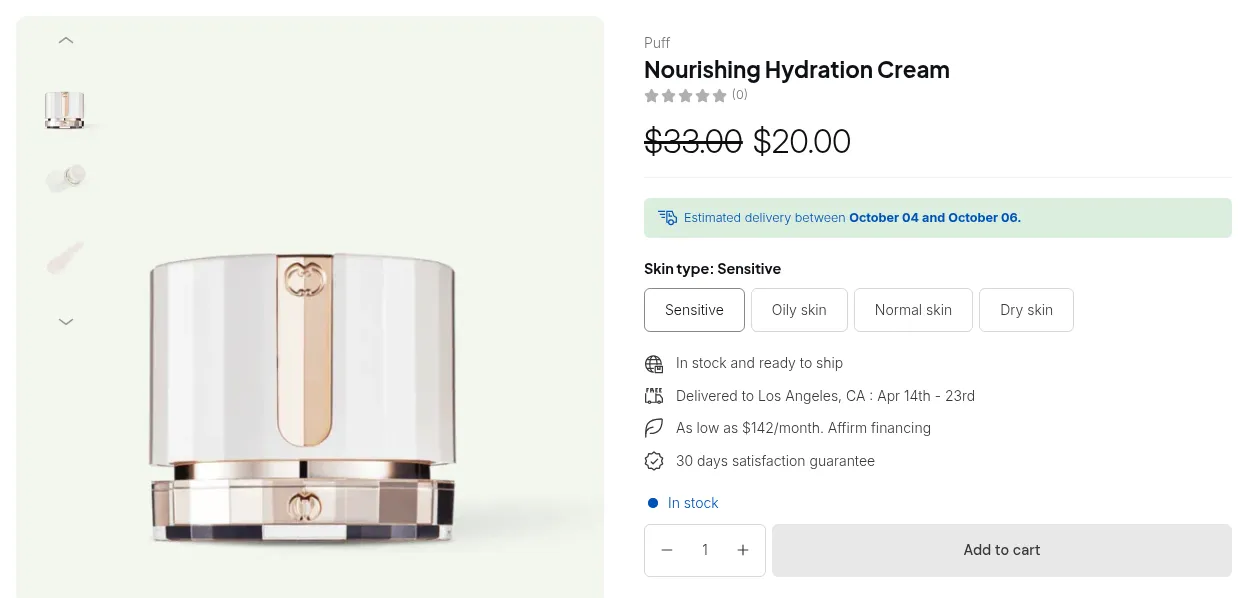
What your customers see on the storefront.
The Priority field
Section titled “The Priority field”Most rule editors have a Priority (0-99) field in the General Information section.
- The lower number wins. A rule with priority
0beats a rule with priority5. - Ties go to the older rule. The editor says it directly: “If multiple rules have the same priority, the earliest created rule takes precedence.”
- Values are limited to whole numbers from 0 to 99. New rules start at
0.
Only enabled rules take part. A rule set to Disable is ignored, even if its priority is 0.
Which rule wins inside each module
Section titled “Which rule wins inside each module”Priority is compared only between rules of the same module. A Custom Pricing rule with priority 0 does not beat a Volume Pricing rule with priority 5; those two combine as described in the next section.
| Module | Has a Priority field? | What happens when several rules match |
|---|---|---|
| Custom Pricing | Yes | The matching rule with the lowest priority number sets the price. The other matching rules are ignored. |
| Price List | Yes | Same as Custom Pricing: one rule per product or variant. |
| Volume Pricing | Yes | The rule with the lowest priority number applies. Under Volume Pricing > Settings, Apply multiple rules to product pages/featured products set to Yes shows every matching table on the product page. |
| Extra Fee | Yes | The first matching rule by priority applies. |
| Order Limits | Yes | Rules with the lowest priority number are kept. If several of those set the same limit type, the strictest one counts: the highest minimum or the lowest maximum. |
| Quantity Increments | Yes | The matching rule with the lowest priority number applies. |
| Net Terms | Yes | The first rule by priority whose products cover every item in the cart is used. |
| Shipping Rate | No | All matching rates are compared. Shipping Rate > Settings > Choose which shipping rate to apply decides: The lowest rate (default) or The highest rate. |
| Discount Codes | No | The shopper enters one specific code, so there is nothing to rank. |
| Auto Tags | No | Every rule whose conditions are met runs its actions. |
How pricing modules combine
Section titled “How pricing modules combine”Different pricing modules stack in a fixed order. Each step starts from the price the previous step produced.
- Price List or Custom Pricing sets the B2B base price. If a Price List rule applies to a product or variant, Custom Pricing is skipped for it. The two never apply to the same item.
- Volume Pricing applies its tier discount to that base price, not to the original price.
- Extra Fee is added afterwards as a separate fee and does not change the product price. If a percentage fee should ignore B2B discounts, choose the fee type Percentage of the original price.
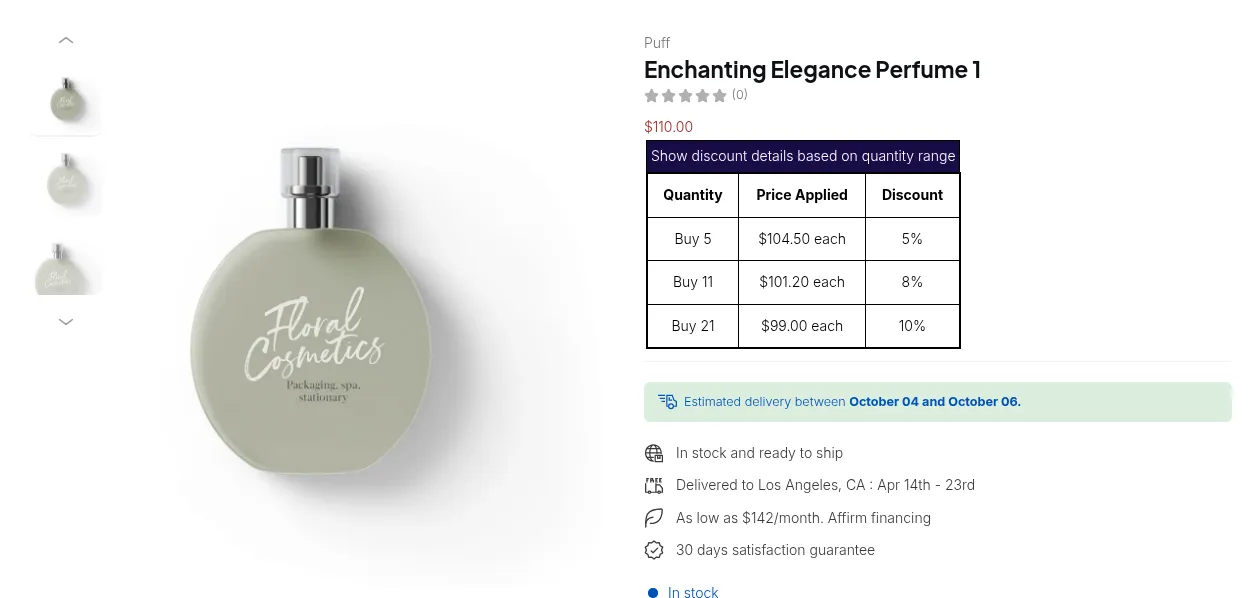
Worked example
Section titled “Worked example”A product costs $100.
- Price List rule: “Apply a decreasing price” of $80 for customers tagged
gold. - Custom Pricing rule: “Decrease in percentage” 10% for customers tagged
wholesale. - Volume Pricing rule: 5% off from 10 units.
A customer tagged both gold and wholesale buys 10 units:
- Price List applies ($80). Custom Pricing is skipped for this product.
- Volume Pricing takes 5% off $80, giving $76 per unit.
If the same customer buys a product that is not on the price list, Custom Pricing applies instead ($90), and Volume Pricing makes it $85.50.
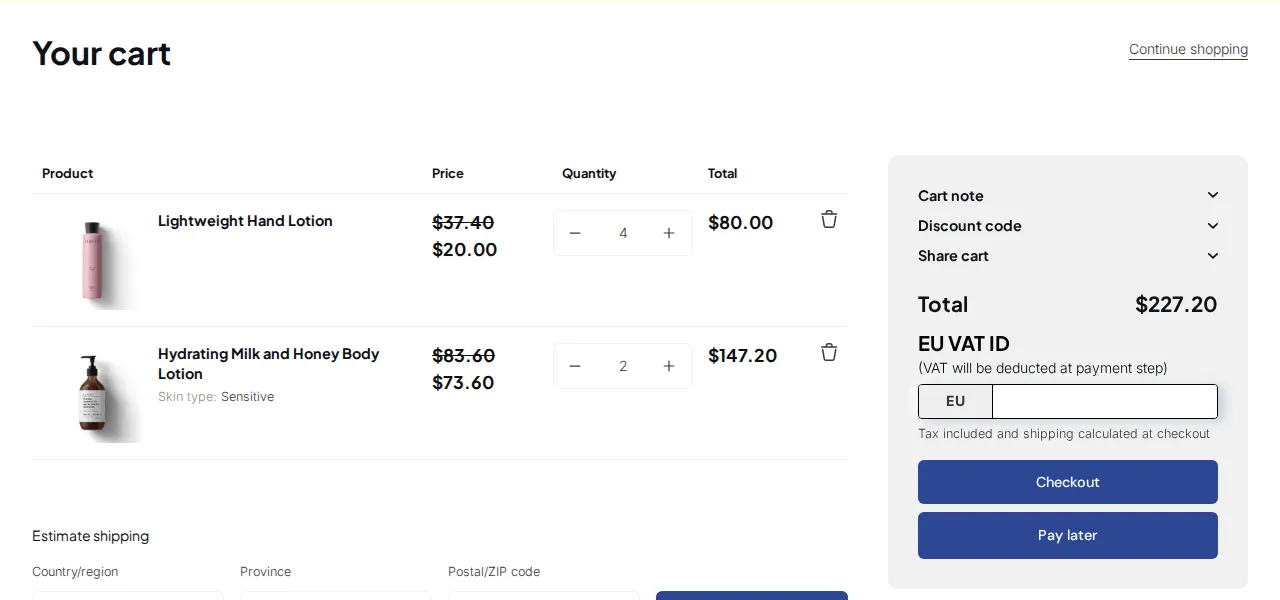
Checklist when the wrong rule applies
Section titled “Checklist when the wrong rule applies”- Check that the rule you expect is enabled and inside its Start/End date.
- Compare the priority numbers of the matching rules in that module. Remember that lower wins.
- If two rules share a priority, the one created first wins. Change a number to make the order explicit.
- If you expected Custom Pricing, check whether a Price List rule covers the same product for this customer.
- For Order Limits, remember that only the rules with the lowest priority number are checked.
Related pages: How customer targeting works, How Custom Pricing and Volume Pricing work together.