
Settings for Shipping Rate
Configure global behavior for how shipping rates are selected and calculated when multiple rules or mixed carts are involved.
Open Shipping Rate > Settings.
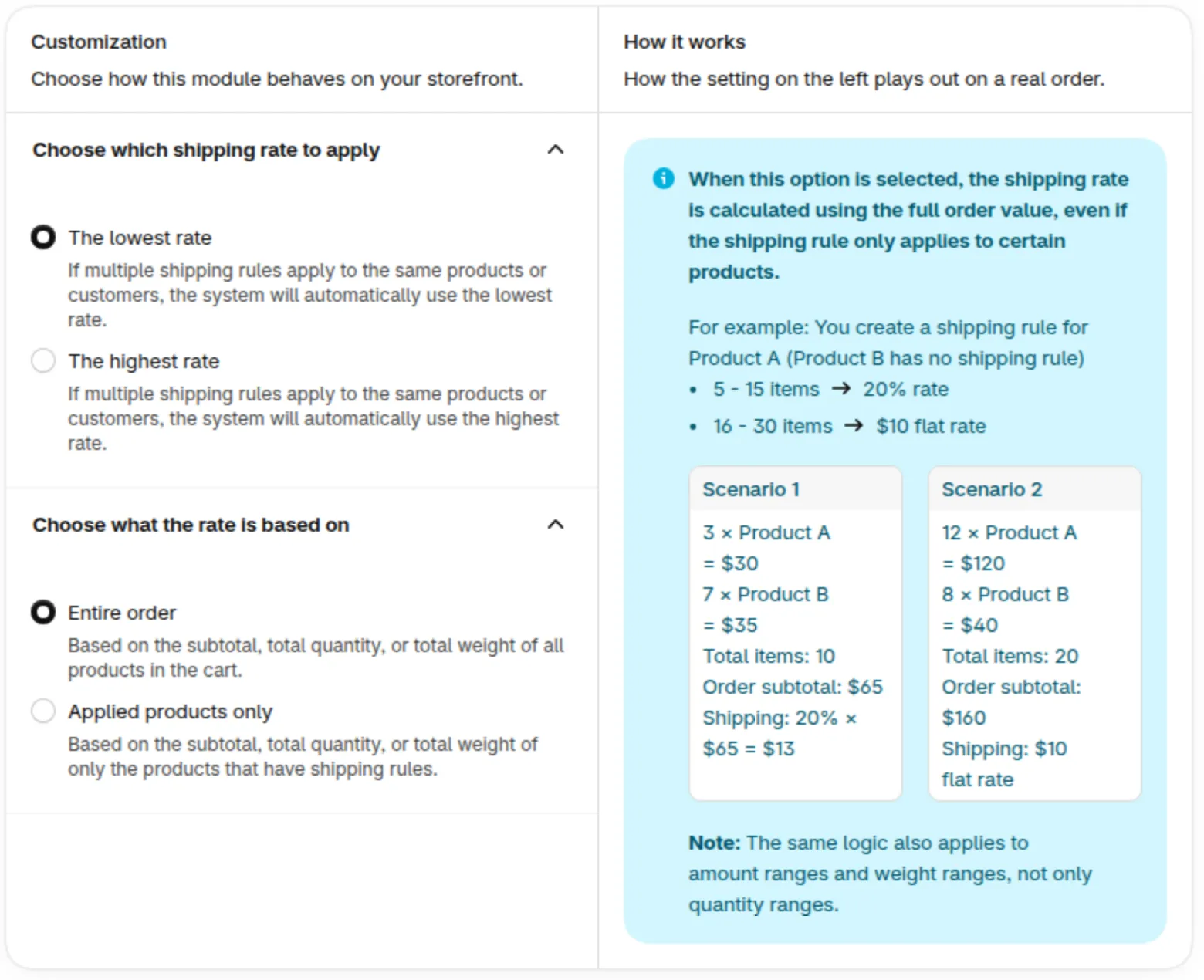
The two settings on the left and the How it works panel on the right.
Choose which shipping rate to apply
Section titled “Choose which shipping rate to apply”When multiple shipping rules apply to the same products or customers, choose which rate takes effect (default: The lowest rate):
| Option | Behavior |
|---|---|
| The lowest rate | The system automatically uses the lowest applicable shipping rate |
| The highest rate | The system uses the highest applicable shipping rate |
Choose what the rate is based on
Section titled “Choose what the rate is based on”Choose how the shipping fee is calculated when a rule only applies to certain products in the cart (default: Entire order):
Entire Order
Section titled “Entire Order”The shipping rate is calculated based on the subtotal, total quantity, or total weight of all products in the cart, including products that are not covered by the shipping rule.
Example: You create a shipping rule for Product A (Product B has no shipping rule).
| Range | Rate |
|---|---|
| 5–15 items | 20% |
| 16–30 items | $10 flat rate |
Scenario 1
- 3 × Product A = $30
- 7 × Product B = $35
- Total items: 10 → falls in 5–15 range
- Order subtotal: $65
- Shipping: 20% × $65 = $13
Scenario 2
- 12 × Product A = $120
- 8 × Product B = $40
- Total items: 20 → falls in 16–30 range
- Order subtotal: $160
- Shipping: $10 flat rate
This logic applies equally to Amount Range and Weight Range, not just Quantity Range.
Applied Products Only
Section titled “Applied Products Only”The shipping rate is calculated based on the subtotal, total quantity, or total weight of only the products that the shipping rule applies to. Other products in the cart are ignored for shipping calculations.
Example: You create a shipping rule for Product A (Product B has no shipping rule).
| Range | Rate |
|---|---|
| 5–15 items | 20% |
| 16–30 items | $10 flat rate |
Scenario 1
- 6 × Product A = $60
- 4 × Product B = $20
- Total items: 10, Applied items: 6 → falls in 5–15 range
- Applied subtotal: $60
- Shipping: 20% × $60 = $12
Scenario 2
- 18 × Product A = $180
- 2 × Product B = $10
- Total items: 20, Applied items: 18 → falls in 16–30 range
- Shipping: $10 flat rate
This logic applies equally to Amount Range and Weight Range, not just Quantity Range.
Shipping fee at checkout
Section titled “Shipping fee at checkout”If the shipping fee sent to checkout is lower than the lowest fee of the rule with the same name, checkout raises it to that lowest fee. The rule name is the name customers see on the shipping line at checkout.