
Add Extra Fees to Customer Orders
Configure automatic fees that apply when customers meet specific order conditions, by quantity or order amount.
Some orders carry additional costs: extra handling, packaging, insurance, special processing, or other overheads. With the Extra Fee module, you can automatically add fees when certain conditions are met, so your business recovers those costs while staying clear with your B2B clients.
The rule page has the cards Rule, Customers, Products, Extra Fee calculation, Rule settings, Exclusions and schedule (optional) and Advanced.
How to Set Up an Extra Fee Rule
Section titled “How to Set Up an Extra Fee Rule”Step 1: Enable Extra Fee & Open the Rule List
Section titled “Step 1: Enable Extra Fee & Open the Rule List”- In the app, go to B2B pricing > Extra Fee.
- Toggle Extra Fee ON.
- Click Add rule.
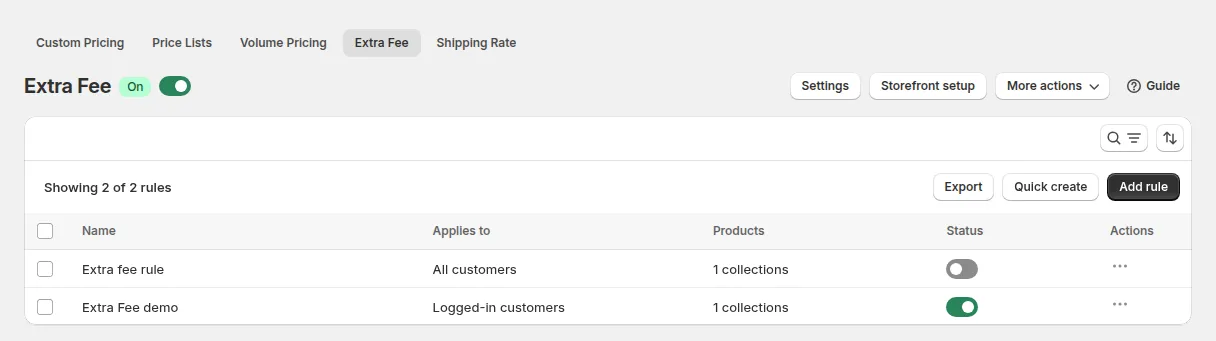
Step 2: Rule
Section titled “Step 2: Rule”- Enter a Name. This name is the title of the fee line at checkout (for example “Handling Fee”), so write it for your buyers.
- Set a Priority in the Advanced card: a lower number is evaluated first when several rules could apply to the same product. Default
0. - Set the rule to Enable or Disable. Only enabled rules take effect. In the rule list, each enabled rule shows a status badge: Active, Scheduled (future start date) or Expired (past end date).
Step 3: Customers and Products
Section titled “Step 3: Customers and Products”Customer conditions
- All (logged-in and not-logged-in customers)
- Logged-in customers
- Not-logged-in customers
- Specific customers
- Customer tags, for example
wholesale,bulk-buyer
Product conditions
- All products
- Specific products
- Product collections
- Product tags
Step 4: Fee Settings
Section titled “Step 4: Fee Settings”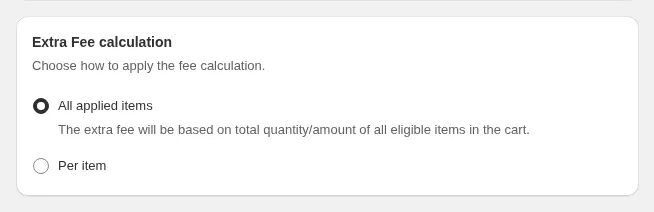
Extra Fee calculation
| Option | How the quantity or amount is measured |
|---|---|
| All applied items | The total quantity or amount of all eligible items in the cart is added up, then matched against the ranges |
| Per item | Each eligible item in the cart is measured on its own and gets its own fee |
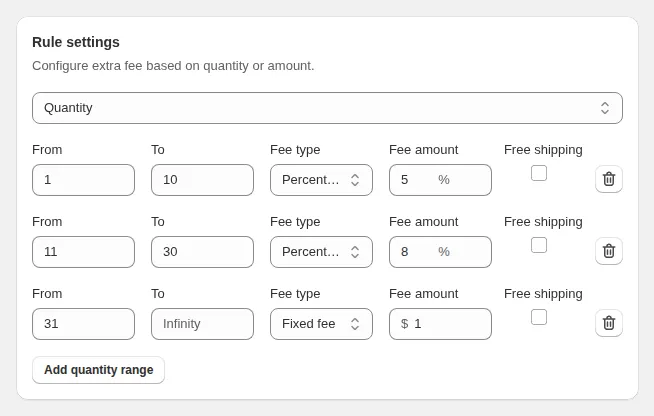
Rule settings: choose Quantity or Price amount for the ranges.
For each row, enter From and To (leave To empty for no upper limit), the Fee type, the Fee amount, and tick Free shipping if orders in this range should ship free. Click Add quantity range or Add amount range for more tiers.
| Fee type | What is charged | Available with |
|---|---|---|
| Fixed fee | One flat amount | Both options |
| Fixed fee per item | The amount multiplied by the quantity | Both options |
| Percentage of applied items’ subtotal | A percentage of the eligible items’ subtotal | All applied items |
| Percentage of the original price | A percentage of each item’s price | Per item |
Example (All applied items, Quantity):
| From | To | Fee type | Fee amount |
|---|---|---|---|
| 1 | 10 | Fixed fee per item | 2 |
| 11 | 50 | Fixed fee | 15 |
| 51 | (empty) | Percentage of applied items’ subtotal | 5 |
A cart with 8 eligible items pays $16; with 30 items, $15; with 60 items, 5% of those items’ subtotal.
Step 5: Exclusions and Schedule (Optional)
Section titled “Step 5: Exclusions and Schedule (Optional)”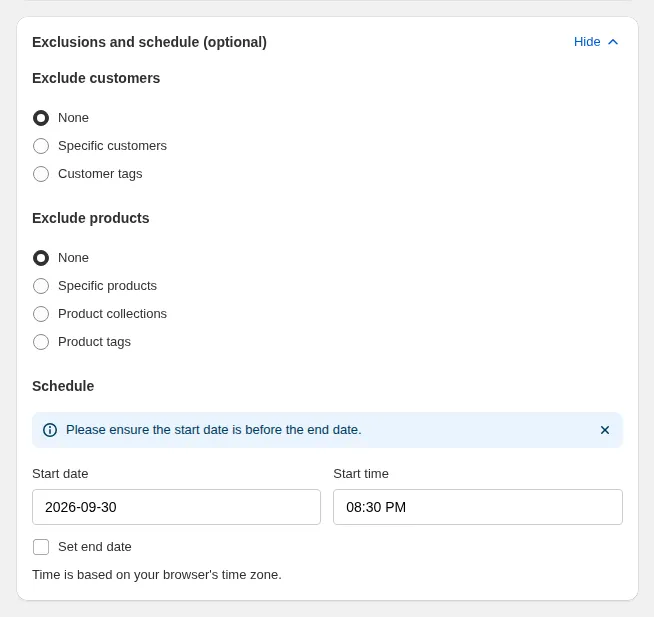
- Exclude customers: None, Specific customers or Customer tags (for example
vip,staff). Excluded customers never pay this fee. - Exclude products: None, Specific products, Product collections or Product tags. Excluded items are left out when the fee is calculated.
- Schedule: set a start date and time, and optionally an end date and time, for limited-time or seasonal fees (for example holiday handling surcharges).
Click Save. The rule is published to your storefront automatically.
Export Rules
Section titled “Export Rules”- On the Extra Fee page, click Export above the rule list.
- Choose the scope: selected rules, the current page, or all records.
- The export runs in the background with a progress indicator; when it finishes, click the download link.
What Customers See
Section titled “What Customers See”- On product pages, the cart and the mini cart, an Extra Fee table shows the ranges and fees (you choose the pages in Settings).
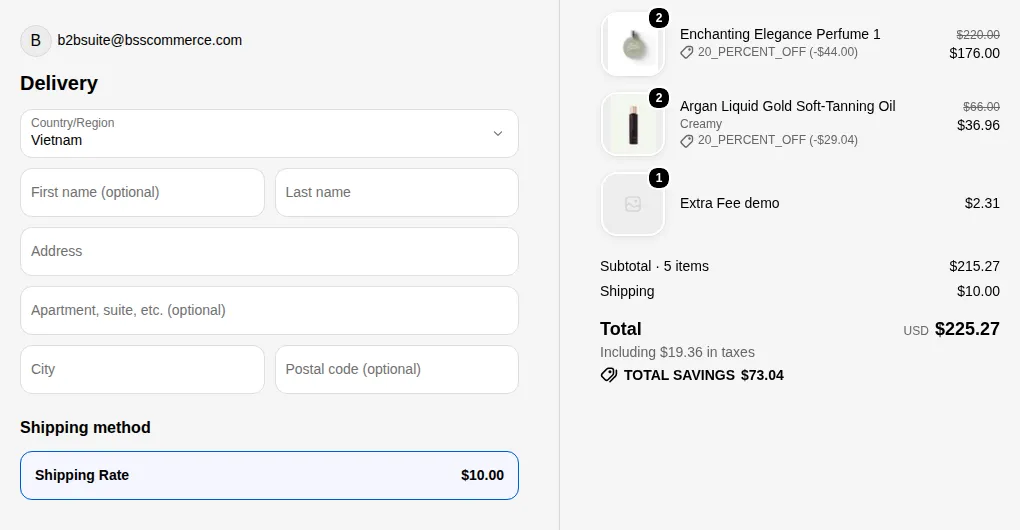
- At checkout, the fee is added as its own line item, titled with the rule name.
- If the order does not reach a range, or the customer or products are excluded, no extra fee is charged.
- The fee is not taxed unless you turn on Automatically apply tax to Extra Fee in Settings.
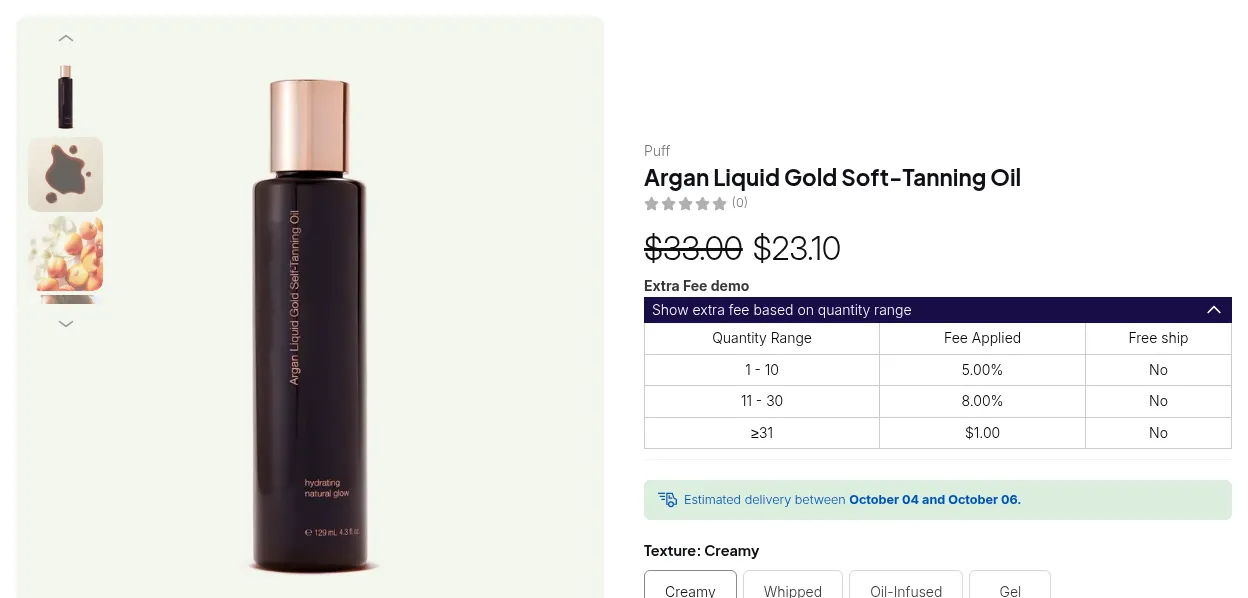
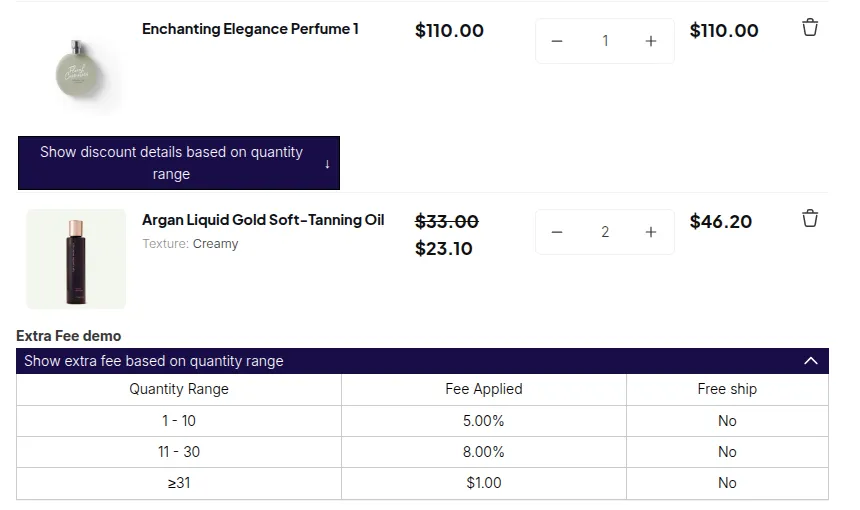
At checkout the fee is a separate line, here Extra Fee demo $2.31:
If the fee does not show at all, check that the B2B Solution app embed is on (Online Store > Themes > Customize > App embeds), the Extra Fee module is toggled on, and the rule is enabled and inside its schedule.