
Why is the tax ID validation box not showing on the cart page?
Short answer: usually no tax ID type is enabled, the box is turned off, or the Tax Exempt block has not been added to your cart page.
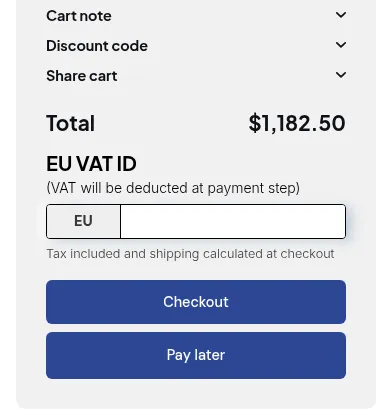
What your customers see on the storefront.
Fix it
Section titled “Fix it”- Go to B2B Tax & Currency > Tax Exempt > Configuration.
- Under Choose tax ID type for validation, tick at least one: EU VAT API, UK VAT API, ABN VAT API, India GST API or US EIN API.
- Turn on Show tax ID validation box on cart page.
- Check Apply to customers. If it targets tags or specific customers, test with a matching customer.
- Click Save.
- Open Tax Exempt > Installation and add the Tax Exempt app block to your cart page, then save the theme.
- Reload the cart page in a private window.
| Check | Where |
|---|---|
| At least one tax ID type enabled | Tax Exempt > Configuration |
| Show tax ID validation box on cart page | Tax Exempt > Configuration |
| Customer matches Apply to customers | Tax Exempt > Configuration |
| Tax Exempt app block on the cart page | Theme editor |
| App embed on | Theme editor > App embeds |