
Settings for Extra Fee
Configure global behavior and display preferences for all Extra Fee rules.
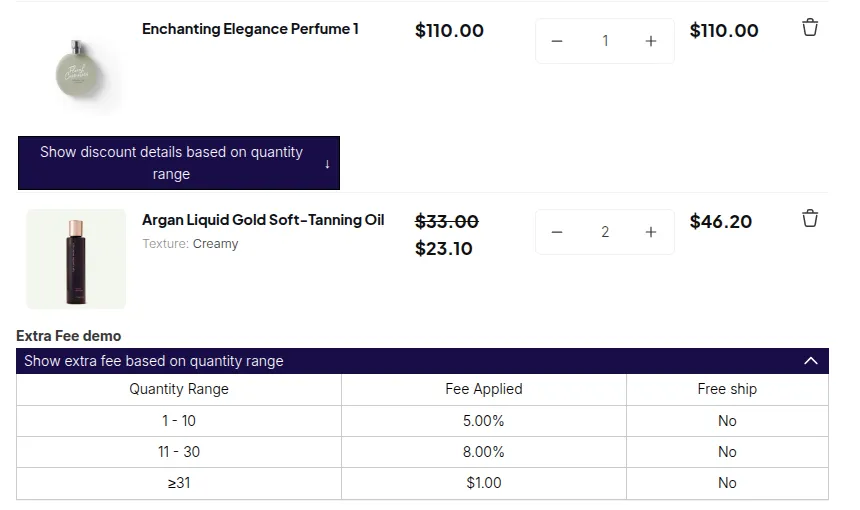
What your customers see on the storefront.
Open Extra Fee > Settings. The page has two tabs: General settings and Translations. Settings apply to every Extra Fee rule.
General Settings
Section titled “General Settings”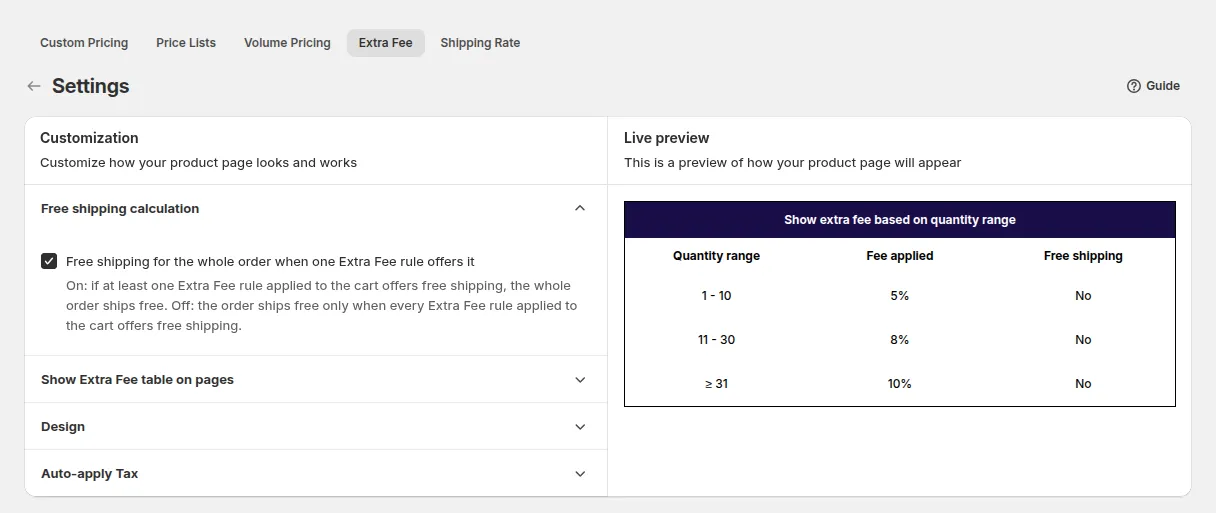
Free shipping calculation
Section titled “Free shipping calculation”Decides how the Free shipping tick on your fee ranges works when a cart has several products:
| Checkbox “One product in the shopping cart match the free shipping condition” | Result |
|---|---|
| Ticked | The order ships free if at least one product is eligible for free shipping |
| Not ticked (default) | The order ships free only if all products in the order meet the Extra Fee and free shipping conditions |
Auto-apply Tax
Section titled “Auto-apply Tax”Automatically apply tax to Extra Fee (off by default). When on, tax is calculated for all Extra Fee line items in your store. When off, fee lines are not taxed.
Show Extra Fee table on pages
Section titled “Show Extra Fee table on pages”Choose where the table of ranges and fees appears: Product Pages, Cart Page and Mini Cart (all on by default).
Design
Section titled “Design”Set the colors of the table: Header background, Header text, In-line background, In-line text, On-hover background and On-hover text. A live preview updates as you change them.
Translations
Section titled “Translations”Translate the text of the Extra Fee table for each published language. The default English texts are:
| Text | Default |
|---|---|
| Table header (quantity) | Show extra fee based on quantity range |
| Range column (quantity) | Quantity range |
| Table header (amount) | Show extra fee based on amount range |
| Range column (amount) | Amount range |
| Fee column | Fee Applied |
The app shows the translation that matches the customer’s storefront language.
- Use descriptive rule names: the name is what customers see on the fee line at checkout.
- Test a new fee with a test customer before enabling it for everyone.