
Tax Exempt for Eligible Customers & Orders
Give your customers fairness and flexibility with tax exemption: they enter a tax ID on the cart page, the app validates it, and tax is removed when they qualify. Tax-exempt customers aren’t overcharged, and your store stays compliant.
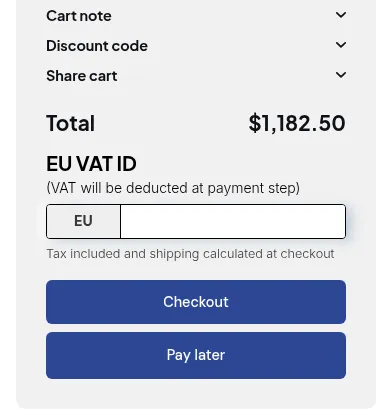
How It Works: Key Features
Section titled “How It Works: Key Features”- A tax ID validation box on the cart page, where eligible customers enter their number.
- Live validation of EU VAT, UK VAT, Australian ABN, India GST and US EIN numbers (US EIN needs the Platinum plan).
- Tax is removed from the order once the ID is valid, and the customer can be marked tax exempt in Shopify for later orders.
- Optionally a discount equal to the tax when your prices include tax.
- Tax-exempt orders can be tagged automatically.
The tax removed depends on whether the customer’s Shopify market shows prices including or excluding tax. Check each market under Markets > [your market] > Duties and taxes in Shopify admin.
Setting Up Tax Exempt
Section titled “Setting Up Tax Exempt”Step 1: Add the Tax Exempt Block to Your Cart
Section titled “Step 1: Add the Tax Exempt Block to Your Cart”The form is a theme app block. In Shopify admin, go to Online Store > Themes > Customize, open the Cart template, add the Tax Exempt block from BSS B2B Solution, and click Save. Without the block, customers never see the form. The block also lets you set the error, success, title and subtitle colors.
Step 2: Enable the Feature & Sync Tax Settings
Section titled “Step 2: Enable the Feature & Sync Tax Settings”Go to B2B tax & currency > Tax Exempt and toggle the module on.
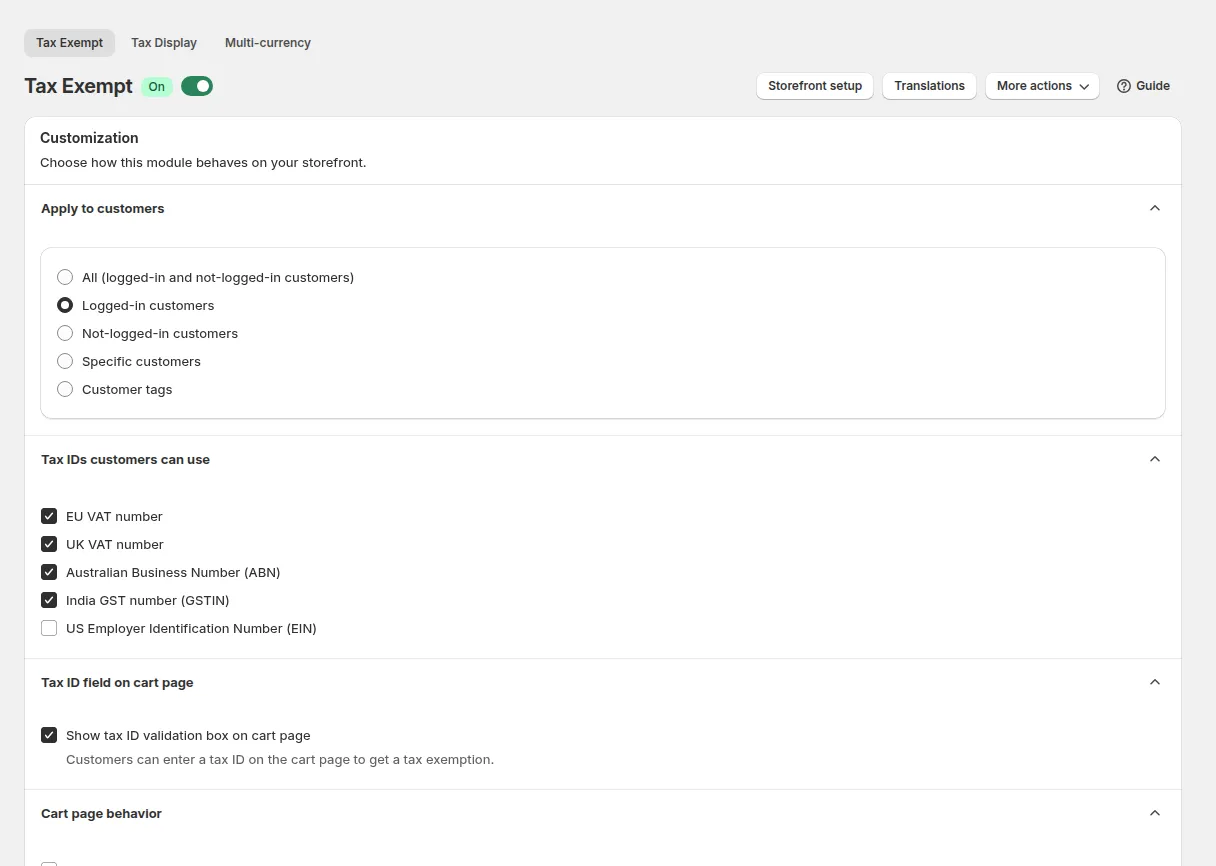
The app reads your Taxes and Duties Setting from Shopify. If you change those settings in Shopify later, click Sync from Shopify in the Advanced card: it cannot detect the change on its own.
Step 3: General Settings
Section titled “Step 3: General Settings”
- Tax Validation Box: tick Show tax ID validation box on cart page. When it is off, the box is not shown and the feature does nothing.
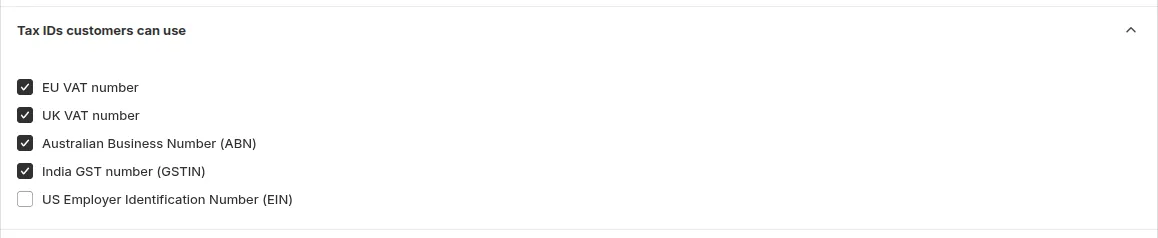
- Choose tax ID type for validation: EU VAT, UK VAT, ABN, India GST and/or US EIN. With more than one type, customers pick the type from a dropdown. A US EIN must be 9 digits; a valid number also returns the registered company name and address.
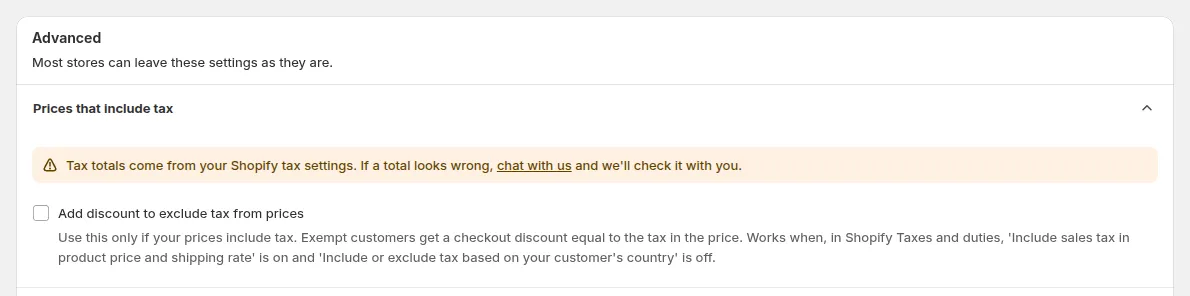
- Decide how tax is charged: Add discount to exclude tax from prices. Use this when your product prices include tax and Shopify’s include or exclude tax based on your customer’s country is not enabled: the app then subtracts the tax as a discount for a valid tax ID.
Step 4: Option for Tax Exempt on Cart Page
Section titled “Step 4: Option for Tax Exempt on Cart Page”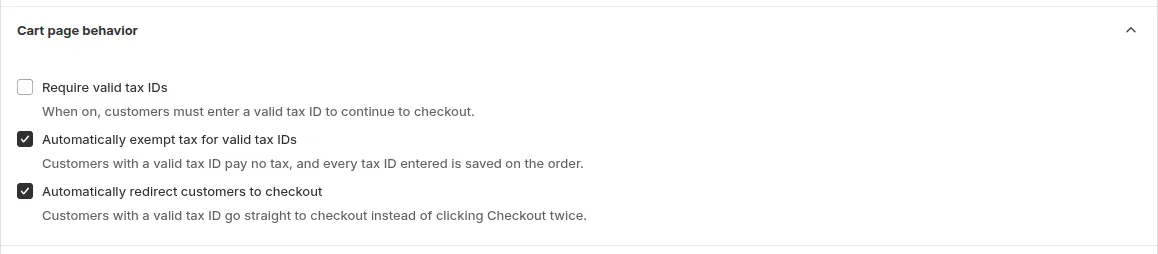
| Option | What it does |
|---|---|
| Require valid tax IDs | Customers cannot continue to checkout until they enter a valid ID |
| Auto exempt tax for valid tax IDs (on by default) | Marks the customer as tax exempt in Shopify, so later orders are exempt too |
| Auto redirect customers to Checkout page | Sends the customer to checkout right after a successful validation |
Step 5: Apply to Customers
Section titled “Step 5: Apply to Customers”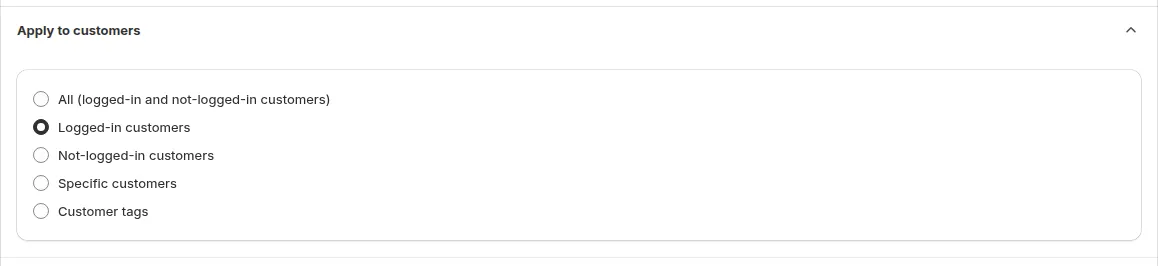
Choose who sees the box: all visitors, logged-in customers, guests only, customers with specific tags, or specific customers.
Step 6: Select EU VAT for Specific Countries (Optional)
Section titled “Step 6: Select EU VAT for Specific Countries (Optional)”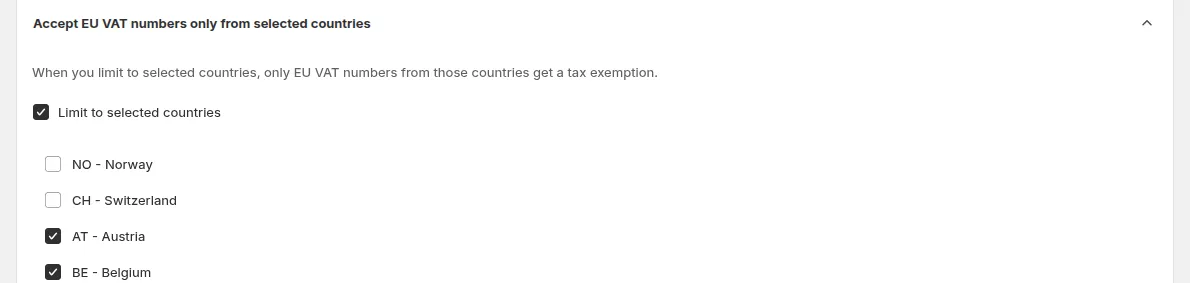
With EU VAT on, enable this to accept VAT IDs only from the countries you select (by default all EU countries plus Norway, Switzerland and Northern Ireland). An ID from another country shows “Your country is not eligible for VAT Exemption in this store” and tax stays.
Step 7: Actions
Section titled “Step 7: Actions”Add tag to tax-exempt orders (the Order tag section), for example tax-exempt, to find these orders easily in Shopify admin.

Click Save. Allow a few seconds before testing on the storefront.
What Customers See
Section titled “What Customers See”On the cart page:
After a valid ID, the box shows “Your VAT ID has been successfully validated.” and tax is removed at checkout.
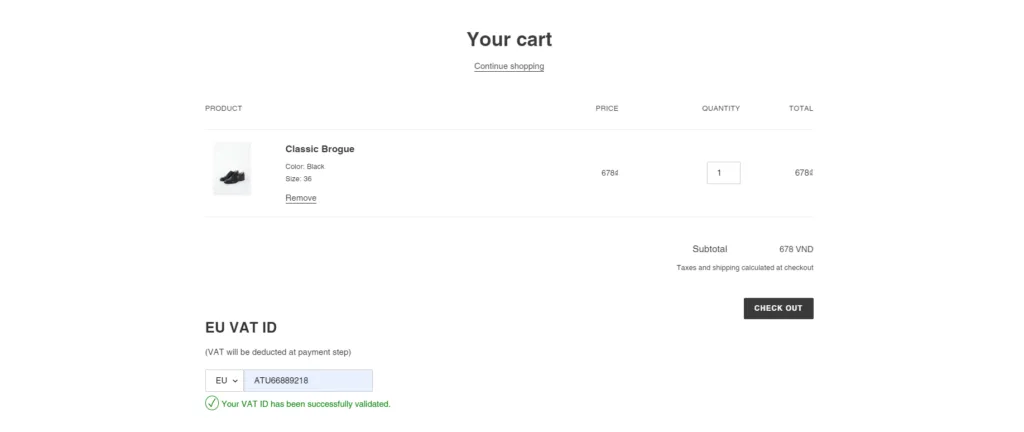
Tax ID Pre-filled from the Registration Form
Section titled “Tax ID Pre-filled from the Registration Form”If a wholesale customer entered a tax ID (EU VAT, UK VAT, ABN, India GST or US EIN) in your registration form and was approved, the ID is saved on their customer profile. When they are logged in, the cart box is pre-filled with it, so they do not retype it on every order. They can still edit it before validating.
Bulk Tax Exempt
Section titled “Bulk Tax Exempt”Bulk tax exempt (Apply tax exempt to past customers) marks existing customers as tax exempt in Shopify, selected by customer tag or as specific customers. Use it when you start using the app with customers you already know are exempt.
Translations
Section titled “Translations”Open Translations to change every text customers see: Texts on cart page (grouped by EU VAT, UK VAT, ABN, India GST and US EIN) and Texts on order details page (for example the “Excluded VAT” line). Click Add language to add a translation; languages without one show the default text.