
How Customer Targeting Works
Every B2B rule answers two questions: who gets it and which products it covers. This page explains the “who” part, which works the same way across modules.
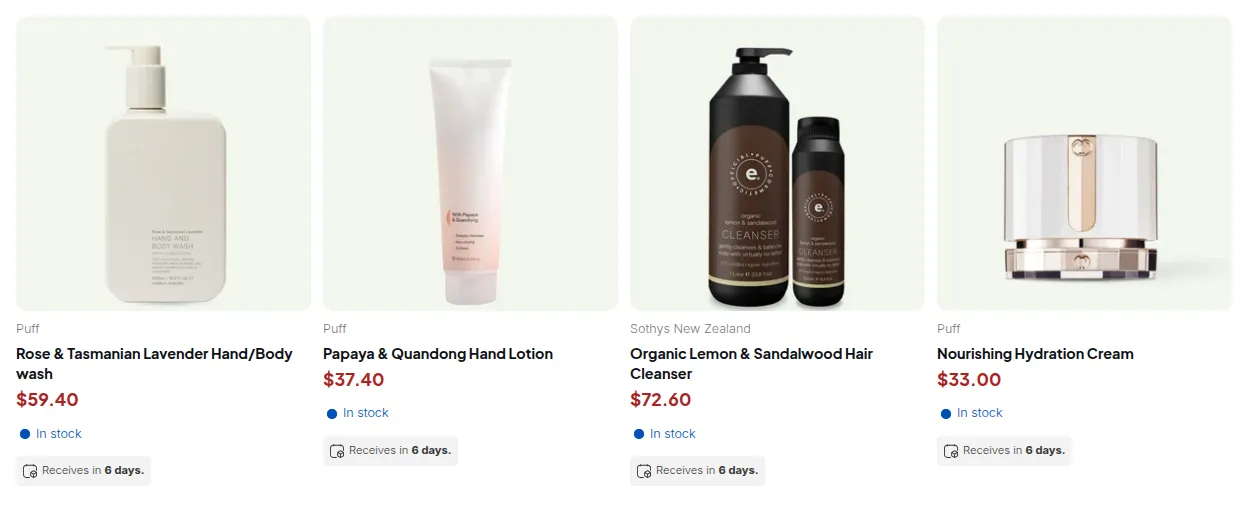
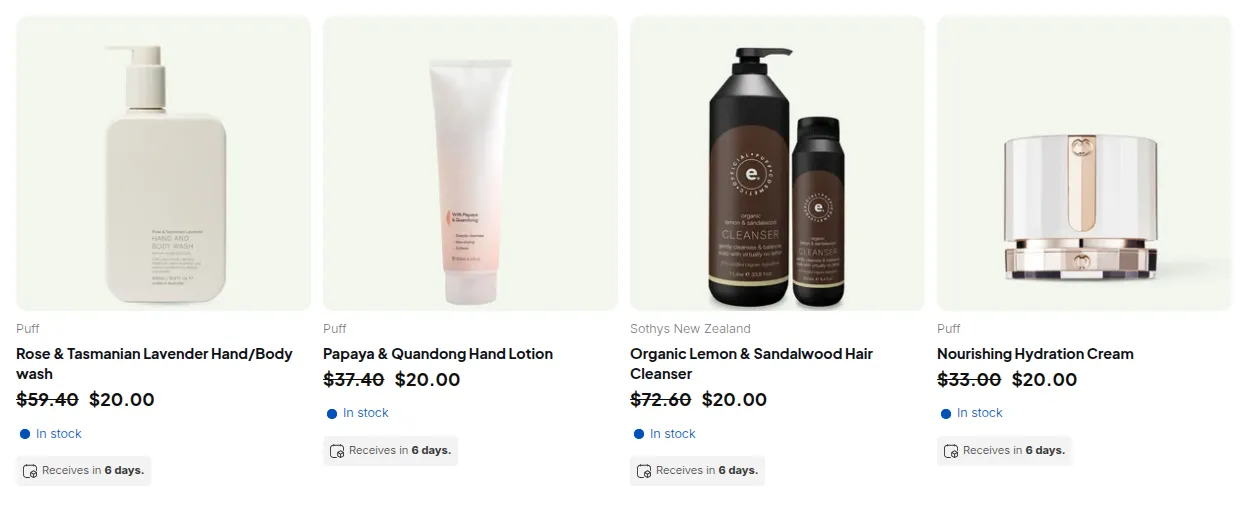
What your customers see on the storefront.
The “Apply to customers” options
Section titled “The “Apply to customers” options”| Option in the editor | Who matches |
|---|---|
| All (logged-in and not-logged-in customers) | Everyone, including visitors who are not logged in. |
| Logged-in customers | Any customer who is logged in to their account. |
| Not-logged-in customers | Only visitors who are not logged in. A customer stops matching as soon as they log in. |
| Specific customers | Only the customers you pick with Search customers. They must be logged in. |
| Customer tags | Logged-in customers who have at least one of the tags you enter. |
| Company locations | Logged-in B2B buyers who are currently buying for one of the company locations you select. |
How tags are compared:
- Capitalization does not matter.
Wholesaleon the customer matcheswholesalein the rule. - Spaces around a tag are ignored.
- One matching tag is enough. You cannot require a customer to have two tags at once.
How company locations are compared:
- The editor warns: “Selecting a whole company applies to its current locations only; locations added later are not covered automatically.” Edit the rule after you add a location.
- If your store uses legacy customer accounts, a company contact is only recognized after you send them B2B access from their customer profile in Shopify admin.
Options available in each module
Section titled “Options available in each module”Not every module offers every option. Use this table to plan which module fits your customer group.
| Module | Customer options | Apply to markets | Exclude customers |
|---|---|---|---|
| Custom Pricing, Price List, Volume Pricing | All six options | Yes | Yes, including company locations |
| Shipping Rate | All except Company locations | Yes | Yes |
| Order Limits | All except Company locations | Yes | Yes |
| Extra Fee, Quantity Increments, Discount Codes | All except Company locations | No | Yes |
| Buy One Get One | All except Company locations | No | No |
| Net Terms | Logged-in customers, Specific customers, Customer tags only | No | No |
Some options also depend on your plan. If an option is locked, the editor shows an upgrade message next to it.
Exclusions
Section titled “Exclusions”Exclude customers removes customers from a rule even if they match the Apply to customers option. For example, apply a rule to Logged-in customers and exclude the tag retail to give a price to every logged-in buyer except retail accounts.
Exclusions are checked after the main condition, so an excluded customer never gets the rule.
Markets
Section titled “Markets”With Apply to markets set to Specific markets, a rule only applies while the shopper is browsing one of the Shopify markets you picked. With All markets, the market is ignored.
Schedule
Section titled “Schedule”A rule with a Start/End date only applies inside that window. The editor notes: “Time is based on your browser’s time zone.” Check the time zone of the computer you set the rule from.
When a customer matches later than expected
Section titled “When a customer matches later than expected”BSS B2B Solution reads the customer’s login state and tags when the page loads. That has three practical effects:
- A new tag shows after the next page load. If you, Auto Tags or a registration approval adds a tag, the customer sees the new price after they refresh or open another page.
- Tags from Auto Tags are added in the background. Tag-based rules only match once Auto Tags has finished tagging the customer. Check Auto Tags > Auto tag history to confirm the tag was added.
- Guests can be skipped entirely. If Advanced settings > General > Optimize B2B script loading is enabled, B2B scripts only load for logged-in customers. Rules set to All or Not-logged-in customers then do not run for guests. Only Registration Forms and Multiple Currency still load for them.
Quick test
Section titled “Quick test”- Create a test customer with the exact tag your rule uses.
- Log in as that customer in a private browser window.
- Open a product covered by the rule. The B2B price should appear.
- Log out and reload. The price should go back to normal, unless the rule applies to everyone.
Related pages: How rule priority works, Troubleshooting: B2B prices or rules not showing.