Import & Export Price List Rules
When managing large catalogs or tailoring numerous pricing schemes for different B2B customer tiers, manually creating each price list in the admin can be time-consuming. The Import & Export Price List feature allows you to bulk upload, update, or migrate Price List rules using a CSV file.
Export Existing Rules
Section titled “Export Existing Rules”- Go to B2B pricing > Price Lists.
- Click Export above the rule list, or open More actions > Import & export and click Export.
- Choose an export scope: the current page, the rules you selected, the rules matching your current filter, or all rules.
- Choose a file format: CSV or Excel (.xlsx).
- The export runs as a background job. A progress indicator shows how far along it is; you can keep working while it finishes.
- When it completes, click the download link.
Import New or Updated Rules
Section titled “Import New or Updated Rules”Step 1: Download the Sample Template
Section titled “Step 1: Download the Sample Template”- Go to B2B pricing > Price Lists and open More actions > Import & export.
- Click Import. The Import rules by CSV dialog opens.
- Click Download sample CSV to get
pl_rules_template.csv.
Step 2: Fill in the CSV Template
Section titled “Step 2: Fill in the CSV Template”Fill in your pricing rules according to your update goal:
| Scenario | What to fill in CSV |
|---|---|
| Create a new rule | Leave the ID column blank. |
| Update an existing rule | Include the rule’s numerical ID (obtained from an export). |
| Multiple products in one rule | Put rule settings on the first row. For subsequent products in the same rule, fill only the Product, Discount type, and Discount value columns, leaving rule-level columns blank. |
Choosing the Right Discount Type
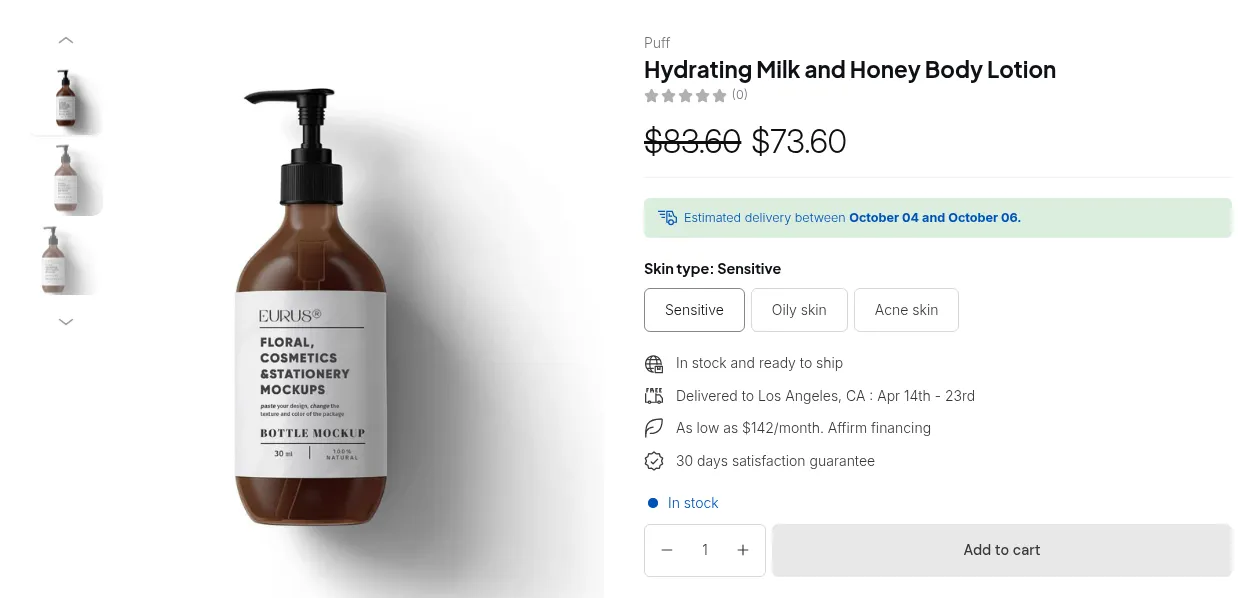
Section titled “Choosing the Right Discount Type”Merchants often ask which Discount type value to enter in the CSV. Below is a quick decision guide and complete reference:
Quick Decision Guide
Section titled “Quick Decision Guide”- “I want to sell this product for an exact wholesale price (e.g., exactly $45.00)”
➔ ChooseFixed priceand enter45inDiscount value. - “I want to deduct a fixed dollar amount off the retail price (e.g., $10.00 off)”
➔ ChooseDecrease fixed amountand enter10inDiscount value. - “I want to offer a percentage discount off the retail price (e.g., 20% off)”
➔ ChooseDecrease fixed percentageand enter20inDiscount value.
Discount Type Reference & Comparison
Section titled “Discount Type Reference & Comparison”Value to enter in CSV (Discount type) |
Matching In-App UI Option | Calculation Formula | Value Format | Storefront Example (Original = $100.00) |
|---|---|---|---|---|
Fixed price |
Apply a decreasing price | Final Price = Discount value |
Positive number (e.g., 80) |
Value = 80 ➔ Final Price: $80.00 |
Decrease fixed amount |
Decrease a fixed amount | Final Price = Original Price - Discount value |
Positive number (e.g., 15) |
Value = 15 ➔ Final Price: $85.00 |
Decrease fixed percentage |
Decrease in percentage | Final Price = Original Price × (1 - Discount value %) |
Number from 0 to 100 (e.g., 20) |
Value = 20 ➔ Final Price: $80.00 |
Increasing price |
Apply an increasing price | Final Price = Discount value (Markup) |
Positive number (e.g., 120) |
Value = 120 ➔ Final Price: $120.00 |
Increase fixed amount |
Increase a fixed amount | Final Price = Original Price + Discount value |
Positive number (e.g., 10) |
Value = 10 ➔ Final Price: $110.00 |
Increase fixed percentage |
Increase in percentage | Final Price = Original Price × (1 + Discount value %) |
Number from 0 to 100 (e.g., 10) |
Value = 10 ➔ Final Price: $110.00 |
CSV Column Reference
Section titled “CSV Column Reference”The table below lists all supported columns in the Price List CSV template:
| Column Header | Requirement | Data Type | Accepted Values & Formatting |
|---|---|---|---|
| ID | Optional | Number | Rule ID. Leave blank when creating a new rule; fill in matching ID when updating an existing rule. |
| Name | Required | String | Internal name of the price list rule (e.g., VIP Wholesale Pricing). |
| Priority | Required | Number | Integer from 0 to 99 (0 is highest priority when rules overlap). |
| Status | Required | String | enable or disable. |
| Market | Required | String | All or specific Shopify Market name (e.g., United States). |
| Customer condition | Required | String | One of: All, Logged-in, Not logged-in, Specific customers, Customer tags, Company locations. |
| Customers | Conditional | String | Comma-separated list of customer emails, tags, or company location IDs (required when condition is Specific customers, Customer tags, or Company locations). |
| Exclude customer condition | Required | String | One of: None, Specific customers, Customer tags, Company locations. |
| Exclude customers | Conditional | String | Comma-separated list of customer emails, tags, or company location IDs to exclude. |
| Exclude product condition | Required | String | One of: None, Specific products, Specific variants, Specific collections, Specific tags. |
| Exclude products | Conditional | String | Comma-separated list of items to exclude, matching the condition above: product/variant IDs, titles, SKUs, or barcodes for Specific products / Specific variants, collection IDs or titles for Specific collections, or product tags for Specific tags. Required when Exclude product condition is not None. |
| Apply level | Required | String | Product (applies to all variants) or Variant (applies to specific variant). |
| Product | Required | String | Identifier for the item: Product Title (for Product level) or Variant ID / SKU / Barcode (for Variant level). |
| Discount type | Required | String | One of: Fixed price, Decrease fixed amount, Decrease fixed percentage, Increasing price, Increase fixed amount, Increase fixed percentage. |
| Discount value | Required | Number | Positive number (e.g., 50 for $50 fixed/off, or 20 for 20%). |
| Start date | Optional | Date | YYYY-MM-DD (e.g., 2026-09-01). |
| Start time | Optional | Time | HH:MM or HH:MM:SS (e.g., 00:00). |
| End date | Optional | Date | YYYY-MM-DD (e.g., 2026-12-31). |
| End time | Optional | Time | HH:MM or HH:MM:SS (e.g., 23:59). |
Sample CSV Structure
Section titled “Sample CSV Structure”Here is an example showing how multi-product rules are structured in the CSV:
ID,Name,Priority,Status,Market,Customer condition,Customers,Exclude customer condition,Exclude customers,Exclude product condition,Exclude products,Apply level,Product,Discount type,Discount value,Start date,Start time,End date,End time,VIP Wholesalers,0,enable,All,Customer tags,vip-wholesale,None,,Specific tags,clearance,Product,Classic T-Shirt,Decrease fixed percentage,25,2026-09-01,00:00,2026-12-31,23:59,,,,,,,,,,,,Leather Jacket,Fixed price,120,,,,,,,,,,,,,,,,Denim Jeans,Decrease fixed amount,15,,,,Step 3: Upload & Import
Section titled “Step 3: Upload & Import”- In the Import modal, click Add file and select your CSV.
- Select your import mode:
- Overwrite rules with matching IDs: Updates existing rules matching provided IDs and creates new rules for rows without IDs. Unmentioned rules remain unchanged.
- Replace all existing rules: Deletes all current Price List rules and replaces them entirely with the imported dataset.
- Click Validate and import.
- The system validates headers and row values. If validation passes, the import processes in the background. If errors occur, download the error report CSV to review row-level error messages.
Best Practices & Troubleshooting
Section titled “Best Practices & Troubleshooting”- Always backup first: Export your existing rules to a CSV before performing bulk updates or replacements.
- Keep column headers unchanged: Do not rename, remove, or rearrange header columns from the template.
- One product/variant per row: Do not list multiple products or SKUs in a single
Productcell. - Check file size limits: Ensure the file is under 10 MB and saved in standard
.csvformat (UTF-8). - Propagation time: Once imported, rule updates write to store metafields and typically take 1–3 minutes to reflect across the live storefront.