
Publish Your Wholesale Registration Form to Your Storefront
Add the Registration Form app block to any page of your online store.
Once your wholesale registration form is ready, it’s time to make it visible and usable by potential B2B customers. With our app block method, you can add the form to any page, with no custom coding.

Steps to Publish the Form
Section titled “Steps to Publish the Form”Step 1: Enable the Registration Feature
Section titled “Step 1: Enable the Registration Feature”In the app, go to B2B customers > Registration Forms and switch the module on. This activates the registration module so your forms can be used on your storefront.
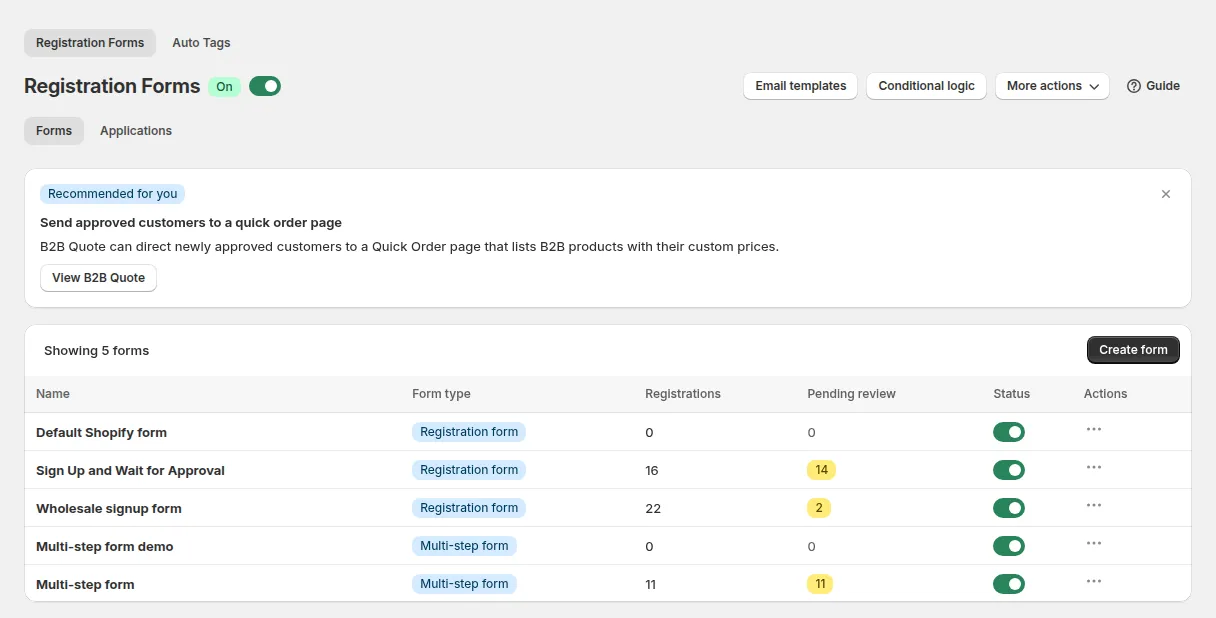
Step 2: Enable the App Embed in Your Theme
Section titled “Step 2: Enable the App Embed in Your Theme”Go to your Shopify admin → Online Store > Themes → click Customize.
In the theme editor, find App Embeds settings and turn on the B2B Solution app embed, then click Save. This ensures the registration form app is allowed to render on pages.
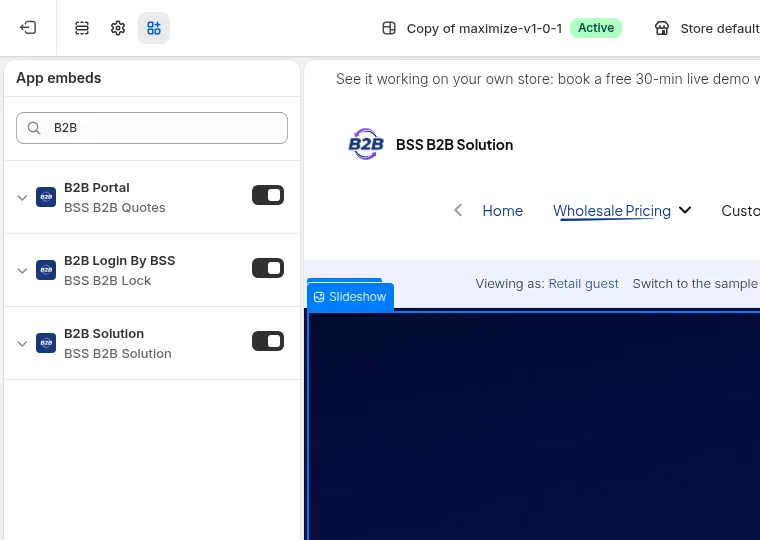
Step 3: Add the Form to Your Desired Page
Section titled “Step 3: Add the Form to Your Desired Page”You can place your registration form on any page you like. A common place is the Customer Register page.
- First, hide or disable Shopify’s default registration form (so there’s no duplication).
- Then, add a new block: choose “Registration Form” from the BSS B2B Solution app.
- In the block settings, enter the Registration Form ID: this tells the block which form to display.
- To find the ID, open the form in the app and go to the Publish step: Other ways to publish your form shows the ID, a shortcode and the app block steps.
- Click Save in the theme editor.
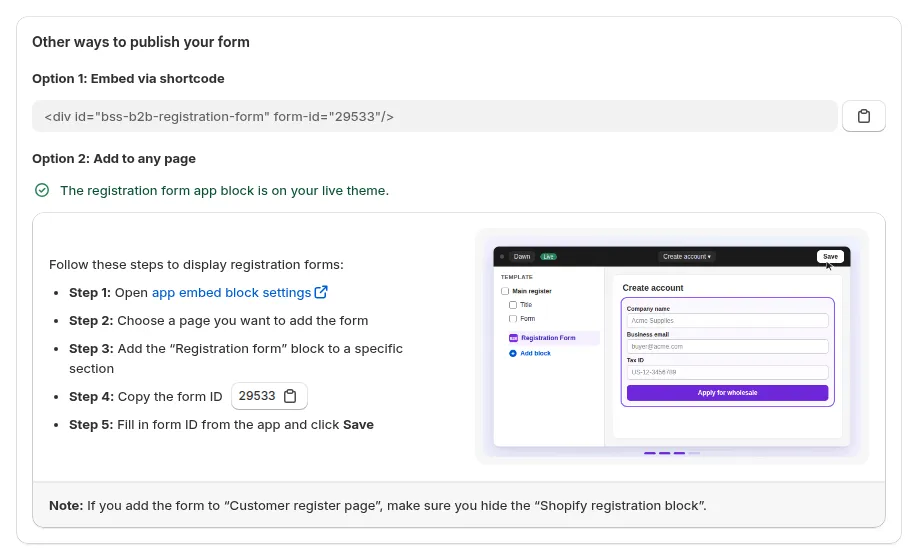
Notes & Tips
Section titled “Notes & Tips”- Saving a form in the app also creates a page for it at the form URL you chose in Basics (for example
/pages/wholesale-apply), so you can link to that page directly instead of adding a block. - If the page only shows a loading placeholder, the B2B Solution app embed is off.
- Registration Form Version 1 was deprecated on December 30th, 2025 and is no longer supported. Click “Switch to new version editor” to upgrade the form to Version 2.
- Need a custom placement or special layout that the theme editor doesn’t allow? Get in touch: our support or developers can help tailor it.