
Email notifications
Keep customers and your team informed throughout the Net Terms order lifecycle with automated email notifications.
The Net Terms feature allows customers to place orders using net payment terms. As part of this system, email notifications can keep both the customer and store owner informed about order status.
Notifications: The Draft order is placed
Section titled “Notifications: The Draft order is placed”These notifications fire when a Net Terms order is submitted as a draft.
Access Notification Settings
Section titled “Access Notification Settings”- Enable Net Terms (toggle ON).
- On the Net Terms page, open More actions > Notifications to see the email list.
Available Notifications
Section titled “Available Notifications”| Notification | Recipient | Trigger |
|---|---|---|
| “Your draft order has been created” | Customer | When customer places a Net Terms order as a draft |
| “New draft order” | Store admin/staff | When a Net Terms draft order is created |
Important: BSS B2B Solution only sends these notifications when an order is submitted as a draft. If orders process automatically, use Shopify’s standard order notification emails instead.
Understanding the Email List
Section titled “Understanding the Email List”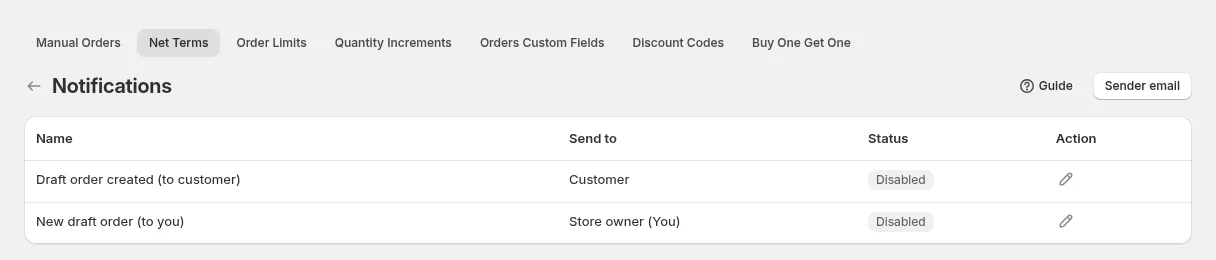
- Your draft order has been created:
Notifies the customer when a draft order is created. - New draft order:
Notifies the store owner when a new draft order is made using net terms.
How to Enable Email Notifications
Section titled “How to Enable Email Notifications”- In the Email List, click the ✏️ (pencil) icon next to the desired notification.
- Configure the email template if needed (subject line, message content, etc.).
- Switch the Status from Disabled to Enabled to activate the email
- Save changes.
Notifications: The Final order is placed
Section titled “Notifications: The Final order is placed”If the final order is placed, the email notifications are automatically sent by Shopify
Editing email notifications template
Section titled “Editing email notifications template”Access the Shopify Admin settings > Notifications
Section titled “Access the Shopify Admin settings > Notifications”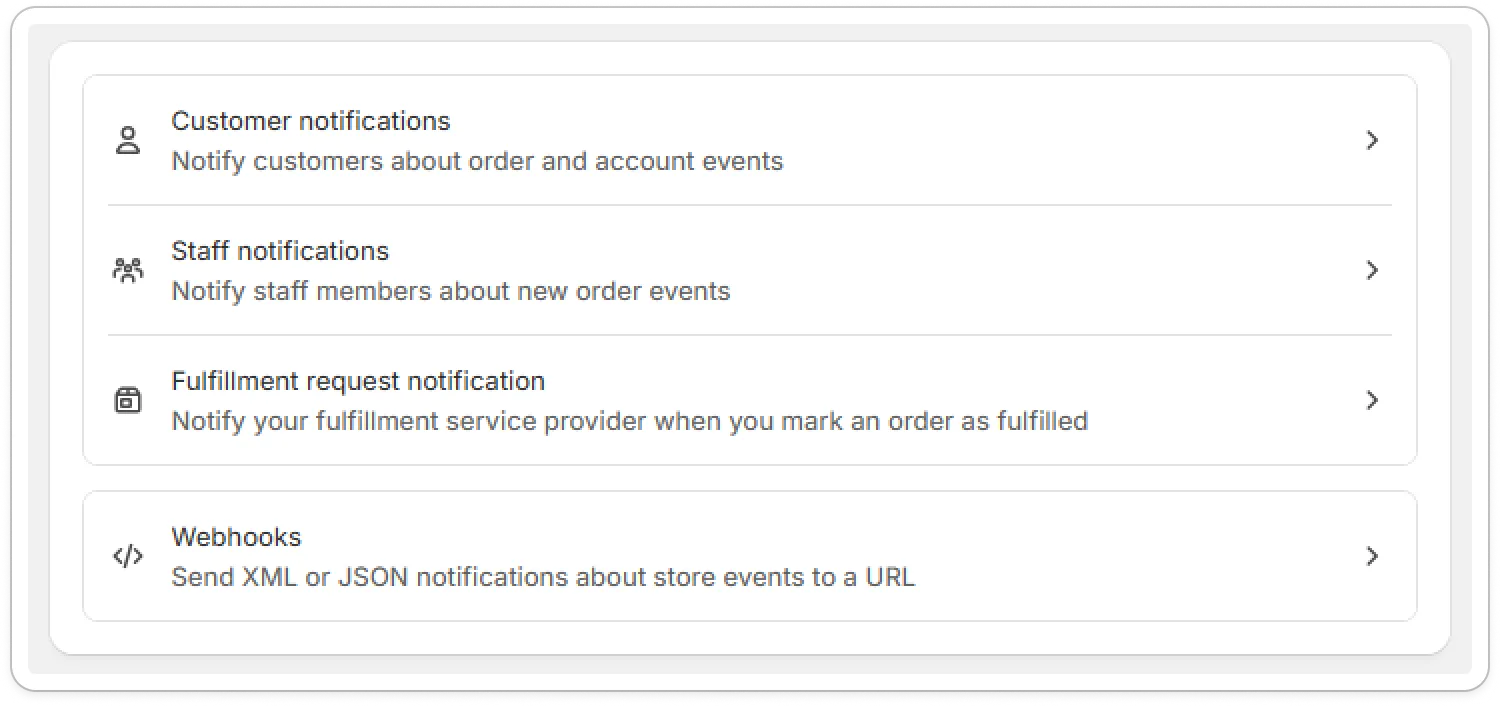
To edit the email template sent to wholesalers, you can edit it in the Customer notification > select “Order confirmation” email. The email template can be changed by editing the HTML.
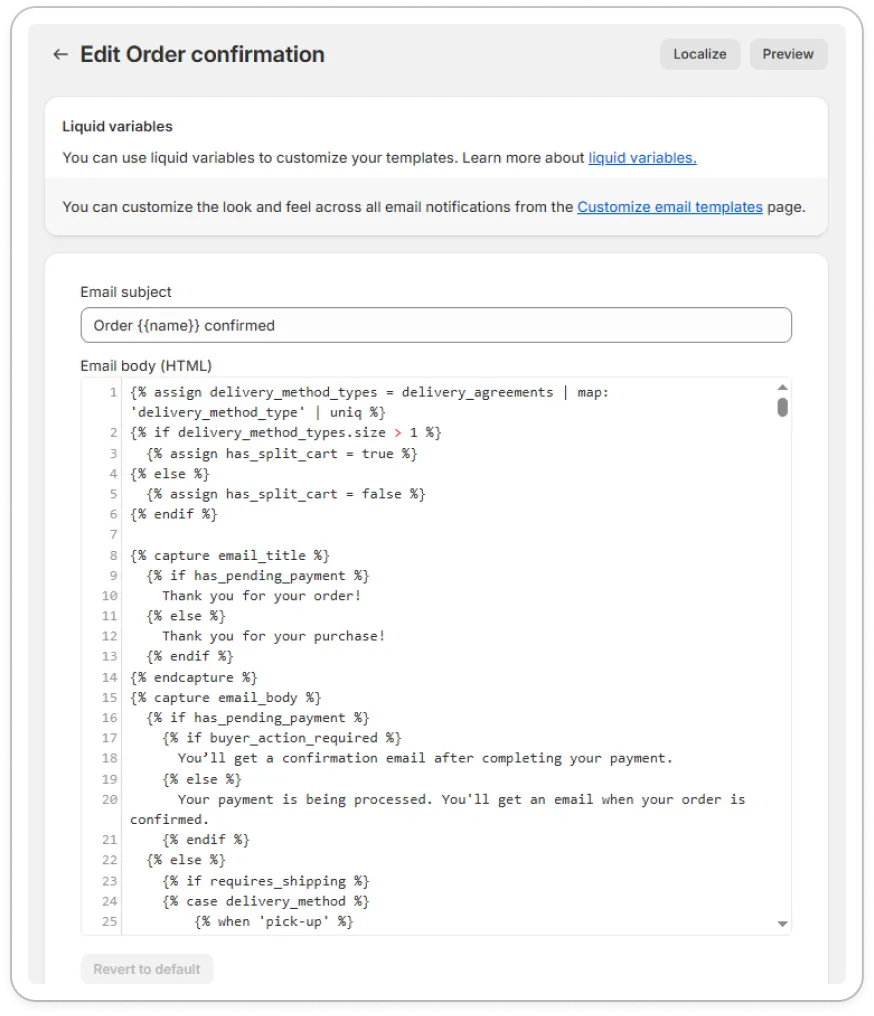
To edit the email template sent to wholesalers, you can edit it in the Staff notification > select “New order” email. The mechanism is the same as what was mentioned above.