App Integration
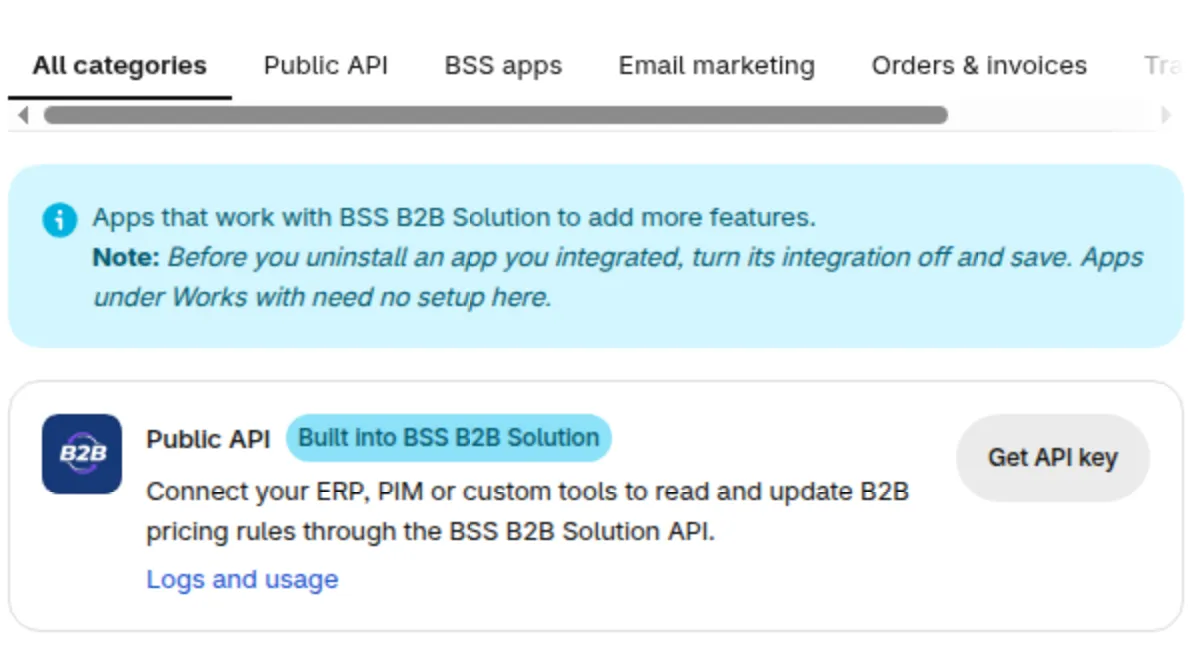
App integration lists the Shopify apps that BSS B2B Solution works with, so your B2B prices, registration data and currency stay consistent across them. Some cards are marked Works with: those apps need no switch and no setup. In the app menu in Shopify admin, click Integrations. The page has category tabs at the top, such as All categories, Public API, BSS apps, Email marketing and Orders & invoices.
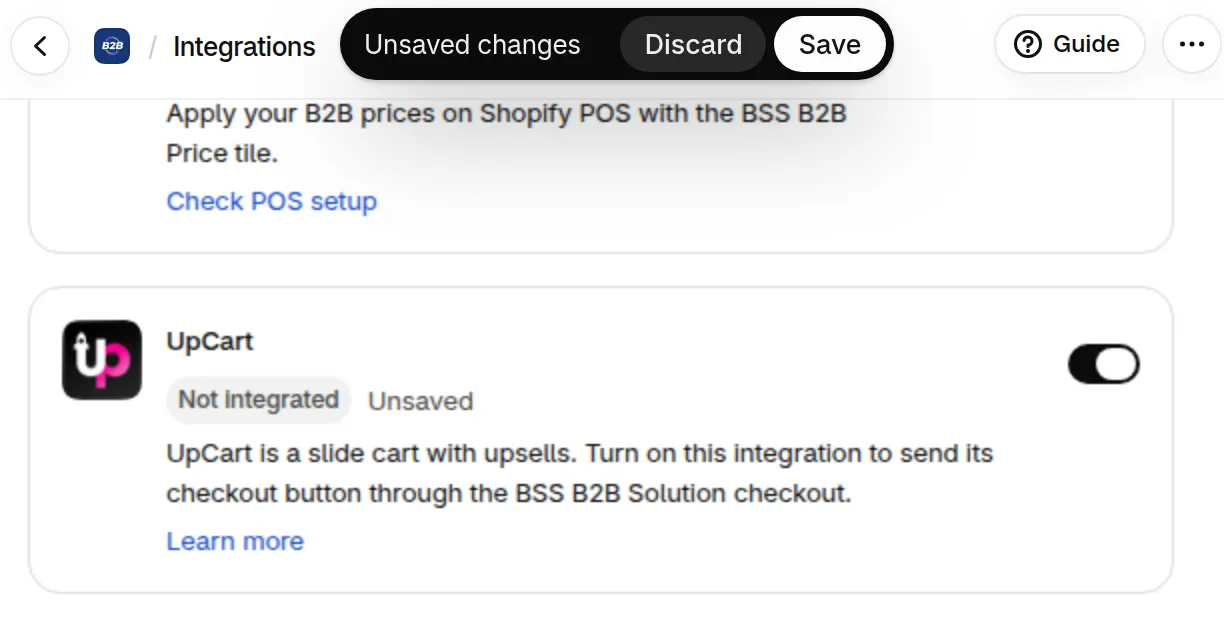
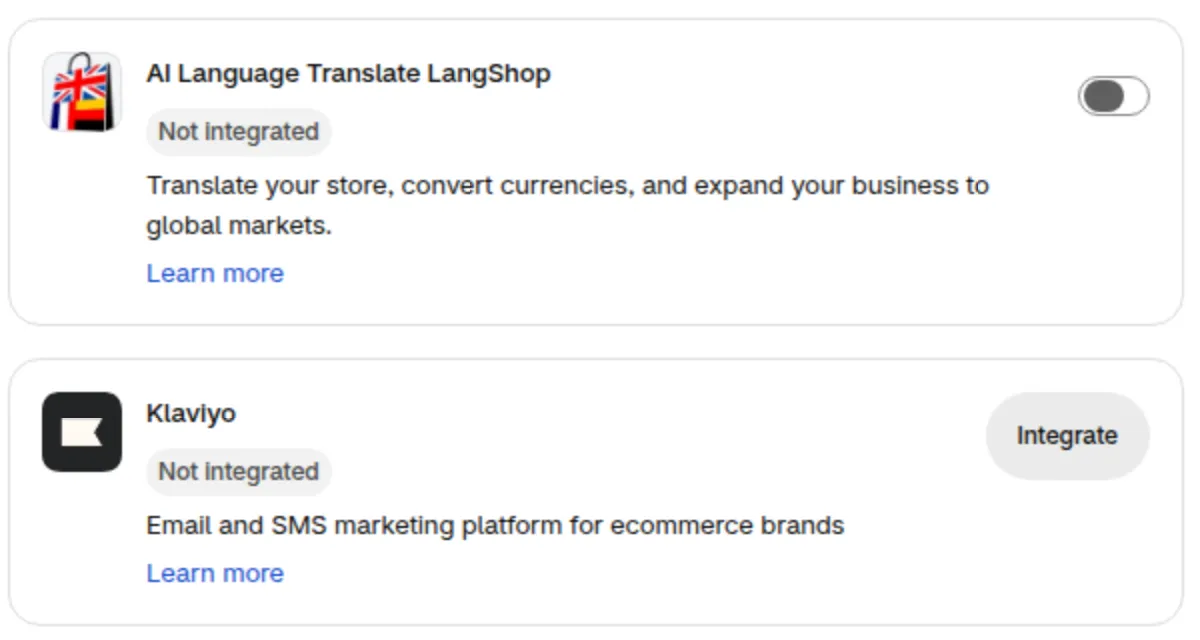
LangShop, Zapiet, UpCart, Rebuy, Boost, Kaching and Sufio turn on with the switch on the app card; click Save in the Save bar to apply it. Klaviyo keeps the Integrate or Manage button, because it needs your API key.
| App | Setup | Guide |
|---|---|---|
| AI Language Translate LangShop | Switch on the card, then Save | |
| Klaviyo | Click Integrate (or Manage), enter your Klaviyo API key and click Check. You can turn on the integration after the check passes | Klaviyo |
| Zapiet: Pickup + Delivery | Switch on the card, then Save | Zapiet |
| UpCart | Switch on the card, then Save | |
| Rebuy | Switch on the card, then Save | |
| Boost AI Search & Filter | Switch on the card, then Save (no card on your page? contact support) | Boost AI Search & Filter |
| Kaching Subscriptions App | Switch on the card, then Save (Advanced plan or higher) | Kaching Subscriptions |
| Sufio: Professional Invoices | Switch on the card, then Save | Sufio |
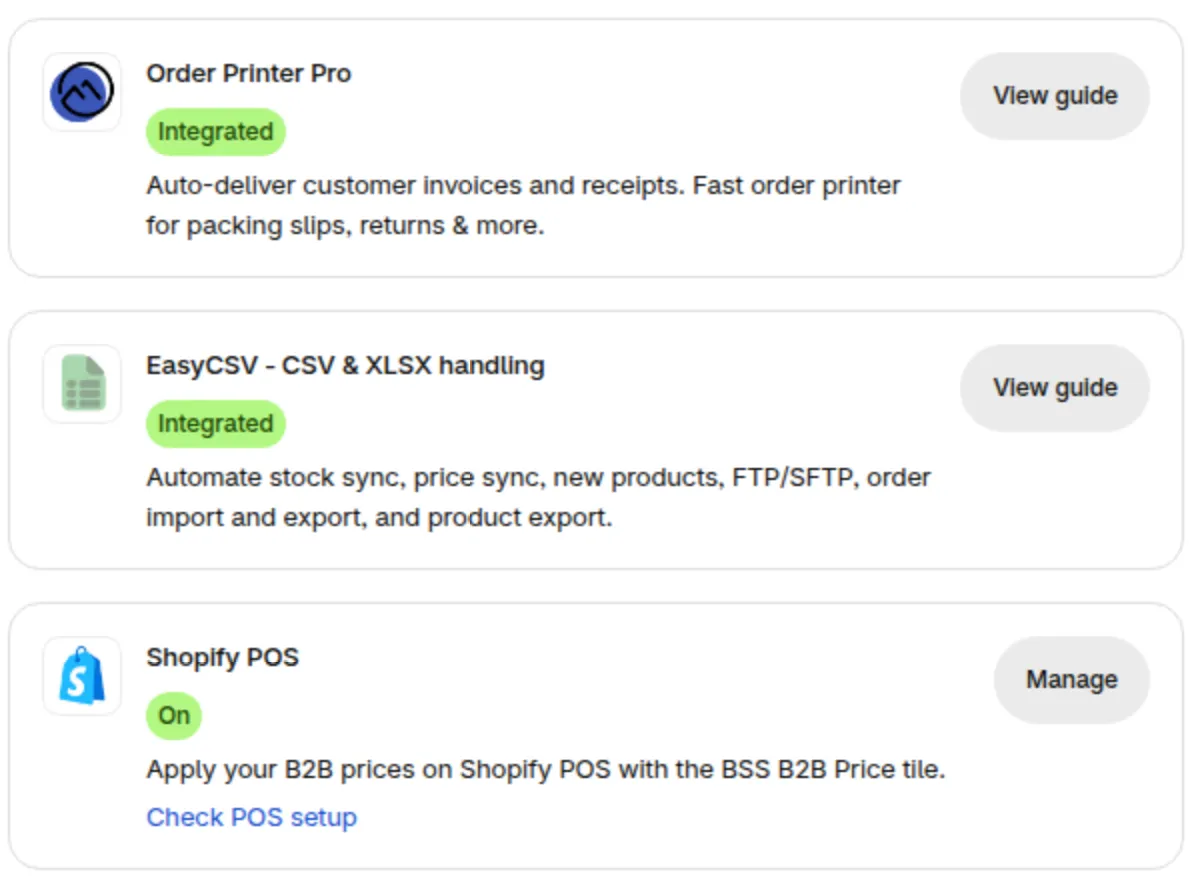
| Order Printer Pro | No setup, needs the Advanced plan or higher. The card shows Integrated and View guide | Order Printer Pro |
| EasyCSV: CSV & XLSX handling | Paste your BSS B2B Solution API key in EasyCSV (Platinum plan, or Enterprise with the Public API module) | EasyCSV |
| Shopify POS | Works automatically. The card shows On, Manage and Check POS setup | Shopify POS |
| OPTIS Product Options and TA Subscriptions App | Cards under the BSS apps tab, no setup: they open the App Store | BSS Apps |
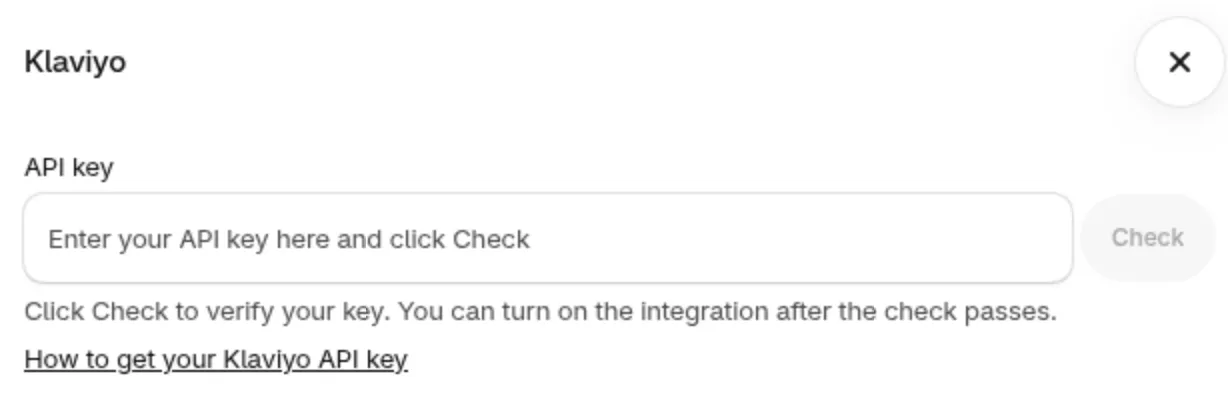
- The app checks your Klaviyo API key when you save it. A key that is invalid or missing the Events (write) or Metrics (read) permission is not saved; create a new private key in Klaviyo with those permissions (or Full Access), because the permissions of an existing key cannot be changed. If Klaviyo does not answer, you can still save the key; the card then shows Key not verified until you reload the page.
- LangShop and Sufio are checked for installation when you turn them on. If the app cannot reach the provider, you see “We couldn’t reach LangShop to check the installation. Try again in a few minutes.” (or the same message for Sufio). This is not the same as the app being missing: try again shortly. The “install the app” notice appears only when the app is really not installed.
- If a save works but your store cannot be updated, a banner shows “Saved, but we couldn’t update your store. Try again.” For LangShop, Zapiet, UpCart, Rebuy, Boost, Kaching and Sufio, click Try again in the banner to resync. For Klaviyo, click Manage in the banner and save again.
- LangShop and Zapiet change how B2B prices behave on your storefront (translation and currency, pickup and delivery). The other connections work in the background (invoices, emails and events, exports) and add nothing to your theme, except UpCart and Rebuy (next point).
- UpCart and Rebuy change what the checkout button does. When you turn the integration on, the checkout button in the UpCart or Rebuy cart drawer sends the customer through the BSS B2B Solution checkout, so B2B prices and rules such as net terms apply. Turn it on only if your store uses the UpCart or Rebuy cart drawer. If no B2B rule applies to a cart, the customer continues to the standard Shopify checkout, and details the app adds to its own checkout link may not be carried over. Turn the integration off to go back to the app’s own checkout.
- The Invoice PDF add-on can add your buyers’ company name, Tax ID and PO number to new orders as order attributes that other apps can read. The switch is Share B2B details with invoice apps in Invoice PDF > Settings, and it is off by default. See Invoice PDF order summaries.
Apps that work with BSS B2B Solution
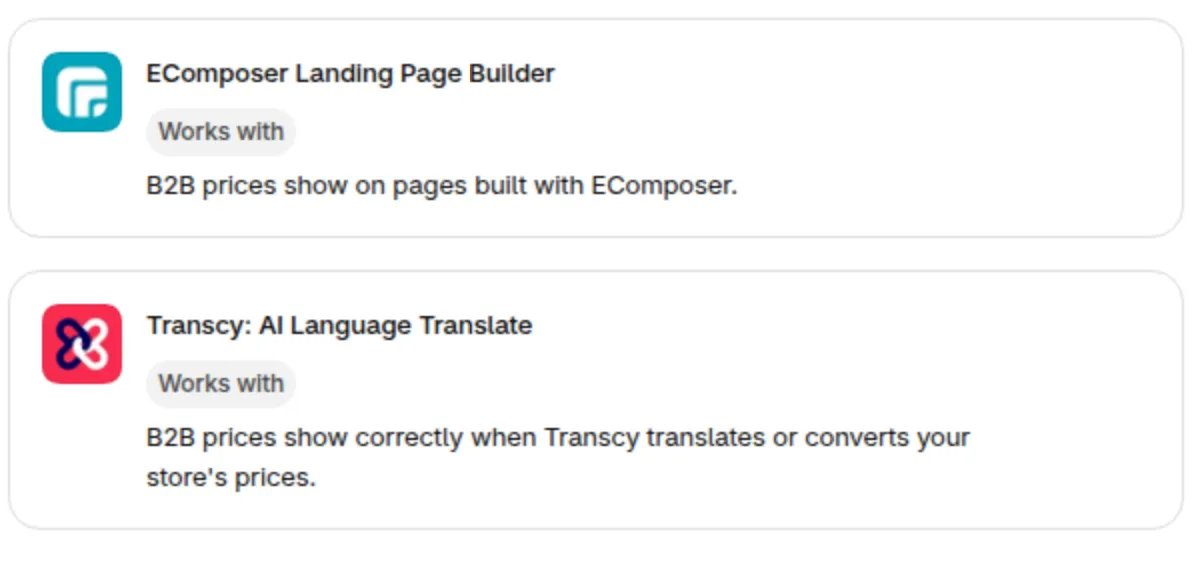
Section titled “Apps that work with BSS B2B Solution”Two apps appear on the Integrations page as Works with cards. These cards have no Manage button and no switch. You do not turn anything on, you do not install anything extra for BSS B2B Solution, and the cards are not tied to a plan. Click the app name to open its App Store page.