
Set Tiered Pricing by Purchase Volume
This guide walks you through creating a Volume Pricing rule, from enabling the module to defining tiers and activating the rule on your storefront.
Want to reward your bulk buyers and boost average order value? With our Volume Pricing feature, you can easily configure tiered discounts that automatically adjust pricing as customers add more to their cart, based on either quantity purchased or total spend.
How to Configure Volume Pricing
Section titled “How to Configure Volume Pricing”Step 1: Enable & Access the Module
Section titled “Step 1: Enable & Access the Module”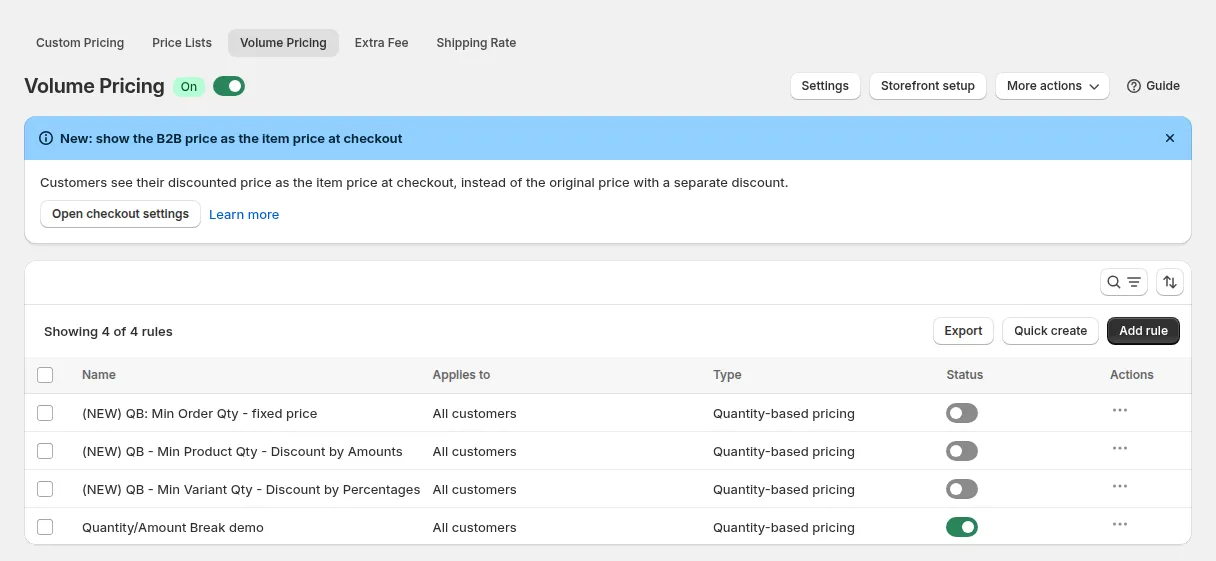
- Go to B2B Pricing in the app sidebar.
- Toggle Volume Pricing ON.
- Click Add rule above the rule list. The New volume pricing rule page opens with the cards Rule, Customers, Products, Markets, Volume pricing settings and Quantity-based settings (or Value-based settings), plus Exclusions and schedule (optional) and Advanced, which you open with Show.
Step 2: General Information
Section titled “Step 2: General Information”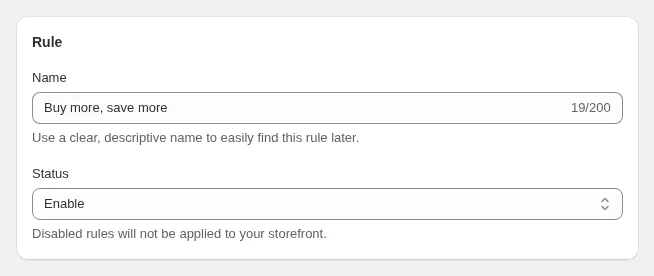
- Name your rule for easy reference
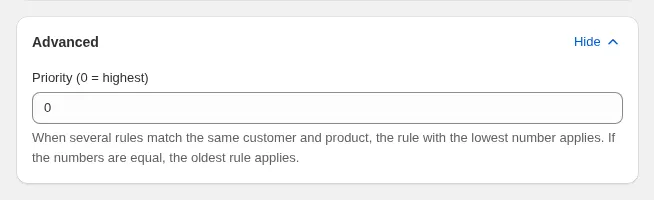
- Set priority in the Advanced card (lower number = higher priority)
- Enable or disable the rule as needed: only enabled rules take effect. In the CMS rule list table, each enabled rule displays an accurate runtime status badge: Active (currently running), Scheduled (future start date), or Expired (past end date).
Step 3: Apply to Customers
Section titled “Step 3: Apply to Customers”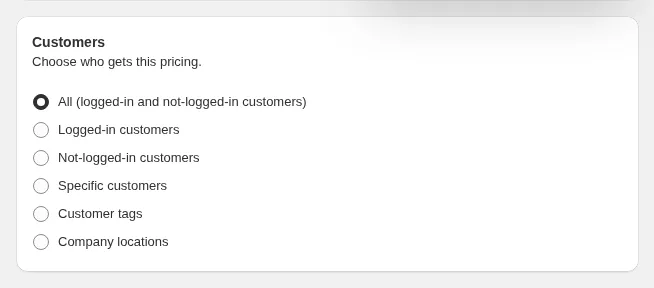
Choose who receives this pricing:
- All customers: applies to everyone, logged in or not
- Logged-in customers or Not logged-in customers
- Specific customers: pick individual customers
- Customer tags: for example
wholesale,vip,reseller - Company locations (Shopify B2B): target specific B2B Company accounts and check individual Company Locations (branches) without manually entering separate customer IDs.
Step 4: Apply to Products
Section titled “Step 4: Apply to Products”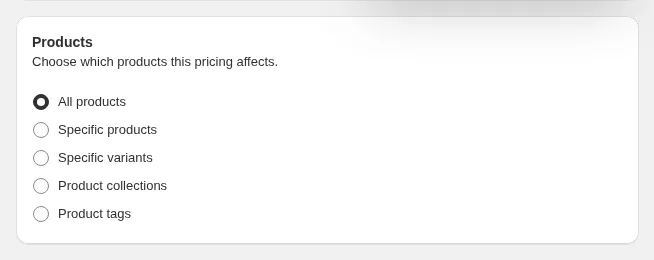
Select which products the volume tiers apply to:
- All products
- Specific products
- Specific variants
- Product collections
- Product tags
Products must be published to the Online Store sales channel.
Step 5: Select Markets (Optional)
Section titled “Step 5: Select Markets (Optional)”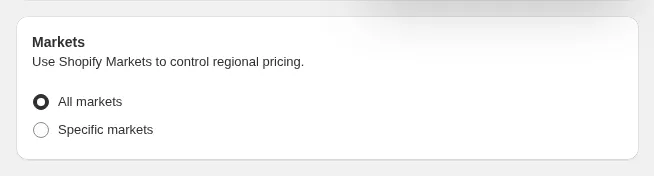
Restrict this rule to specific Shopify markets or currencies.
Step 6: Choose Volume Pricing Type
Section titled “Step 6: Choose Volume Pricing Type”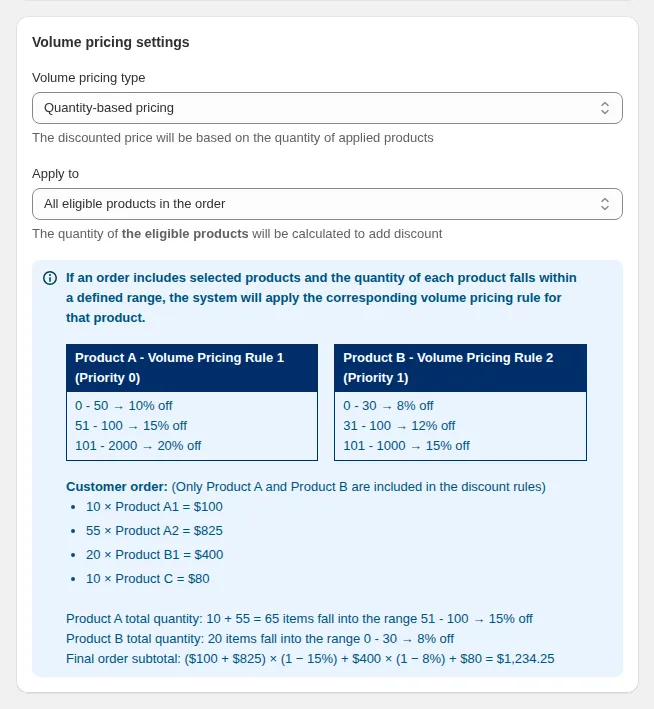
Volume pricing type decides what the tiers count:
| Option | How it works |
|---|---|
| Quantity-based pricing | Tiers are triggered by the number of items |
| Value-based pricing | Tiers are triggered by the amount spent |
Apply to decides which items are counted together:
| Option | How it works |
|---|---|
| All eligible products in the order | Each eligible product is counted on its own (all its variants added together) and gets the tier its own quantity or amount reaches |
| Entire order | The quantity or amount of all eligible products in the order is added up; when several rules match, the rule with the highest priority applies |
| All eligible product’s variants in the order | Each variant is counted on its own and gets the tier its own quantity or amount reaches |
The real-world example below shows the difference with numbers.
Step 7: Define Discount Tiers
Section titled “Step 7: Define Discount Tiers”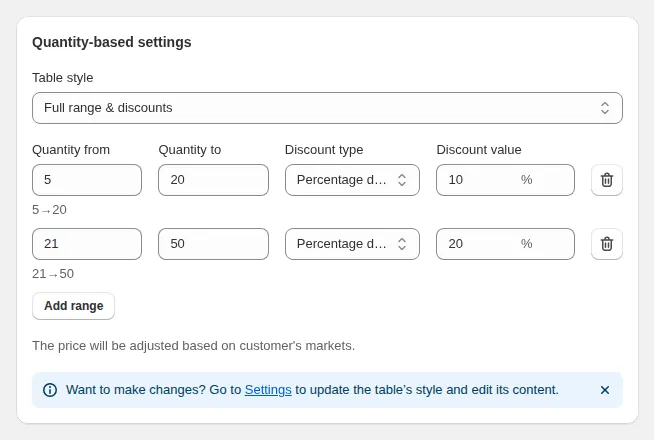
Each row is one range. Fill in Quantity from and Quantity to (or Amount from / Amount to for value-based pricing), then the Discount type and Discount value. Leave the last to field blank to mean “and above”. Click Add range for the next tier.
| Discount type | What it does | Example: product priced $20 |
|---|---|---|
| Fixed price | Sets the price per item for this range | Value 15: price becomes $15.00 |
| Fixed-amount decrease | Subtracts an amount from the price | Value 3: price becomes $17.00 |
| Percentage decrease (%) | Reduces the price by a percentage | Value 10: price becomes $18.00 |
You can add multiple ranges (for example 5 to 20 units = 10% off, 21 to 50 units = 20% off). Keep ranges from overlapping: if a quantity falls into two ranges, the one lower in the table wins. Once your setup is complete, click Next.
Step 8: Exclude Customers (Optional)
Section titled “Step 8: Exclude Customers (Optional)”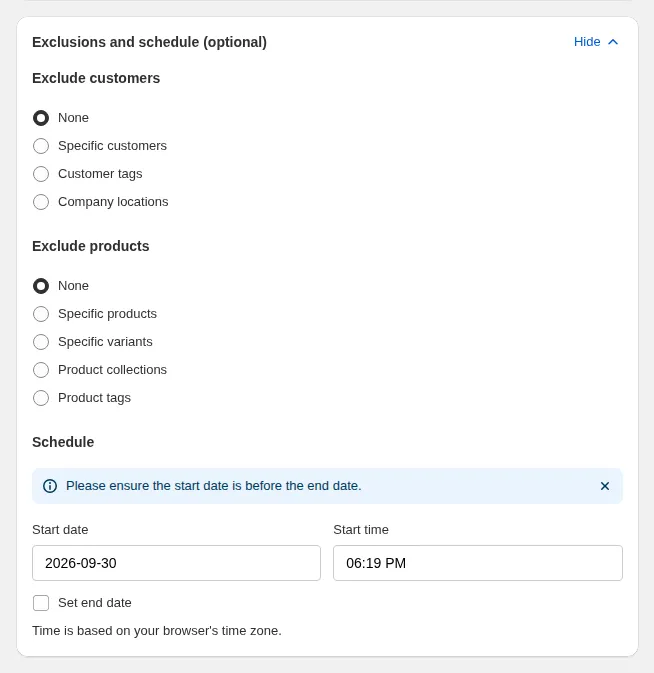
Specify customers, customer tags, or B2B Company Locations that should not receive this pricing, even if they match the conditions above.
Step 9: Exclude Products (Optional)
Section titled “Step 9: Exclude Products (Optional)”Exclude specific products (e.g., limited editions, services, gift cards) from this rule.
Step 10: Set Schedule
Section titled “Step 10: Set Schedule”Want this pricing to run for a limited time? Add Start and End dates (Optional) to automate activation and expiration.
Step 11: Validate & Save
Section titled “Step 11: Validate & Save ”Preview all settings and Save the rule. Eligible customers will see their adjusted prices automatically upon next login / refresh store.
Other: Storefront Setup
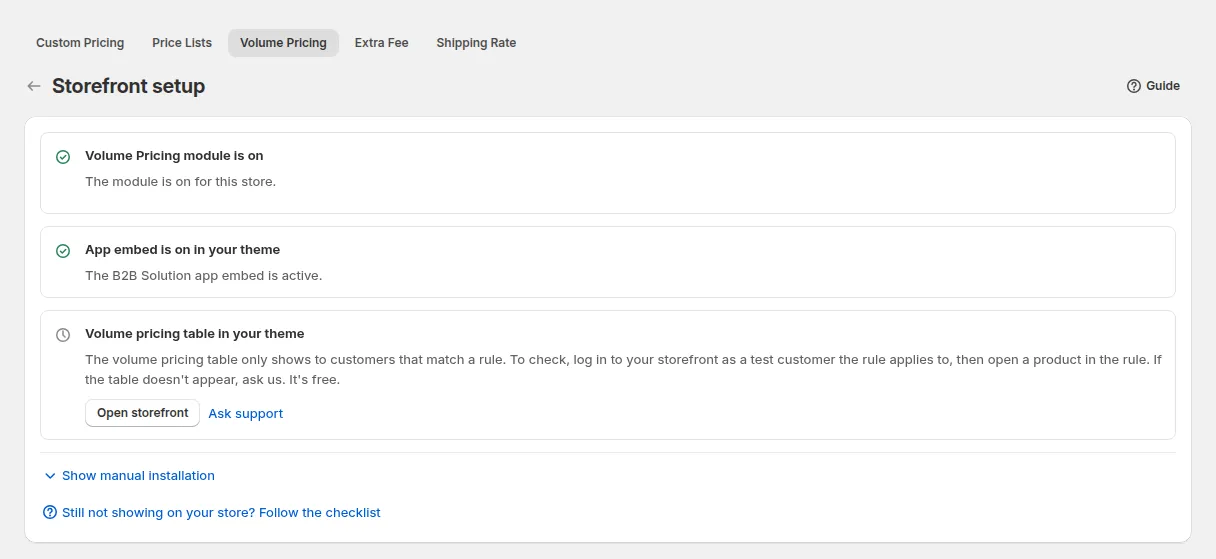
Section titled “Other: Storefront Setup”If the table does not show on your theme, click Storefront setup on the Volume Pricing page. It checks that the module and the app embed are on, and links to your storefront so you can test with a customer the rule applies to. If the table still does not appear, use Show manual installation or Ask support.
Real-World Example
Section titled “Real-World Example”Imagine you have two products, A and B, and you create discount tiers:
- 5 to 20 units → “10% off”
- 21 to 50 units → “20% off”
If someone orders 45 units total:
- Entire order: 45 units reach the 21 to 50 range, so both products get 20% off
- All eligible products in the order: Product A (35 units) gets 20%, Product B (10 units) gets 10%
- All eligible product’s variants in the order: each variant (for example each size or color) is counted separately, so a variant with 8 units gets 10% and a variant with 3 units gets no discount
What Customers See on Storefront
Section titled “What Customers See on Storefront”- When shoppers meet a tier, the discounted price replaces the original automatically
- Quantities may “jump” to threshold numbers when clicked (e.g. clicking a tier label adjusts quantity accordingly)
- At checkout, the final tiered discount is applied
- When combined with Custom Pricing / Price List, the app prioritizes the Custom Pricing / Price List rules first
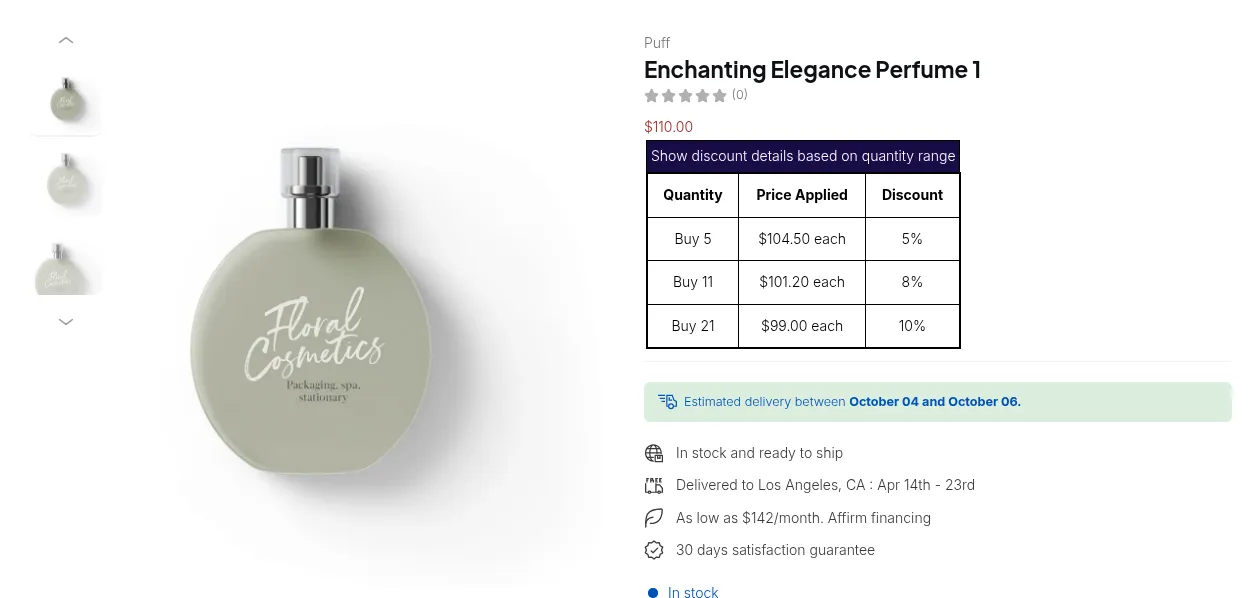
You can also click on the quantity range, and the quantity automatically jumps to the number.
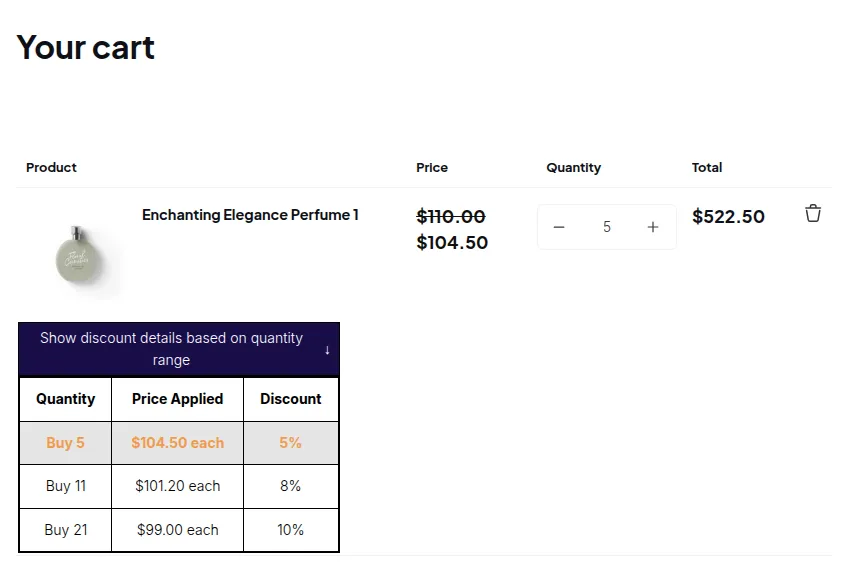
The row matching the quantity currently in the quantity box is highlighted in the table.
Here’s the result on the Cart page:
When the Table Does Not Appear
Section titled “When the Table Does Not Appear”Check these in order:
- The B2B Solution app embed is on: Online Store > Themes > Customize > App embeds, then Save.
- The Volume Pricing module is toggled on under B2B Pricing.
- The rule is enabled, its schedule has started and not ended, and it targets the shopper’s market.
- The product is in the rule’s product scope and not excluded, and the shopper matches the customer condition (for example, a guest does not match Logged-in customers).
- On the Free plan, only your newest rule is used, and only if it uses the free options listed above.
- The page is ticked under Show Volume Pricing Table on pages in Settings.
If everything looks right, open the rule and click Save again: this re-publishes your rules to the storefront.