
Display Prices With & Without Tax
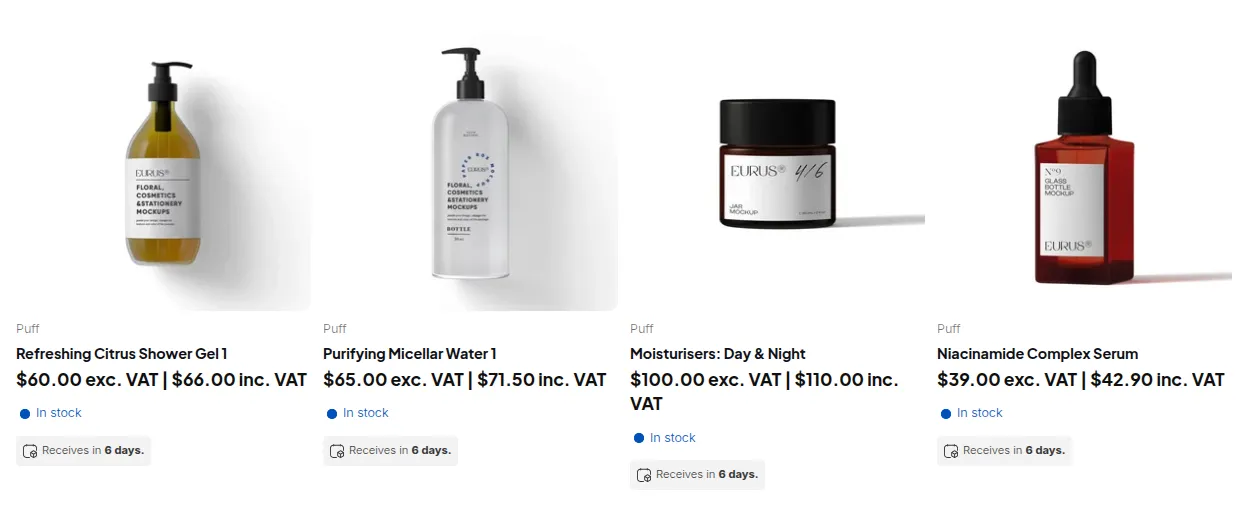
With tax rules varying across regions and customer types, clear pricing matters. The Tax Display module controls how product prices appear: including tax, excluding tax, both, or a toggle the customer can switch.
How to Configure Tax Display
Section titled “How to Configure Tax Display”Step 1: Enable & Install
Section titled “Step 1: Enable & Install”- Go to B2B tax & currency > Tax Display and turn the module on.
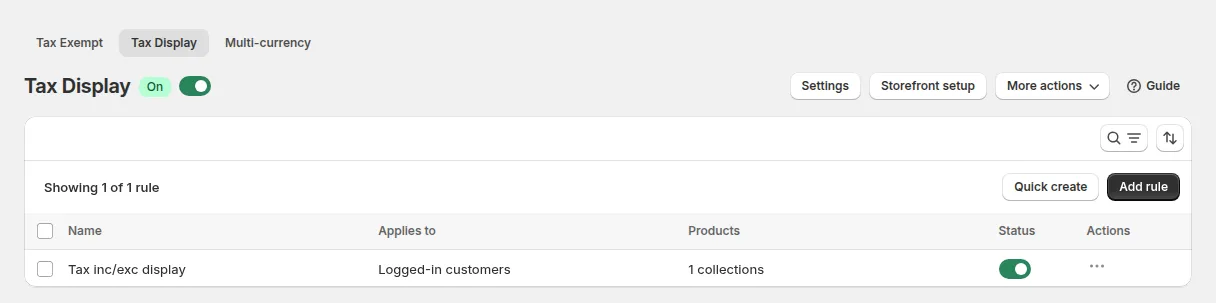
- Install it on your theme: the app shows a banner “To make this feature work, you must install it” with a link to Storefront setup. Follow the steps there to add the price snippets to your product, featured product, collection and cart templates (the page shows where these files usually are, including for the Dawn theme). Contact support if you prefer us to do it.
- Make sure the B2B Solution app embed is on (Online Store > Themes > Customize > App embeds).
Step 2: Create a Rule
Section titled “Step 2: Create a Rule”Click Add rule.
- Name your rule (for example “EU Tax Display”).
- Set a Priority from 0 to 99: a lower number wins when several rules match the same customer and product.
- Set the rule Enabled / Disabled.
Step 3: Apply to Customers and Products
Section titled “Step 3: Apply to Customers and Products”- Customers: all customers, logged-in customers, not-logged-in customers, specific customers, or customer tags (for example
VAT-registered,wholesale). - Products: all products, specific products, product collections or product tags.
Step 4: Tax Display Design
Section titled “Step 4: Tax Display Design”Display price type:
| Option | What customers see |
|---|---|
| Both prices (default) | The tax-inclusive and tax-exclusive prices side by side |
| Including tax only | Only the price including tax |
| Excluding tax only | Only the price excluding tax |
| Toggle Price | One price at a time, with an Inc. VAT / Exc. VAT switch. Applies to all products and all pages |
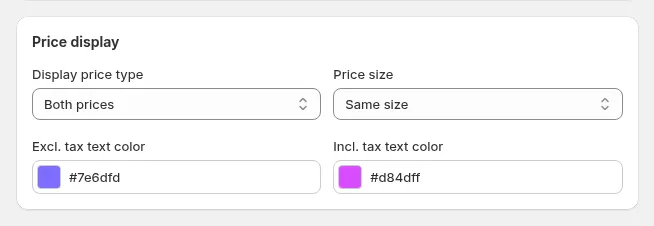
With Both prices you can also set the Ratio between Inc tax & Excl tax font size (from 1:1 to 4:1 either way) and the Excl tax text color and Inc tax text color.
With Toggle Price, the switch sits at the bottom-left of every storefront page (65 px from the bottom and left). The customer’s choice is remembered during their visit and updates prices on product pages, collections and the cart. If you need the switch elsewhere, contact support.
Step 5: Apply To (Pages)
Section titled “Step 5: Apply To (Pages)”| Option | Where the tax prices appear |
|---|---|
| Main product price on product page | The product page |
| Item price on cart page | Cart line items (and subtotal) |
| Product price on collection page, search page, featured products and related products | Product grids and listings |
| All | Everywhere above |

Click Save.
Settings
Section titled “Settings”Taxes and Duties
Section titled “Taxes and Duties”The app reads your country tax rates from Shopify’s Taxes and Duties settings. If you change them in Shopify admin, click Update Settings in the app: it cannot detect the change on its own.
Override Tax Setting
Section titled “Override Tax Setting”Shopify’s tax overrides cannot be read by the app, so recreate them here to show the right prices. Under TAX OVERRIDES, click Add a tax override, choose the country/region, the product collection and the Tax rate. Products in that collection then use this rate for customers in that country instead of the country tax.
Translations
Section titled “Translations”In Settings > Translations, change the Tax display labels (default exc. VAT | and inc. VAT) and the Tax toggle labels (default Inc. VAT and Exc. VAT) for each storefront language.
What Your Customers See
Section titled “What Your Customers See”- Prices show the format from the rule that matches the customer and product. Products that are not taxable show just one price.
- Custom Pricing, Price List and Volume Pricing prices are shown with the tax label too: the tax is calculated on the B2B price.
- At checkout, Shopify calculates tax as usual, independent of how prices were displayed.
- If no rule matches, or the feature is not installed, the normal theme price is shown.