
Troubleshooting: B2B Prices or Rules Not Showing
You saved a rule, but the storefront still shows the normal price, no volume table, or no order limit. Work through the checks below in order. Most cases are solved by one of the first four.
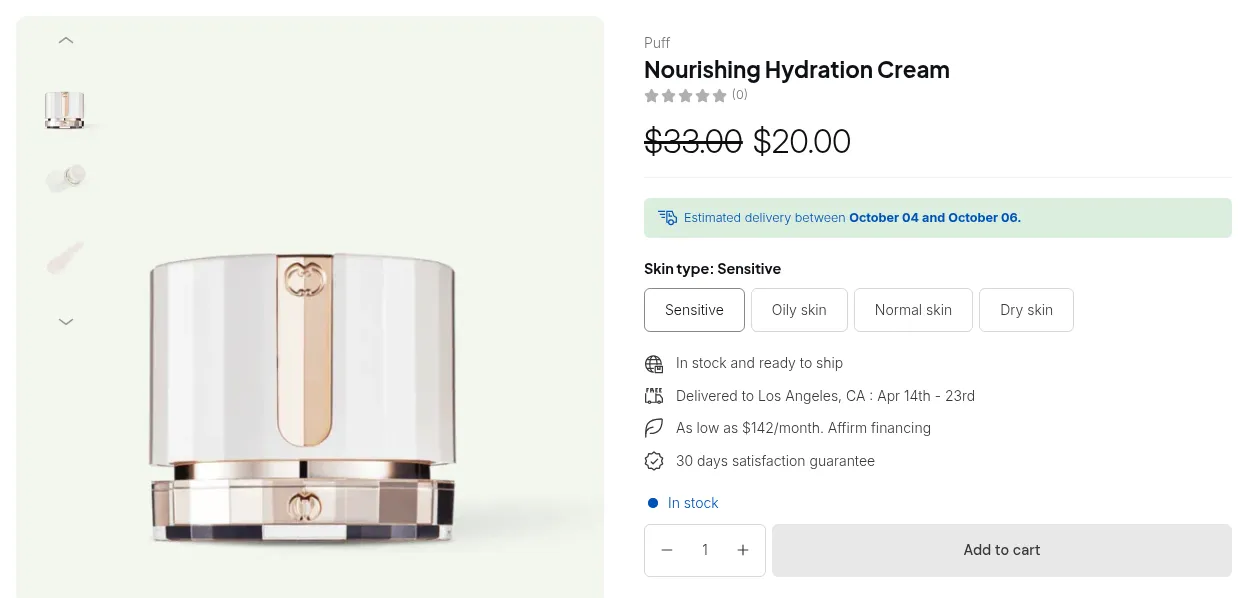
What your customers see on the storefront.
1. Is the app embed turned on?
Section titled “1. Is the app embed turned on?”Every B2B feature on the storefront is loaded by the app embed. If it is off, rules are saved but nothing appears.
- Open the app’s Home page and look at App embed status in the app overview. It shows Enabled or Disabled.
- If it shows Disabled, click Open theme editor.
- In the theme editor, open App embeds, turn on BSS B2B Solution, and click Save.
If you see “Couldn’t check your app embed status.”, click Check again.
2. Is the module turned on?
Section titled “2. Is the module turned on?”Each module has its own on/off switch on its section page (for example B2B pricing or Order management).
- Open the section page and find the module card.
- Turn the switch on.
- Click Save in the save bar at the top. The switch does not apply until you save. You should see “Module state saved”.
If a card shows Available on … plan or Upgrade to use feature instead of a switch, the module is not included in your current plan.
3. Is the rule active?
Section titled “3. Is the rule active?”Open the rule and check:
- Status is Enable.
- The current date is inside the Start/End date window, if you set one. Times use the time zone of the browser you set them from.
- The rule does not show the banner “This rule is automatically INACTIVE on the storefront because some configurations are available on a higher plan.” If it does, switch the locked option to one your plan includes, or upgrade.
After a plan change, the rule list may show “Some Custom Pricing rules became inactive after your plan change”. Open each inactive rule and replace the options your plan no longer covers.
4. Does the customer match the rule?
Section titled “4. Does the customer match the rule?”Log in as the customer, or a test customer with the same tags, in a private browser window. Then check:
- Rules set to Logged-in customers, Specific customers, Customer tags or Company locations do not apply to visitors who are not logged in.
- For Customer tags, the customer must have at least one of the rule’s tags on their Shopify profile.
- A tag added a moment ago only takes effect after the customer reloads the page.
- If Advanced settings > General > Optimize B2B script loading is enabled, no B2B rules run for visitors who are not logged in, even rules set to All.
- The product must be covered by the rule’s product condition and not listed in Exclude products.
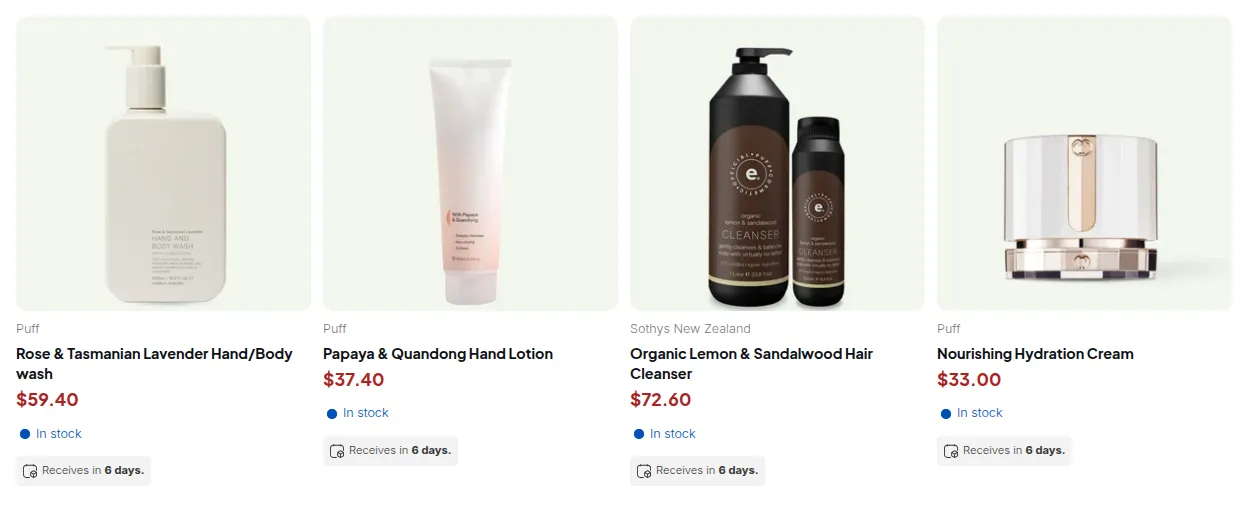
See How customer targeting works for the full matching rules.
5. Is another rule winning?
Section titled “5. Is another rule winning?”If a different price appears, another rule may have priority:
- Inside one module, the rule with the lowest Priority number wins. Ties go to the rule created first.
- A Price List rule always replaces Custom Pricing for the same product.
6. Is the B2B price higher than the original price?
Section titled “6. Is the B2B price higher than the original price?”Custom Pricing shows this warning in its settings: “If you set up custom pricing to be higher than original price/compare at price, then our custom prices won’t show.” Check that your adjusted price is lower than the product’s price and compare-at price.
7. Are you looking at an old copy of the page?
Section titled “7. Are you looking at an old copy of the page?”Changes reach the storefront when the page is loaded again. Reload the page, or open it in a new private window, before you test again.
8. Does your theme show prices in an unusual place?
Section titled “8. Does your theme show prices in an unusual place?”If prices update on some pages but not others (for example the product page works but the cart drawer does not), your theme may use layouts the app does not detect automatically.
- On a module’s Installation tab, a theme without app block support shows “Your theme does not support app block. Please refer to manual installation or contact support for assistance.”
- Contact support. Installation help is free, and our team can adjust the price selectors under Advanced settings > Feature customization in theme for your theme.
9. The registration form block keeps loading
Section titled “9. The registration form block keeps loading”In the theme editor, select the Registration Form block and check Registration Form ID. It must contain the Form ID of a form from Registration Forms > Configuration. With the default value 0, the form never loads.
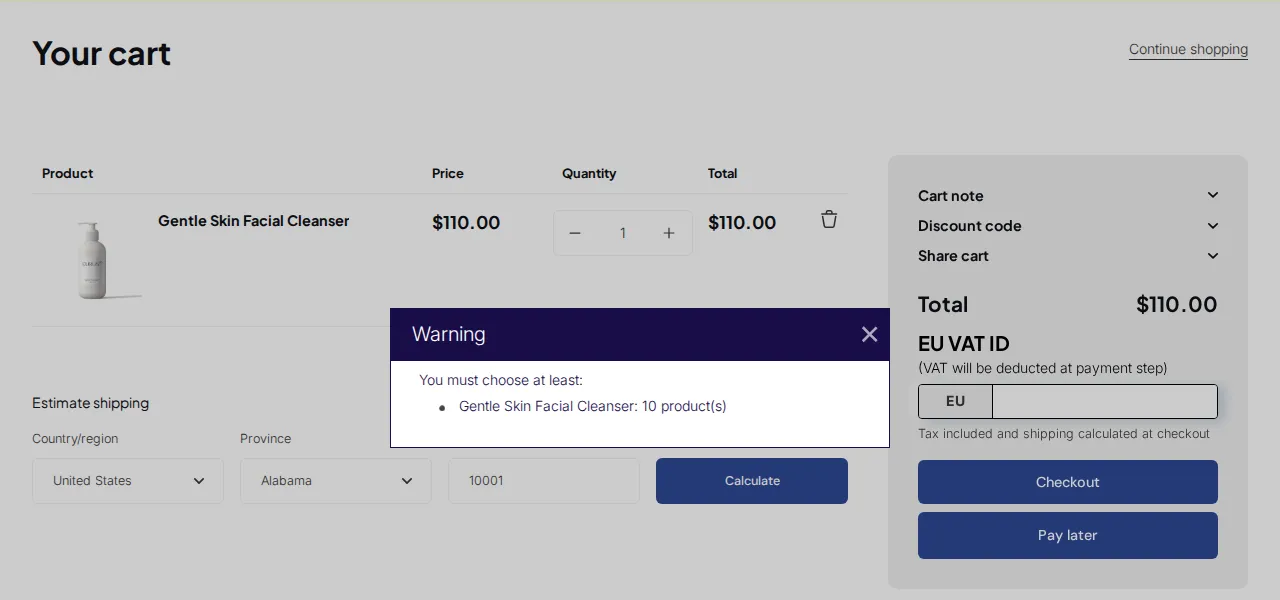
10. Customers get past an order limit at checkout
Section titled “10. Customers get past an order limit at checkout”Order Limits and Quantity Increments are checked on the cart page and on the Buy it now button. The Order Limits page states: “Due to Shopify’s limitations, customer can bypass the Checkout page by entering the URL.” Place orders that must respect limits through the cart page.
11. A module described in this guide is missing from your admin
Section titled “11. A module described in this guide is missing from your admin”Some modules are not offered on every store. If a module card or the Discount menu is missing, your rules and plan are not affected. Contact support to check which modules are available for your store.
Still stuck?
Section titled “Still stuck?”Contact support through Live Chat in the app. Include:
- The rule name and module.
- A customer email or tag you tested with.
- The product URL where the price should change.