
How to Limit Order Quantity/Amount and Set Product Increment
The Order Limit (OL) function is a great way to encourage larger purchases and control minimum or maximum order quantities.
However, for B2B stores, you can take this even further by combining Order Limit with Quantity Increment (QI): helping you both increase sales volume and manage inventory efficiently.
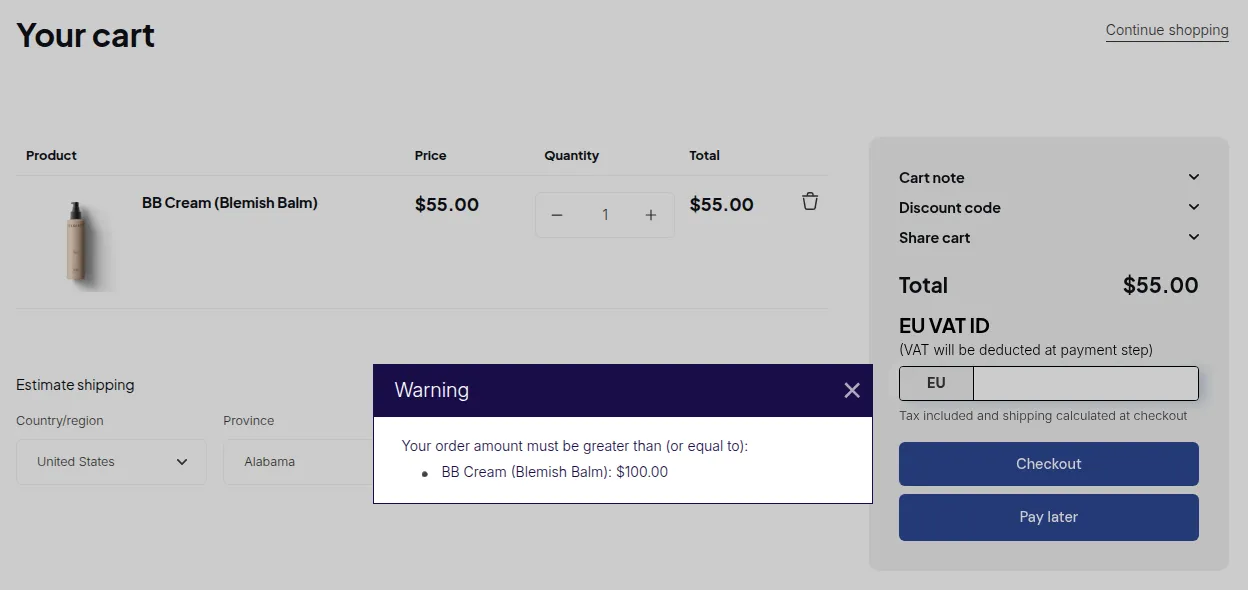
What your customers see on the storefront.
This article walks you through a typical example to show how the two features work together.
Example Use Case
Section titled “Example Use Case”Goal:
Customers must buy at least 5 products from the “Summer Fruit Collection” to check out.
In addition, the order quantity must increase in multiples of 10.
| Condition | Rule |
|---|---|
| Minimum order | 5 products from “Summer Fruit Collection” |
| Quantity increment | Must be in multiples of 10 |
Step 1: Set Up the Order Limit Rule
Section titled “Step 1: Set Up the Order Limit Rule”- Go to Order Limit (OL) Rules in your app dashboard.
- Click Create New Rule.
- Configure the following:
- Rule Type: Choose based on your business goal (e.g., Order Quantity or Order Amount).
- Minimum: Enter 5 to require at least 5 products.
- Apply to Products: Choose Product collections → Summer Fruit Collection.
- Click Save to apply the settings.
✅ This ensures customers cannot check out unless they buy at least 5 products from the selected collection.
Step 2: Set Up the Quantity Increment Rule
Section titled “Step 2: Set Up the Quantity Increment Rule”- Go to Quantity Increment (QI) Rules.
- Click Create New Rule.
- Configure the following:
- Apply to Products: Choose Product collections → Summer Fruit Collection.
- Quantity Increment: Enter 10 (Order quantity).
- Click Save to apply the settings.
✅ This ensures customers can only increase quantities in multiples of 10 (e.g., 10, 20, 30…).
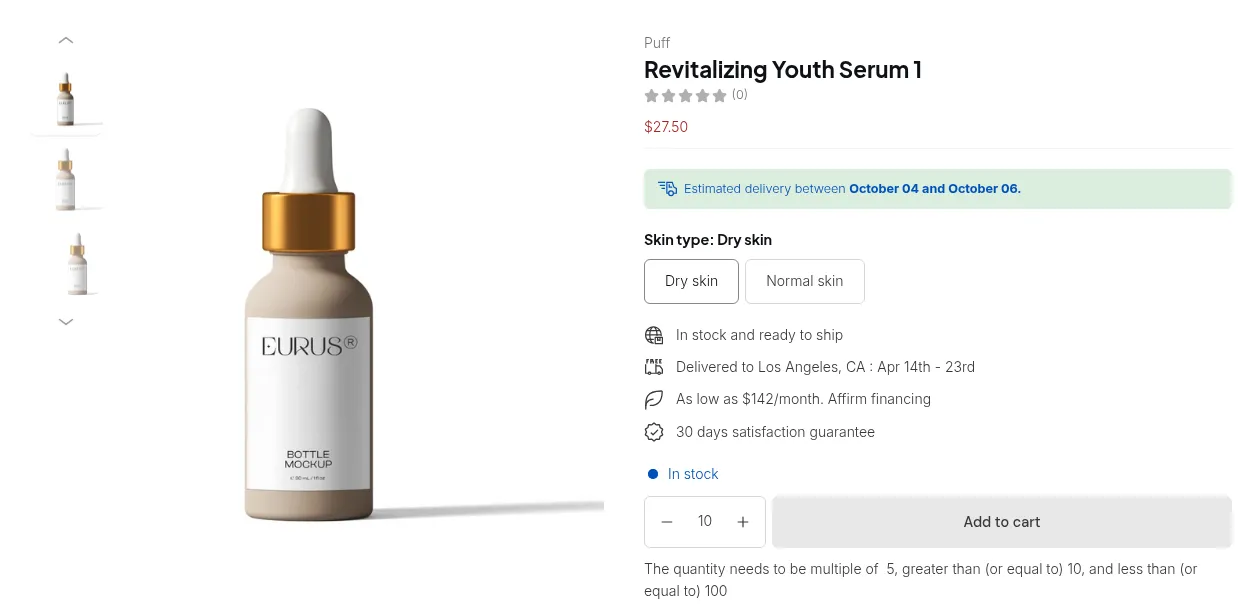
On the Storefront
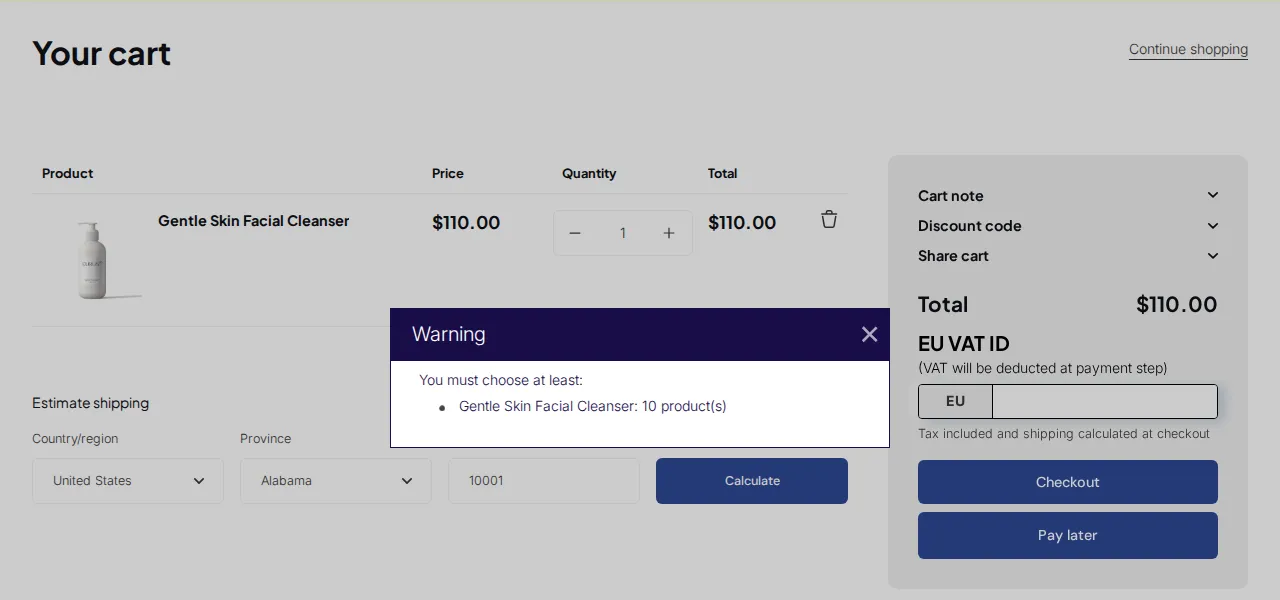
Section titled “On the Storefront”When a customer’s cart doesn’t meet both rule requirements (minimum 5 items and quantity in multiples of 10), a notification message will appear automatically:
⚠️ Your cart does not qualify based on the current order rules.
Customers will only be able to proceed to checkout once all rule conditions are satisfied.
- Combine Order Limit and Quantity Increment to guide customers toward your desired purchase volume.
- Use this setup for wholesale collections or bundled products where bulk orders are common.
- Messages shown on the cart page can be customized in the app settings for better communication with your buyers.