
Show or Hide Form Fields with Conditional Logic
Conditional logic lets a registration form react to the applicant’s answers. For example, show a Tax ID field only when the applicant selects “Business” in a Customer type dropdown, or hide a Reseller license upload for retail applicants.
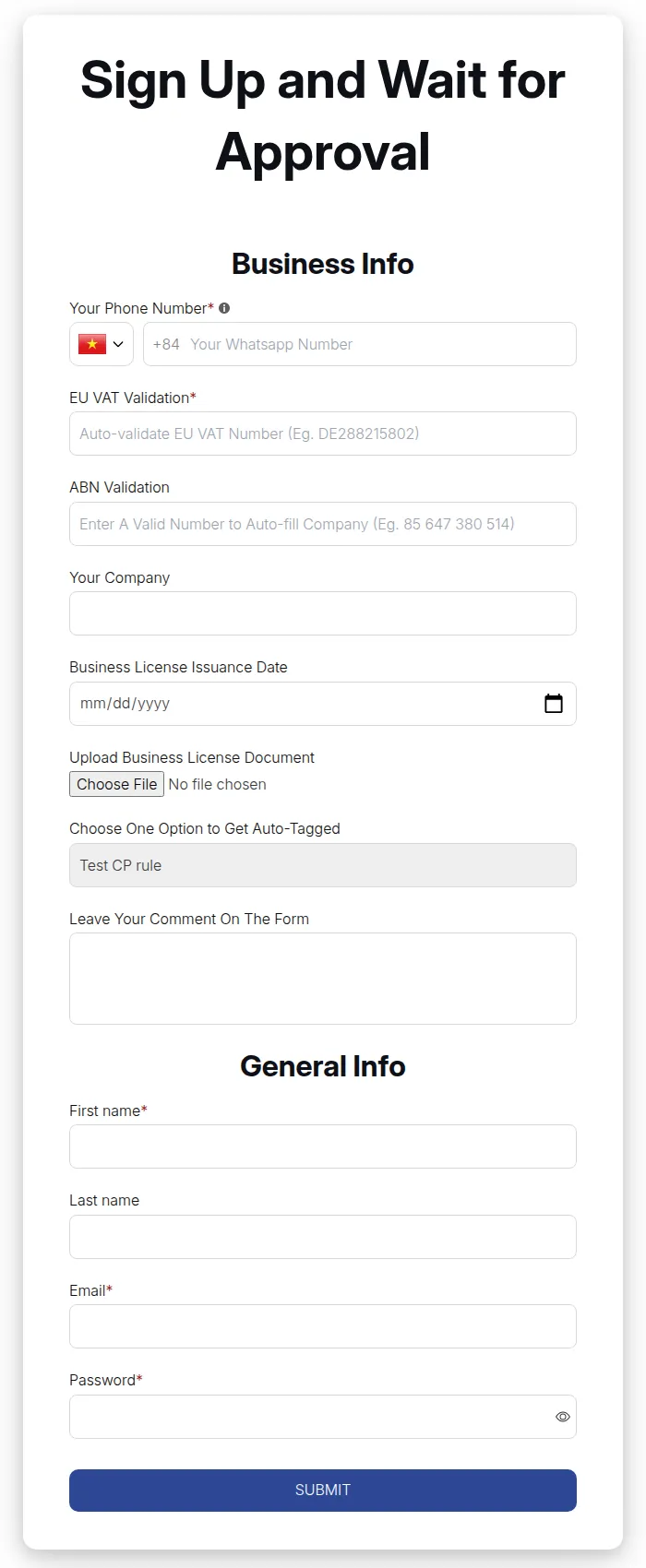
What your customers see on the storefront.
In the app: “This feature allows you to show or hide fields depending on the state of your form.”
Before you start
Section titled “Before you start”- Build the form first, including every field you want to show, hide or use as a condition. See Build a powerful wholesale registration form.
- Each form can have one conditional logic. One logic can contain several rules.
- Conditional logic is a paid feature. If your plan does not include it, the list page shows “Your conditional logic is currently disabled because it is not supported in your current pricing plan.” You can still edit and save, but the logic is not applied to your store until you upgrade.
Create conditional logic
Section titled “Create conditional logic”- Go to Customer management > Registration Forms and click Conditional logic.
- Click Create new logic.
- In Choose form to create, select the form, then click Create conditional logic. If the form already has logic, you see “This form has already had a logic, please choose another form”. Edit the existing logic from the list instead.
- Under General Information, check the Conditional form and set Status to Enable.
- Under Add conditions, build your first rule:
- Choose Show or Hide, then pick the field it affects in Select field.
- Under If form matchs:, choose Any condition or All conditions.
- In the condition row, pick the field to check, then Select condition, then enter the value.
- To check more fields for the same rule, click Add another fields.
- To control another field, click Add another conditional and repeat step 5.
- Save. You see “Conditional logic saved”.
Conditions you can use
Section titled “Conditions you can use”| Field type used in the condition | Available conditions |
|---|---|
| Text field, autocomplete, select (dropdown), radio group, checkbox group | Is, Is not, Contains, Does not contain, Starts with, Does not start with, Ends with, Does not end with |
| Number field | Is, Is not, Greater than, Smaller than, Greater than or equals, Smaller than or equals |
| Accept Marketing field | Is selected (Yes or No) |
Some fields cannot be used:
- Date fields and file upload fields cannot be used as conditions.
- On wholesale forms (version 2), First name, Last name, Email and Password cannot be shown or hidden.
How hidden fields behave
Section titled “How hidden fields behave”“All conditions will be false if the input is hidden or its value is empty.” So if field B depends on field A, and field A is hidden, field B’s condition is not met either. Plan chains of conditions from the top of the form down.
Messages you may see
Section titled “Messages you may see”| Message | What to do |
|---|---|
| “This field has already existed in this conditional logic, please choose another field” | Each field can be controlled by only one rule. Add conditions to the existing rule instead. |
| “Circular reference detected for field …” | Two rules depend on each other (A controls B, and B controls A). Remove one of the links. |
| “Duplicate condition …” | The same condition appears twice in one rule. Delete one. |
| “There is a conditional logic applied to this form. You have to delete it first!” | Shown when you delete a form that has logic. Delete the logic from Conditional logic first. |
| “This field exists in conditional logic for …” | Shown when you delete a field used by the logic. Remove it from the logic first. |
Duplicating a form
Section titled “Duplicating a form”Conditional logic is not copied when you duplicate a form: “The duplicated form shows every field until you set up conditional logic for it.” Create a new logic for the copy.
Test your logic
Section titled “Test your logic”- Open the page where the form is published.
- Fill in the field used in your condition and check that the target field appears or disappears.
- Try the opposite value to confirm the field switches back.