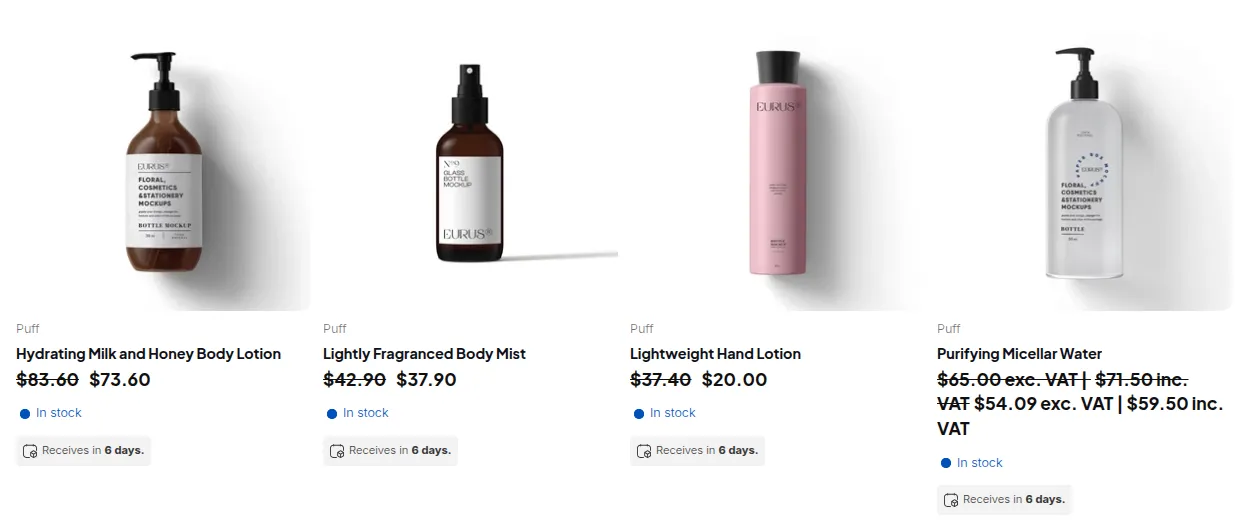
Set Customized Pricing per Product per Customer
Create a price list that adjusts product or variant prices for a specific customer or customer group.
If you need fine-tuned control over pricing - setting unique rates for each product per individual customer - then the Price List per Customer (PL) feature is your perfect solution. This empowers you to go beyond general discounts and define exact prices that apply only to specific products for specific clients.
Step 1: Enable Price List and Add a Rule
Section titled “Step 1: Enable Price List and Add a Rule”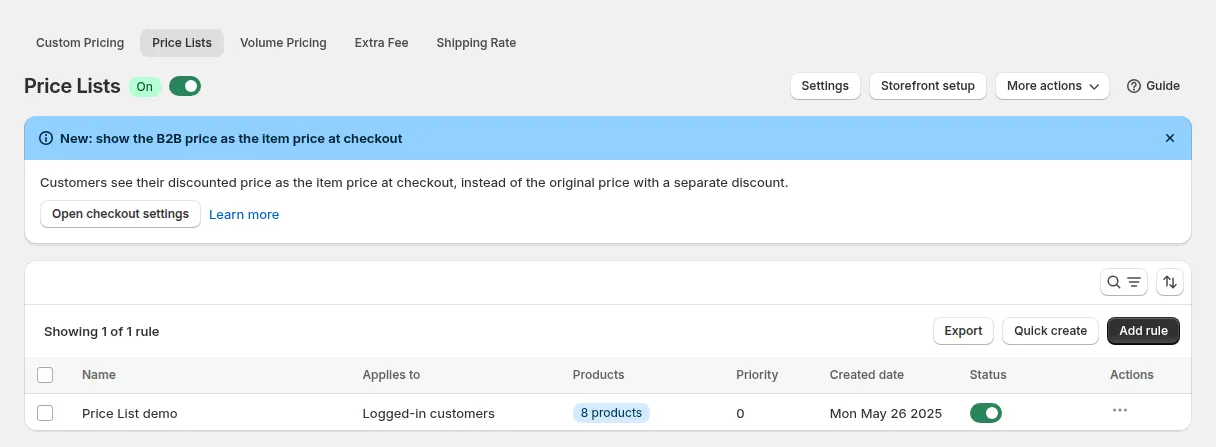
- In BSS B2B Solution, go to B2B Pricing and turn Price List on.
- Click Add rule above the rule list. The New price list page opens with the cards Rule, Customers, Markets and Edit price list, plus Exclusions and schedule (optional) and Advanced, which you open with Show.
The rule list has a Products column that shows how many products or variants each rule covers.
Step 2: Rule and Priority
Section titled “Step 2: Rule and Priority”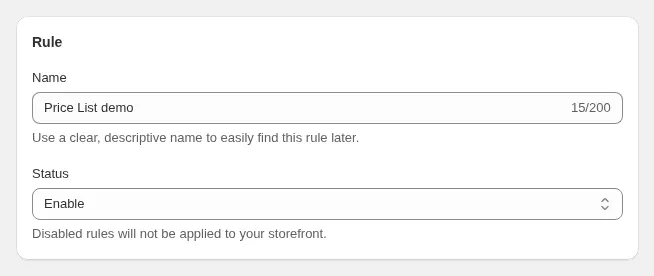
In the Rule card:
- Name: required, up to 200 characters.
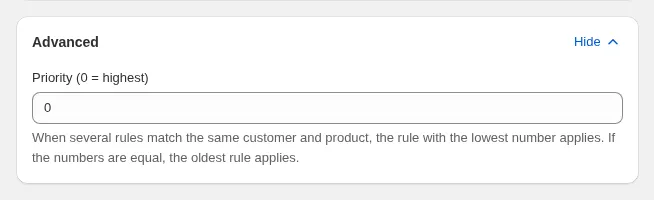
- Priority (0-99), in the Advanced card: 0 is the highest. When several Price List rules match the same variant, the lowest number wins; if priorities are equal, the earliest created rule wins.
- Status: Enable or Disable. Disabled rules are not applied to your storefront.
The rule list shows a status badge for each enabled rule, such as Active or Scheduled.
Step 3: Apply to Customers
Section titled “Step 3: Apply to Customers”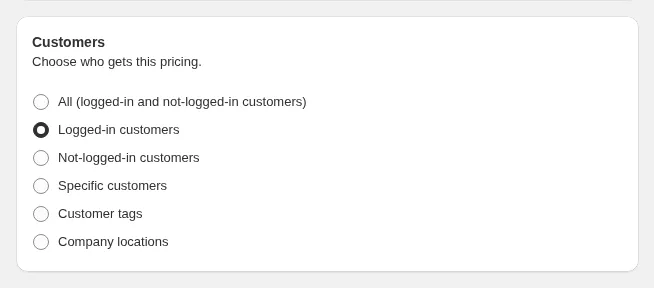
In the Customers card, choose who gets this price list:
| Option | Who matches |
|---|---|
| All (logged-in and not-logged-in customers) | Every visitor, including guests |
| Logged-in customers | Any signed-in customer |
| Not-logged-in customers | Guests only |
| Specific customers | Customers you pick |
| Customer tags | Customers with at least one of the tags |
| Company locations | Shopify B2B company locations |
Step 4: Apply to Markets
Section titled “Step 4: Apply to Markets”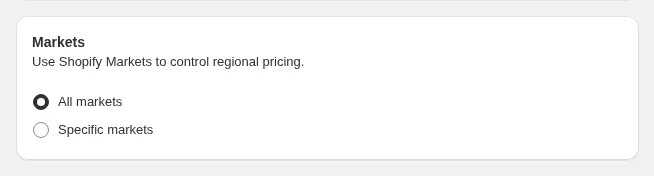
In the Markets card, keep All markets or choose Specific markets to limit the price list to selected Shopify Markets.
Step 5: Edit the Price List
Section titled “Step 5: Edit the Price List”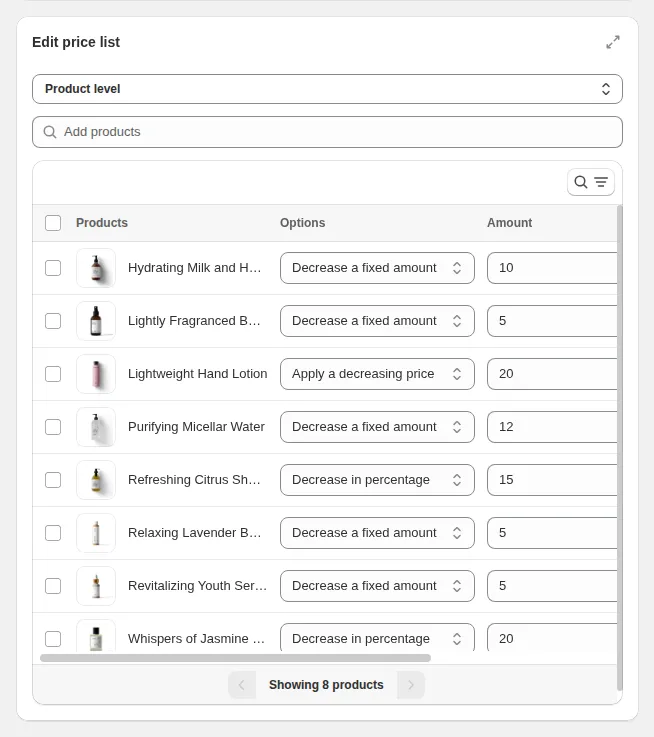
In the Edit price list card:
- Choose whether the pricing applies at the product level or variant level:
- Product level - apply one pricing option to the product and all its variants.
- Variant level - set pricing options for each variant separately. This is useful when different sizes, colors, or configurations have different negotiated prices.
- Use Add products to search or browse for the products or variants covered by the rule. In variant-level view, you can search directly by Product Title (e.g. “Ceramic Mug”) to display all matching variants, alongside search by SKU and Barcode.
| Option | How it works | Example |
|---|---|---|
| Apply a decreasing price | Sets a lower final price for the selected product or variant | Original price: $100 -> price list price: $80 |
| Decrease a fixed amount | Subtracts a fixed amount from the original price | Original price: $100, decrease $15 -> final price: $85 |
| Decrease in percentage | Subtracts a percentage from the original price | Original price: $100, decrease 20% -> final price: $80 |
| Apply an increasing price | Sets a higher final price for the selected product or variant | Original price: $100 -> price list price: $120 |
| Increase a fixed amount | Adds a fixed amount to the original price | Original price: $100, increase $10 -> final price: $110 |
| Increase in percentage | Adds a percentage to the original price | Original price: $100, increase 10% -> final price: $110 |
- After you select the products or variants, a Detailed Price Table appears. Use this table to manually input the custom price or adjustment value for each item.
Bulk Edit Price Options on Current Page
Section titled “Bulk Edit Price Options on Current Page”To quickly adjust multiple prices at once:
- Select the checkboxes next to items on the current page (or use the master checkbox to select all).
- Click Set prices.
- Choose to adjust prices by percentage (
X%) or set a fixed dollar discount / override price across all selected items. - Click Apply.
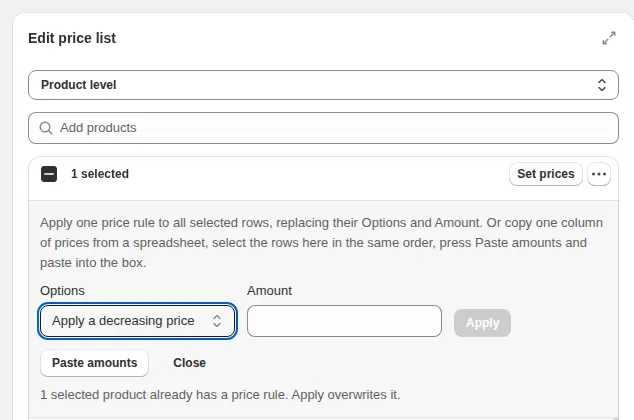
- You can increase or decrease prices as needed to align with your business strategy. To see more rows or get a full view of the table, click the Expand view icon:
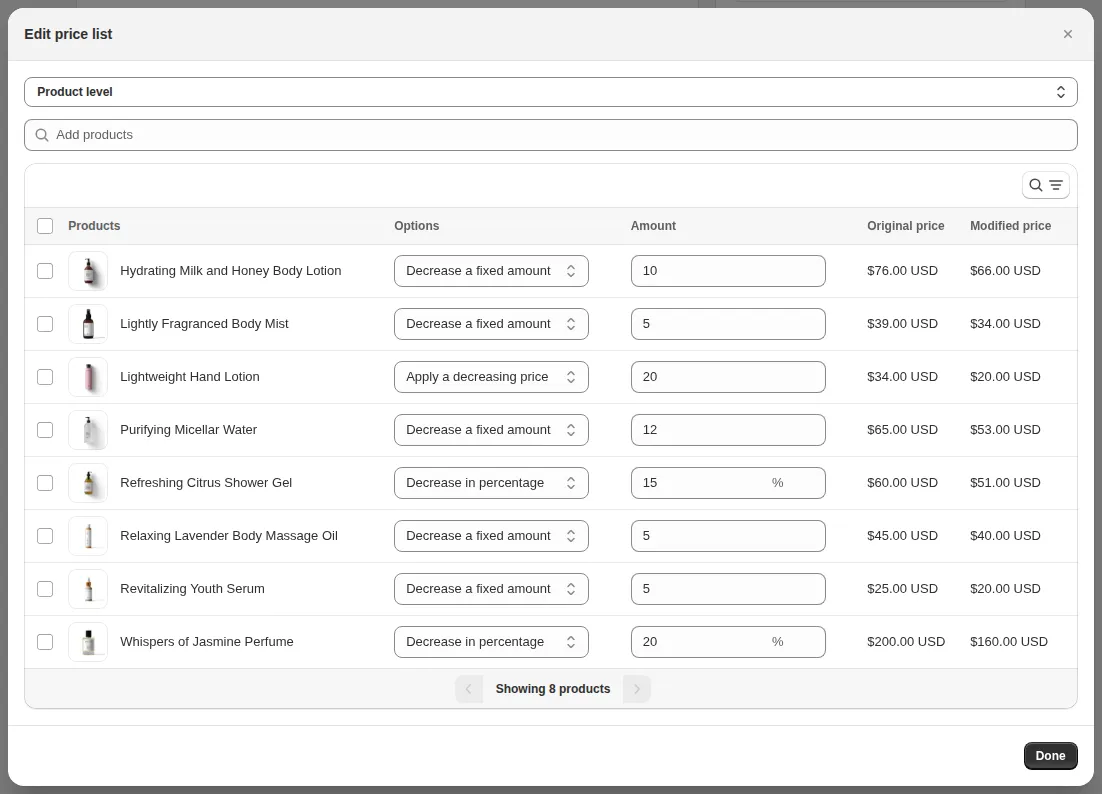
Before saving the rule, make sure all required fields in the Detailed Price Table are filled in.
Note: Custom prices higher than the original product price will not display on the storefront. Only prices lower than the original are shown to eligible customers.
Step 6: Exclude Customers (Optional)
Section titled “Step 6: Exclude Customers (Optional)”Open Exclusions and schedule (optional) with Show for steps 6 to 8.
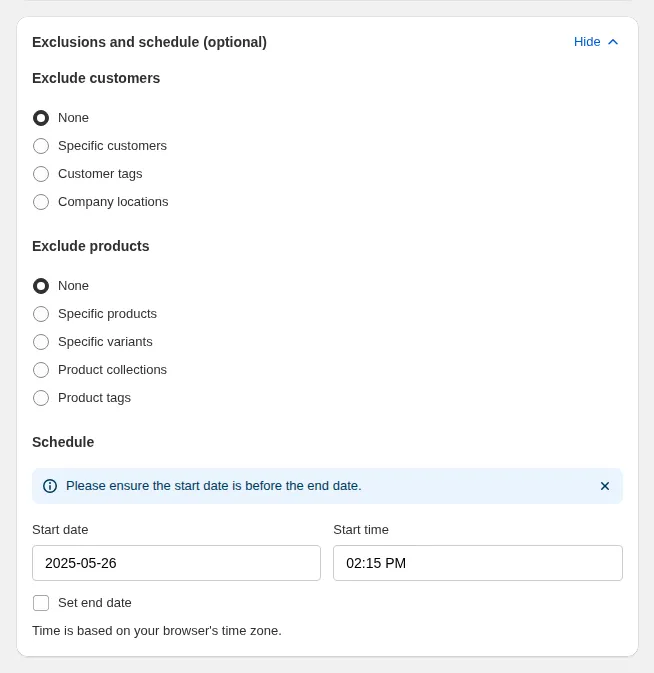
Exclude customers keeps selected customers on normal prices even if they match step 3: Specific customers, Customer tags or Company locations. An exclusion always wins.
Step 7: Exclude Products (Optional)
Section titled “Step 7: Exclude Products (Optional)”Exclude products keeps Specific products, Specific variants, Product collections or Product tags on their normal price.
Step 8: Set Schedule
Section titled “Step 8: Set Schedule”Under Schedule, set a Start date and Start time. Tick Set end date to add an end. Outside this window, normal prices apply. Time is based on your browser’s time zone.
Step 9: Save
Section titled “Step 9: Save”Click Save. The Make Price Lists live card on the right checks Rule saved, Rule is enabled, Price Lists module is on and App embed is on in your theme, and turns each one green when it is done.
Eligible customers then see the price list price on product and collection pages: