
Set Unique Prices for Wholesale Customers
Assign exclusive wholesale pricing to specific customers or groups - without duplicating products or using coupon codes. Eligible customers see their personalized prices automatically when logged in.
You don’t have to create duplicates of your products just to offer wholesale rates. With the Custom Pricing module, you can assign exclusive pricing to wholesale customers - right on your original catalog. This ensures they see their special pricing automatically when they log in or match your eligibility criteria.
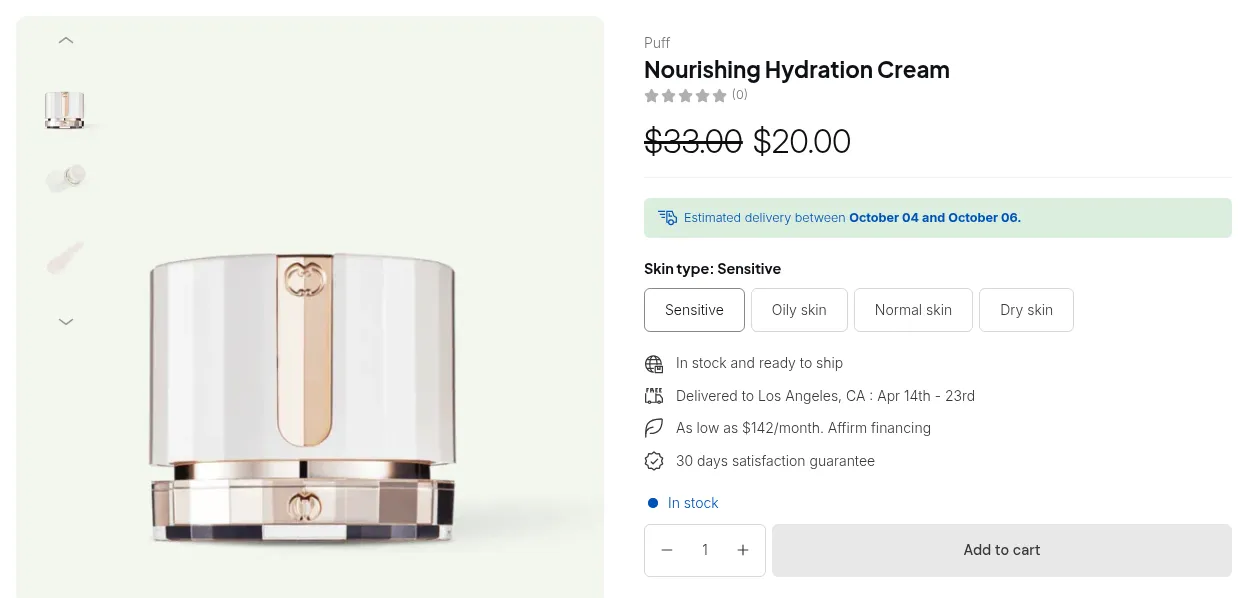
Wholesale customer (logged in): custom price $20.00
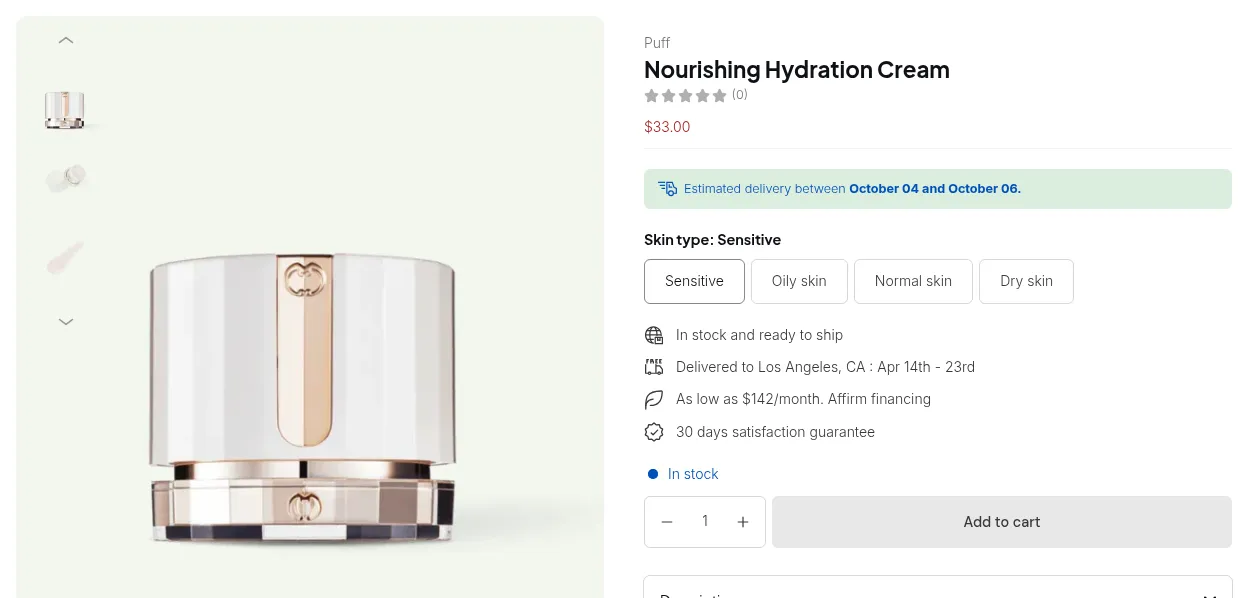
Guest or retail customer: retail price $33.00
## How to Configure Custom PricingFollow these steps to get started:
Step 1: Enable Custom Pricing & Access Configuration
Section titled “Step 1: Enable Custom Pricing & Access Configuration”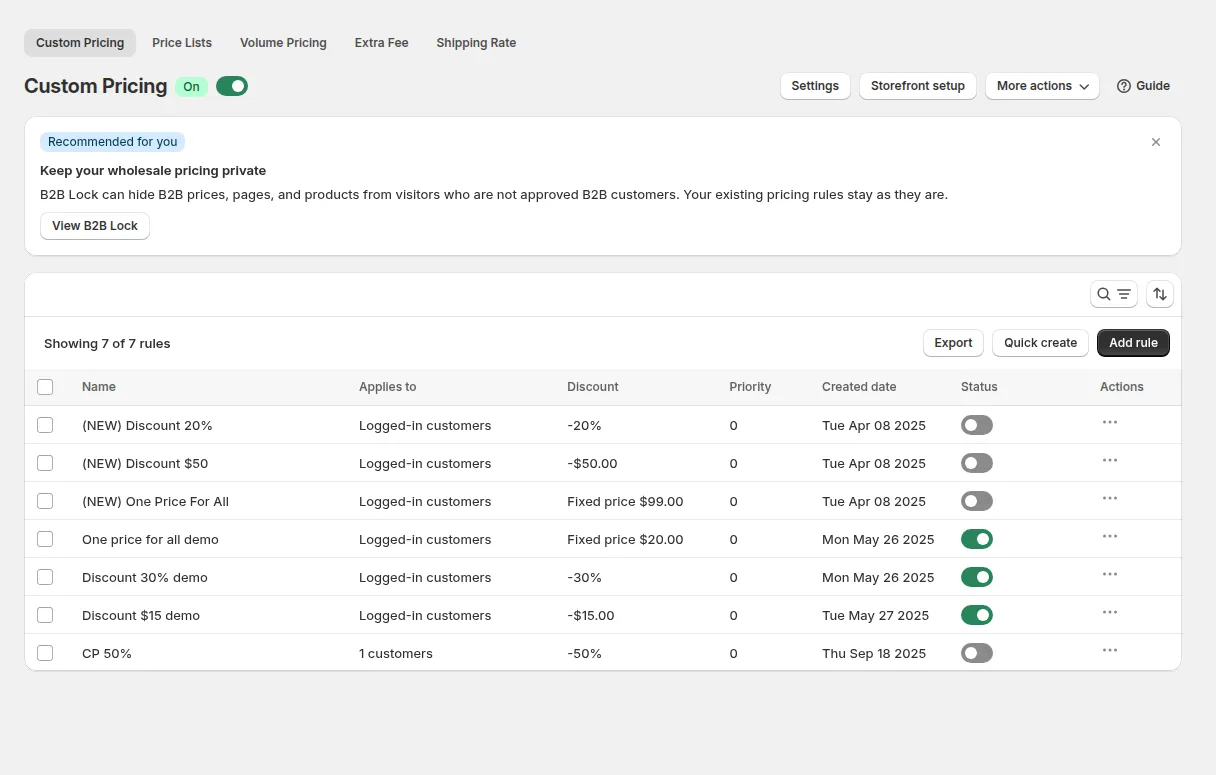
- In BSS B2B Solution, go to B2B Pricing and turn Custom Pricing on.

- Click Add rule above the rule list. The New custom pricing rule page opens with the cards Rule, Customers, Products, Markets and Price, plus Exclusions and schedule (optional) and Advanced, which you open with Show.
Step 2: General Information
Section titled “Step 2: General Information”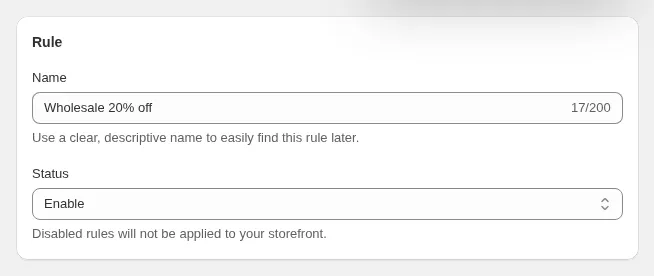
In the Rule card:
- Name: required, up to 200 characters. Shoppers never see it.
- Status: Enable or Disable. Only enabled rules reach your storefront.
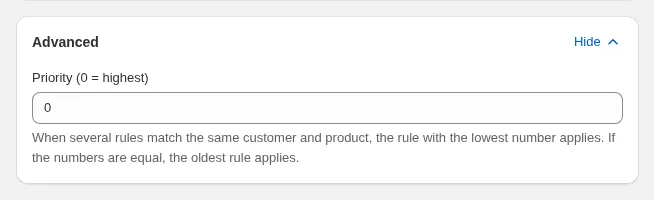
Priority (0-99) is in the Advanced card (click Show): 0 is the highest. When several rules match the same customer and product, the lowest number wins. If priorities are equal, the earliest created rule wins.
Step 3: Define Eligible Customers
Section titled “Step 3: Define Eligible Customers”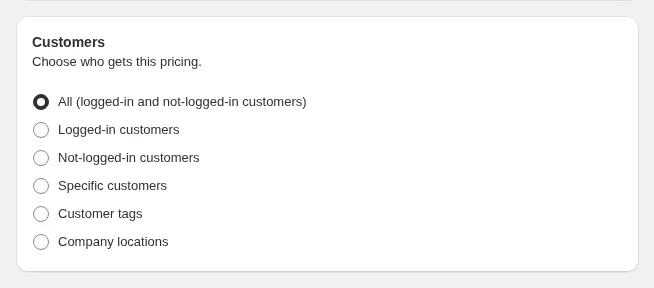
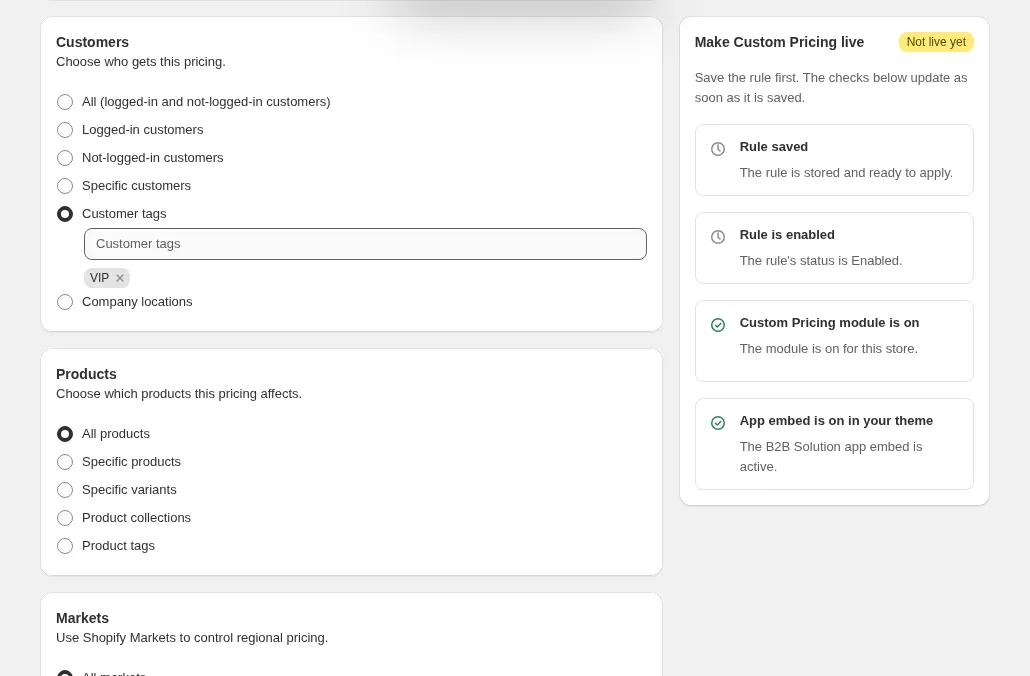
In the Customers card, choose who gets the price. For Customer tags, click the field, tick the tags in Select tags and click Select:
| Option | Who matches |
|---|---|
| All (logged-in and not-logged-in customers) | Every visitor, including guests |
| Logged-in customers | Any signed-in customer |
| Not-logged-in customers | Guests only |
| Specific customers | Customers you pick |
| Customer tags | Customers with at least one of the tags, for example wholesale |
| Company locations | Shopify B2B company locations (Advanced or Platinum plan) |
Step 4: Apply to Products
Section titled “Step 4: Apply to Products”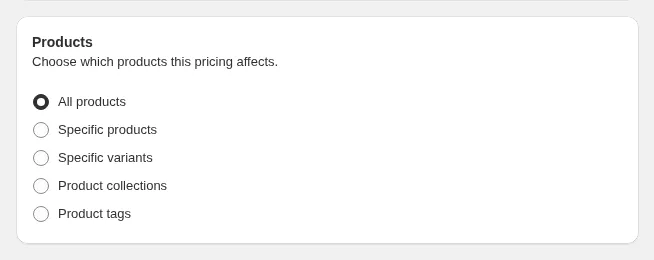
In the Products card, choose which products get the price:
| Option | Plan |
|---|---|
| All products | All plans |
| Specific products | All plans |
| Product collections | Any paid plan |
| Product tags | Advanced or Platinum |
| Specific variants | Platinum |
Step 5: Select Markets (Optional)
Section titled “Step 5: Select Markets (Optional)”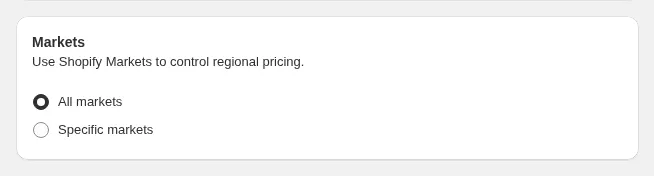
In the Markets card, keep All markets or choose Specific markets (Advanced or Platinum plan) to limit the rule to selected Shopify Markets.
Step 6: Set the Custom Price Logic
Section titled “Step 6: Set the Custom Price Logic”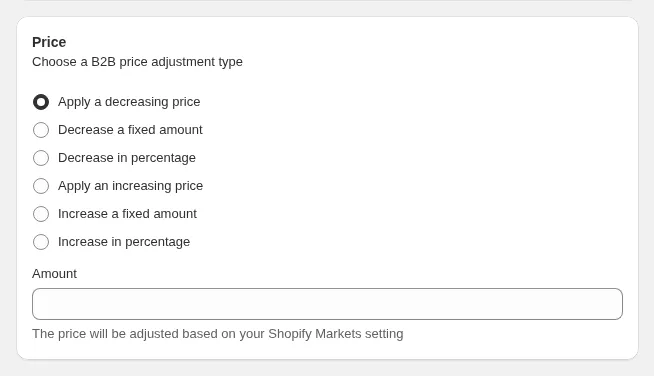
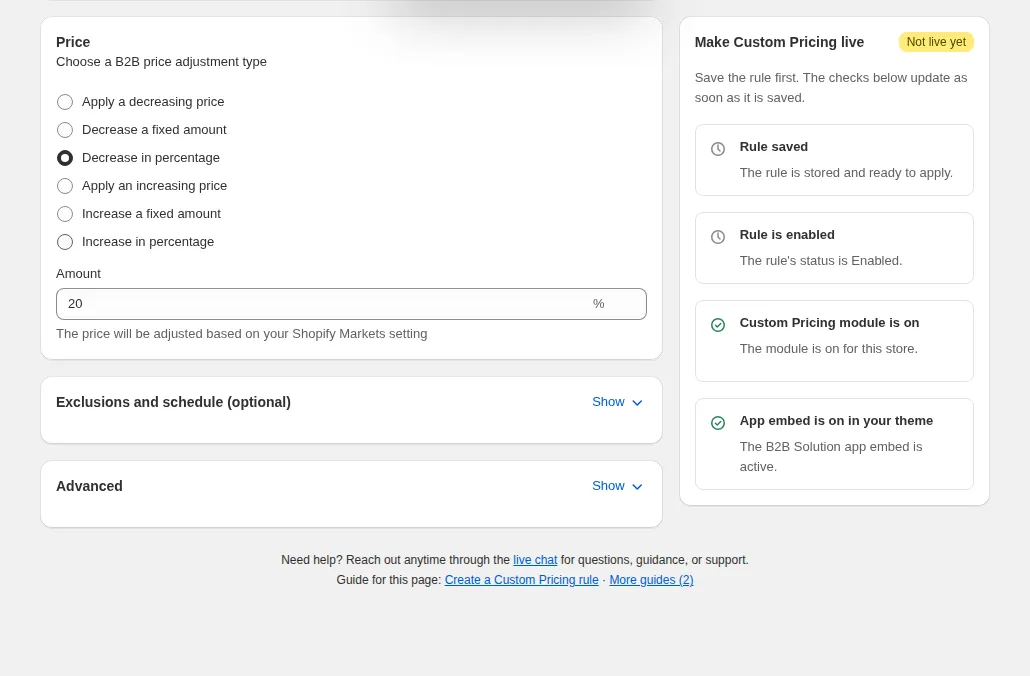
In the Price card, choose a B2B price adjustment type and enter the Amount:
| Option | What it does | Example ($50 product) |
|---|---|---|
| Apply a decreasing price | Sets a fixed price, used only when it is lower than the current price | $40 |
| Decrease a fixed amount | Subtracts an amount | $50 - $10 = $40 |
| Decrease in percentage | Takes a percentage off (up to 100) | 10% off = $45 |
| Apply an increasing price | Sets a higher fixed price | $60 |
| Increase a fixed amount | Adds an amount | $50 + $10 = $60 |
| Increase in percentage | Adds a percentage | 10% more = $55 |
Step 7: Exclude Customers (Optional)
Section titled “Step 7: Exclude Customers (Optional)”Open Exclusions and schedule (optional) with Show for steps 7 to 9.
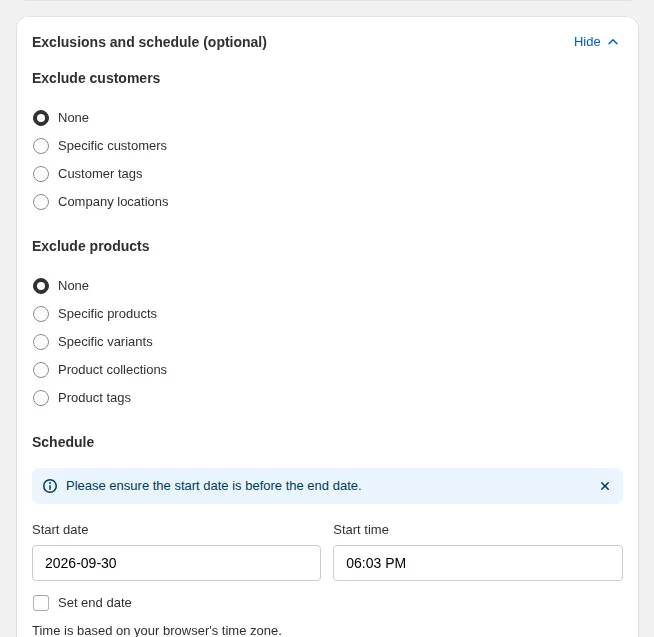
In Exclude customers, choose Specific customers, Customer tags or Company locations to keep some customers on your normal prices, even if they match step 3. An exclusion always wins.
Step 8: Exclude Products (Optional)
Section titled “Step 8: Exclude Products (Optional)”In Exclude products, choose products, variants, collections or tags that keep their normal price. Excluding products, collections and tags needs the Advanced or Platinum plan; excluding variants needs Platinum.
Step 9: Set Schedule
Section titled “Step 9: Set Schedule”Under Schedule, set a Start date and Start time. Tick Set end date to add an End date and End time. Time is based on your browser’s time zone.
Step 10: Validate & Save
Section titled “Step 10: Validate & Save”Click Save. Eligible customers see their prices the next time they load a page.
The Make Custom Pricing live card on the right checks four things and turns each one green when it is done: Rule saved, Rule is enabled, Custom Pricing module is on, and App embed is on in your theme. If a check stays open after saving, fix that item: for example, turn on the B2B Solution app embed in your theme.
Price display settings
Section titled “Price display settings”Open Custom Pricing > Settings to choose how the B2B price is shown:
| Price display mode | Shows |
|---|---|
| Show custom price and original price (Recommended, default) | The B2B price with the original price struck through |
| Show custom price and compare-at price | The B2B price with the product’s compare-at price |
| Show custom price only | Just the B2B price |
You can also set the colors of the original price (default #303030) and the custom price (default #E51C00).
After a plan change
Section titled “After a plan change”If your plan no longer covers an option a rule uses, the rule stays in the app but is inactive on the storefront, and the rule list tells you which rules need an upgrade. After a downgrade to Free with several rules, the list becomes read-only: open the one rule you want to keep and save it, and the app disables the others.
How It Looks on the Storefront
Section titled “How It Looks on the Storefront”- Non-eligible visitors see the standard retail price.
- When wholesale customers log in, product pages automatically reflect the adjusted pricing.
- Discounted prices appear throughout the shopping experience, maintaining transparency and trust.
On collection pages too, a logged-in wholesale customer sees the custom price next to the struck-through retail price. In this demo a One price for all rule sets every product to $20.00:
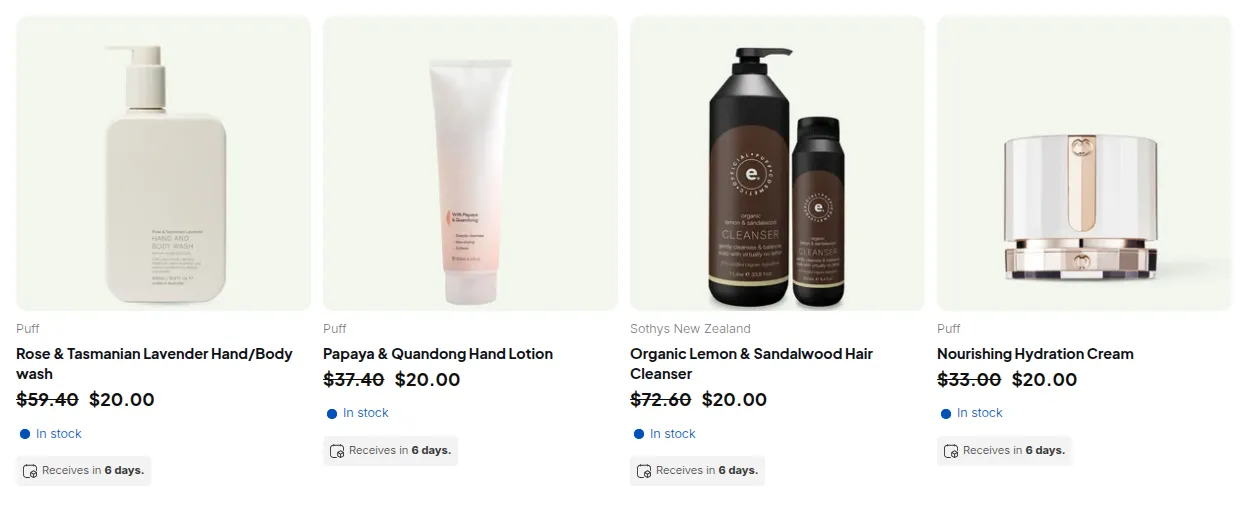
Not logged-in
Logged-in
:::note If you need further assistance, please feel free to reach us at [**[email protected]**](mailto:[email protected]) or [**Live Chat**](https://go.crisp.chat/chat/embed/?website_id=9f64b5a9-1a02-4190-93b8-8ef56b19f740). :::