
Display Discounted Prices as MSRP on Checkout Page
The Display Discounted Prices feature allows you to decide how product discounts appear on the Checkout page, ensuring a smooth and transparent pricing experience for your customers.
How It Works
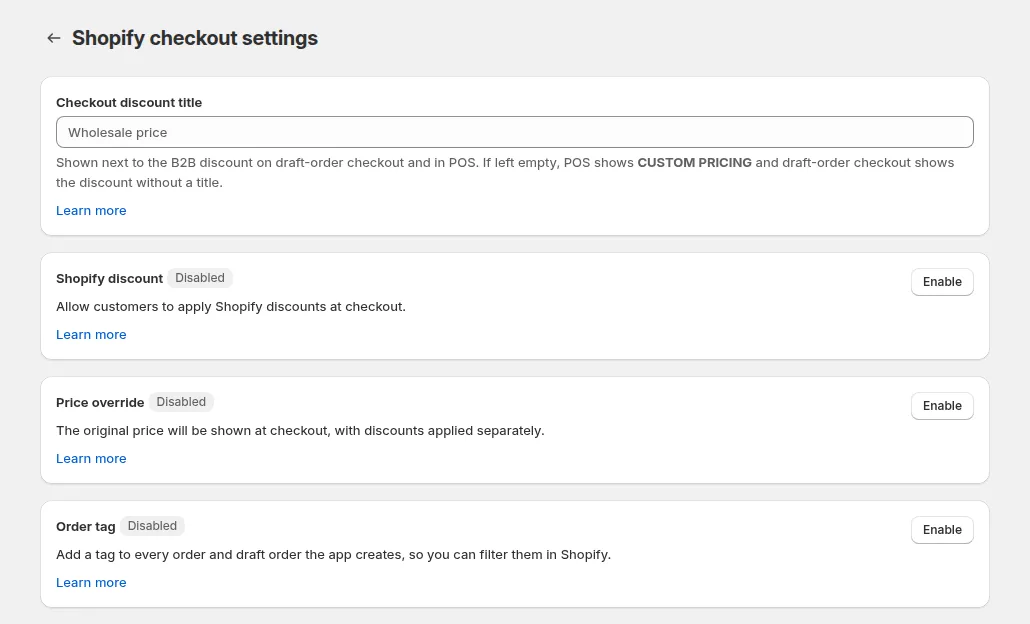
Section titled “How It Works”In Settings > Shopify checkout settings, the Price override option lets you choose whether to display the discounted price as the Manufacturer’s Suggested Retail Price (MSRP) at checkout.
Option 1: Turn On the Setting
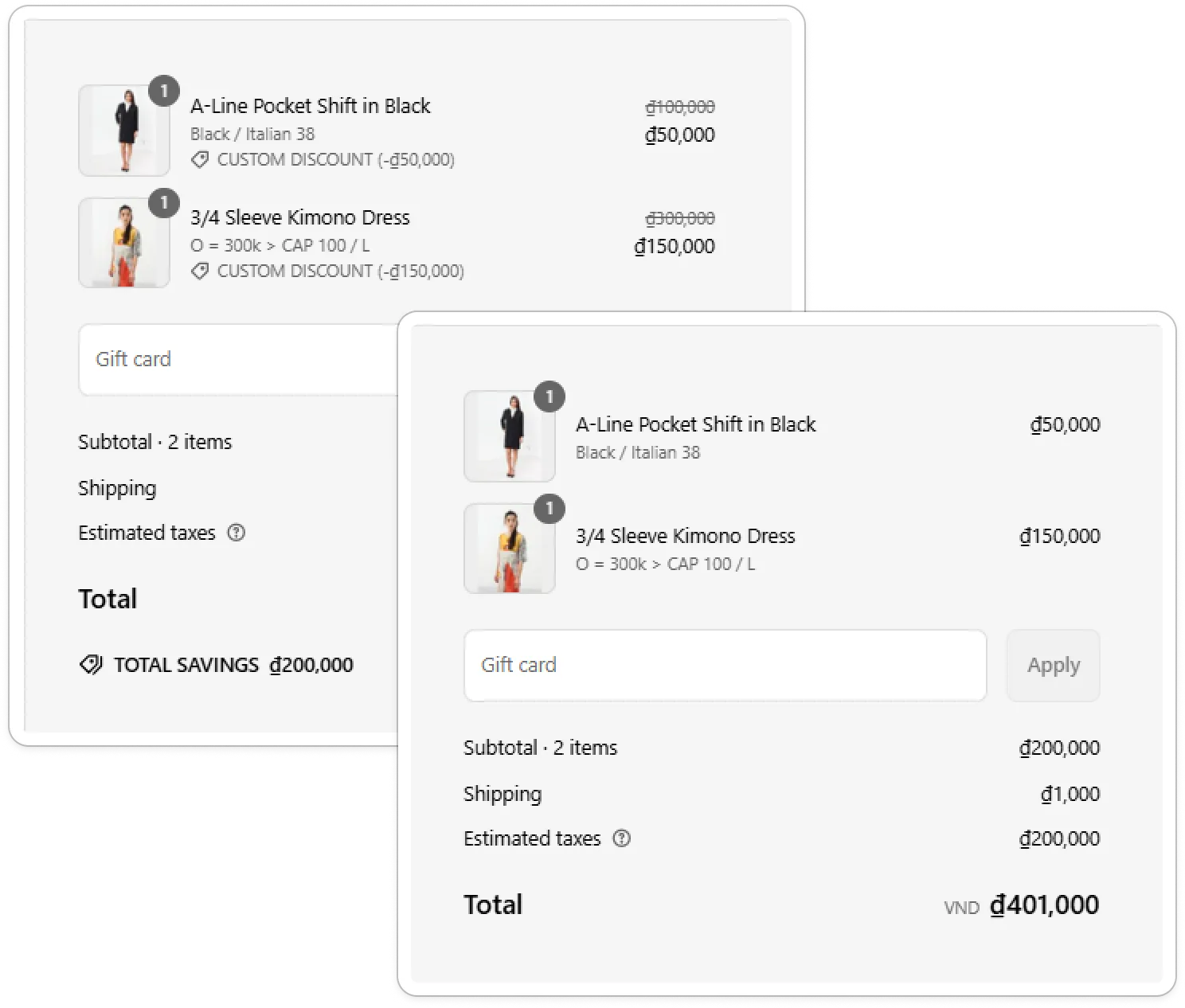
Section titled “Option 1: Turn On the Setting”- The discounted price will appear as the MSRP on the Checkout page.
- The order record will treat the MSRP as the original price in your system.
✅ Use this option if you want customers to see their final price as the standard listed price.
Option 2: Turn Off the Setting
Section titled “Option 2: Turn Off the Setting”- The discounted price will be displayed separately from the original MSRP.
✅ Use this option if you want to show both the regular and discounted prices clearly.
The Other Two Checkout Settings
Section titled “The Other Two Checkout Settings”The setting described above is Price override: one of three controls under Advanced Settings → Shopify checkout settings. Each sits in its own card, and your changes are applied when you click Save on the settings bar. They apply store-wide to the checkouts and draft orders BSS B2B Solution builds; they are not per-customer or per-product.
| Card | Control | What it does |
|---|---|---|
| Checkout discount title | Text field | Sets the label put on the B2B price adjustment line at checkout. Defaults to CUSTOM PRICING when left empty. |
| Shopify discount | Status badge + Enable / Disable button | “Allow customers to apply Shopify discount at checkout step.” |
| Price override | Status badge + Enable / Disable button | Enabled: “Show discounted price as original price on item at checkout.” Disabled: “The original price will be shown at checkout, with discounts applied separately.” |
Checkout discount title
Section titled “Checkout discount title”Type the text you want shown next to the B2B price adjustment at checkout: for example WHOLESALE PRICE or CONTRACT PRICING.
Leave the field empty and the discount line is labelled CUSTOM PRICING: that is the default, which is why the field shows it as greyed-out placeholder text. Type your own value to replace it. (Shopify POS uses its own fixed label and ignores this field.)
Shopify discount
Section titled “Shopify discount”Enable this to let B2B buyers enter standard Shopify discount codes in the B2B checkout on top of the B2B pricing they already receive. It is disabled by default.
Best Practice
Section titled “Best Practice”Enabling this option can make your checkout look cleaner and prevent confusion for B2B customers who expect to see only the final wholesale price rather than both values.