
How Do I Set Up a Wholesale Store from Scratch?
You want to accept wholesale applications, vet each applicant, automatically tag approved accounts, and immediately show those customers discounted wholesale prices - all without touching code. This walkthrough combines Registration Form, Custom Pricing, and the App Embed.
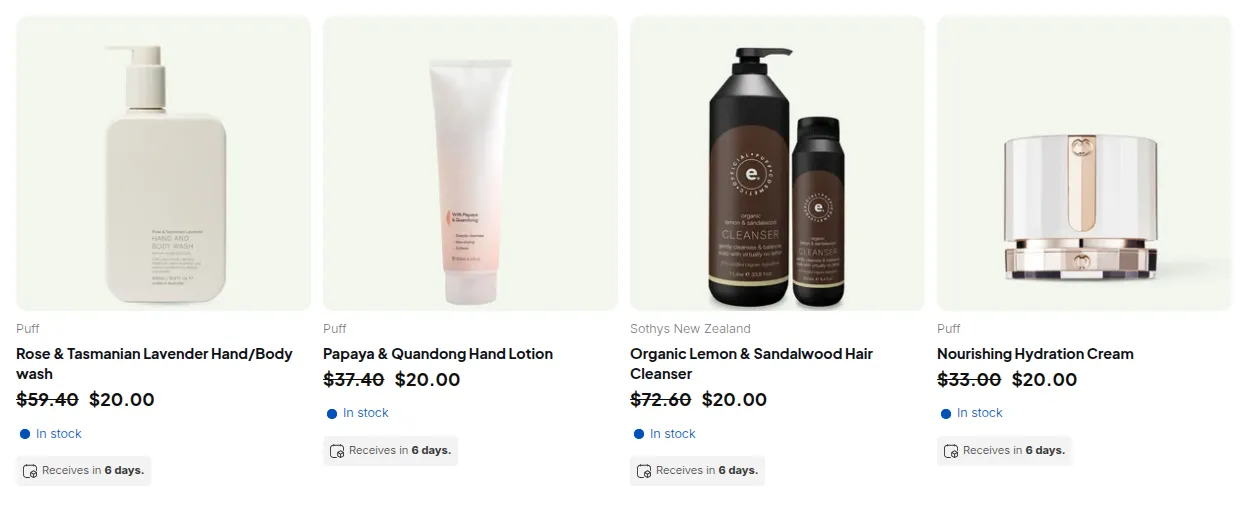
What your customers see on the storefront.
Step 1: Create a wholesale application form
Section titled “Step 1: Create a wholesale application form”Set up a Registration Form that collects the information you need from applicants and applies a tag on approval.
- Go to B2B Customers > Registration Forms and click Create new form.
- Give it a name (e.g. “Wholesale Application”) and a URL handle (e.g.
wholesale-apply). The form will live athttps://your-store.com/pages/wholesale-apply. - Add the fields you need: drag in Company (
company-field), Phone (phone-field), and any custom fields (e.g. a “Business type” Dropdown). - Under Customer settings, set Approval mode to Manual approval and check Hide password field - applicants submit without a password; you send a Shopify invite on approval.
- In Assign tag when customer is approved, enter
wholesale-approved. This tag is applied to every customer you approve. - Enable Email notification so applicants receive a “pending review” email automatically.
- Save the form.
See Set Up Registration Form for every field option and the full approval workflow.
Step 2: Enable and configure Custom Pricing
Section titled “Step 2: Enable and configure Custom Pricing”Create a price-list rule that targets the wholesale-approved tag.
- Go to B2B Pricing > Custom Pricing and toggle the module on.
- Click Add rule and work through the wizard:
- Step 1: Name the rule (e.g. “Wholesale 20% off”), priority
5, status enabled. - Step 2: Customer condition > Customer tags >
wholesale-approved. Product condition > All products. - Step 3: Discount type > Decrease in percentage, value >
20. - Step 4: No end date (always-on).
- Save. The rule is published to your storefront immediately.
See Set Up Custom Pricing for the full list of targeting and discount-type options.
Step 3: Enable the App Embed on your theme
Section titled “Step 3: Enable the App Embed on your theme”Both Registration Form and Custom Pricing render through the BSS B2B Solution app embed. Without it, neither the application form block nor the wholesale prices will appear on the storefront.
- In your Shopify admin go to Online Store > Themes > Customize.
- Click App embeds (usually in the left-side panel or the top-right eye icon).
- Toggle BSS B2B Solution (or BSS B2B Solution) on and click Save.
Step 4: Place the Registration Form block on a page
Section titled “Step 4: Place the Registration Form block on a page”- In the Shopify admin, go to Online Store > Pages. You will find a page named “Wholesale Application” (automatically created by BSS B2B Solution when you saved the form).
- In the Theme Editor, navigate to that page and add the Registration Form app block. Set Registration Form ID to the numeric ID shown on the form’s detail page in admin.
- Link to the page from your navigation (e.g. “Apply for a wholesale account” in the header menu).
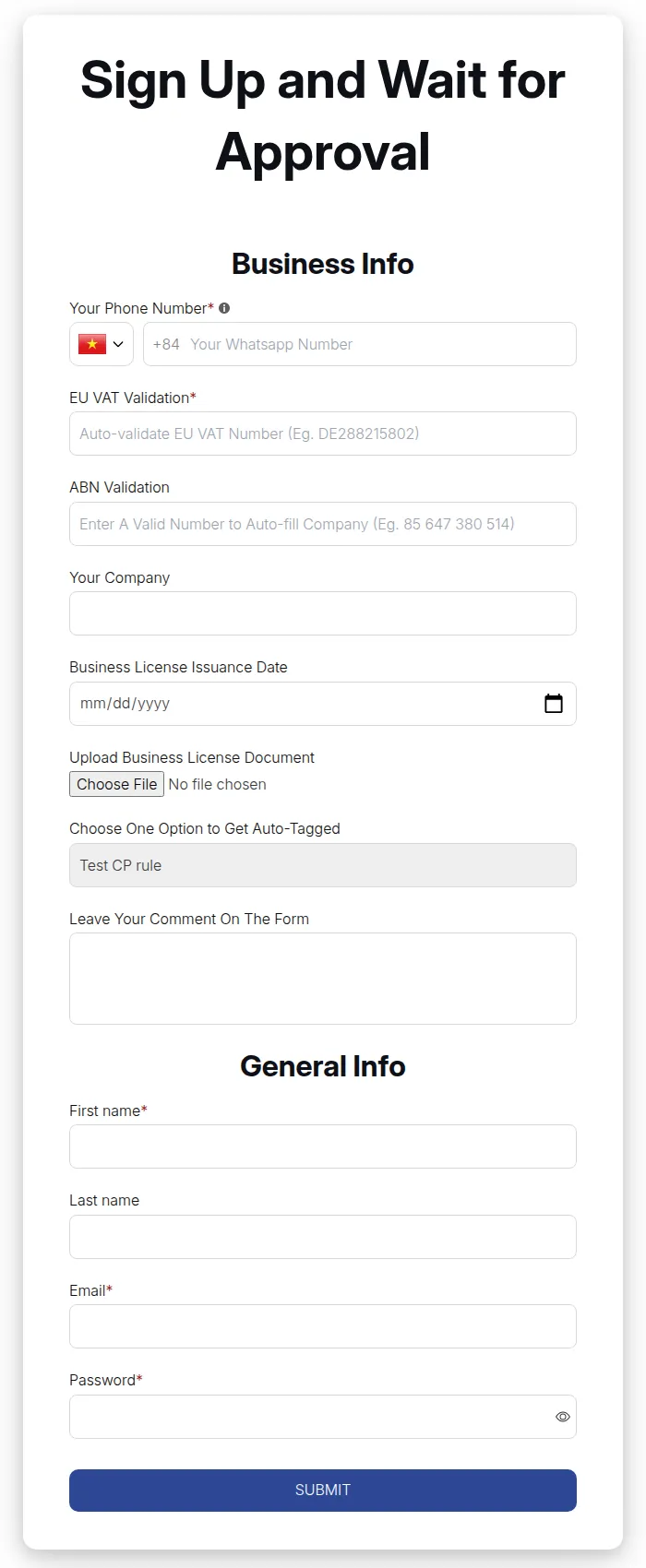
Step 5: Review and approve applicants
Section titled “Step 5: Review and approve applicants”As applications arrive, go to B2B Customers > Registration Forms > Registration management - one store-wide list covering every form, with the originating form shown as a filterable column. Pending applicants appear with status Pending. Open an applicant, verify their details, and click Approve.
On approval:
- The Shopify customer account is created and the
wholesale-approvedtag is applied. - Because your Custom Pricing rule targets that exact tag, the customer’s prices update to −20% across all products immediately - no further action required.
See Approval Workflow for status codes, email templates, and bulk actions.
# Example
Section titled “# Example”A merchant sells industrial cleaning supplies. Their list price on a gallon of product is $25.00.
| Step | What happens |
|---|---|
| Applicant submits form | Pending record created; merchant receives notification |
| Merchant reviews company info and approves | Customer gets tag wholesale-approved; activation email sent |
| Customer logs in and visits any product page | Storefront JS reads the Custom Pricing rule; shows $20.00 (−20%) with the original $25.00 struck through |
| Customer adds to cart | Cart reflects $20.00 per unit |
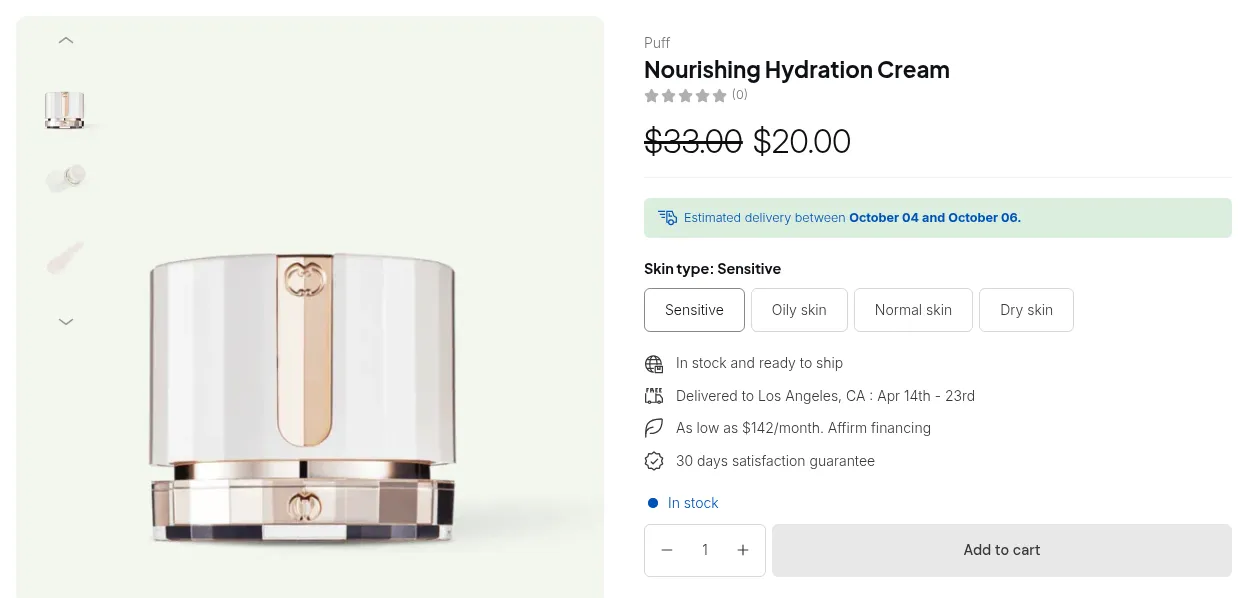
Without any further configuration, 100% of the catalog is repriced for every customer who carries the wholesale-approved tag.
# Summary
Section titled “# Summary”| Feature | Role in this scenario | Notes |
|---|---|---|
| Registration Form | ✅ Captures applicant data; triggers manual approval workflow | Form at /pages/wholesale-apply; handles field collection, privacy, and email notifications |
| Custom Pricing | ✅ Delivers wholesale prices to wholesale-approved customers |
Rule priority 5; 20% off all products; published to your storefront on save |
| App Embed | ✅ Required - both features render through it | Must be enabled in Online Store > Themes > Customize > App embeds |