
Display Custom Pricing for Price Lists
After you’ve configured your Price List per Customer rules, the next step is to control how those custom prices are shown to your customers throughout your storefront: from product pages to carts and checkout. You can choose which pricing elements to reveal, so your store stays both transparent and consistent with your branding.
1. On Product & Cart Pages
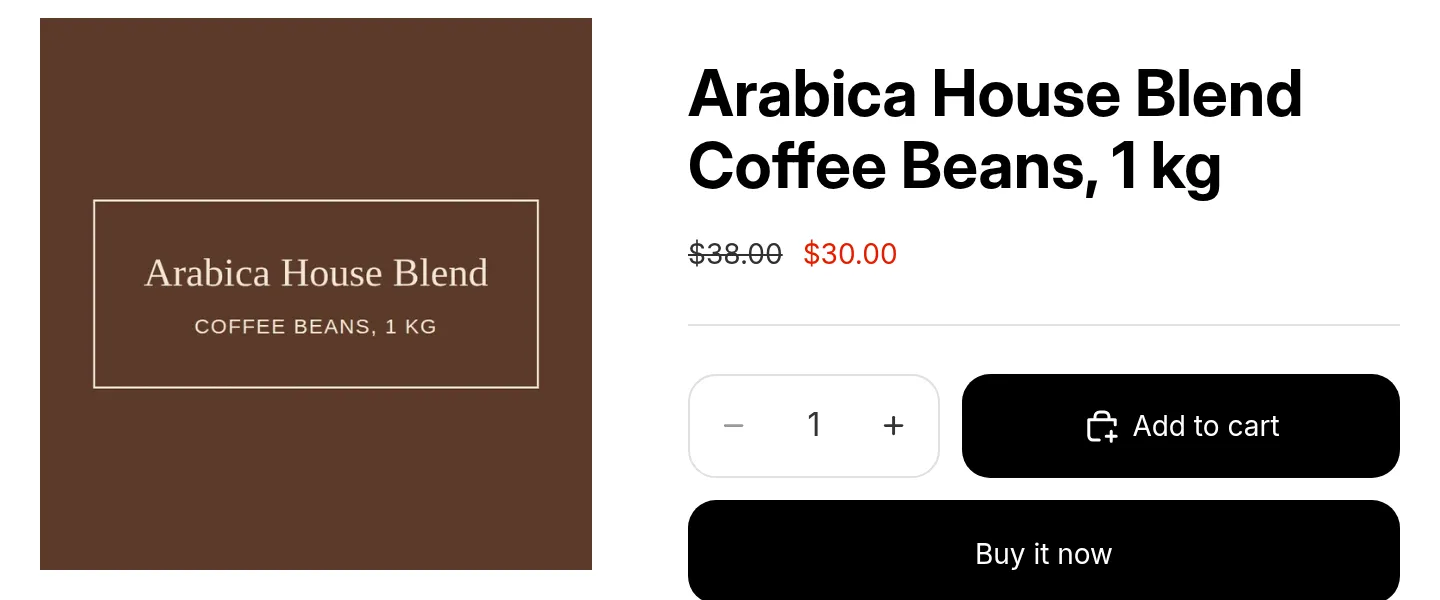
Section titled “1. On Product & Cart Pages”On the Price Lists tab, click Price display. In the How prices look card, under Display mode, choose one of the following modes:
- Show price list price and original price (Recommended): shows both the price list price and the original price side by side (when no compare at price is set, the original price is used).
- Show price list price and compare-at price: displays the price list price, with the compare-at price struck through for contrast.
- Show price list price only: hides the original or compare-at price and displays only the price defined in the customer’s price list.
Under Color design, you can set the colors of the Original / Compare-at price and the Price list price. The Live preview shows how the price appears on your product page. If your store shows prices differently, click the Storefront setup link under the preview.
2. At Checkout & Cart Summary
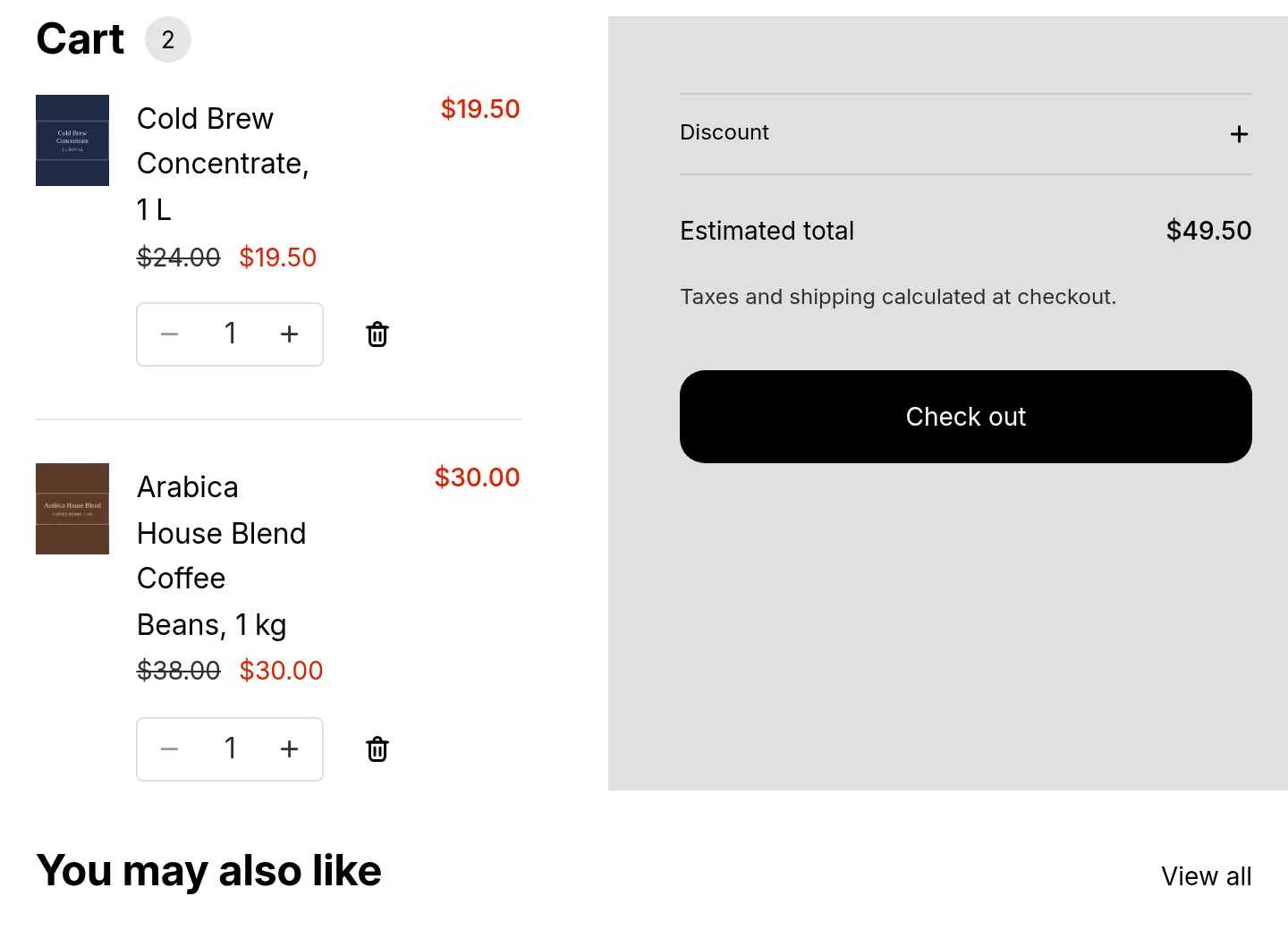
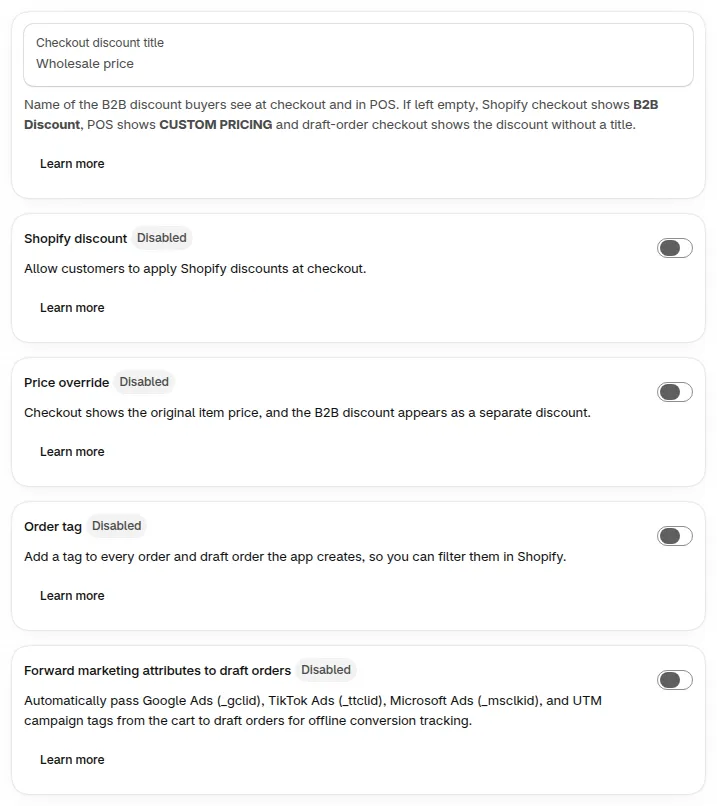
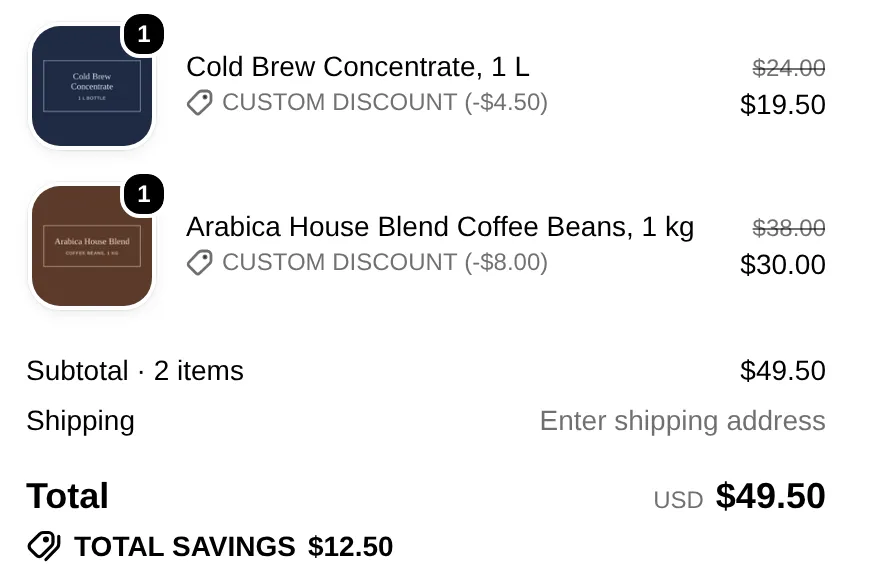
Section titled “2. At Checkout & Cart Summary”In Settings > Shopify checkout settings, the Price override option decides how pricing is reflected in the final steps:
- On: the discounted price is shown as the item’s price at checkout, with no separate discount line.
- Off (default): the original price is shown at checkout, and the B2B discount appears as a separate line.
This flexibility lets you decide how obvious or subtle the custom pricing is during checkout: balancing transparency and marketing.
3. When Multiple Pricing Rules Apply
Section titled “3. When Multiple Pricing Rules Apply”If a product is affected by both a price list rule and other pricing modules (like custom pricing or quantity/amount breaks):
- The system applies them sequentially in this order: Price List per Customer (The highest priority) → Custom Pricing (Applied only if Price List per Customer is not eligible or absent) → Volume Pricing (Calculated on resulting price)
- Depending on your display mode, the custom list price may replace or override the original retail or discount price.