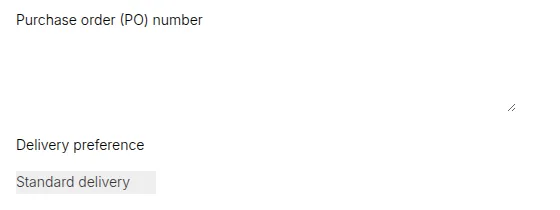
How to Enable Custom Notes for Orders
The Order Custom Notes feature allows your customers to include additional details or special instructions when placing an order. Whether they want to specify delivery preferences, packaging requirements, or custom product details, this feature ensures clear communication between you and your buyers, making every order more personalized and accurate.
This is especially useful for B2B and wholesale stores, where orders often come with specific demands such as custom labeling, bulk delivery notes, or internal reference numbers.
Step 1: Access the Setting
Section titled “Step 1: Access the Setting”- From your Shopify admin, go to Apps → BSS B2B Solution.
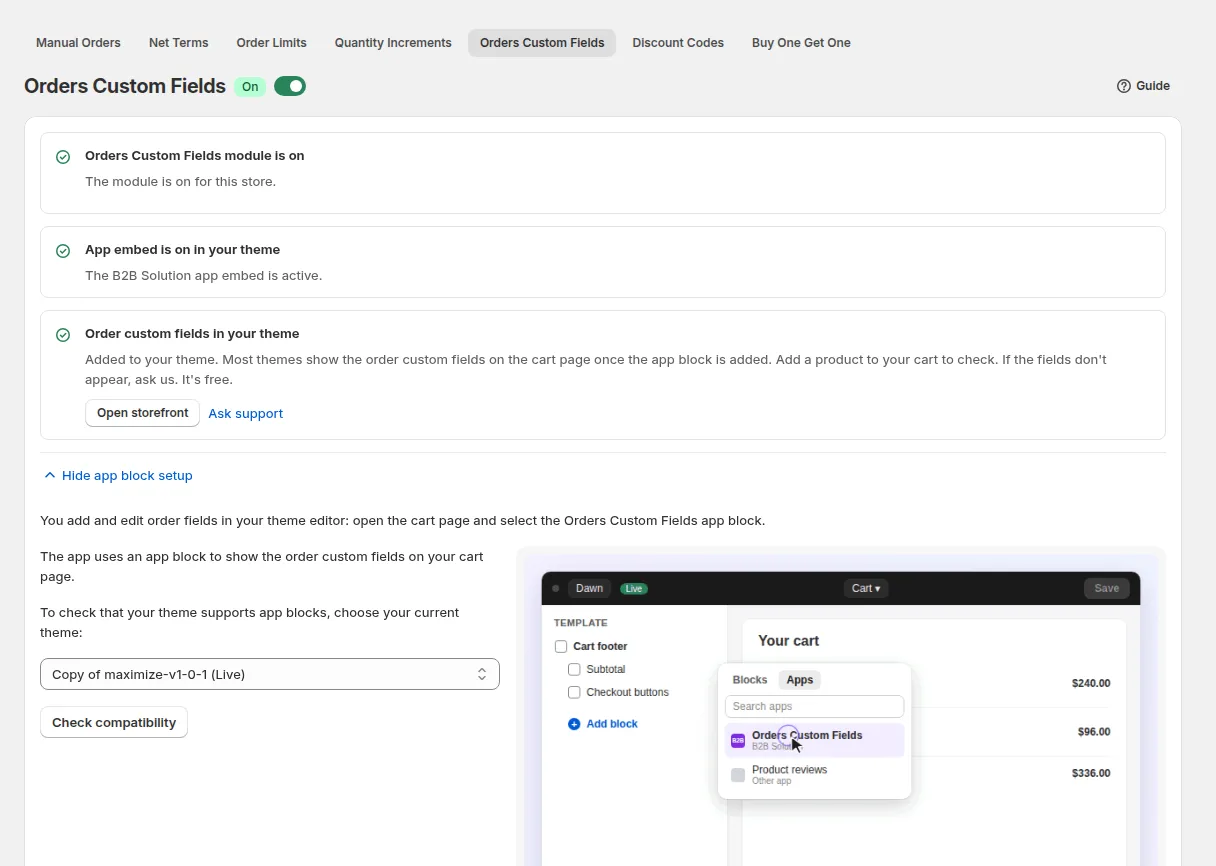
- Go to B2B orders & discounts > Orders Custom Fields.
Step 2: Enable the Module & Install the App Block
Section titled “Step 2: Enable the Module & Install the App Block”- Toggle Orders Custom Fields on. This makes the app block available to your theme.
- On the same page, open app block setup: pick your theme and click Check compatibility. The app opens the Shopify Theme Editor with the custom-fields block pre-targeted at your cart section.
- If your theme does not support app blocks, the Manual Installation card gives you ready-to-copy Liquid snippets: one per field type, to paste into your cart template (
cart-template,cart-drawer, orajax-cart-template).
Step 3: Configure the Field in the Theme Editor
Section titled “Step 3: Configure the Field in the Theme Editor”Add the block to your cart section, then set:
| Setting | Default | What it does |
|---|---|---|
| Field Type | Text field | Choose one of Text field, Radio button, Checkbox, or Dropdown list. |
| Title | “Add a note to your order” | The label shown above the field. |
| Options | option 1, option 2, option 3 |
Comma-separated choices, used by the radio, checkbox and dropdown types. |
| Title Color | #000 |
Label text color. |
| label | bss-cart-note |
The CSS class applied to the field: this also becomes the key stored on the order, so give it a meaningful name such as po-number. |
Need more than one field? Add multiple blocks, each with its own type and label.
Step 4: Review the Data in Shopify Admin
Section titled “Step 4: Review the Data in Shopify Admin”Once a customer fills a field and places the order, the values are attached to the order as order attributes: one per field, keyed by the label you set in the Theme Editor.
- Find them in Shopify admin on the order’s Additional details section.
- They are also available to third-party apps and order printers.
- When a customer fills in a field, the order goes through the app’s checkout, the same one used for B2B prices, so the values can be attached.
Example
Section titled “Example”If your customers often request special packaging or delivery timing, they can now simply write those details when placing an order, e.g., “Please deliver between 9 AM – 11 AM,” or “Pack in separate boxes by product type.”
This eliminates back-and-forth communication after checkout and ensures every order is handled exactly as your customer expects.
Benefits
Section titled “Benefits”- 💬 Better Communication: Capture customer preferences directly during checkout.
- 🧾 Customizable Field: Adapt the note label to fit your business process.
- 🚚 Smoother Fulfillment: Ensure your team has all the necessary details to prepare orders correctly.
- 🤝 Enhanced Customer Experience: Show professionalism by letting customers share their specific needs easily.
With Custom Notes, your customers feel heard and supported, while your team gets the clarity it needs to deliver the perfect order every time.