
How Do I Run a Discount Code Campaign for B2B Buyers?
You want to give specific wholesale customers a private code - say VIP20 for 20% off, or FREESHIP to waive shipping - with an optional redemption cap and an expiry date. BSS B2B Solution’s Discount Code module handles this in the cart (before Shopify checkout) so the discount is visible in real time, without requiring a Shopify coupon.
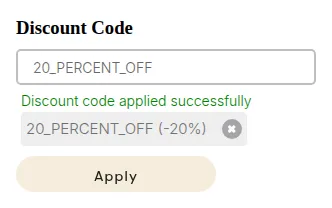
What your customers see on the storefront.
Step 1: Enable the Discount Code module
Section titled “Step 1: Enable the Discount Code module”- In the BSS B2B Solution admin, go to Discount Codes (under B2B Discounts).
- Toggle Enable to on and click Save.
The module must be enabled before any rule fires on the storefront.
Step 2: Create the discount code rule
Section titled “Step 2: Create the discount code rule”Click Add rule to open the rule editor.
General Information
Section titled “General Information”- Rule Name: e.g. “VIP Summer Campaign 20% off” (internal only).
- Status: Active.
Discount Code Settings
Section titled “Discount Code Settings”| Field | Value for this example |
|---|---|
| Discount Code | VIP20 |
| Discount Type | Product Discount - reduces each eligible line item individually |
| Discount Value Type | Percentage |
| Discount Value | 20 |
| Case Sensitive | Off (so vip20 and VIP20 both work) |
Customer Conditions
Section titled “Customer Conditions”- Apply To: Customer tags >
vip. - Shoppers without the
viptag who enter the code see an error: “Failed to apply this discount code.”
Product Conditions
Section titled “Product Conditions”- Product Condition Type: All products (or scope to a collection/tag if the discount is product-specific).
Active Dates
Section titled “Active Dates”- Start Date: the campaign launch date.
- Enable End Date: on. End Date: the campaign close date (e.g. 30 days later).
Usage Limits
Section titled “Usage Limits”- Total redemption limit: 500 (campaign-wide cap).
- Per-customer limit: 3 (each
vipcustomer can use the code up to 3 times). - Show remaining count: off (avoids scarcity anxiety in this example; toggle on if you want to surface it).
Save the rule.
Step 3: Create a free-shipping code rule (optional)
Section titled “Step 3: Create a free-shipping code rule (optional)”To additionally give tagged customers free shipping:
- Click Add rule again.
- Rule Name: “VIP Free Shipping”.
- Discount Code:
FREESHIP. - Discount Type: Free Shipping.
- Customer Conditions: Customer tags >
vip. - No per-customer or total limit needed (optional).
- Save.
When a vip customer enters FREESHIP in the cart, the widget shows FREESHIP (Freeshipping). No line-item price changes; the free-shipping signal is forwarded to checkout where Shopify removes the shipping charge.
Step 4: Add the Discount Code block to your theme
Section titled “Step 4: Add the Discount Code block to your theme”The code entry widget requires two things:
- App Embed (required for config injection): In Online Store > Themes > Customize > App embeds, toggle BSS B2B Solution on and Save.
- Discount Code block (the visible widget): In the Theme Editor, navigate to the Cart section, click Add block, and add Discount Code from BSS B2B Solution Extensions. Confirm the block placement and Save.
Without the block added to the cart template, the input field never renders for shoppers.
See Set Up Discount Code for block settings, design customization, and shareable links.
# Example
Section titled “# Example”Store: B2B apparel distributor. Campaign: VIP20 - 20% off all products for vip-tagged customers, capped at 500 total uses, 3 per customer, active for 30 days.
| Shopper | Code entered | Result |
|---|---|---|
Logged-in vip customer, cart $300 |
VIP20 |
Each line item discounted −20%; cart shows $240. “Discount code applied successfully” in green. |
Logged-in vip customer, entering FREESHIP |
FREESHIP |
No price change on items; “FREESHIP (Freeshipping)” badge in cart; shipping fee waived at checkout. |
Logged-in customer without vip tag |
VIP20 |
“Failed to apply this discount code, please try another.” No discount applied. |
| After 500 total redemptions | VIP20 |
“Discount code is no longer available.” |
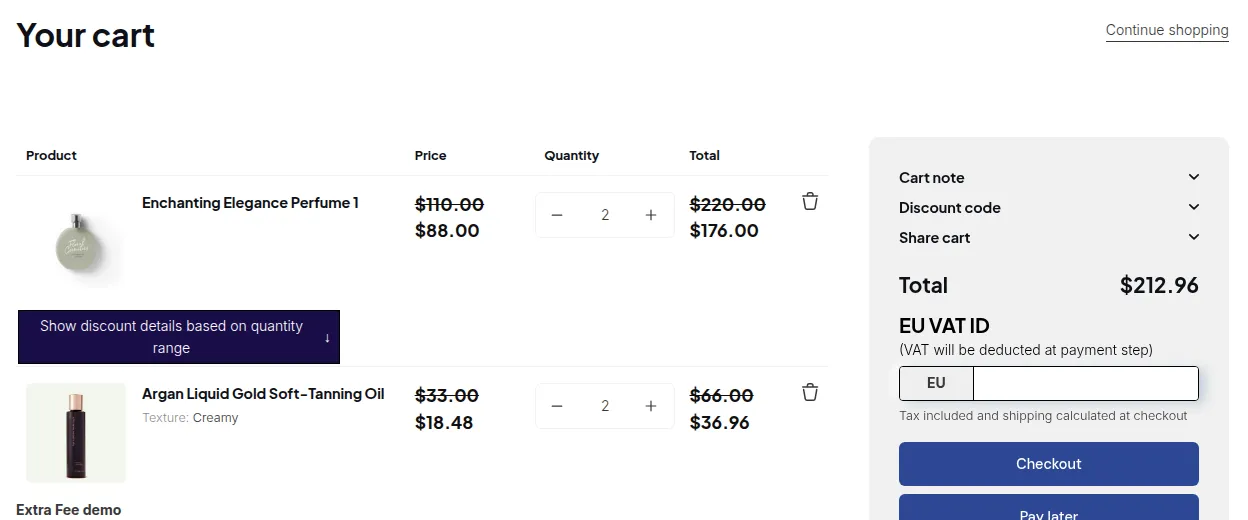
Pricing stack: Discount Code runs after Custom Pricing and Volume Pricing and BOGO . The 20% Discount Code reduction stacks on top of whatever the post-Volume Pricing price already is.
# Summary
Section titled “# Summary”| Feature | Role in this scenario | Notes |
|---|---|---|
| Discount Code | ✅ Cart-level code scoped to vip tag; 20% off + optional free shipping |
- runs after Volume Pricing and Buy One Get One |
| App Embed | ✅ Required to inject config | Enable in Online Store > Themes > Customize > App embeds |
| Discount Code block | ✅ The visible input widget | Must be added to the Cart template in the Theme Editor separately from the embed |