
Set Discount Codes on Your Orders
The Discount Code feature lets your customers enter B2B discount codes in the cart, while you control which customers and products each code works for, how often it can be used, and when it is active.
Use it to run promotions, reward loyal buyers, or offer special deals to selected wholesale customers.
How to Set Up Discount Codes
Section titled “How to Set Up Discount Codes”Step 1: Enable the Feature and Add the Code Box to Your Cart
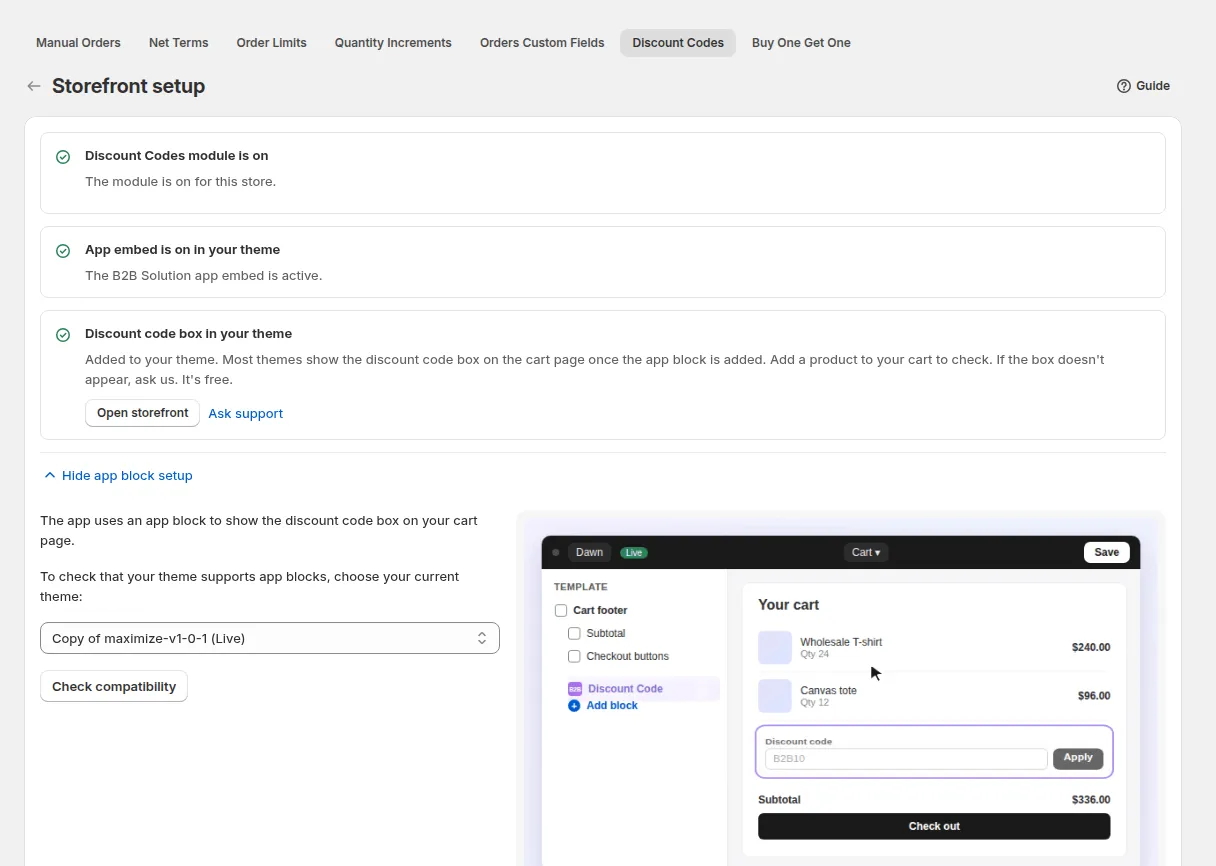
Section titled “Step 1: Enable the Feature and Add the Code Box to Your Cart”- In the app, go to B2B orders & discounts > Discount Codes and toggle the module on.
- Click Storefront setup and add the Discount Code app block to the cart page. If your theme needs it, the page also shows how to add the Discount Code file to your theme by hand.
- Customers now see a Discount Code box on the cart.
Step 2: Create a Discount Code Rule
Section titled “Step 2: Create a Discount Code Rule”On the Discount Codes page, click Add rule.
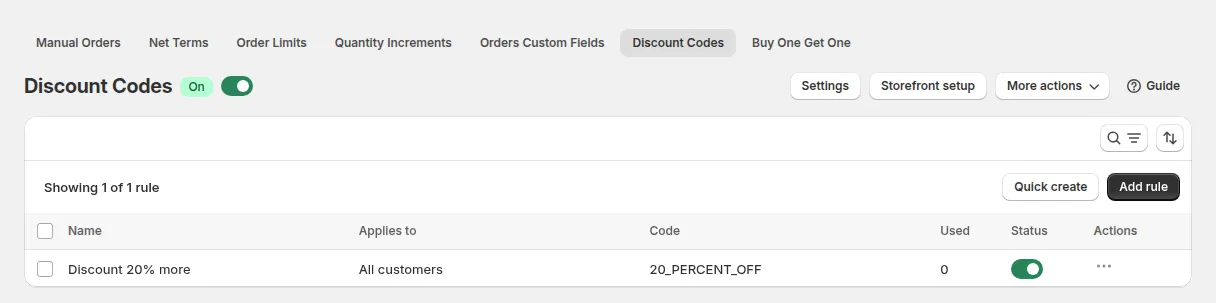
The rule page groups the settings like this:
Basics: rule name (internal only) and status.
Targeting
- Customers: All, Logged-in customers, Not-logged-in customers, Specific customers (search and select them) or Customer tags.
- Products: All products, Specific products, Product collections or Product tags.
Discount settings
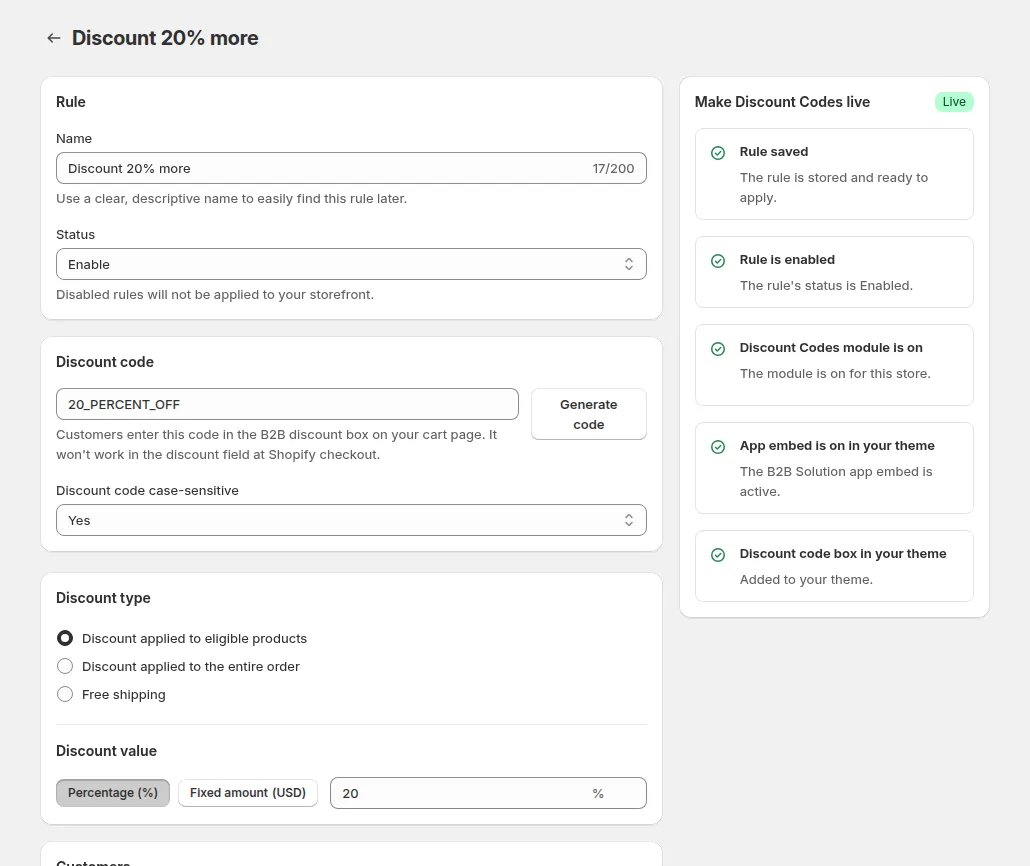
| Setting | Options |
|---|---|
| Discount code | Type a code or click Generate code |
| Discount type | Discount applied to eligible products (each matching line), Discount applied to the entire order, or Free shipping |
| Discount value | Percentage (%) (0 to 100) or Fixed amount |
| Discount code case-sensitive | No (default): SAVE20 also works as save20. Yes: the code must match exactly |
| Minimum purchase requirement | No minimum requirement, Minimum purchase amount or Minimum quantity of items |
Order discounts and free shipping ignore the product selection and count the whole cart. The minimum amount is checked on the B2B prices (after Custom Pricing and Volume Pricing).
Usage limits (optional)
- Limit number of times this discount can be used in total.
- Limit number of times this discount can be used per customer. Not available for not-logged-in customers, because guests cannot be counted.
- Display remaining code on Cart page, for example “5 discount codes remaining”.
Others (optional)
- Exclude customers by tag or by specific customers, for example buyers who already have negotiated prices. Exclusion wins over the targeting above.
- Active dates: a start date and time, and optionally an end date and time.
- Generate a shareable link for this discount: customers who open the link have the code applied automatically (if they meet the conditions) and are redirected to the page you choose, the cart by default.
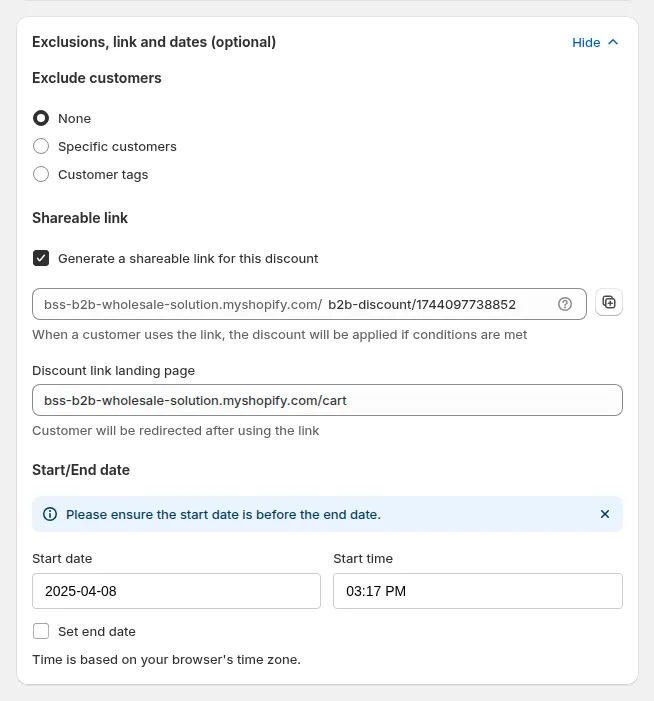
Click Save to publish the rule.
Step 3: Customers Apply the Code in the Cart
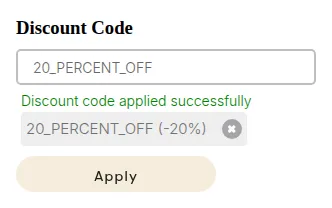
Section titled “Step 3: Customers Apply the Code in the Cart”- Customers enter the code in the Discount Code box and click Apply.
- The app checks the code and the cart right away and shows the discounted total.
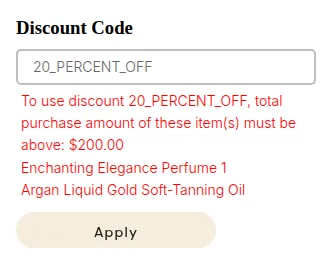
- If the code cannot be used, the box explains why, for example a minimum that is not reached (with the missing amount) or “Discount code is no longer available” when the total limit is used up.
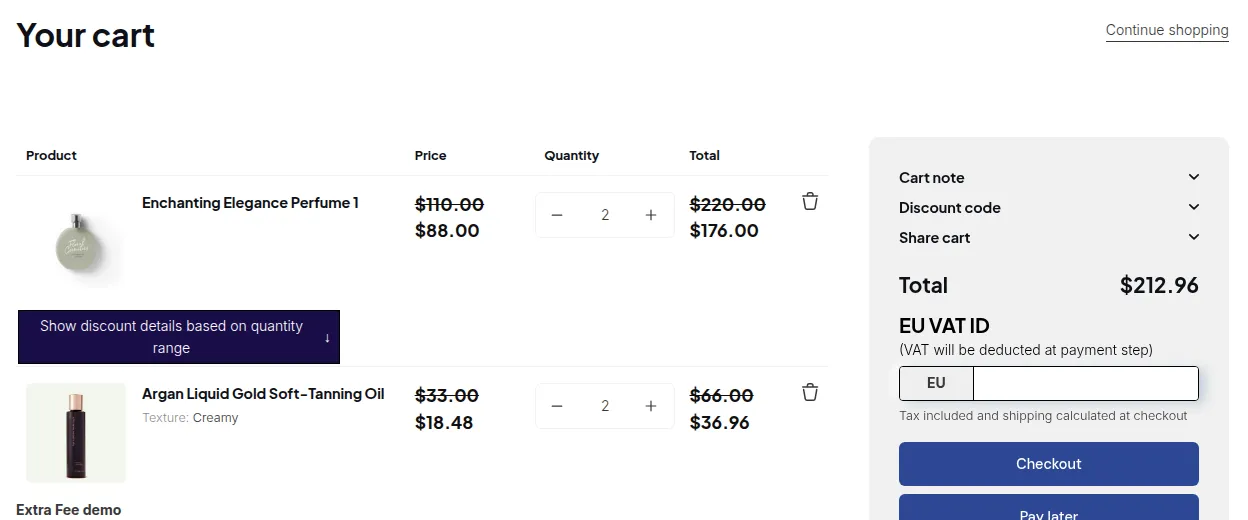
The discount is then carried to checkout, and you see it on the order in Shopify admin.
Step 4: Track Usage
Section titled “Step 4: Track Usage”Open More actions > Usage history on the Discount Codes page to see which customers used which code and when.
Design and Translations
Section titled “Design and Translations”In Discount Code > Settings you can style the box (input and button colors, sizes, borders, placeholder and layout) and translate its texts, such as the “Discount Code” header, the Apply button and the success and error messages, for each language.
Example
Section titled “Example”Create the code B2BSPRING10: Discount applied to the entire order, Percentage (%) 10, Minimum purchase amount 500, for customers tagged wholesale. A tagged customer with a $600 cart enters the code and gets 10% off; with a $400 cart, the box shows how much more they need to add.