Settings for Volume Pricing
Control how the volume pricing table behaves and looks on your storefront. These settings apply globally across all volume pricing rules.
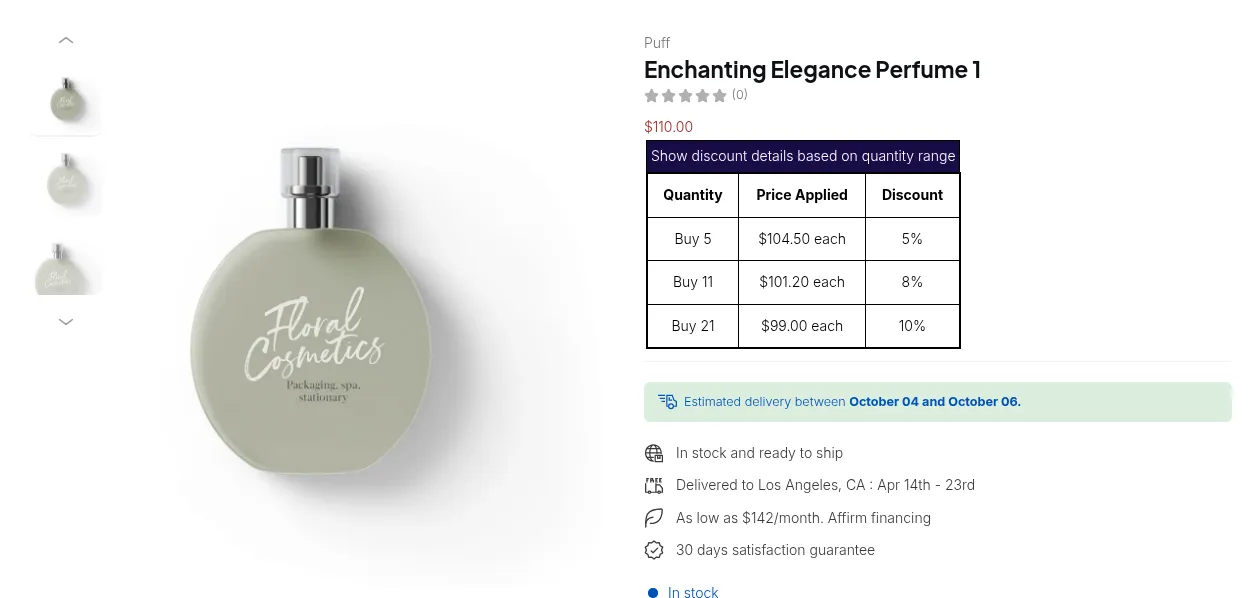
What your customers see on the storefront.
Take full control over how and where your tiered discount tables appear, and how customers interact with them. Go to Volume Pricing > Settings: the Design tab controls the look and placement of the table, the Behavior tab how it reacts to clicks. You can tailor the user experience and visual style of your pricing tiers to suit your brand and sales strategy.
1. Design: How the Table Looks
Section titled “1. Design: How the Table Looks”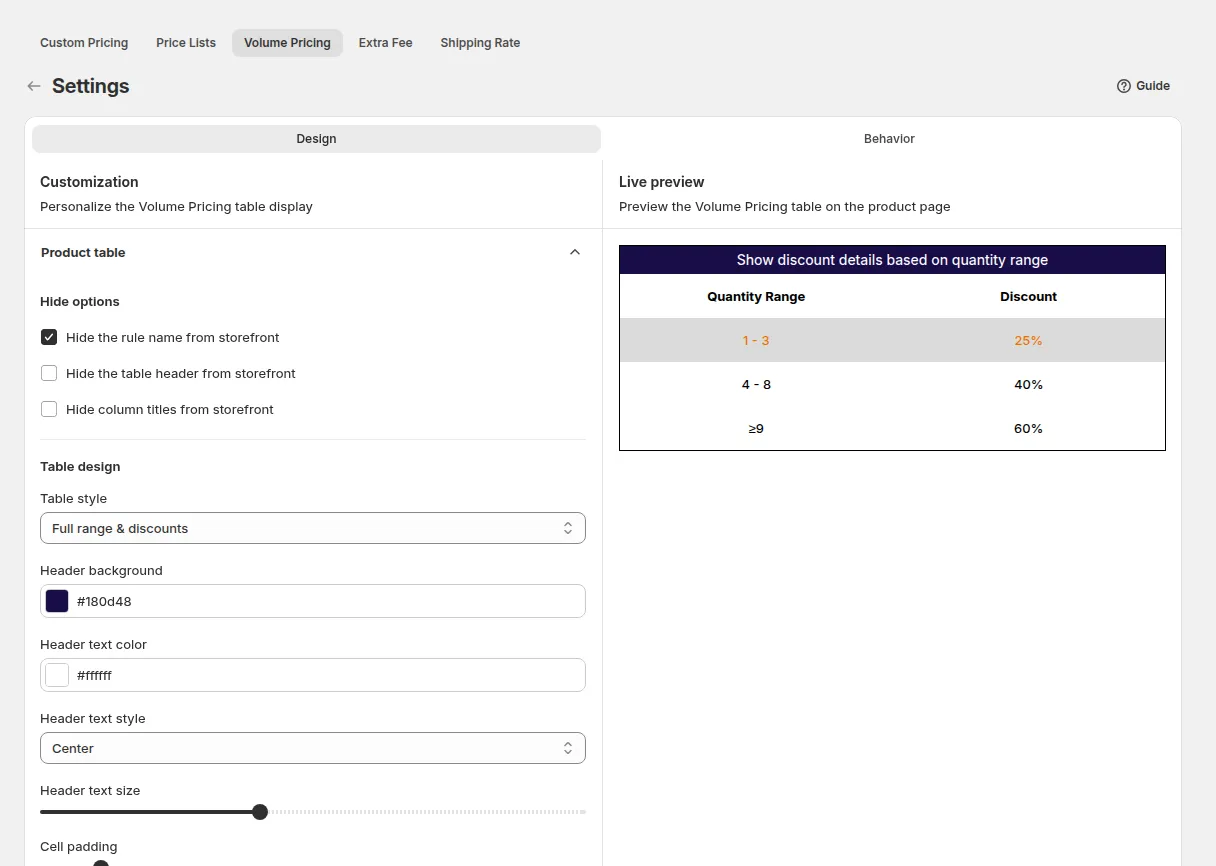
Customize the visual appearance of the pricing table to match your brand:
- Product Table: table style
- Text: text style
- Borders: style and thickness
- Display: control the placement of the discount table
2. Where the Table Shows
Section titled “2. Where the Table Shows”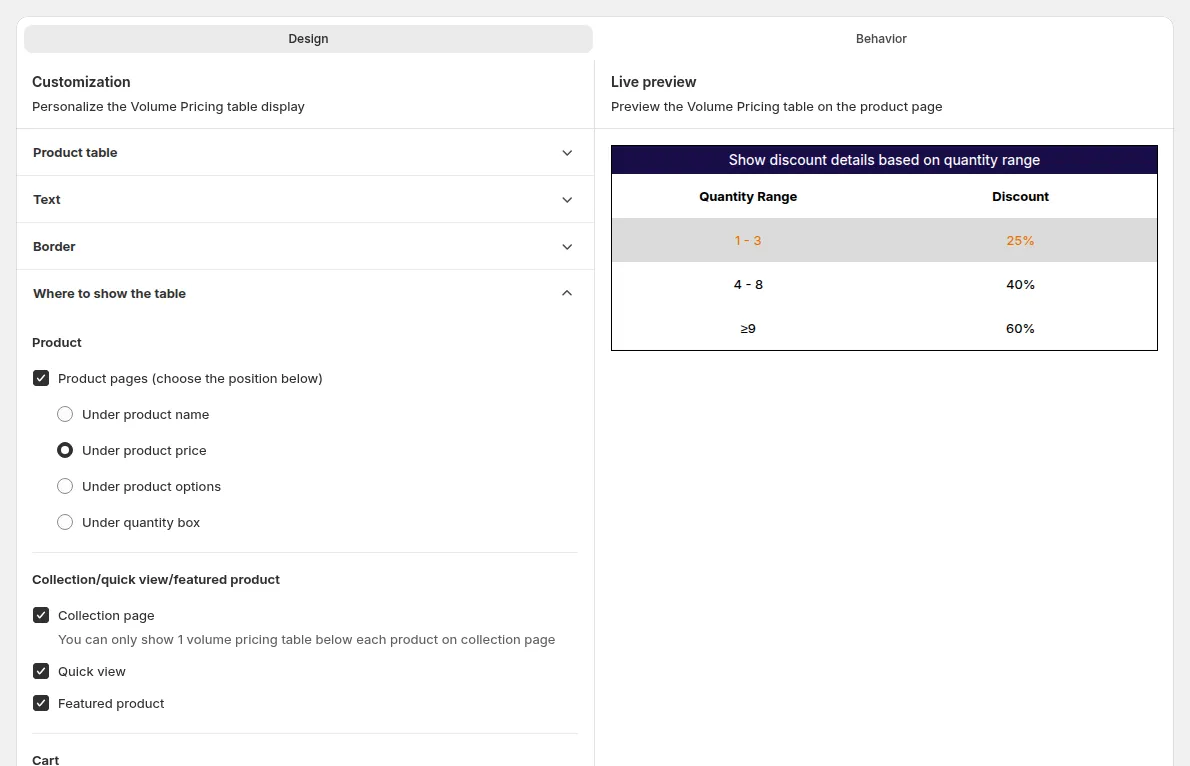
Show Volume Pricing Table on pages
Section titled “Show Volume Pricing Table on pages”In the Design tab, open Where to show the table and tick the places where the table appears:
| Option | Default |
|---|---|
| Product pages (choose the position below) | On |
| Cart page | On |
| Mini cart | On |
| Collection page | Off. Only 1 table can show below each product on a collection page |
| Quick view | Off |
| Featured product | Off |
For product pages, pick the position: Under product name, Under product price (default), Under product options or Under quantity box.
3. Behavior: How the Table Reacts
Section titled “3. Behavior: How the Table Reacts”Choose click interaction when clicking on the table
Section titled “Choose click interaction when clicking on the table”In the Behavior tab, Row click decides what happens when a customer clicks a row in the Volume Pricing table on your storefront:
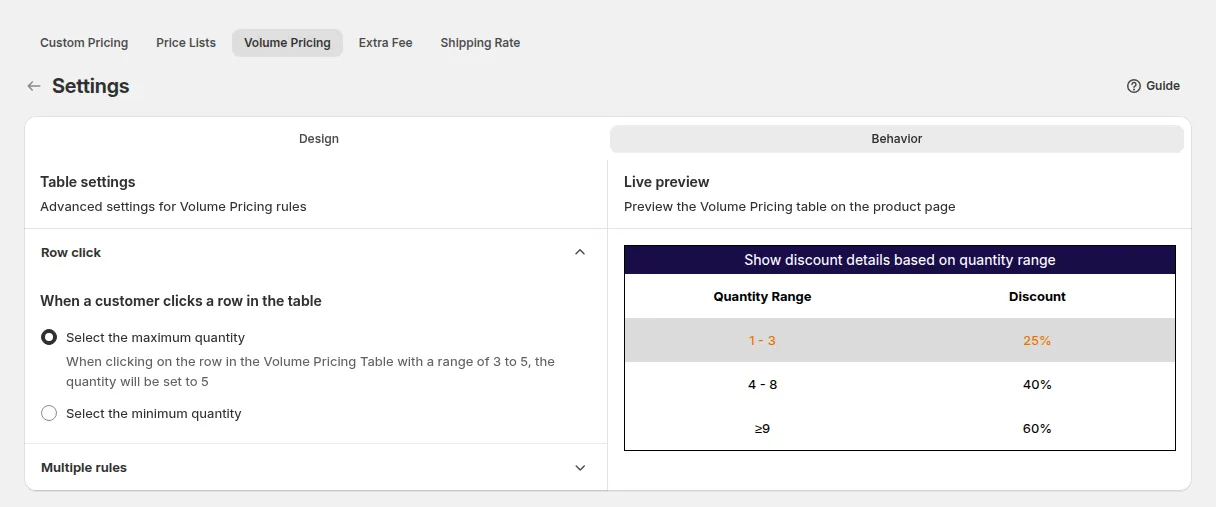
- Select the maximum quantity (default): the quantity box jumps to the highest quantity of that row’s range
- Select the minimum quantity: the quantity box jumps to the lowest quantity of that row’s range
For example, when a customer clicks the row with a range of 3 to 5, minimum sets the quantity to 3 and maximum sets it to 5.
Apply multiple rules to product pages/featured products
Section titled “Apply multiple rules to product pages/featured products”Also in the Behavior tab, Multiple rules decides whether a product page shows one table or several when you have more than one rule for the same product. Default: No.
Example: Rule 1 applies to customers tagged Special, Rule 2 applies to the specific customers John Smith and Hannah Smith. Both rules cover all products.
- No: each customer only sees the table of the rule that applies to them. Customers tagged
Specialsee Rule 1; John Smith and Hannah Smith see Rule 2. - Yes: customers tagged
Special, John Smith and Hannah Smith see the tables of both rules on the product page.
4. Translation: How Localized Table Content Appears
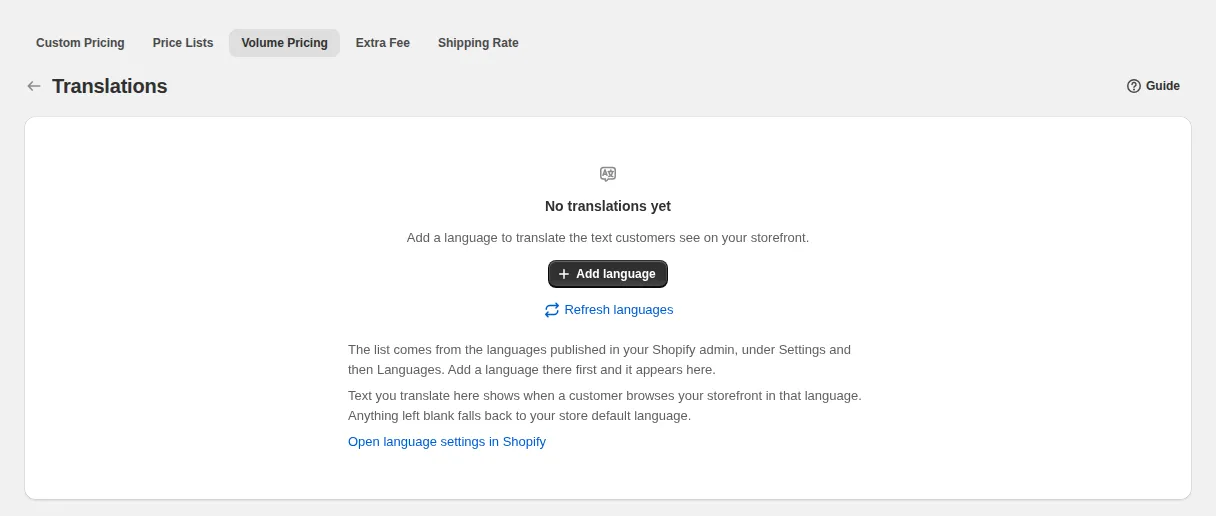
Section titled “4. Translation: How Localized Table Content Appears”If your store supports multiple languages, localize the table labels on the Volume Pricing page with More actions > Translations. The list shows the languages published in your Shopify admin (Settings > Languages); text left blank falls back to your default language.