
Set Up Your Wholesale Shipping Rate
Create custom shipping fee rules for B2B customers based on order quantity, amount, or weight.
You can charge a flat fee or a percentage of the cart based on order quantity, subtotal or weight, so shipping follows your wholesale pricing strategy.
The rule page has the cards Rule, Customers, Products, Markets, Rule settings, Usage limits and Exclusions and schedule (optional).
Step 1: Enable Shipping Rate & Open the Rule List
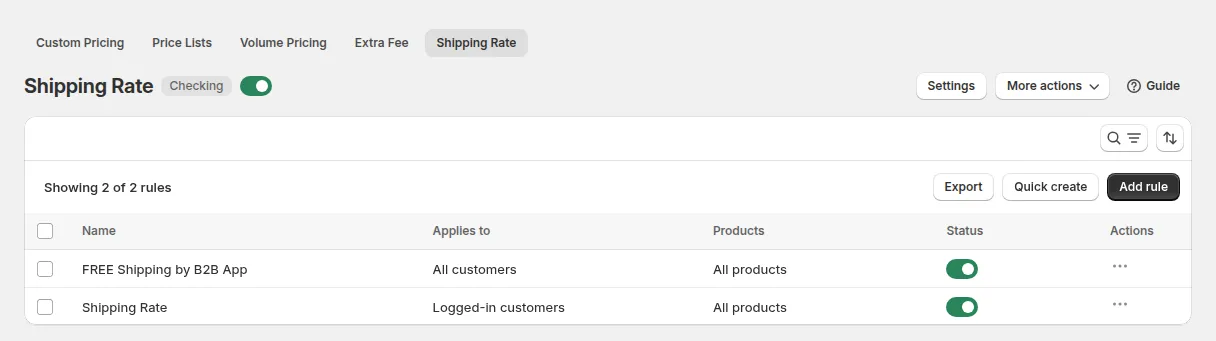
Section titled “Step 1: Enable Shipping Rate & Open the Rule List”- In the app, go to B2B pricing > Shipping Rate.
- Toggle Shipping Rate ON.
- Click Add rule.
Step 2: Rule
Section titled “Step 2: Rule”- Enter a Name for your rule (for example “B2B Shipping East Coast”).
- Set the rule to Enable or Disable. Only enabled rules take effect. In the rule list, each enabled rule shows a status badge: Active (currently running), Scheduled (future start date) or Expired (past end date).
Step 3: Customers, Products and Markets
Section titled “Step 3: Customers, Products and Markets”Apply to Customers
- All (logged-in and not-logged-in customers)
- Logged-in customers
- Not-logged-in customers
- Specific customers
- Customer tags, for example
wholesale,distributor
Apply to Products
- All products
- Specific products
- Specific variants, for example freight rates only for bulky sizes. Needs the Platinum plan (Advanced or Enterprise on the modular plans).
- Product collections
- Product tags
Markets
Choose All markets or Specific markets (the selling zones in Shopify Admin > Settings > Markets). Use specific markets when domestic and international orders need different rates.
Step 4: Rule Settings and Usage Limits
Section titled “Step 4: Rule Settings and Usage Limits”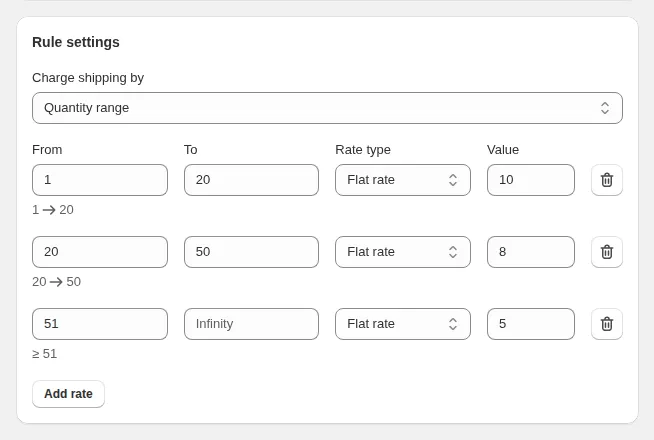
Usage limits (optional)
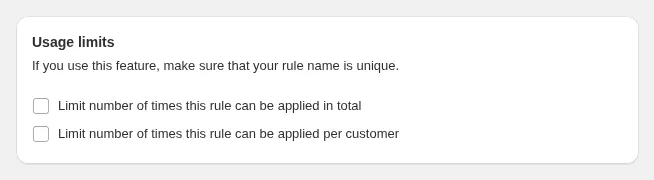
- Limit number of times this rule can be applied in total: caps usage across all customers.
- Limit number of times this rule can be applied per customer: each customer can use the rate a set number of times. Not available when the rule applies to All or Not-logged-in customers, because guests cannot be counted.
Rule settings
Pick what the ranges measure:
| Option | What it measures |
|---|---|
| Quantity range | Number of items |
| Amount range | Subtotal in your store currency |
| Weight range | Total weight, in g, kg, lb or oz (one unit for the whole table) |
For each row, enter From and To (leave To blank for “and above”), then the Shipping rate calculation and its Value:
| Shipping rate calculation | What the customer pays |
|---|---|
| Percentage | A percentage of the cart price. Value 5 on a $400 cart = $20 shipping |
| Flat Rate | A fixed shipping price. Value 12 = $12.00 shipping; value 0 = free shipping |
Click Add rate to add more ranges and build tiered shipping.
Example of tiered shipping for customers tagged wholesale, by Quantity range:
| From | To | Shipping rate calculation | Value |
|---|---|---|---|
| 1 | 9 | Flat Rate | 5 |
| 10 | 49 | Flat Rate | 0 |
| 50 | (blank) | Flat Rate | 15 |
A wholesale customer with 12 items gets free shipping; a guest sees your normal Shopify rates.
Step 5: Exclusions and Schedule (Optional)
Section titled “Step 5: Exclusions and Schedule (Optional)”Open Exclusions and schedule (optional) with Show.
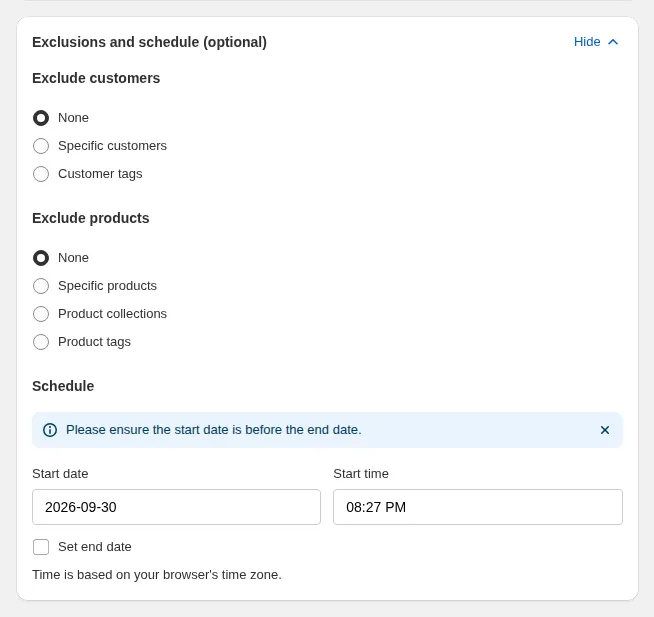
Exclude customers: None, Specific customers or Customer tags (for example vip, staff). Excluded customers never get this rate, even if they match Step 3.
Exclude products: None, Specific products, Product collections or Product tags. Excluded products do not trigger the rule.
Schedule: add a start date and time, and optionally an end date and time, to run the rate for a limited period.
Export Rules
Section titled “Export Rules”- On the Shipping Rate page, click Export above the rule list.
- Choose the scope: selected rules, the current page, or all records.
- The export runs in the background with a progress indicator; when it finishes, click the download link.
Duplicate a Rule
Section titled “Duplicate a Rule”- Open the rule you want to copy (save any changes first).
- Click Duplicate at the top of the page and confirm.
- A copy of the rule, with the same targeting, markets, usage limits and ranges, opens in a new tab. The original rule stays unchanged.
- Give the copy a unique name, adjust it, and click Save.
What Customers See
Section titled “What Customers See”When a customer and their cart match a rule, the app replaces the default shipping price with your rate. The shipping line is titled with the rule name. If several rules match, Settings decides whether the lowest or the highest rate is used.
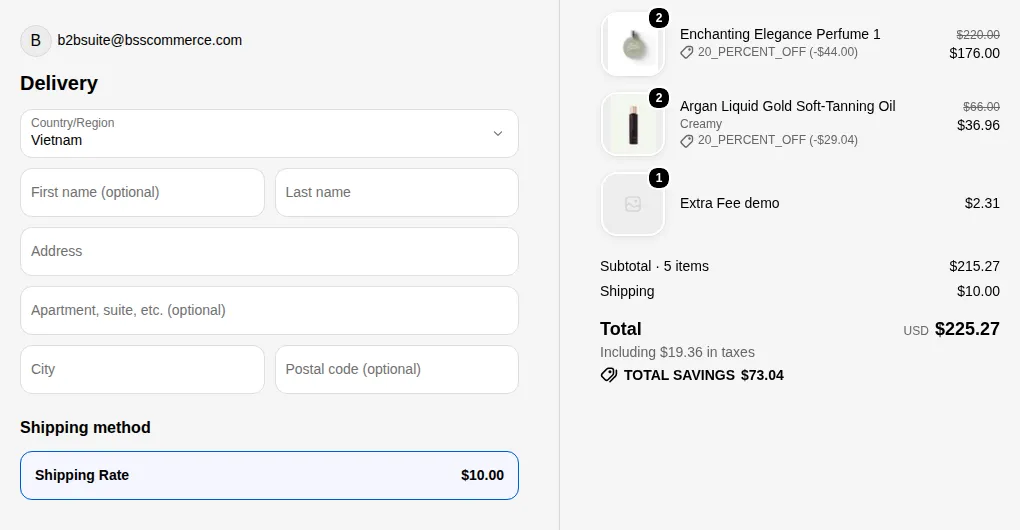
Percentage rates are calculated on the price after Custom Pricing, Price List and Volume Pricing discounts. With multi-currency, flat rates are converted to the customer’s currency. A free-shipping Discount Code or Extra Fee condition takes priority over the Shipping Rate.
When the Rate Does Not Apply
Section titled “When the Rate Does Not Apply”- The B2B Solution app embed is on: Online Store > Themes > Customize > App embeds, then Save.
- The Shipping Rate module is toggled on under B2B Pricing.
- The rule is enabled and inside its schedule.
- The customer, products and market match the rule, and nothing is excluded.
- The cart quantity, subtotal or weight falls inside one of the ranges.
- The usage limit (total or per customer) has not been reached.