
Show Prices in Different Currencies
The Multiple currency feature shows product prices in your customers’ currencies across your store, with a floating currency switcher, so international buyers understand prices at a glance.
How to Show Prices in Different Currencies
Section titled “How to Show Prices in Different Currencies”Step 1: Enable the Module
Section titled “Step 1: Enable the Module”- In the app, go to B2B tax & currency > Multi-currency and toggle the module on.
Step 2: Install: Edit Your Money Format (Required Once)
Section titled “Step 2: Install: Edit Your Money Format (Required Once)”The app finds prices on your pages through your store’s money format, so this step is required:
- In the app’s Manual Installation section, click Open Edit Money Format Window (or go to Shopify Settings > General > Store currency and click Change formatting).
- Replace HTML With currency and HTML Without currency with the values the app shows you, then save in Shopify.
- Back in the app, click Verify Currency Setting. You should see “Verification successful.”
Also make sure the B2B Solution app embed is on (Online Store > Themes > Customize > App embeds), otherwise the switcher never appears.
Step 3: Configure Settings
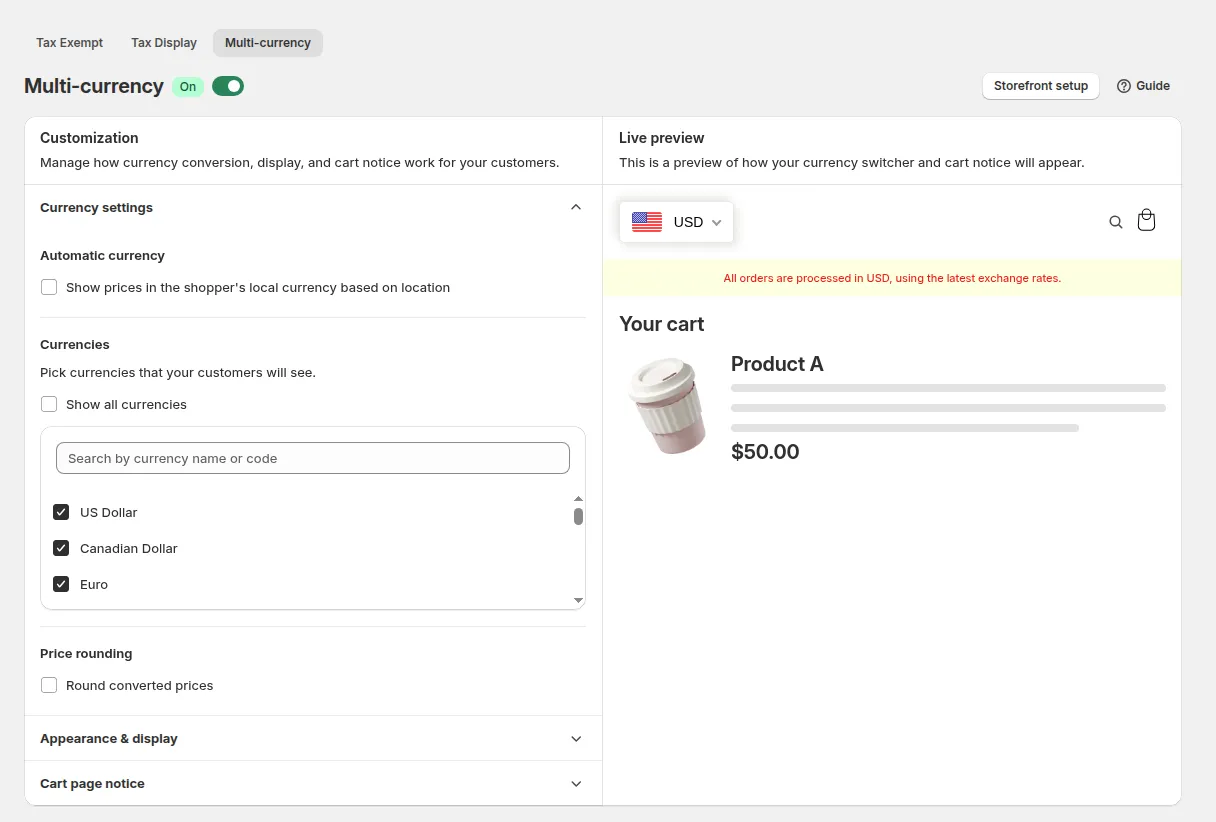
Section titled “Step 3: Configure Settings”The configuration page has setting groups on the left and a Live preview of the switcher and cart notice on the right.
Currency settings
- Auto Currency Conversion Status: tick to switch automatically to the currency of the customer’s location on their first visit (if that currency is in your list).
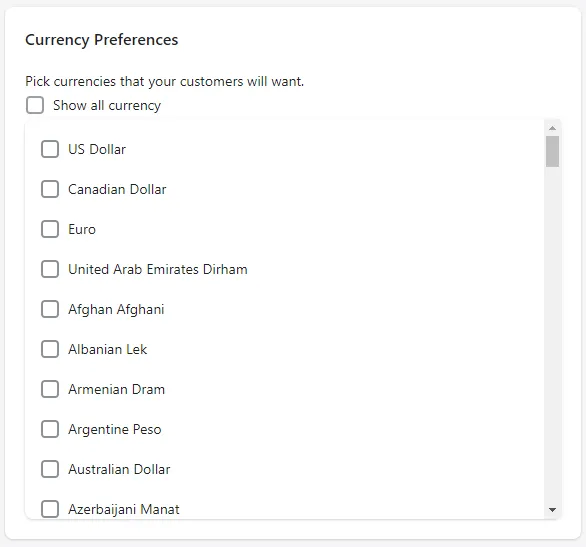
- Currency Preferences: Show all currency, or pick the currencies your customers will see with Search currency. Your store currency is always included.
- Pricing Preferences: Round Off Price after conversion, with Rounded style Remove Decimal (for example
€18) or Round To Decimal (€18.00).
Appearance & display
- Currency Bar Design: Show flag and currency or Show currency only, background, text and hover colors, and Add a shadow to the bar.
- Device Settings: show the bar on Mobile and/or Desktop, each with a Display Position: Top left, Top right, Center left, Center right, Bottom left or Bottom right.
Step 4: Cart Page Notification
Section titled “Step 4: Cart Page Notification”Tick Show Notification on Cart Page and edit the Text. Use [checkout_currency] for your store currency, for example “All orders are processed in [checkout_currency], using the latest exchange rates.” Set the background and text colors, then click Save.
Step 5: Check the Storefront
Section titled “Step 5: Check the Storefront”Customers now see prices in the currency they pick from the switcher (or the one detected from their location). Cart totals and B2B prices (Custom Pricing, Volume Pricing tables and so on) are converted too.
For example, with store currency USD and EUR and GBP enabled, a product at $100 shows the equivalent in EUR or GBP, following current exchange rates. At checkout the customer pays $100.
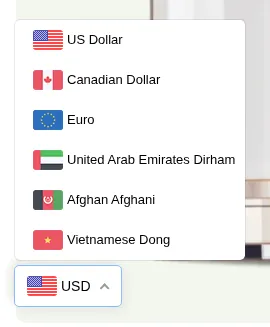
You can switch between currencies to see how your product prices look:
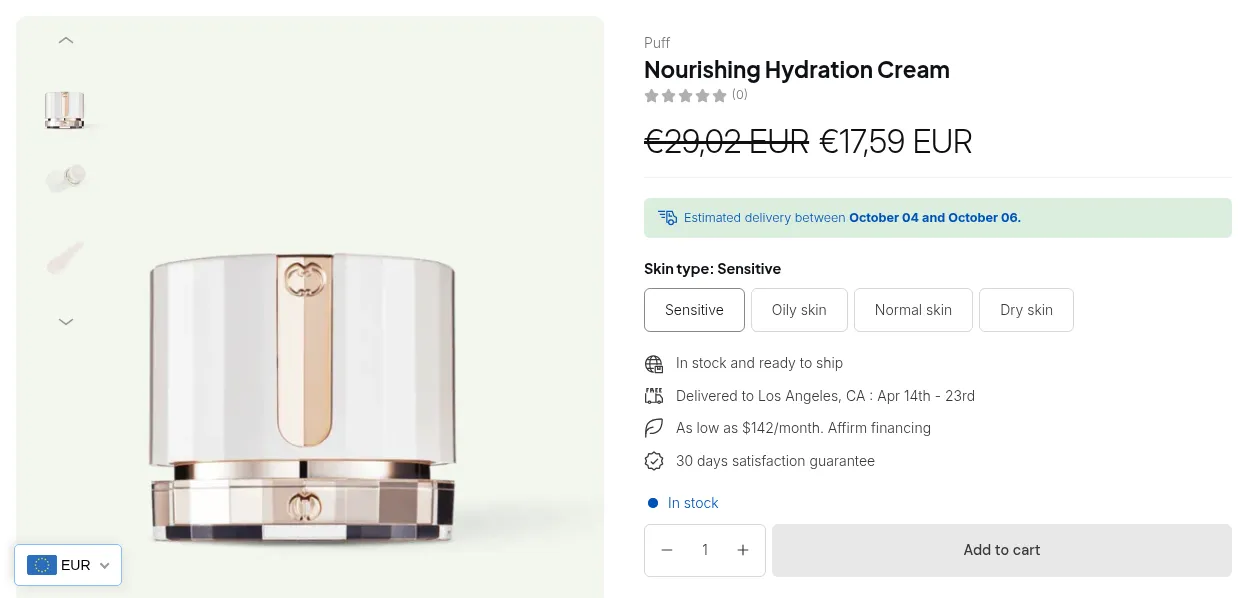
In Euro
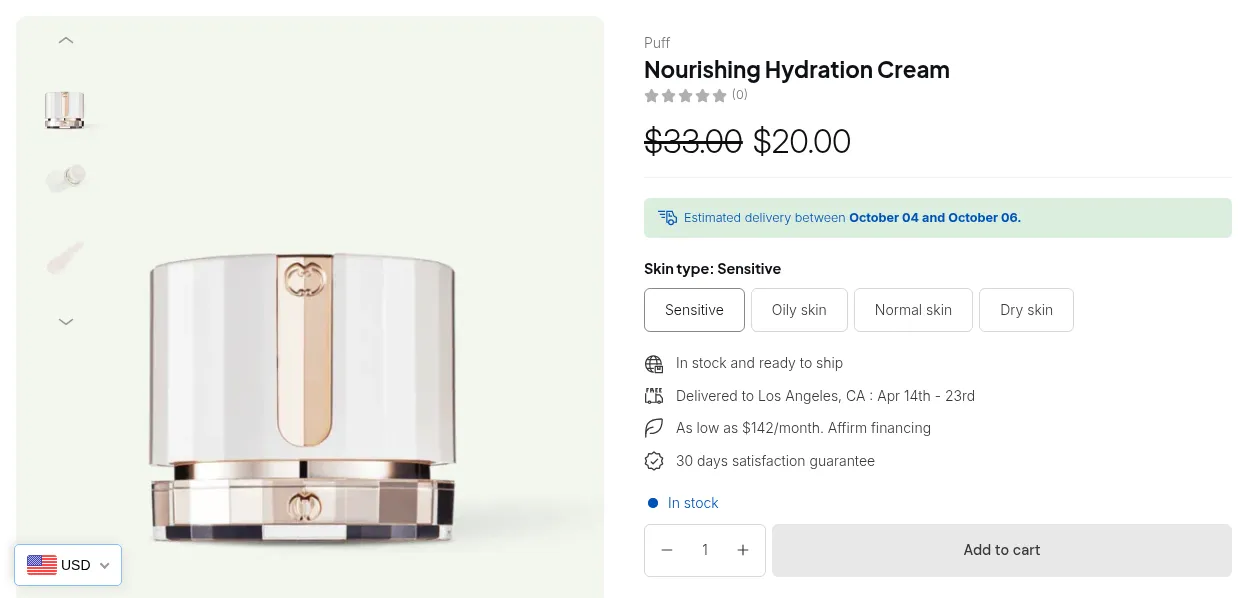
In US Dollar
:::note If you need further assistance, please feel free to reach us at [**[email protected]**](mailto:[email protected]) or [**Live Chat**](https://go.crisp.chat/chat/embed/?website_id=9f64b5a9-1a02-4190-93b8-8ef56b19f740). :::