
Klaviyo

Klaviyo is an email marketing tool for Shopify merchants, offering personalized campaign creation, customer segmentation based on shopping behavior, and automated email workflows. It helps boost sales and customer engagement directly from Shopify data.
You can check it out here: https://apps.shopify.com/klaviyo-email-marketing
Integration benefits:
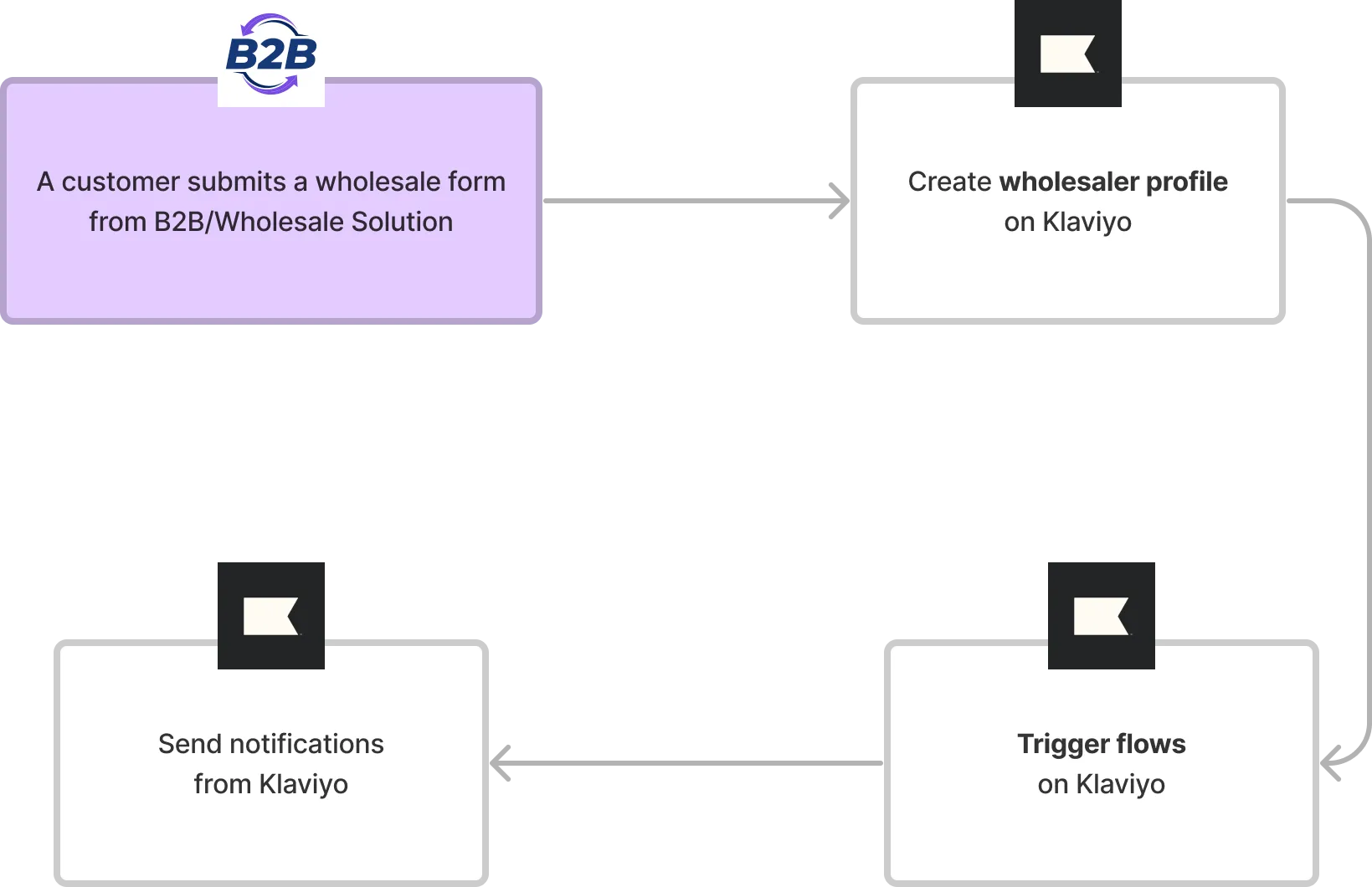
- Profile Synchronization: Effortlessly integrate wholesaler profiles from BSS B2B Solution into Klaviyo. This synchronization ensures your marketing efforts are always up-to-date and targeted.
- Personalized Communication: Break away from standard application emails. Utilize Klaviyo to send personalized and impactful notifications to your customers. This approach not only enriches the customer experience but also aligns perfectly with your brand’s voice and messaging strategy.
To utilize the integration, please follow the below steps:
1. Enable the integration
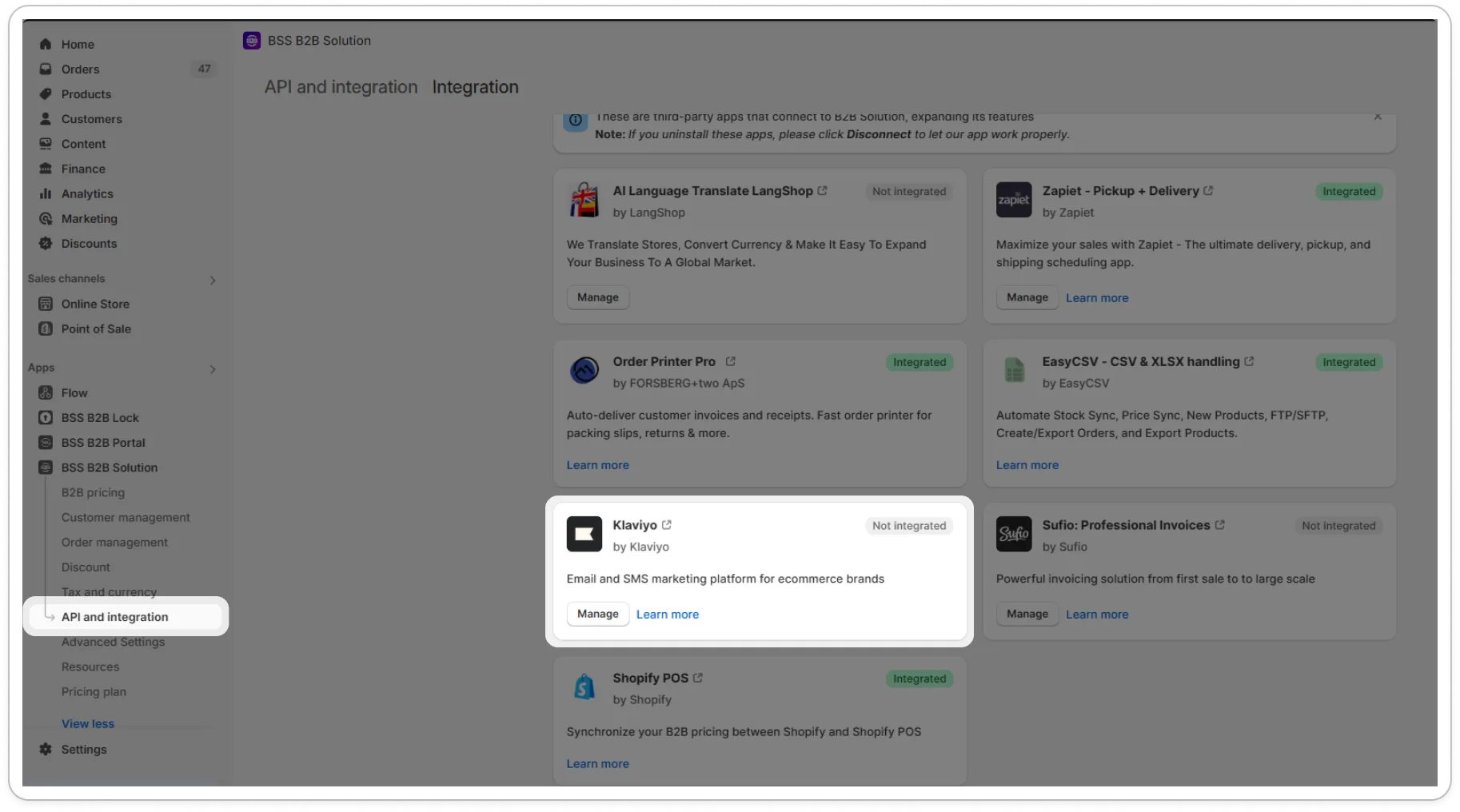
Section titled “1. Enable the integration”Navigate to the Klaviyo section on the Integration tab of the API & Integration page, and click Manage. A popup will be displayed.
Visit the Klaviyo app to obtain your API key. Need help? Check out this detailed guide: https://help.klaviyo.com/hc/en-us/articles/7423954176283
Ensuring your API key has ‘Full Access’ or at least the following scopes
- Events
- Metrics
Copy and paste your key in the input and tick Turn on integration and SAVE
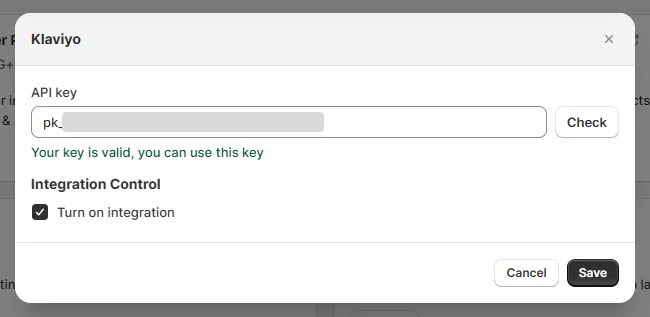
Congratulations! The integration is now active.
Now that the integration is set up, let’s dive into how it enhances your registration process:
2. Segmenting Wholesalers in Klaviyo
Section titled “2. Segmenting Wholesalers in Klaviyo”You can segment wholesalers by their information.
2.1. Start with Lists & Segments
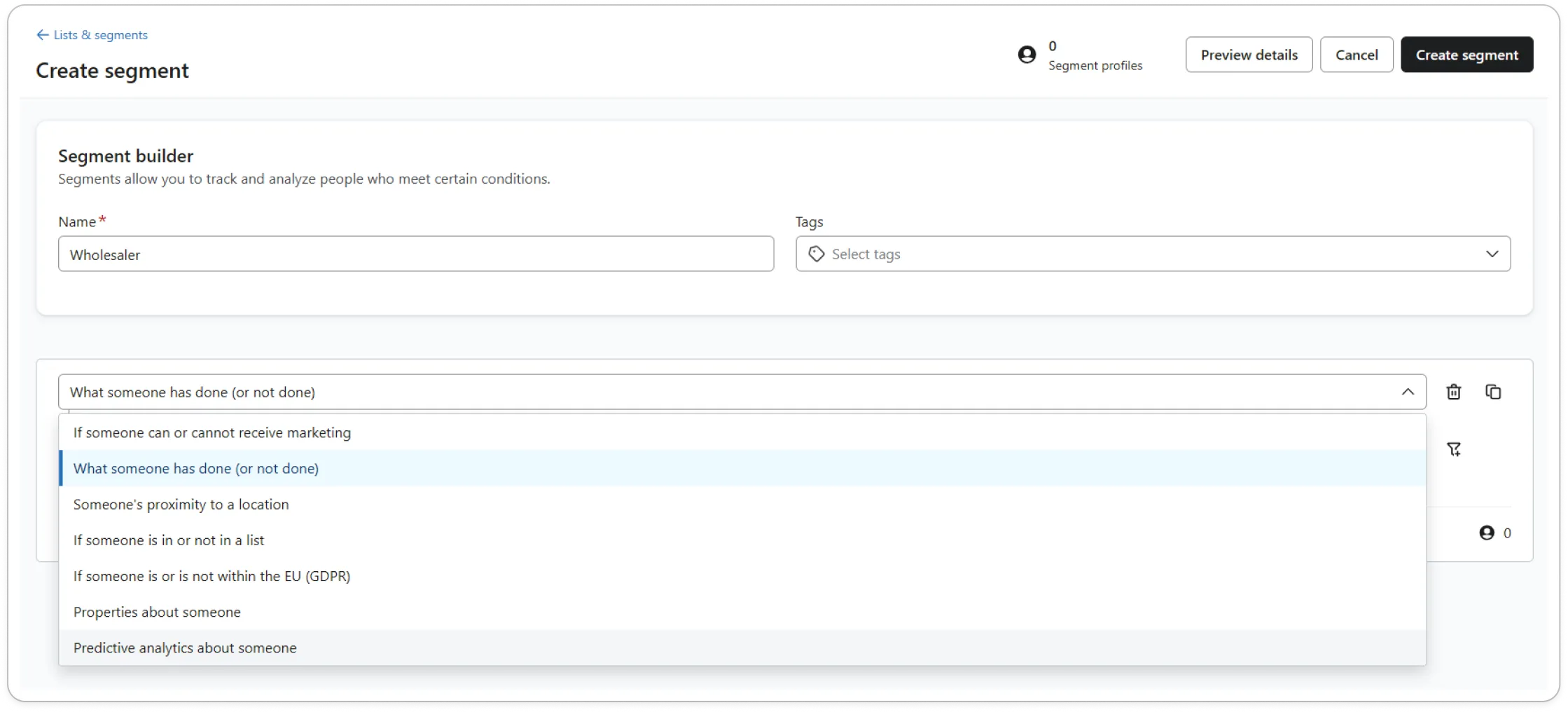
Section titled “2.1. Start with Lists & Segments”To segment wholesalers, go to Audience > Lists & segments and create a new Segment
2.2. Define Your Segment
Section titled “2.2. Define Your Segment”In Klaviyo, you have the flexibility to segment wholesalers based on specific criteria, ensuring your marketing efforts are precisely targeted.
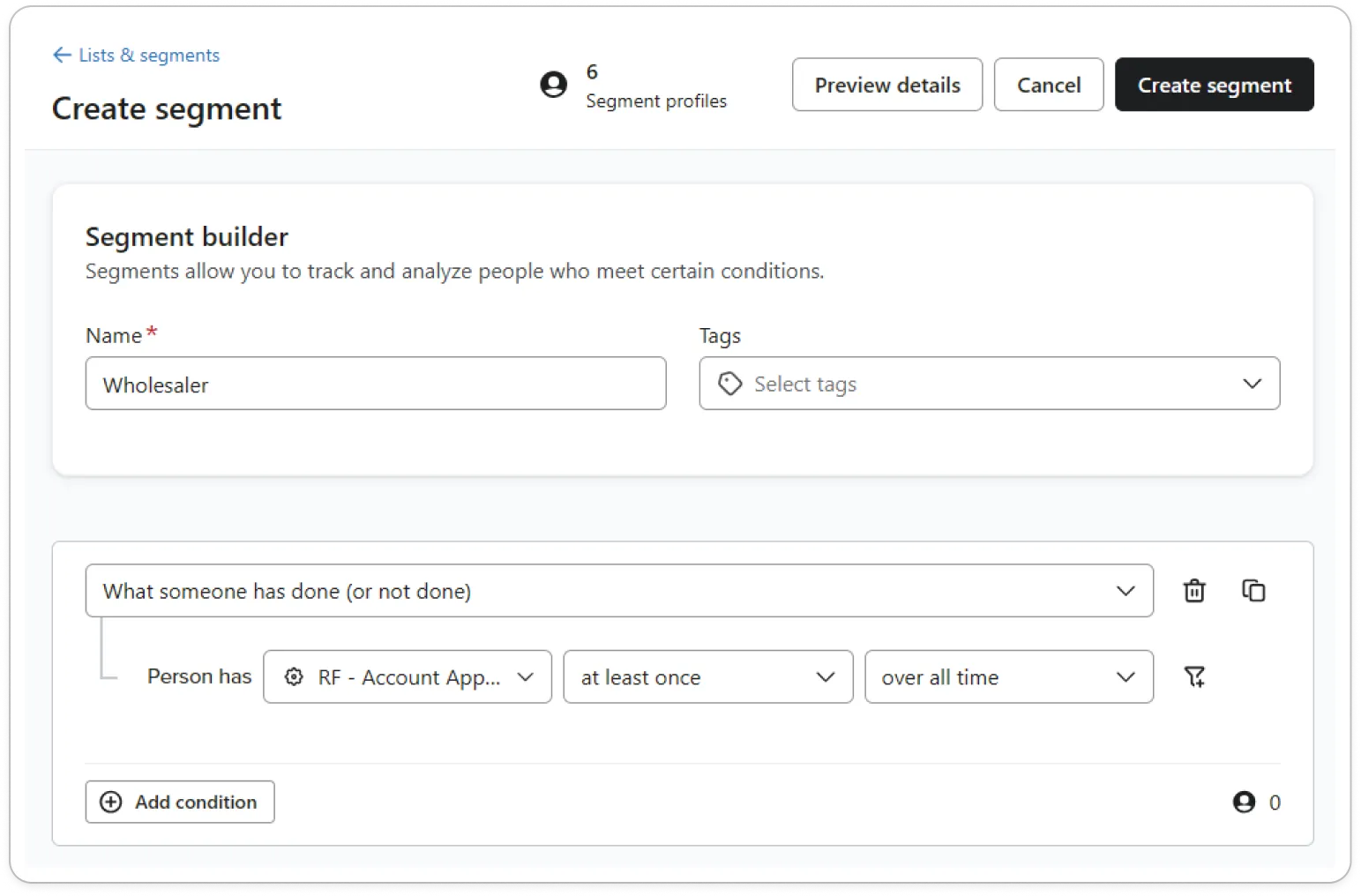
In the Definition section, you can choose these options:
- What someone has done (or not done)
- Properties about someone
What someone has done (or not done)
Section titled “What someone has done (or not done)”There are 4 specific metrics for you to select:
- RF - Account Approved. Activated when a wholesaler’s profile is approved.
- RF - Account Rejected. Triggered by the rejection of a profile.
- RF - Pending Approval. Indicates a profile is awaiting approval.
- RF - Account Invite. Occurs when an existing store profile requires account confirmation.
Properties about someone
Section titled “Properties about someone”Profiles created through the BSS B2B Solution have custom properties. These properties correspond to the fields submitted in the registration form. For example:
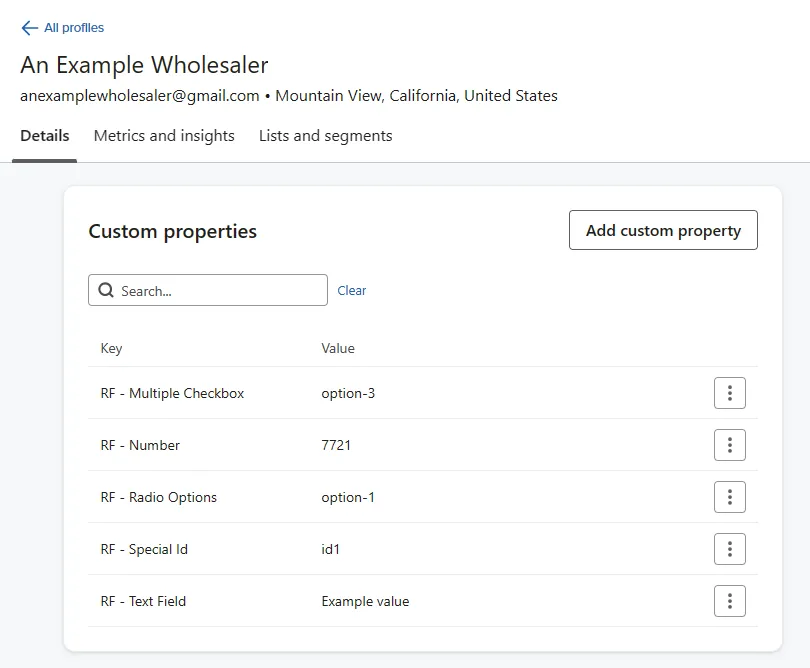
You can use the properties for setting conditions to segment wholesalers
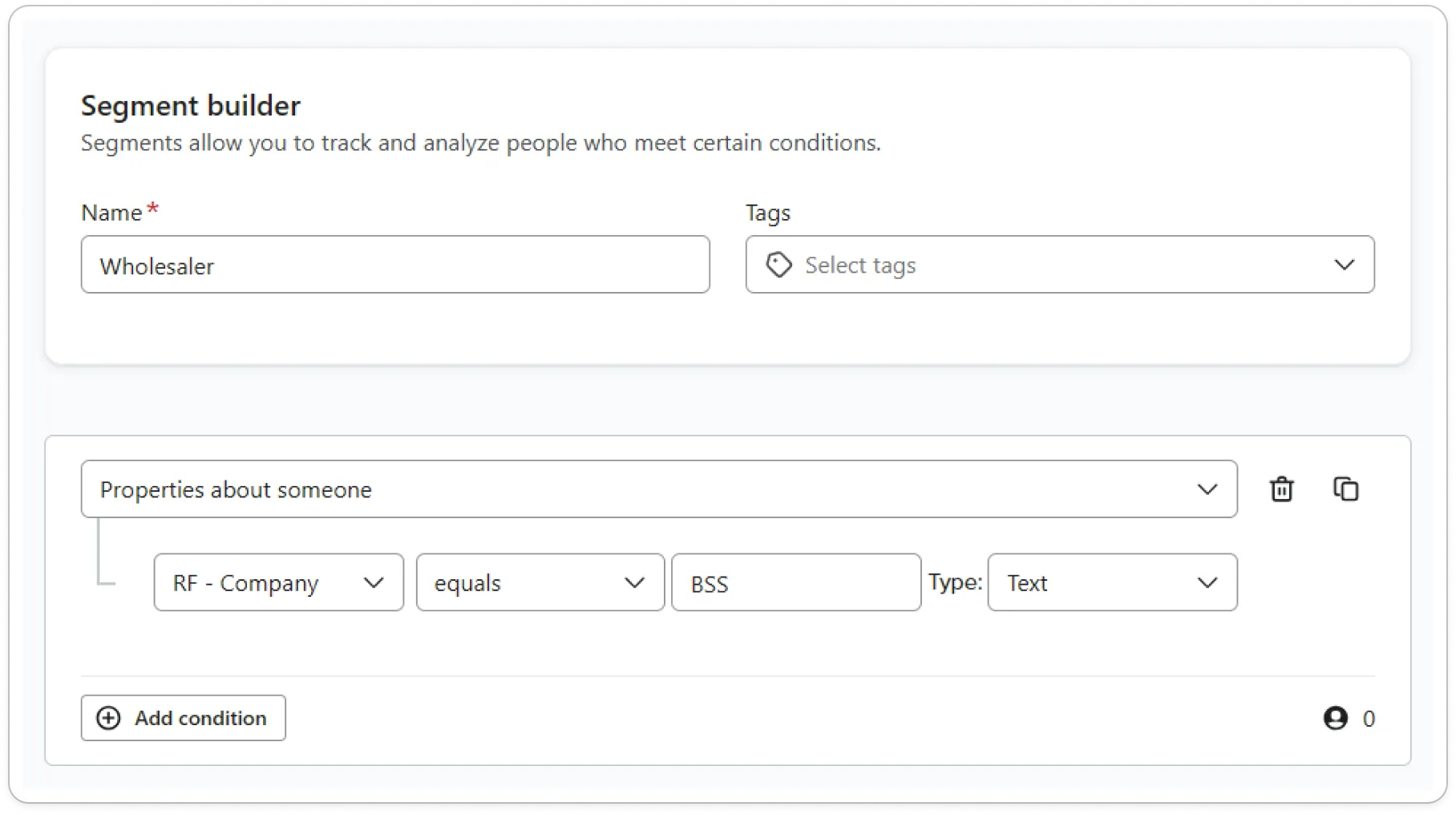
Utilize these segmentation options to tailor your marketing and communication strategies, ensuring they resonate with the right audience at the right time.
3. Personalized notifications with Klaviyo
Section titled “3. Personalized notifications with Klaviyo”Leverage Klaviyo’s Flows feature to deliver tailored notifications to your wholesalers through email or SMS, ensuring each message is relevant and timely.
3.1. Create a flow
Section titled “3.1. Create a flow”Begin by navigating to the Flows page within your Klaviyo dashboard. This is where you can manage and create all your automated workflows.
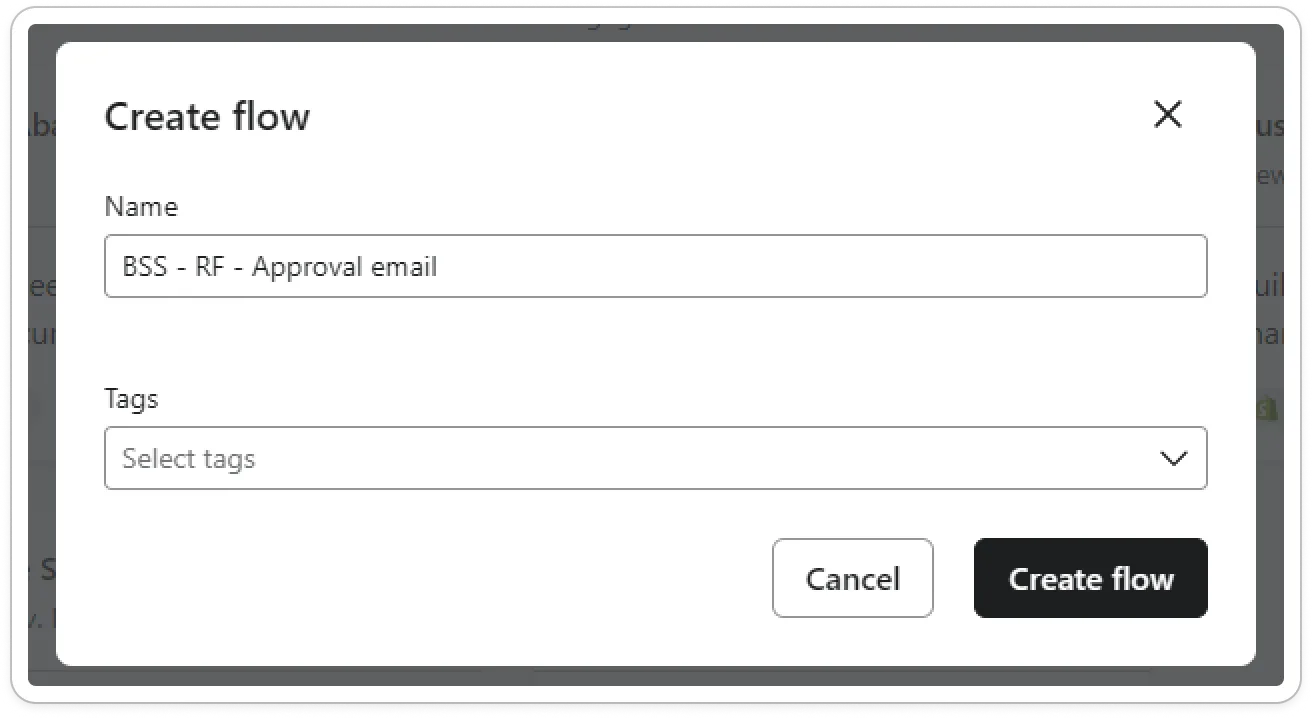
Click Create flow button to start the process of setting up a new, customized flow for your marketing needs.
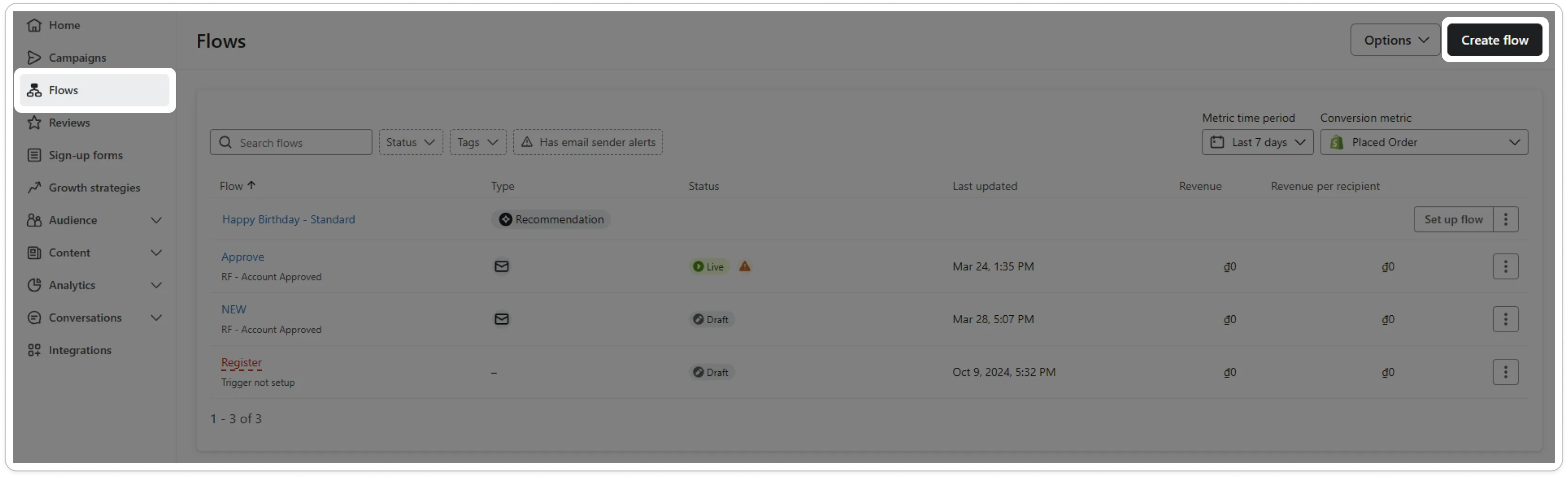
Select “Build your own” and create flow’s name to continue
3.2. Select trigger metric
Section titled “3.2. Select trigger metric”Within a flow, navigate to the Trigger section. Choose Metric to set the basis of your notification triggers.
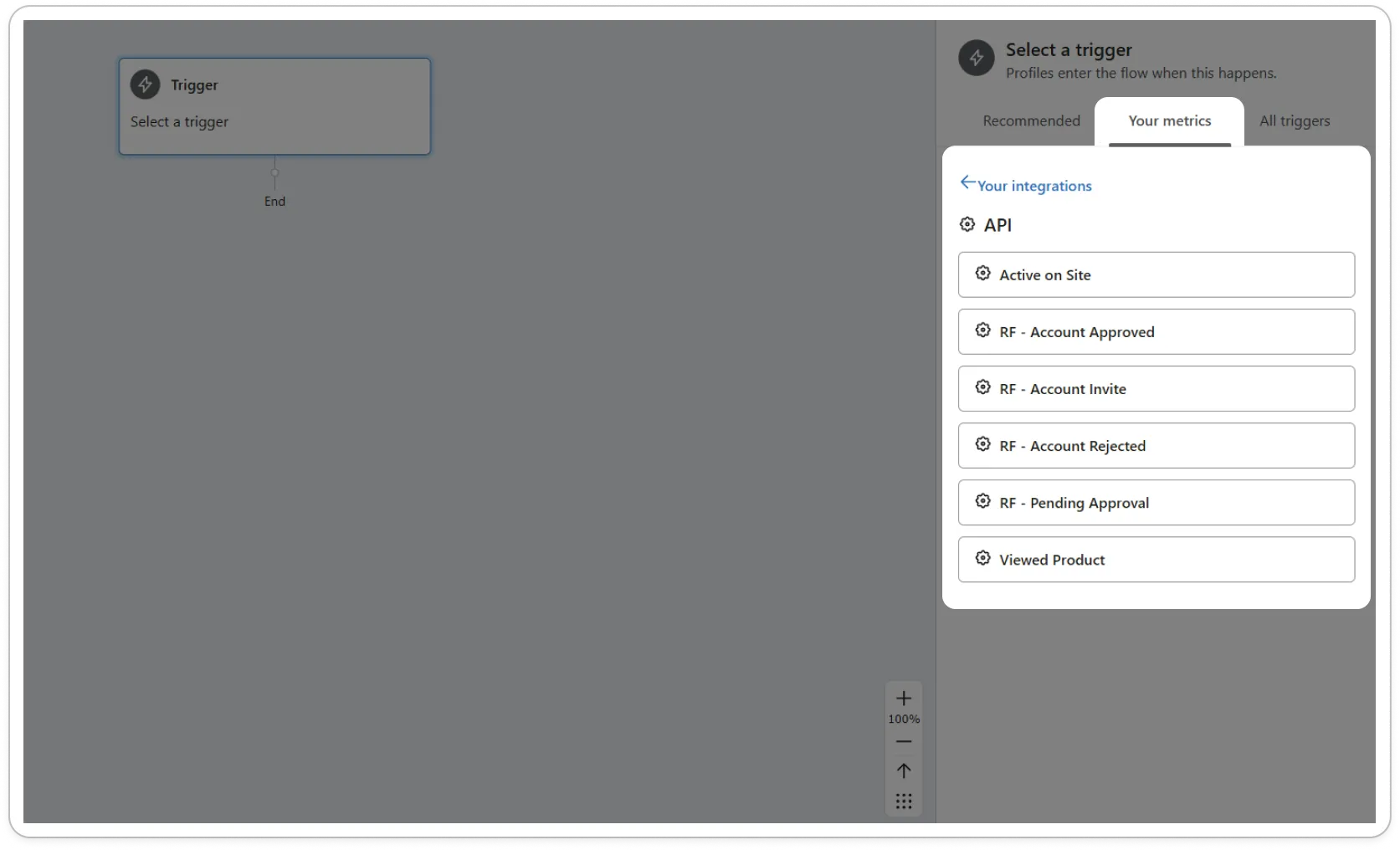
Select from four key metrics:
- RF - Account Approved. Triggered when a wholesaler’s profile is approved, ideal for welcome messages.
- RF - Account Rejected. Activates upon profile rejection, useful for feedback requests or further instructions.
- RF - Pending Approval. Alerts when a profile is under review, keeping wholesalers informed of their status.
- RF - Account Invite. Engages profiles that are pre-existing in your store and prompts for account confirmation.
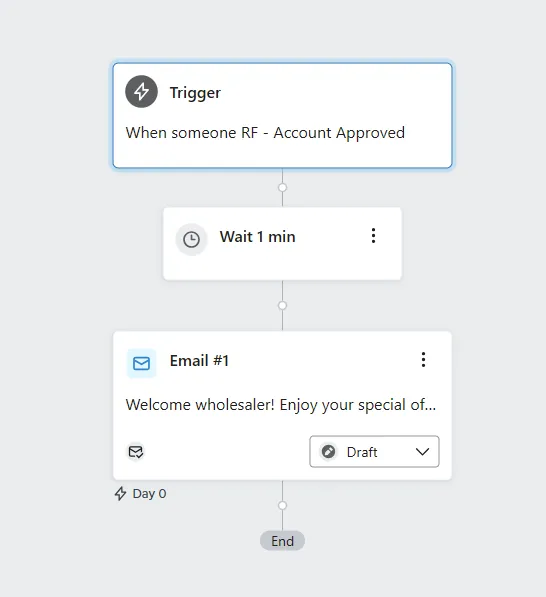
After selecting your triggers, configure the flow’s content and frequency.
4. Disable data synchronization to Shopify
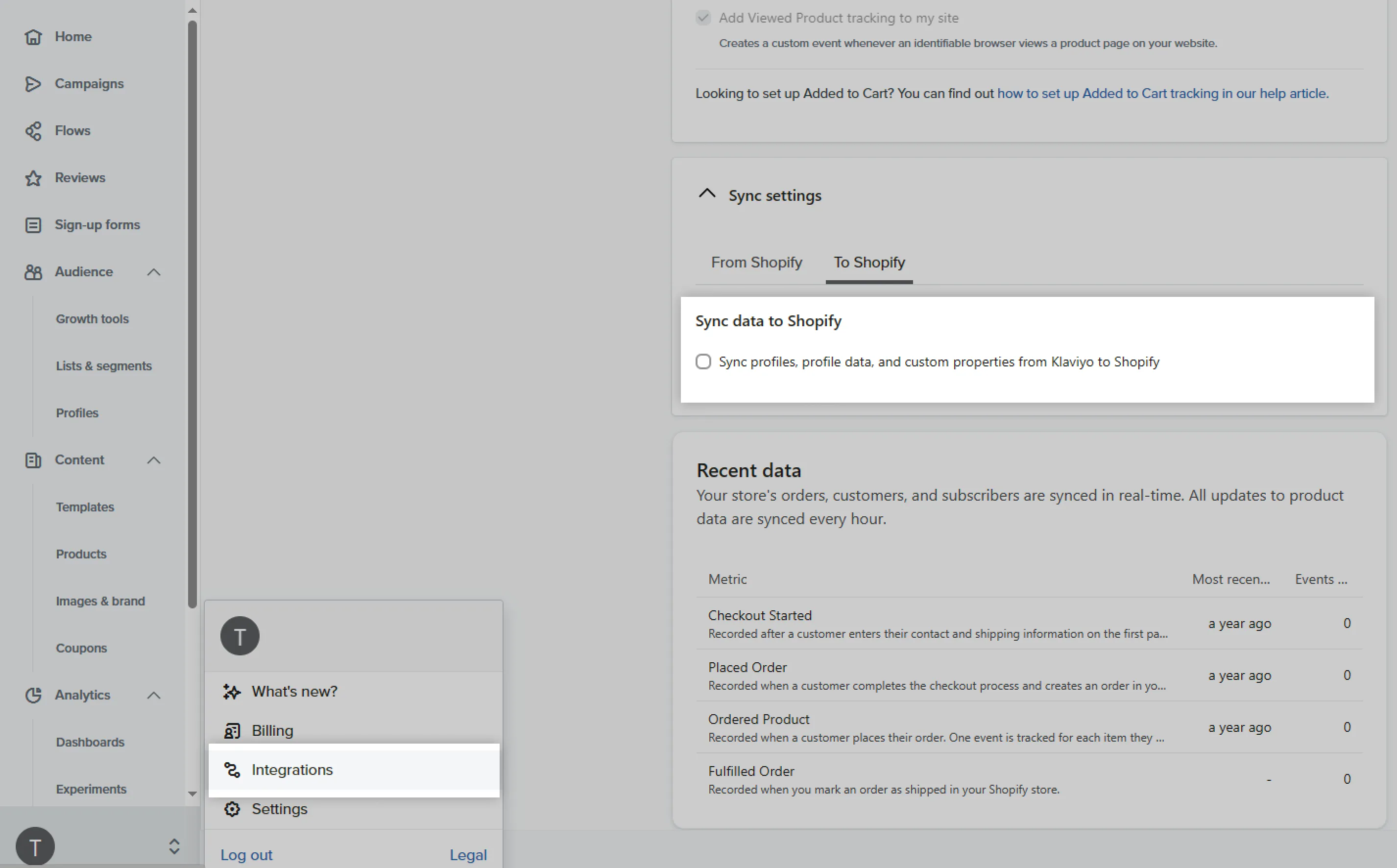
Section titled “4. Disable data synchronization to Shopify”In case you choose the option After registration, the customer will need to be manually approved, you should disable the option Sync profiles, profile data, and custom properties from Klaviyo to Shopify.
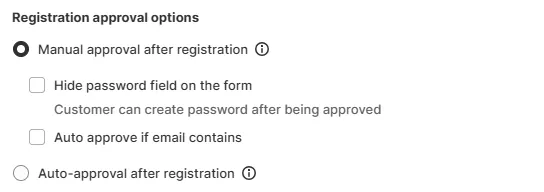
If the synchronization option is enabled, the profiles that haven’t been approved will appear on the Shopify Admin which conflicts with the approval logic.
To disable the synchronization option, from Klaviyo, go to Integrations > Shopify.
5. Insert customer data variables into the Klaviyo email template
Section titled “5. Insert customer data variables into the Klaviyo email template”When setting up the email template in Klaviyo, you might figure out that you need to insert some customer data into the email body like the customer’s last name, first name, company, or address…
Since the customer data will be stored field by field. Each field has its key. And that is what should be added to the email body.
Here is the format of data variables: {{ person|lookup:‘field_key’ }}
You should replace the field_key param with the following keys:
| No | Form’s field | Field label | Field key | Data variable |
|---|---|---|---|---|
| 1 | any texts | {{ person|lookup:'email' }} |
||
| 2 | First name | any texts | first_name | {{ person|lookup:'first_name' }} |
| 3 | Last name | any texts | last_name | {{ person|lookup:'last_name' }} |