
Enable or Disable the App in Your Theme
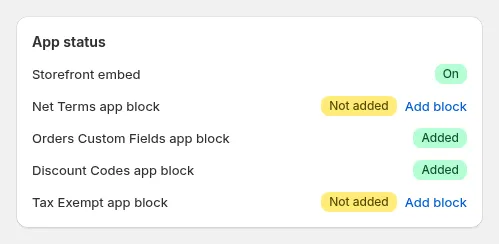
Take full control of how the BSS B2B Solution appears on your storefront. With just a few quick steps, you can activate or deactivate the app’s embedded features anytime, no coding required!
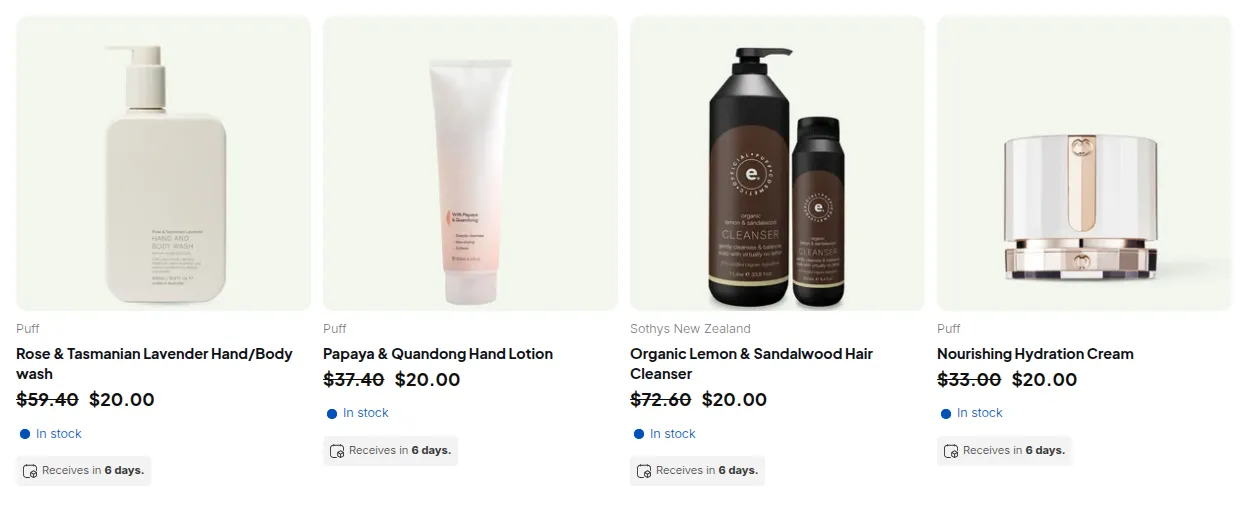
What your customers see on the storefront.
Enable app embed
Section titled “Enable app embed”Open the Theme Editor directly from the app homepage.
Section titled “Open the Theme Editor directly from the app homepage.”→ This takes you directly to your live theme setup, where you can manage all app integrations.
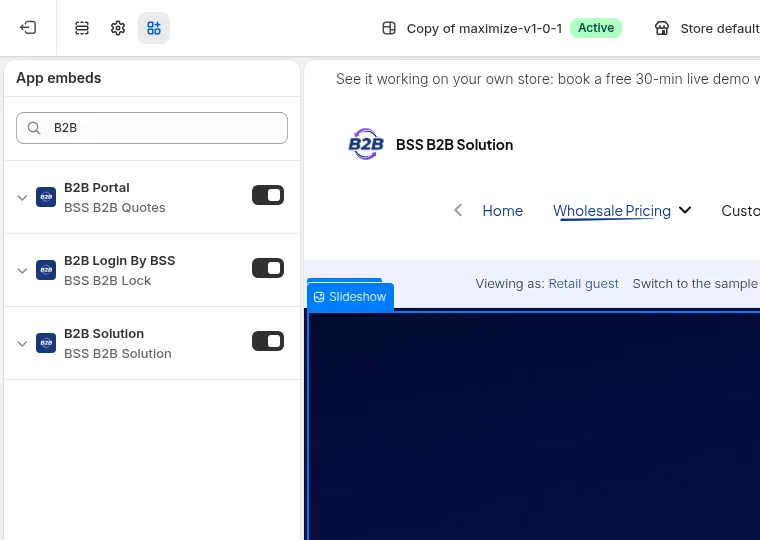
In the editor, find and toggle ON the B2B Solution app embed.
Section titled “In the editor, find and toggle ON the B2B Solution app embed.”→ Once enabled, the app’s B2B features (like custom pricing or login forms) will display on your storefront.
Click Save to apply changes, and you’re all set!
Section titled “Click Save to apply changes, and you’re all set!”→ Don’t forget this step: saving ensures your settings are live and ready to go!
Disable app embed
Section titled “Disable app embed”From the app homepage, open your Theme Editor.
Section titled “From the app homepage, open your Theme Editor.”→ You’ll return to the same easy-to-use editor where you manage theme elements.
Locate the app embed and toggle it OFF.
Section titled “Locate the app embed and toggle it OFF.”→ This hides all B2B features from your storefront while keeping your data intact in the backend.
Click Save to update your theme instantly.
Section titled “Click Save to update your theme instantly.”→ Your changes will be applied instantly; you can re-enable the app anytime.
💬 Tip: You can re-enable it anytime to restore full B2B functionality on your store.