
Import & Export Custom Pricing Rules
Bulk-manage your custom pricing rules using CSV import/export: ideal for large product catalogs, multiple customer segments, or migrating rules between stores. Bulk-manage your custom pricing rules u
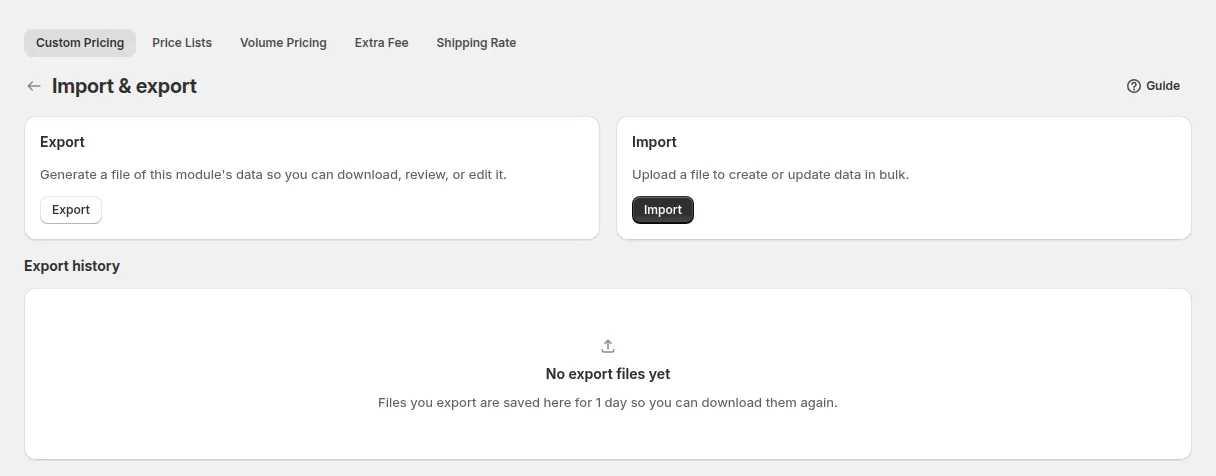
Export Existing Rules
Section titled “Export Existing Rules”- Go to B2B pricing > Custom Pricing.
- Click Export above the rule list, or open More actions > Import & export and click Export.
- Choose an export scope: the current page, the rules you selected, the rules matching your current filter, or all rules.
- Choose a file format: CSV or Excel (.xlsx).
- The export runs as a background job. A progress indicator shows how far along it is; you can keep working while it finishes.
- When it completes, click the download link.
The exported file contains your rules and serves as both a backup and an edit template.
Import New or Modified Rules
Section titled “Import New or Modified Rules”Step 1: Download the Sample Template
Section titled “Step 1: Download the Sample Template”- Open More actions > Import & export and click Import.
- In the Import rules by CSV dialog, click Download sample CSV.
- Open the file in Excel or Google Sheets: it includes formatting guidelines.
Step 2: Fill In Your Rules
Section titled “Step 2: Fill In Your Rules”| Scenario | What to do |
|---|---|
| Creating a new rule | Leave the ID column blank |
| Updating an existing rule | Include the matching rule ID |
| Overwriting by ID | Enable the Overwrite checkbox in the import dialog |
Required fields: ID, Name, Priority, Status
Key constraints:
- File must be CSV format, up to 5 MB
- New rules require a blank ID field
- Customer emails and product SKUs must match exactly what’s in Shopify
Step 3: Upload & Import
Section titled “Step 3: Upload & Import”- Click Import on the Import & export page.
- Click Add file and choose your completed CSV (up to 5 MB).
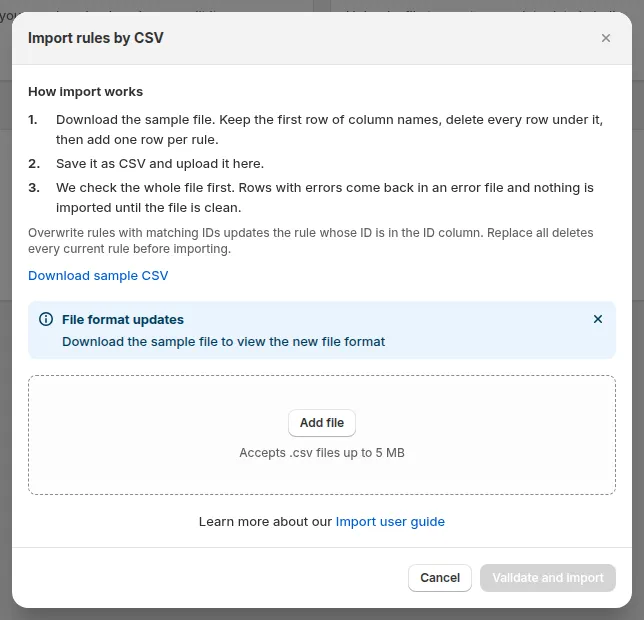
- Choose your import behavior:
- Check Overwrite rules with matching IDs: updates existing rules whose IDs match rows in the file; all other rules are kept as-is.
- Check Replace all existing rules: deletes all current rules and replaces them entirely with the imported set.
- The system validates data and processes in the background.
- Successful imports activate rules immediately. Errors return row-specific messages.
CSV column reference
Section titled “CSV column reference”The file uses these columns: ID, Name, Priority, Status, Market, Customer condition, Customers, Exclude customer condition, Exclude customers, Product condition, Products, Exclude product condition, Exclude products, Discount type, Discount value, Start date, Start time, End date, End time.
Condition and type columns accept only these values:
| Column | Allowed values |
|---|---|
| Customer condition | All, Logged-in, Not logged-in, Specific customers, Customer tags, Company locations |
| Exclude customer condition | None, Specific customers, Customer tags, Company locations |
| Product condition | All, Specific products, Specific variants, Specific collections, Specific tags |
| Exclude product condition | None, Specific products, Specific variants, Specific collections, Specific tags |
| Discount type | Fixed price, Decrease fixed amount, Decrease fixed percentage, Increasing price, Increase fixed amount, Increase fixed percentage |
Any column left out of an imported row is reset to empty for that rule.
Best Practices & Tips
Section titled “Best Practices & Tips”- Back up your current rules by exporting before making sweeping changes
- Use the sample file as your base - don’t change header names
- Include IDs only when you intend to update existing rules
- When mixing imports and overrides, carefully manage your overwrite and replacement settings to avoid accidental deletions
- Keep your file size at or below 5 MB
- Make sure your customer email addresses, product SKUs, and other referenced values match the store data exactly