
Set Minimum or Maximum Order Quantity/Amount Your Customers Can Buy
Create order limit rules to control how much customers can buy: enforce wholesale minimums or stop oversized orders.
The Order Limit feature enforces purchasing rules for your wholesale customers, such as a minimum order amount or a maximum product quantity, before they check out (for example, only orders of $200 or more can be checked out).
Step-by-step: Create an Order Limit Rule
Section titled “Step-by-step: Create an Order Limit Rule”The rule page has the cards Rule, Customers, Products, Markets, Limits, Exclusions (optional) and Advanced.
Step 1: Enable & Access
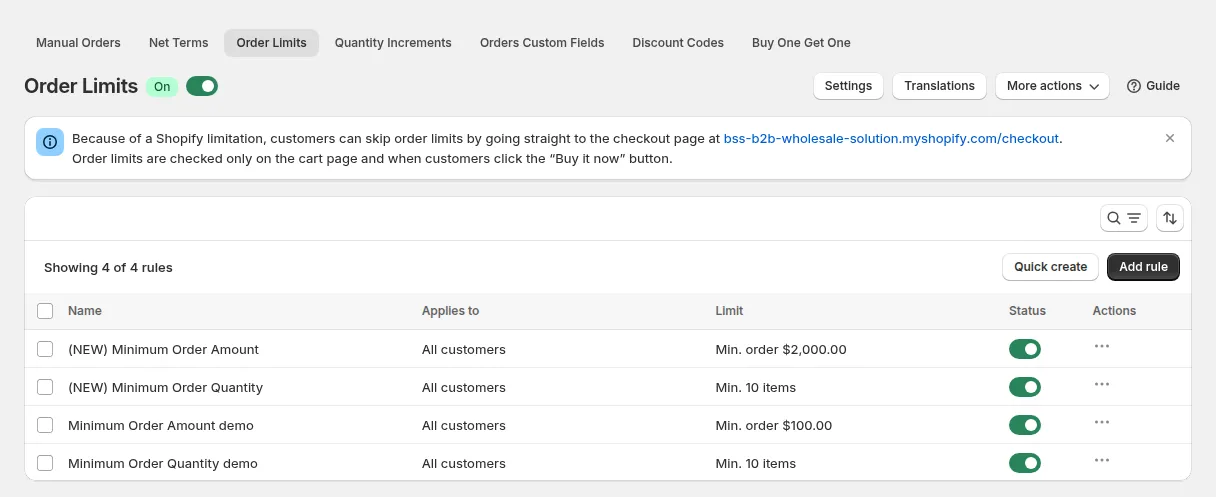
Section titled “Step 1: Enable & Access”- In the app, go to B2B orders & discounts > Order Limits.
- Toggle Order Limits ON.
- Click Add rule.
Step 2: Rule
Section titled “Step 2: Rule”- Name: an internal label, for example “Wholesale min $500”.
- Status: Enable or Disable.
Step 3: Customers, Products and Markets
Section titled “Step 3: Customers, Products and Markets”Markets: All markets, or Specific markets to enforce different limits per selling region. The app compares the country the shopper is browsing from with the regions of the markets you pick; shoppers outside them are not affected. If a market you just created is missing, sync markets from the picker.
Customer conditions: all customers, logged-in customers, not-logged-in customers, specific customers, or customer tags (for example wholesale, trial). Optionally exclude specific customers or customer tags.
Product conditions: all products, specific products, specific variants, product collections or product tags. Optionally exclude products, variants, collections or tags, for example free samples or digital downloads.
Step 4: Limits
Section titled “Step 4: Limits”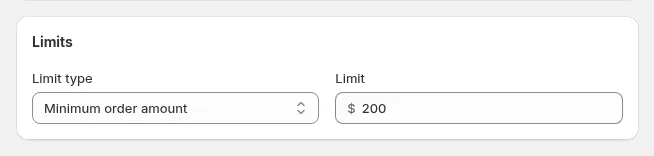
| Rule Type | What it does |
|---|---|
| Minimum order amount | Only allow buyers to buy at least a certain amount per order |
| Minimum order quantity | Only allow buyers to buy at least a certain number of products per order |
| Max order amount | Restrict buyers from purchasing more than a certain amount per order |
| Max order quantity | Restrict buyers from purchasing more than a certain number of products per order |
Enter the Limit: an amount in your store currency (for example 500), or a whole number of items.
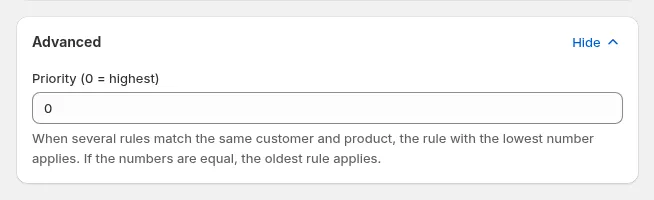
Set the Priority in the Advanced card: a lower number wins when two rules match the same customer and product. With the same priority, the largest minimum and the smallest maximum win.
Click Save. To create a similar rule faster, use Duplicate in the rule’s actions menu.
How It Works
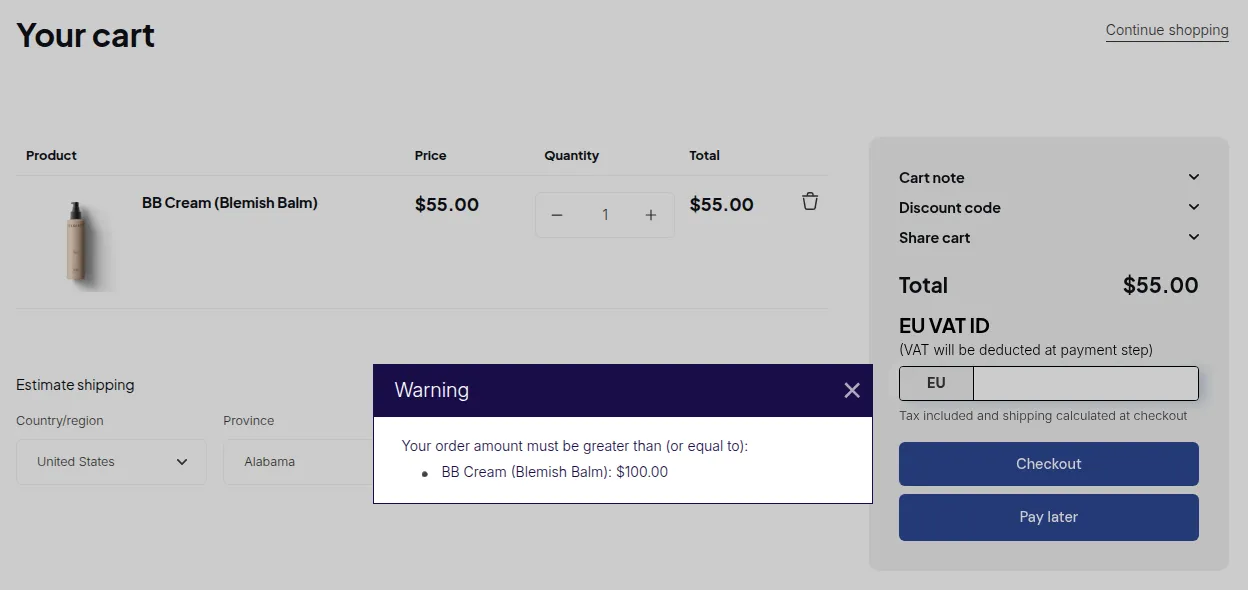
Section titled “How It Works”When the cart breaks a rule:
- A pop-up explains the problem when the customer clicks checkout on the cart page, or Buy it now on the product page, and checkout is blocked until the cart meets the limit.
- Optionally, a message on the product page warns the customer earlier (see Settings below).
- Amount limits use the B2B price (after Custom Pricing, Price List or Volume Pricing) and follow the customer’s currency.
Global Settings
Section titled “Global Settings”Go to Order Limits > Settings. Settings apply to all your rules.
Choose level to limit
Section titled “Choose level to limit”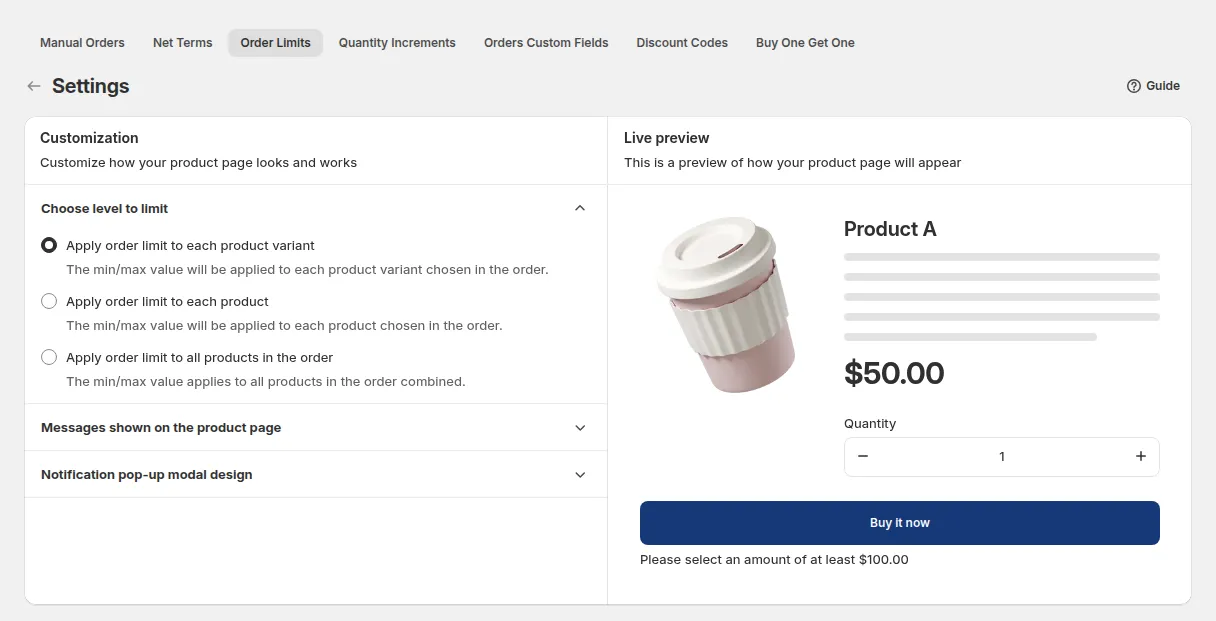
| Option | How it works |
|---|---|
| Apply order limit to each product variant (default) | The min/max applies to each variant in the order |
| Apply order limit to each product | The min/max applies to each product (all its variants added together) |
| Apply order limit to all products in the order | The min/max applies to the order total. You can also tick Show list of products in validation message |
Messages display on Product Detail page
Section titled “Messages display on Product Detail page”Choose Yes to show a message on the product page, with Message position: Below quantity selector or Below the “Buy it now” selector, and a Message color. If the quantity does not meet the rule, the message turns red. With No (default), customers only see the pop-up.
Notification pop-up modal design
Section titled “Notification pop-up modal design”Set the Header’s background color, Header’s text color, Content’s background color and Content’s text color of the pop-up.
Translations
Section titled “Translations”Click Translations on the Order Limits page to edit the Error messages on cart page (pop-up) and Error messages on product page, and add languages with Add language.