
Make Your Products Purchasable in Quantity Increments
Restrict product purchases to fixed quantity multiples, customers can only buy in packs, cases, or bundles you define.
The Quantity Increment feature allows you to set fixed quantity steps for your products, meaning customers can only purchase items in multiples of a specific number, for example, 5, 10, 15, and so on.
This is especially useful for B2B or wholesale stores, where products are often packed or sold in predefined units. By enabling this feature, you can ensure that all orders follow your packaging rules, simplify inventory control, and maintain a professional wholesale experience.
How to Enable and Configure Quantity Increments
Section titled “How to Enable and Configure Quantity Increments”The rule page has the cards Rule, Customers, Products, Quantity rule, Exclusions (optional) and Advanced (priority). When several rules match the same product and customer, the lowest Priority number wins.
Step 1: Access the Feature
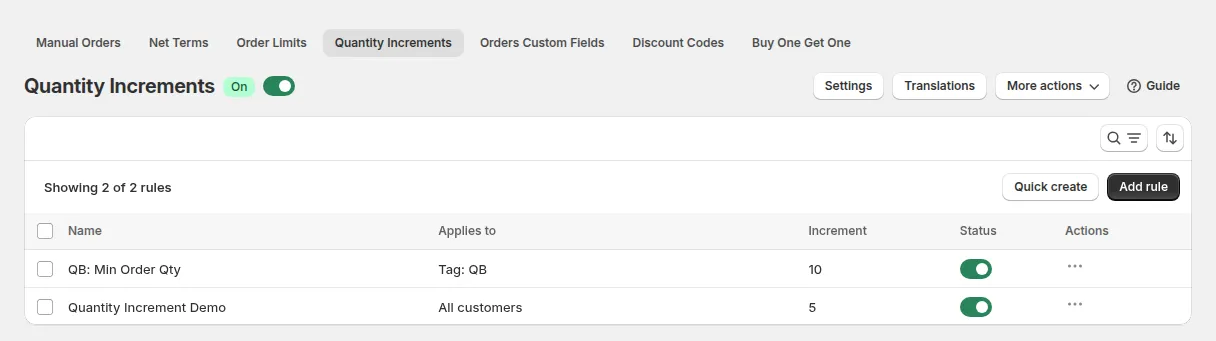
Section titled “Step 1: Access the Feature”- In the app, go to B2B orders & discounts > Quantity Increments.
- Toggle Quantity Increments ON.
- Click Add rule.
Step 2: Define the Scope
Section titled “Step 2: Define the Scope”Each rule needs two conditions: who it applies to, and which products it covers.
Apply to customers
- All customers
- Logged-in customers only
- Not logged-in customers only
- Specific customers
- Customer tags
Apply to products
- All products
- Specific products
- Specific collections
- Product tags
- Specific variants
You can also exclude specific customers or customer tags from the rule in the Exclusions (optional) card.
Step 3: Set the Increment Value
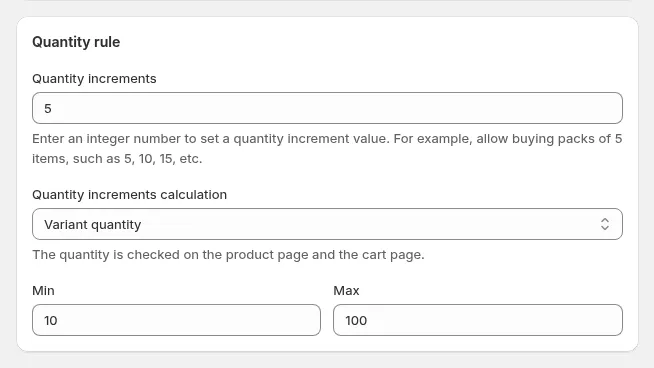
Section titled “Step 3: Set the Increment Value”Enter the Quantity increments value: the step customers must buy in, a whole number from 1 to 30,000.
| Value | Allowed quantities |
|---|---|
| 5 | 5, 10, 15, 20… |
| 6 | 6, 12, 18, 24… |
| 12 | 12, 24, 36, 48… |
Step 4: Save
Section titled “Step 4: Save”Optionally set a Minimum quantity and a Maximum quantity to bound the rule:
- Min: the smallest quantity a buyer may order. The selector starts here and cannot go below it. It must be at least the increment value and below the maximum; use a multiple of the increment (for example 12 with a step of 6).
- Max: the largest quantity a buyer may order, at least the minimum. Leave it empty for no ceiling.
Both are in the Quantity rule card and optional. If you leave the minimum empty, the increment value itself acts as the floor.
Click Save. The rule activates immediately on matching products.
How It Works on the Storefront
Section titled “How It Works on the Storefront”- Step Increment Buttons: Clicking
-or+steps by the configured increment value (e.g., 5, 10, 15…). - Auto-Correct Typed Quantities:
- When buyers type a quantity into the input box, the app corrects it to the nearest valid multiple of the step increment: it rounds up if the entered number is at or past the halfway point between two steps, and down if it is below the halfway point. With a step of 10, typing
16becomes20, while typing12becomes10. - If the typed quantity is below the minimum threshold or exceeds the maximum, the input automatically snaps to
minormax. - If the input box is cleared empty, it automatically resets to the
minincrement value.
- When buyers type a quantity into the input box, the app corrects it to the nearest valid multiple of the step increment: it rounds up if the entered number is at or past the halfway point between two steps, and down if it is below the halfway point. With a step of 10, typing
- Where it is enforced:
- Product Detail Pages (PDP): full enforcement: stepper, typed input and add-to-cart.
- Collection / Catalog Listing Pages and Quick-View Modals: enforcement applies to the quantity controls the app can attach to. Some themes render listing cards without a quantity selector at all, in which case there is nothing to correct on that page and the limit is applied once the buyer reaches the product page or the cart.
- Cart Page: Buyers cannot alter line-item quantities inside the cart to invalid step increments.
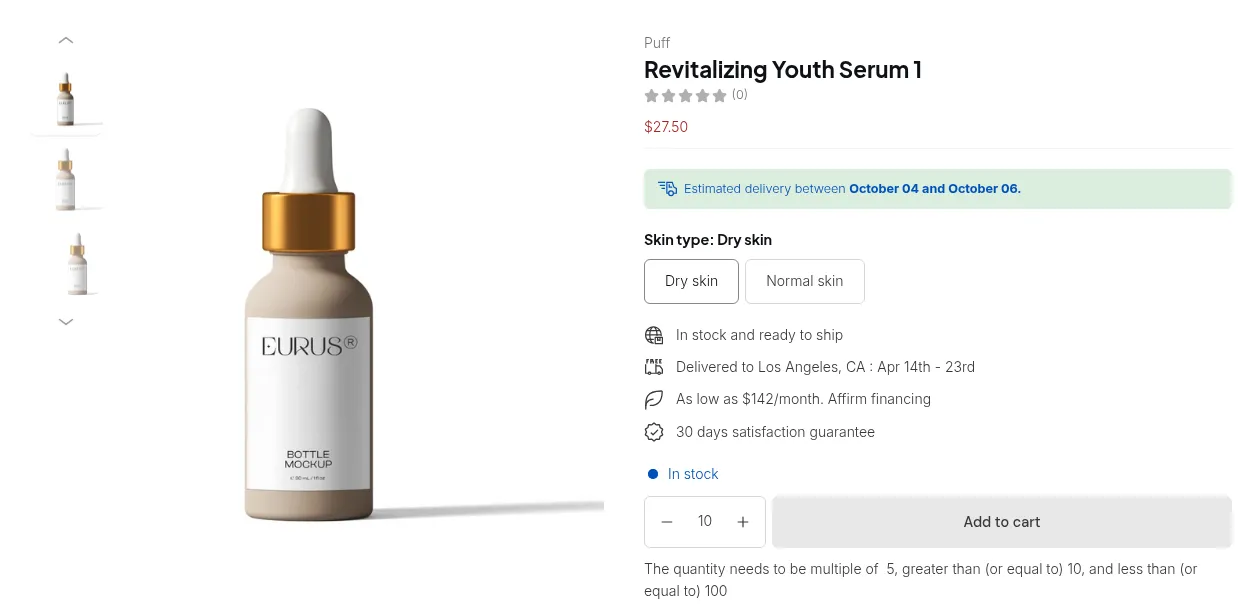
For example, with an increment of 5, each click on the − or + button on the quantity selector changes the quantity by 5.
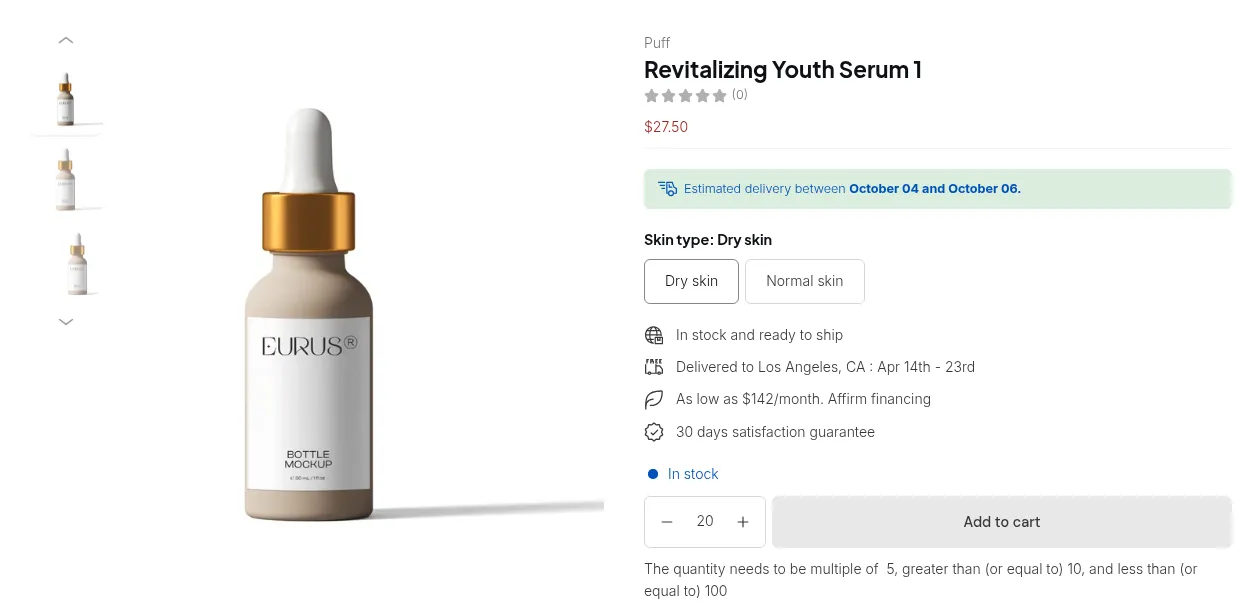
If I try to input 22, for example, the input automatically rounds to the nearest valid step and displays an inline guide:
Quantity Increments Calculation
Section titled “Quantity Increments Calculation”Choose what the step is counted on:
| Level | Description |
|---|---|
| Variant quantity | Each variant must be purchased in separate increments. Example: 5 Black + 5 White = valid (not 5 total across both) |
| Product quantity | The combined quantity across all variants of a product must be a multiple of the increment |
| Order quantity | The total quantity across all qualifying products in the cart must be a multiple of the increment |
On collection pages, quick-order lists and other listings, only Variant quantity rules are applied. Product quantity and Order quantity rules are checked on the product page and in the cart.
Settings
Section titled “Settings”Go to Quantity Increments > Settings:
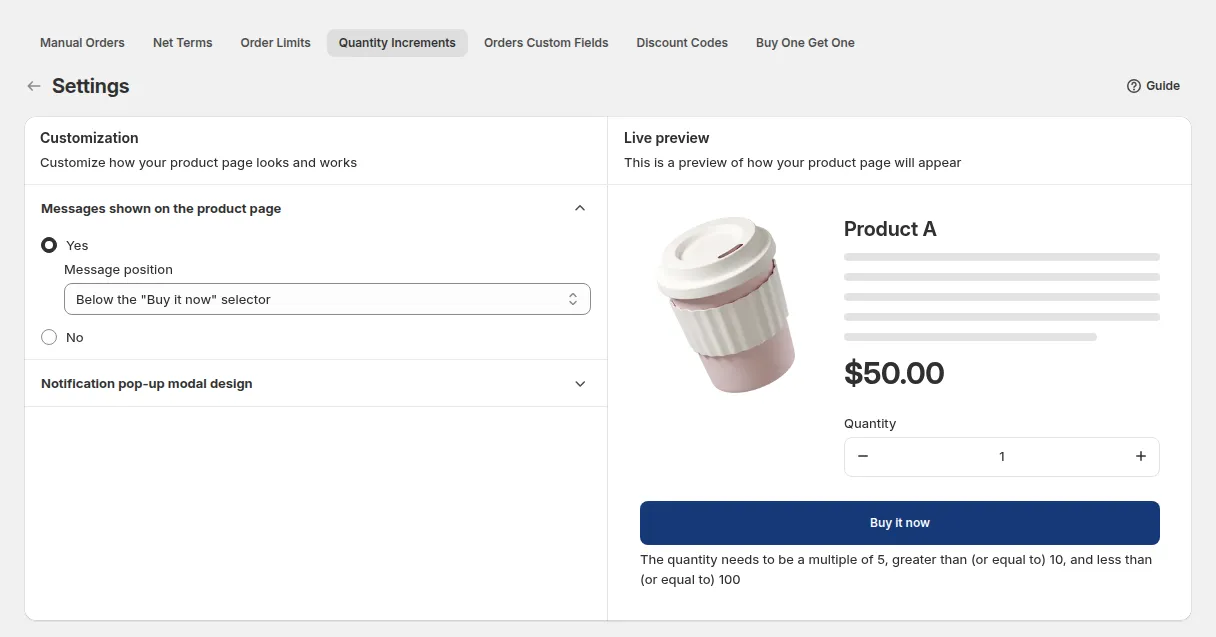
- Display message on product pages: Yes shows a hint with the step (and min/max) next to the quantity selector, with Message position Below quantity selector or Below the “Buy it now” selector. The hint turns red when the quantity is not valid. With No (default), a short error only appears when the quantity is wrong.
- Design: the colors of the pop-up that blocks checkout when a cart quantity does not match (header and content background and text).
- Translations (a button on the Quantity Increments page): edit the Inline requirement message on Product Page/ Collection Page and the Cart/Product pop-up texts, per language.
Export Rules
Section titled “Export Rules”On the rule list, click Export to download all rules as a CSV (name, priority, status, conditions, increment, calculation, min and max). The export runs in the background; the download link stays valid for 24 hours.
Example
Section titled “Example”A beverage distributor sells 6-pack bottles. Setting increment = 6 means:
- Valid: 6, 12, 18, 24…
- Invalid: 7, 11, 15… (customer is prompted to adjust)
Benefits
Section titled “Benefits”- 📦 Consistent Order Sizes: Prevent random order quantities that disrupt packaging or logistics.
- 🏷️ Professional Wholesale Flow: Align your store with standard B2B purchase behavior.
- 🔒 Error-Free Checkout: Avoid order mismatches and improve the customer shopping experience.
- 📈 Boost Average Order Value: Encourage customers to purchase in bulk naturally.
By setting Quantity Increments, you make it easier for customers to shop while ensuring your store runs smoothly and professionally, a perfect combination for growing your wholesale business.