Set Discounted Price for a Product When Buying Another Product
The Buy One Get One (BOGO) feature lets you create powerful promotional rules that automatically apply a discounted price to a product when customers buy another specific product.
This feature is perfect for encouraging bulk purchases, cross-selling related items, or rewarding loyal customers, especially in a B2B or wholesale environment, where buying in quantity is common.
How to Set Up the Discount Rule
Section titled “How to Set Up the Discount Rule”Follow these steps to create and apply your Buy One Get One discount rule:
Step 1: Access the BOGO Settings
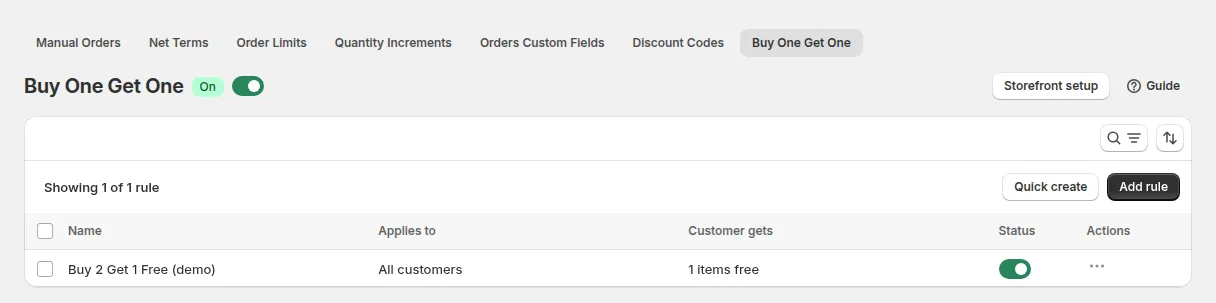
Section titled “Step 1: Access the BOGO Settings”- In the app, go to B2B orders & discounts > Buy One Get One.
- Toggle the module on.
Step 2: Add a New Discount Rule
Section titled “Step 2: Add a New Discount Rule”- Click Add rule. The Create buy one get one offer page has the cards Offer, Customers, Customer buys, Customer gets, Limits and dates (optional) and Advanced.
- Enter a Rule name. Customers see it in the cart next to the discount, for example “Summer deal: 50% Discount”.
- Set a Priority from 0 to 99 (lower number = checked first) and the Status.
Step 3: Define the Purchase Conditions
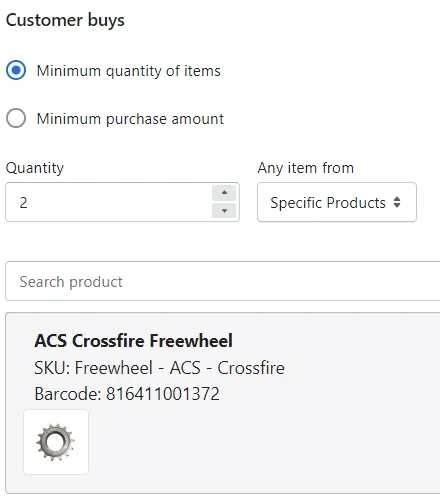
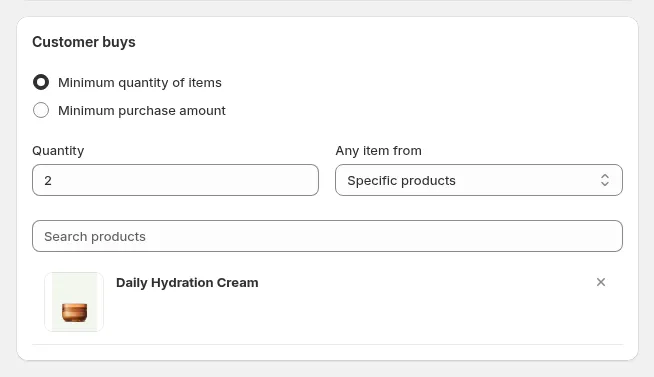
Section titled “Step 3: Define the Purchase Conditions”- Under Customer buys, choose Minimum quantity of items or Minimum purchase amount and enter the value. For example, at least 5 items of product A, or $200 of products from a collection.
- In Any item from, choose Specific Products or Specific Collections and pick them.
Step 4: Set the Discounted Product and Price
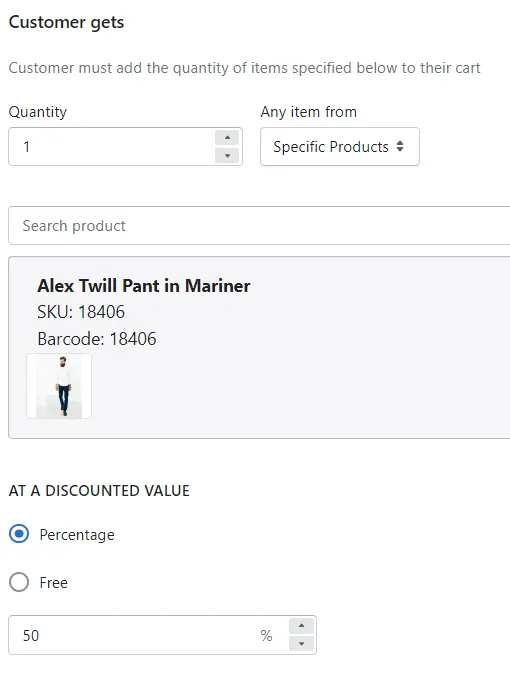
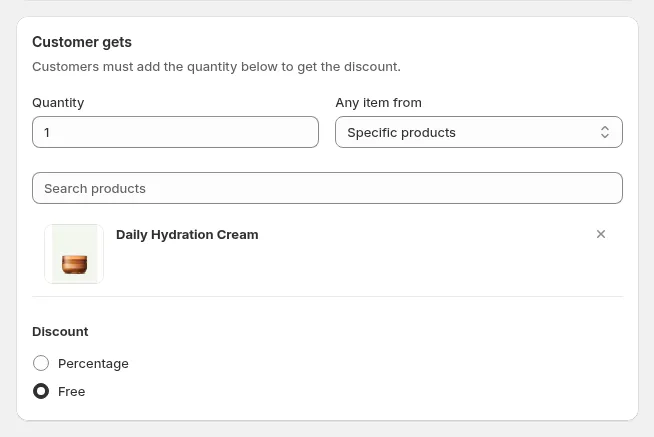
Section titled “Step 4: Set the Discounted Product and Price”- Under Customer gets, enter the Quantity of reward items the customer gets each time the condition is met.
- In Any item from, choose Specific Products or Specific Collections for the reward.
- Choose the discount:
- Percentage: from 1 to 99% off (entering 100 switches to Free).
- Free: the reward items cost $0.
💡 Example: When a customer buys Product A, they can purchase Product B for 50% off or FREE at $0.
Step 5: Customers, Limits and Dates
Section titled “Step 5: Customers, Limits and Dates”- Choose who the rule applies to: All customers, Specific customers or Customer tags.
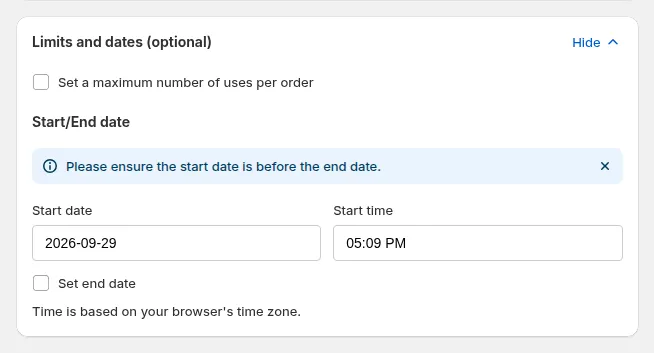
- Optionally tick Set a maximum number of uses per order to cap how many times the reward can apply in one order.
- Set the Start date and time, and optionally an End date.
- Click Save.
Step 6: Test the Rule on Your Storefront
Section titled “Step 6: Test the Rule on Your Storefront”- Add the “Buy” product to your cart according to the rule conditions.
- Add the “Get” product to your cart.
- The discounted price will be applied automatically based on your configuration.
If nothing changes in the cart, check that the B2B Solution app embed is on (Online Store > Themes > Customize > App embeds). BOGO works in the online store cart only: it is not applied to orders you create in Manual Orders or at Shopify POS.
Example
Section titled “Example”Let’s say you set the rule:
- Buy Product A → Get Product B at 50% off
When a customer adds Product A to the cart and also adds Product B, the system will automatically discount Product B’s price.
This type of promotion is perfect for bundle sales, mix-and-match offers, or upselling complementary products.
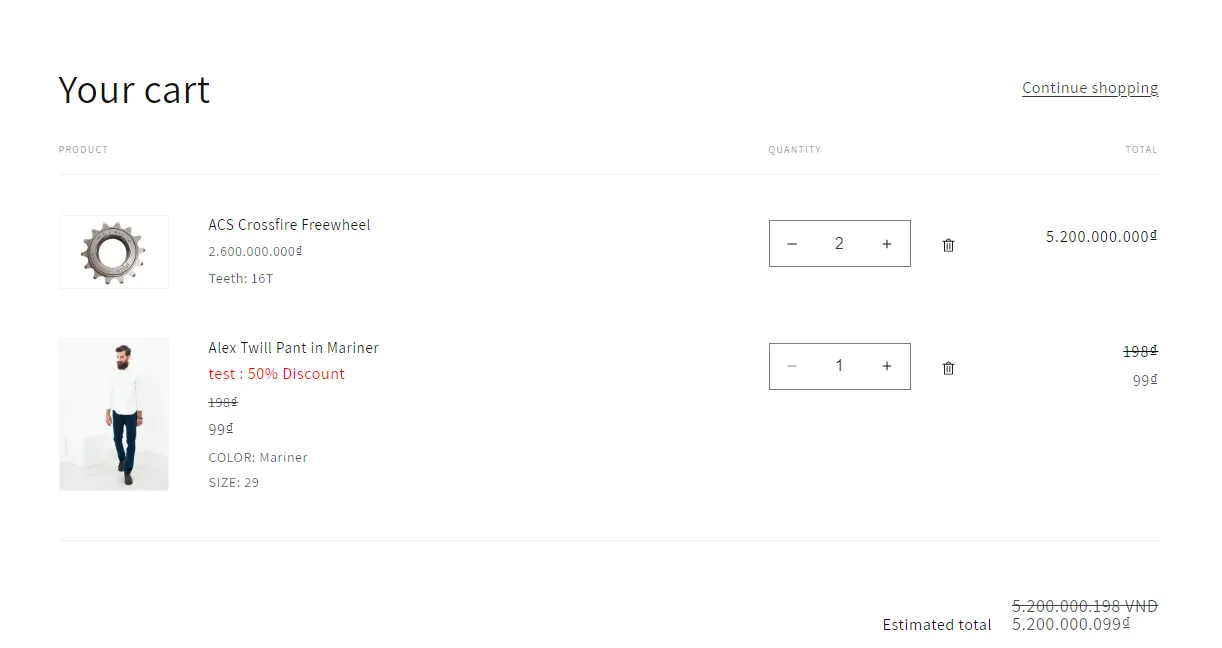
How does it look on the store:
Section titled “How does it look on the store:”For example, with this rule customers who buy 2 freewheels get a pair of pants at 50% off: