
Display Custom Pricing – How Prices Appear to Customers
Control how custom wholesale prices are displayed on product pages, in the cart, and at checkout. These settings let you choose what original and discounted prices customers see.
1. On the Product & Cart Pages
Section titled “1. On the Product & Cart Pages”When you set up custom pricing, the app lets you decide which pricing elements to show to logged-in B2B customers. Under Custom Pricing → Settings, you can toggle between three display modes.
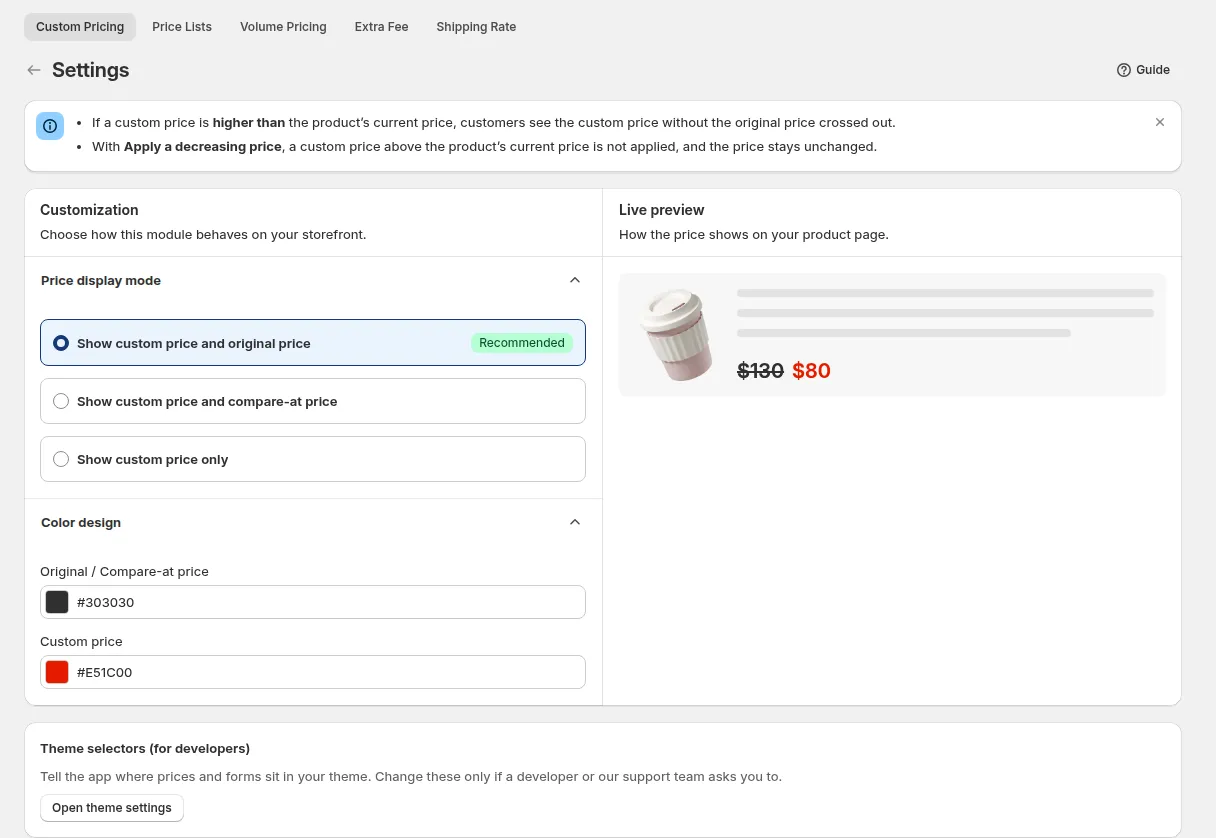
| Mode | What the customer sees |
|---|---|
| Show custom price only | Only the wholesale price is shown; original and compare-at prices are hidden |
| Show custom price and compare-at price | Wholesale price shown alongside the struck-through compare-at price |
| Show custom price and original price (Recommended) | Both the wholesale price and the original product price shown side by side |
You can also customize text color and styling to match your storefront design. After saving settings, visit your storefront to see exactly how your pricing rules look in action.
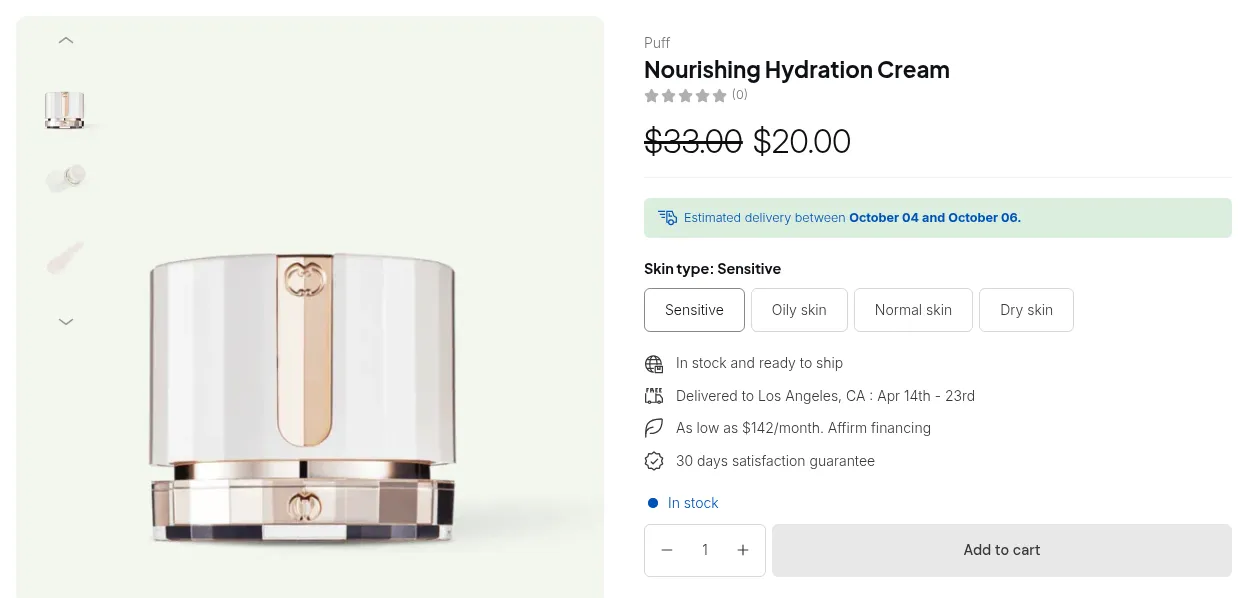
Important Pricing Constraint
Section titled “Important Pricing Constraint”Custom pricing only displays when the custom price is lower than the original price and compare-at price. If your configured custom price is higher than the original product price, the app will not show the custom price on the storefront.
2. On the Checkout Page
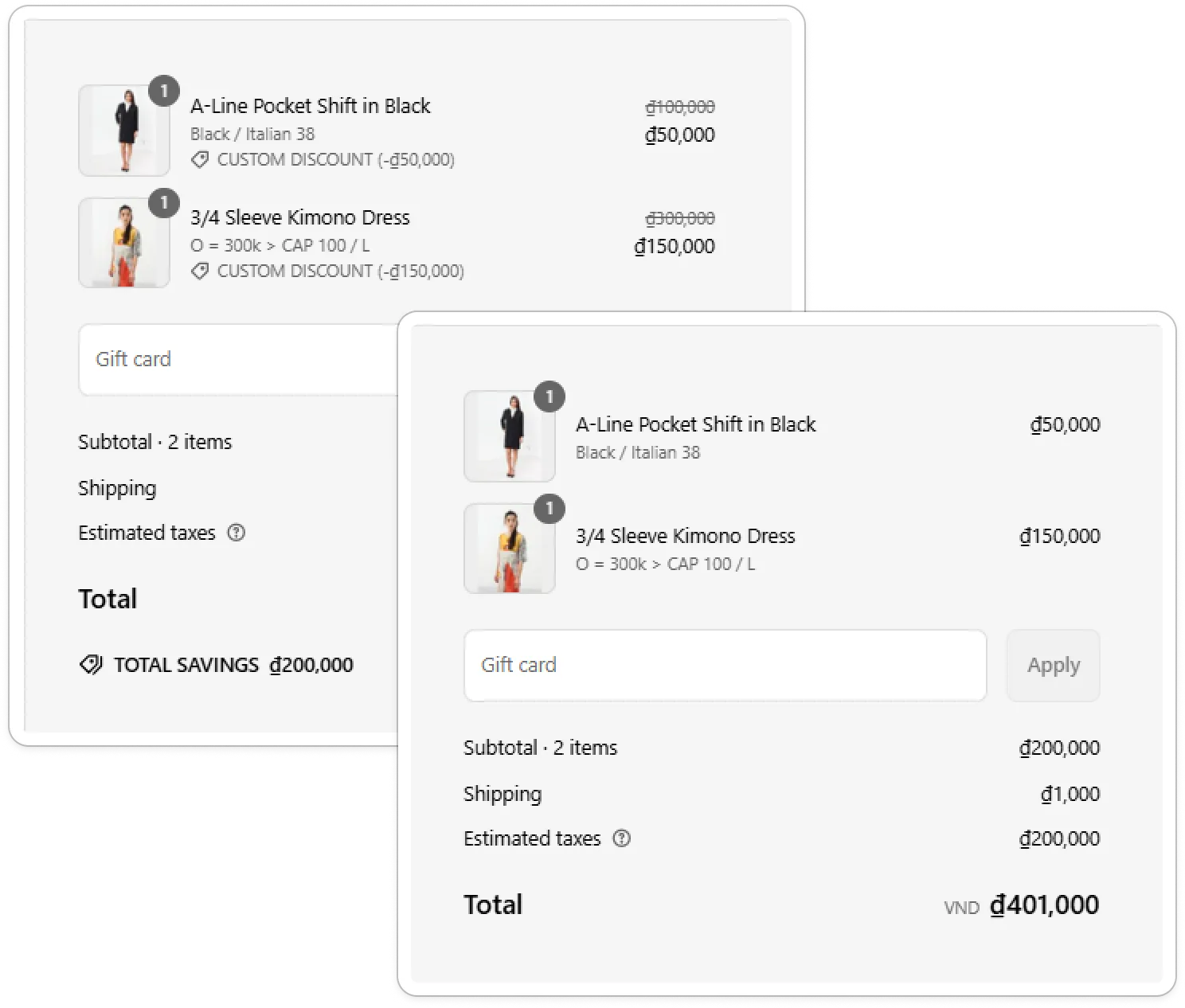
Section titled “2. On the Checkout Page”In the app, open Settings > Shopify checkout settings. The Price override option decides how the pricing is shown during checkout:
- Display discounted price as MSRP (Manufacturer’s Suggested Retail Price): The cart will show the original price with the discount mentally “applied” behind the scenes
- Or show the discounted price separately: making it clear that the custom price is the active charge
This gives you flexibility in how transparent or subtle the discount display is during the final purchase stage.
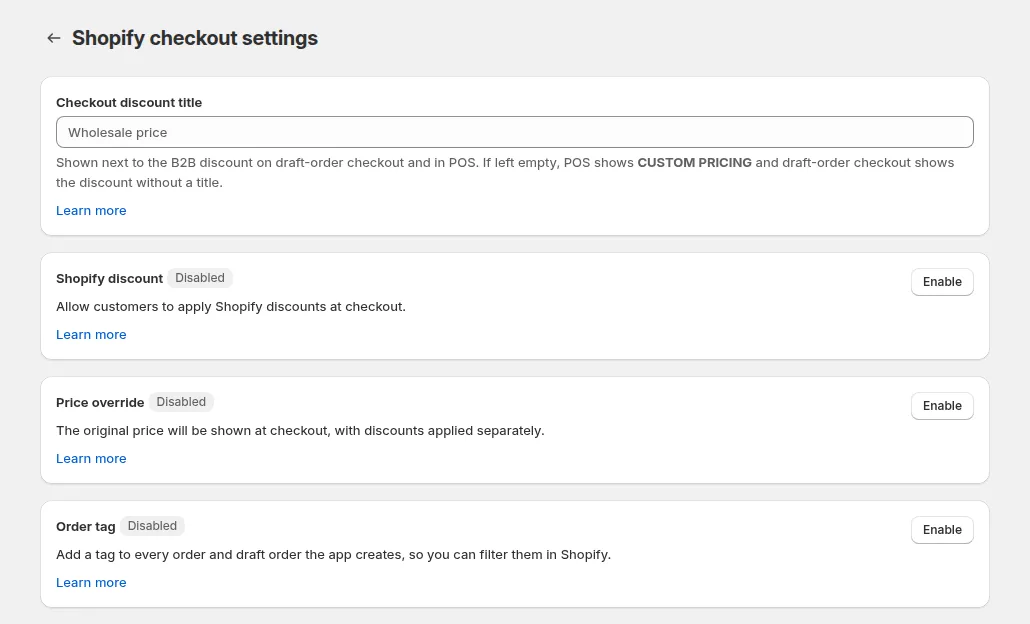
- If you turn on the setting, the order will record the MSRP as the original price.
- If you turn it off, the discounted price will be shown separately.
3. When Using Custom Pricing + Volume Pricing Together
Section titled “3. When Using Custom Pricing + Volume Pricing Together”If a product has both Volume Pricing and Custom Pricing rules applied:
- Custom Pricing is always applied first.
- After the Custom Pricing adjustment, the Volume Pricing rule will be applied on top of that price if its conditions are met.
- Display behavior still follows your selected mode (Show Only CP, CP + Compare, CP + Original).
Example scenarios:
-
If the original price is $100, compare-at (sale) price is $130, CP price is $20, and a QB rule makes it $12, here’s what displays:
Display Mode What the Customer Sees Show only CP price $20→ $12Show CP + Compare price $130$12Show CP + Original price $100$12
If a product doesn’t have a “Compare at price” value, the system falls back to using the original price for comparisons.
4. When a custom price does not appear
Section titled “4. When a custom price does not appear”- The app embed is off in the live theme, or Custom Pricing is turned off in the app.
- The customer or product does not match the rule, or the product is excluded.
- The rule has a Schedule and the current time is outside it.
- The rule uses an option your plan does not include (for example product tags or specific markets below Advanced, specific variants below Platinum). The rule stays in the app but is not published.
For a full checklist, see Checklist: prices or rules not showing.
5. On BSS B2B Quote Quick Order pages
Section titled “5. On BSS B2B Quote Quick Order pages”If you also use BSS B2B Quote, its Quick Order page shows the same B2B prices from Custom Pricing and Price List. The Quick Order page asks BSS B2B Solution to price each line, so:
- The app embeds of both apps must be on in your theme. If the BSS B2B Solution embed is off, the Quick Order page falls back to your normal prices.
- Turning Custom Pricing off in BSS B2B Solution also stops it on Quick Order pages right away.