
Net Terms Checkout Form and Settings
This page is the reference for the Application for Net Terms form in each rule and for the global Net Terms settings. To create a rule, see Set Up Net Terms for Your B2B Customers.
Application for Net Terms form fields
Section titled “Application for Net Terms form fields”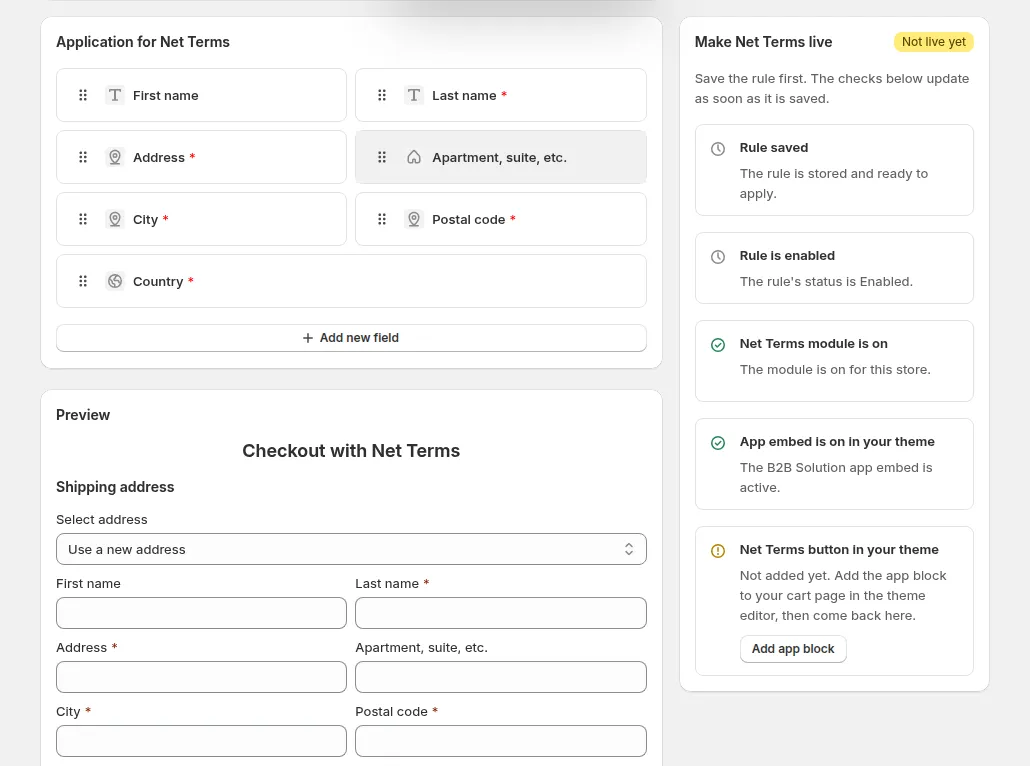
Configure the form buyers fill in when they click the Net Terms button on the storefront. This form collects the shipping address and any additional information you require.
Before the buyer confirms, the form shows the order summary as Shopify will charge it on the draft order. For a buyer who is a contact of a Shopify B2B company, product prices come from the company’s B2B catalog. Shipping is calculated in your store currency and shown in the buyer’s market currency, so the amount matches the draft order. Buy One Get One offers apply like in a cart checkout.
Default address fields (always present, some required):
| Field | Required by default |
|---|---|
| First name | No |
| Last name | Yes |
| Address | Yes |
| Apartment, suite, etc. | No |
| City | Yes |
| Postal code | Yes |
| Country / State | Yes |
Custom fields you can add:
| Field | Notes |
|---|---|
| Phone | Text field with built-in E.164 international validation; automatically saved to Shopify Order Shipping and Billing Addresses |
| Company | Text field |
| Purchase Order Number | Text field; value saved to order notes |
| Dropdown selection | Single-select with configurable options |
| Multiple checkbox | Multi-select with configurable options |
| Radio options | Single-select radio with configurable options |
| Text field | Free-text input |
| Text area | Multi-line text input |
| Heading | Section label (no input) |
| Number | Numeric input |
| Date field | Date picker |
| File upload | Accepts CSV, DOC/DOCX, GIF, JPG, PNG, PDF, WAV, XLS/XLSX, ZIP, MP4, TXT (max 10 MB per file) |
VAT / tax ID fields (optional, with live validation):
| Field | Validates |
|---|---|
| EU VAT | European VAT number format |
| UK VAT | UK VAT Registration number |
| US EIN | US Employer Identification Number |
| ABN | Australian Business Number |
| India GST | Indian GST number |
Configure global settings
Section titled “Configure global settings”Go to Net Terms > Settings to set options that apply across all rules.
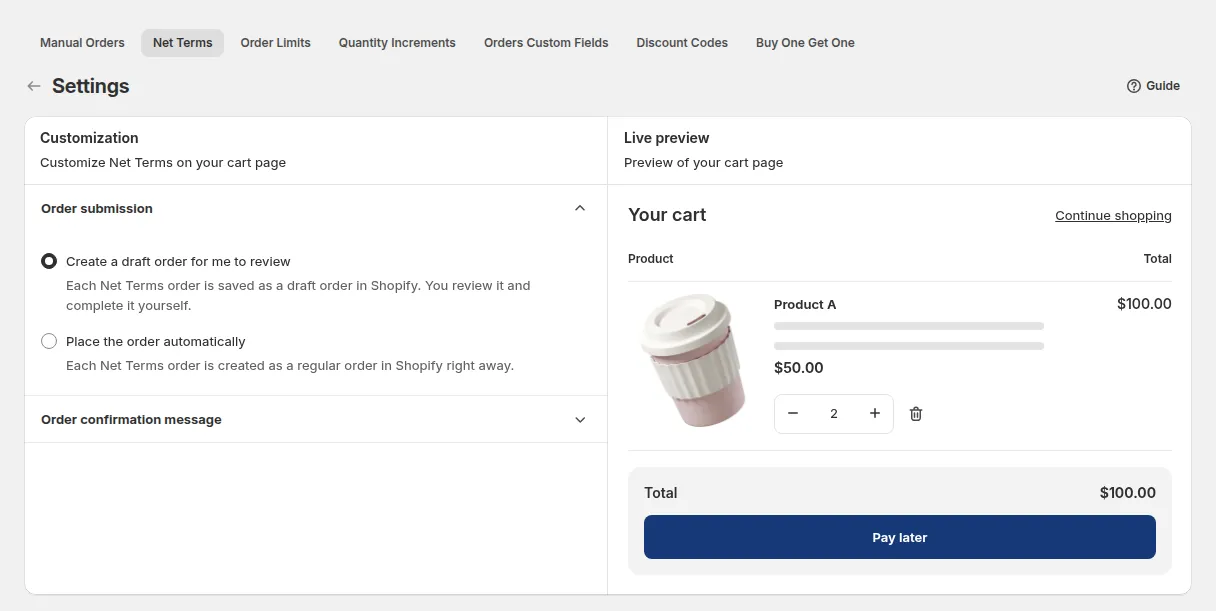
Order submission
Section titled “Order submission”Choose how Net Terms orders are created in Shopify:
| Option | Behaviour |
|---|---|
| Create a draft order for me to review (default) | Order is created as a Shopify draft order; you review it and turn it into an order yourself |
| Place the order automatically | The draft is completed right away into a Shopify order with payment pending |
Confirmation message
Section titled “Confirmation message”Customize the message shown to buyers in the confirmation modal after they complete a Net Terms checkout. Use the variables {{order_name}} (the order or draft order name) and {{number_of_days}} (the number of days in the payment term, for example 30) to dynamically display order details. You can edit the message with the built-in rich text editor.
General Translations
Section titled “General Translations”Translate the storefront-facing UI text that appears in the Net Terms checkout flow. On the Net Terms page, open More actions > Translations (the same menu also has Notifications and Export). Select a language, then edit the strings.
Tip: If a string contains a variable placeholder in double curly braces, keep the placeholder unchanged in your translation so dynamic values still appear correctly.
Form Translations
Section titled “Form Translations”Translate the field labels and option text on the Net Terms checkout form, per rule and per language.
-
Select the rule whose form you want to translate.
-
Select a language.
-
Switch between Default fields and Custom fields using the sidebar.
Changes to Form Translations apply per rule. If you have multiple rules with different form fields, translate each rule separately.