
Show a BOGO Progress Notice on the Cart Page
The BSS BOGO Cart is an optional app block for your cart page. It tells customers how much more they need to buy to get the gift. When they qualify, it shows an Add gift button.
If you do not add the block, nothing changes: your cart looks and works as before.
Add the block to your cart page
Section titled “Add the block to your cart page”- In Shopify admin, go to Online Store > Themes and click Customize on your theme.
- Open the Cart page template.
- In the cart section, click Add block and choose BSS BOGO Cart under Apps.
- Click Save.
The block appears in the list only on the cart template, and only while Buy One Get One is turned on in the app.
What customers see
Section titled “What customers see”| Cart state | What the notice shows |
|---|---|
| The cart holds items to buy, but not enough yet | How many more items to buy, or how much more to spend |
| The cart qualifies and the gift is one product with one variant in stock | A message with an Add gift button |
| The cart qualifies and the gift is a collection or has several variants | A message with a Choose your gift link |
| The gift is out of stock | No button and no link |
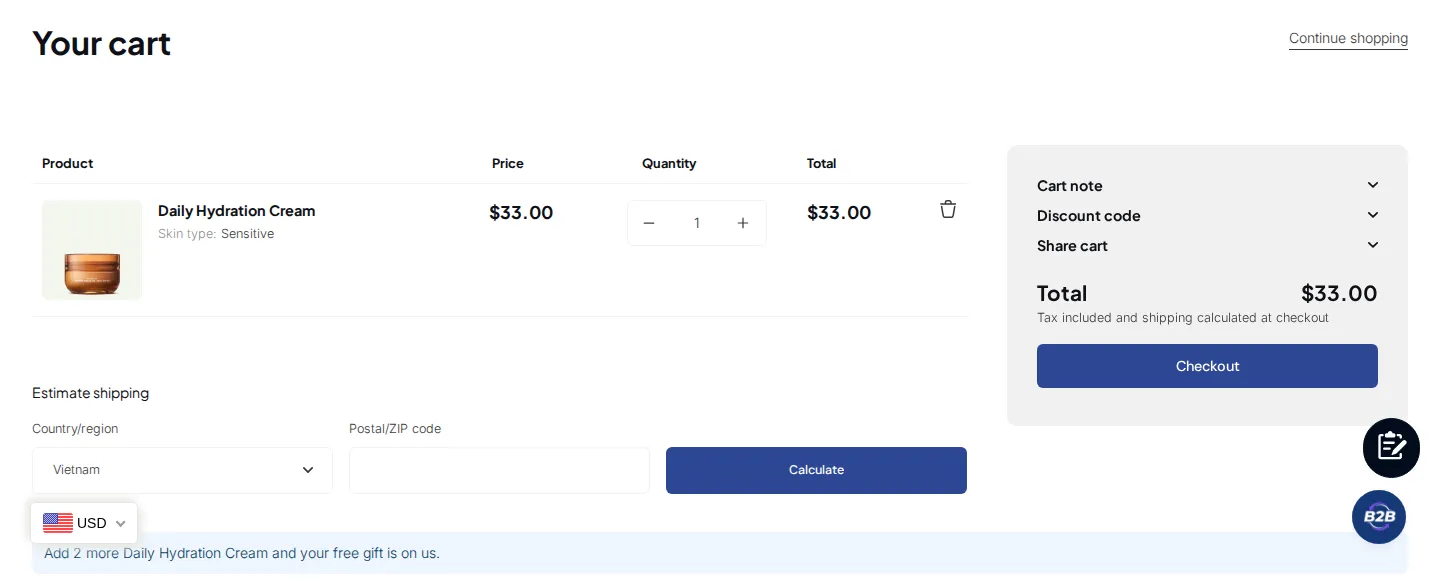
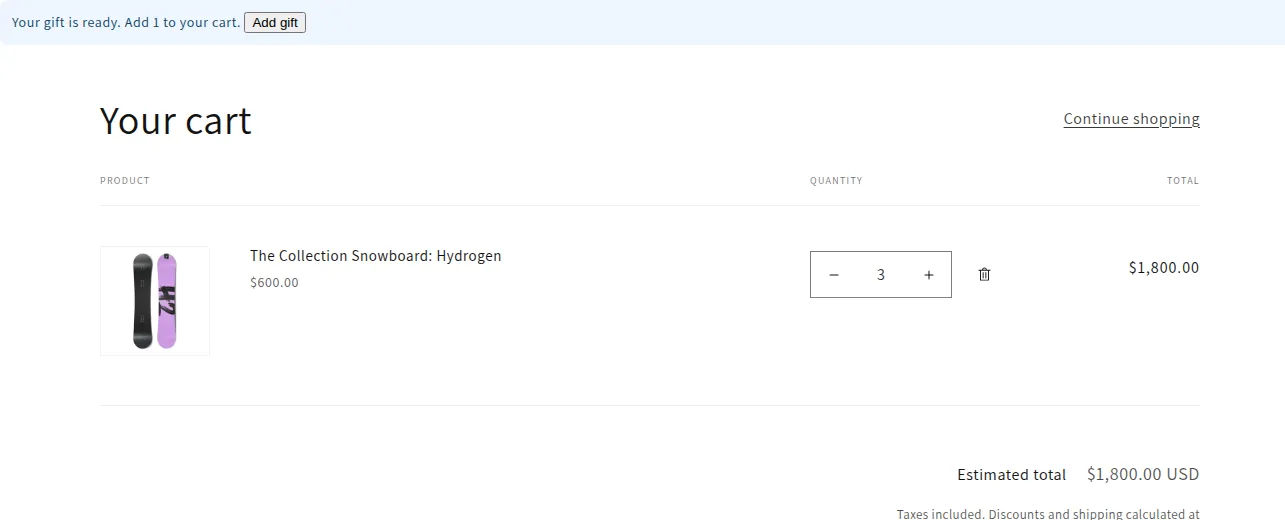
When the customer clicks Add gift, the gift goes into the cart and the page reloads with the BOGO discount applied. If adding the gift fails, the button works again and the notice shows an error message.
Edit the texts
Section titled “Edit the texts”Open the block settings in the theme editor to change the seven texts:
| Setting | Default text |
|---|---|
| Progress (by quantity) | Buy [count] more to get your gift. |
| Progress (by amount) | Spend [amount] more to get your gift. |
| Gift ready (with button) | Your gift is ready. Add [count] to your cart. |
| Gift ready (with links) | Your gift is ready. Choose it here: |
| Add gift button | Add gift |
| Choose gift link | Choose your gift |
| Add gift error | Could not add the gift. Please try again. |
Use [count] for the number of items and [amount] for the money amount. Type each text in your store’s language.
See also: Set Discounted Price for a Product When Buying Another Product