
Block Order Limit Violations at Checkout
Block at checkout stops payment for a cart that breaks an active Order Limits rule. The check runs at the payment step, so it also works when a shopper opens your /checkout page directly or uses a checkout link.
It is off until you turn it on. Only you can turn it on.
What it changes
Section titled “What it changes”| Where the shopper is | Without Block at checkout | With Block at checkout |
|---|---|---|
| Product page, cart page, Buy it now | The pop-up and page messages appear | Same, nothing changes |
Payment step, after opening /checkout or a checkout link |
Not checked | A cart that breaks a limit cannot be paid |
Shoppers can still add anything to the cart. The check happens when they try to pay.
A reminder on the rule list
Section titled “A reminder on the rule list”While Block at checkout is off and you have an active rule, the Order Limits rule list shows a tip you can dismiss: Apply order limits at checkout too. Its Review Block at checkout button opens Settings, where you decide whether to turn the switch on. The tip never turns the switch on, and it disappears once Block at checkout is On.
Turn it on
Section titled “Turn it on”-
Open the setting
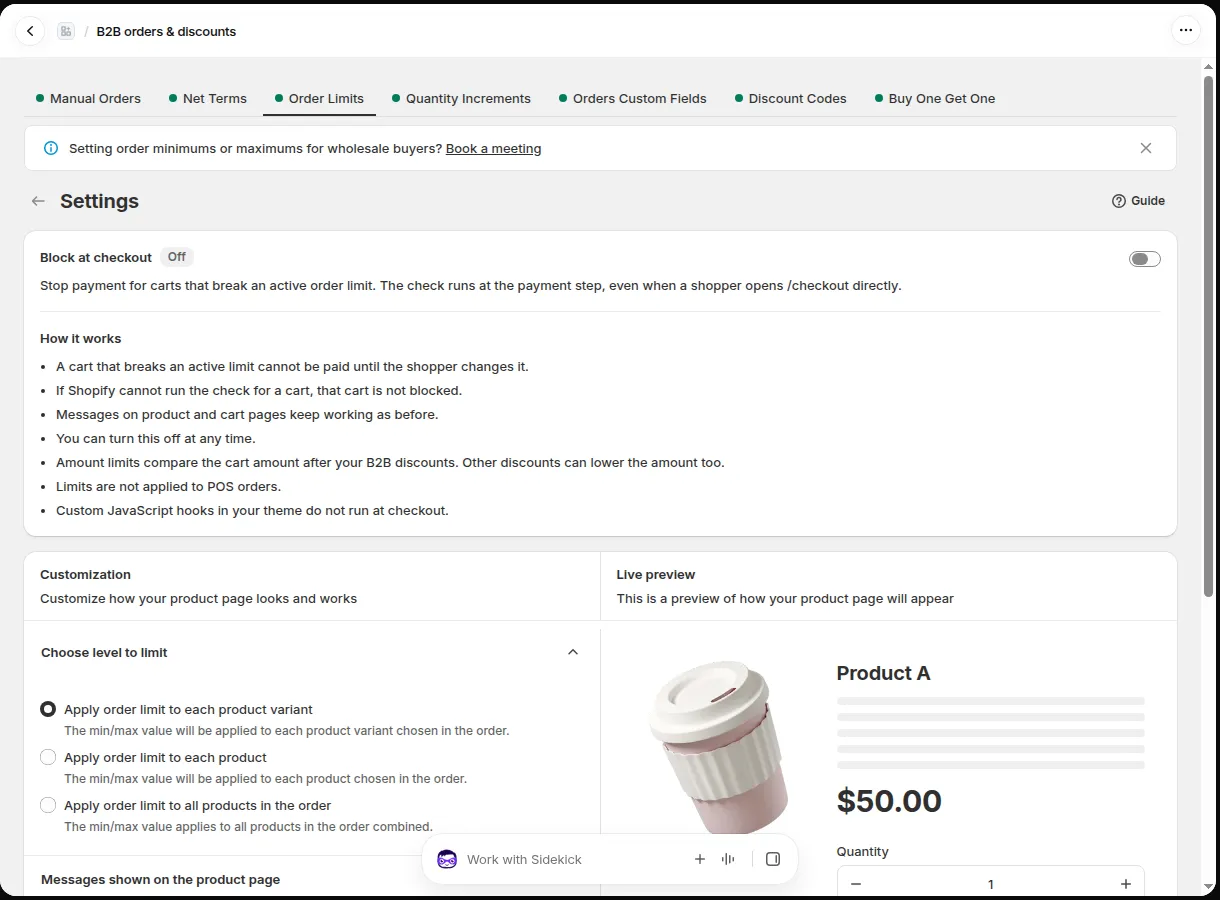
Section titled “Open the setting”Go to B2B orders & discounts > Order Limits > Settings. The Block at checkout block is at the top, with the status Off.
-
Turn the switch on and confirm
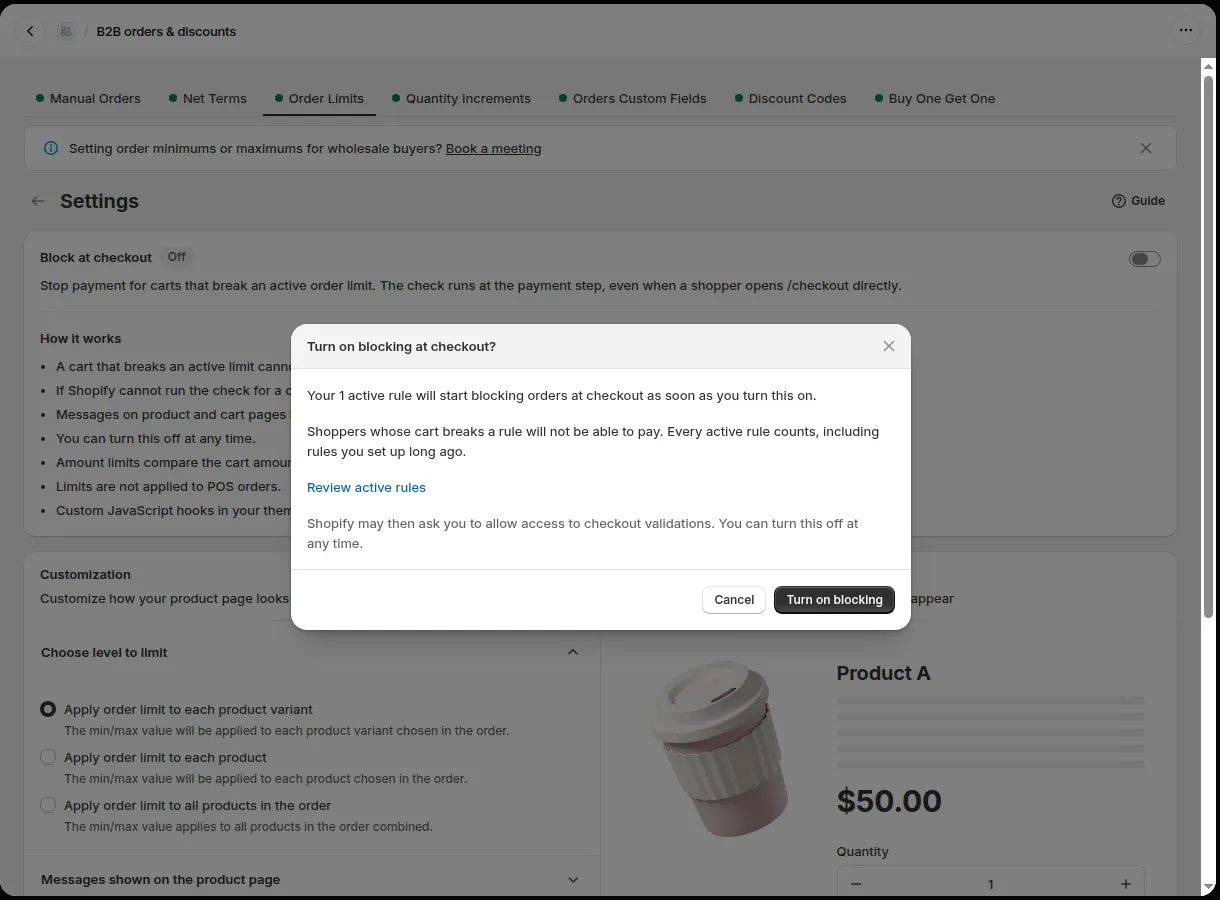
Section titled “Turn the switch on and confirm”A window shows how many active rules will start blocking. Every active rule counts, including rules you created long ago. Select Review active rules if you want to check them first, then select Turn on blocking.
-
Approve the Shopify permission
Section titled “Approve the Shopify permission”The first time, Shopify asks you to allow access to checkout validations. Approve it. The app requests two optional permissions for this:
read_validationsandwrite_validations. -
Check the status
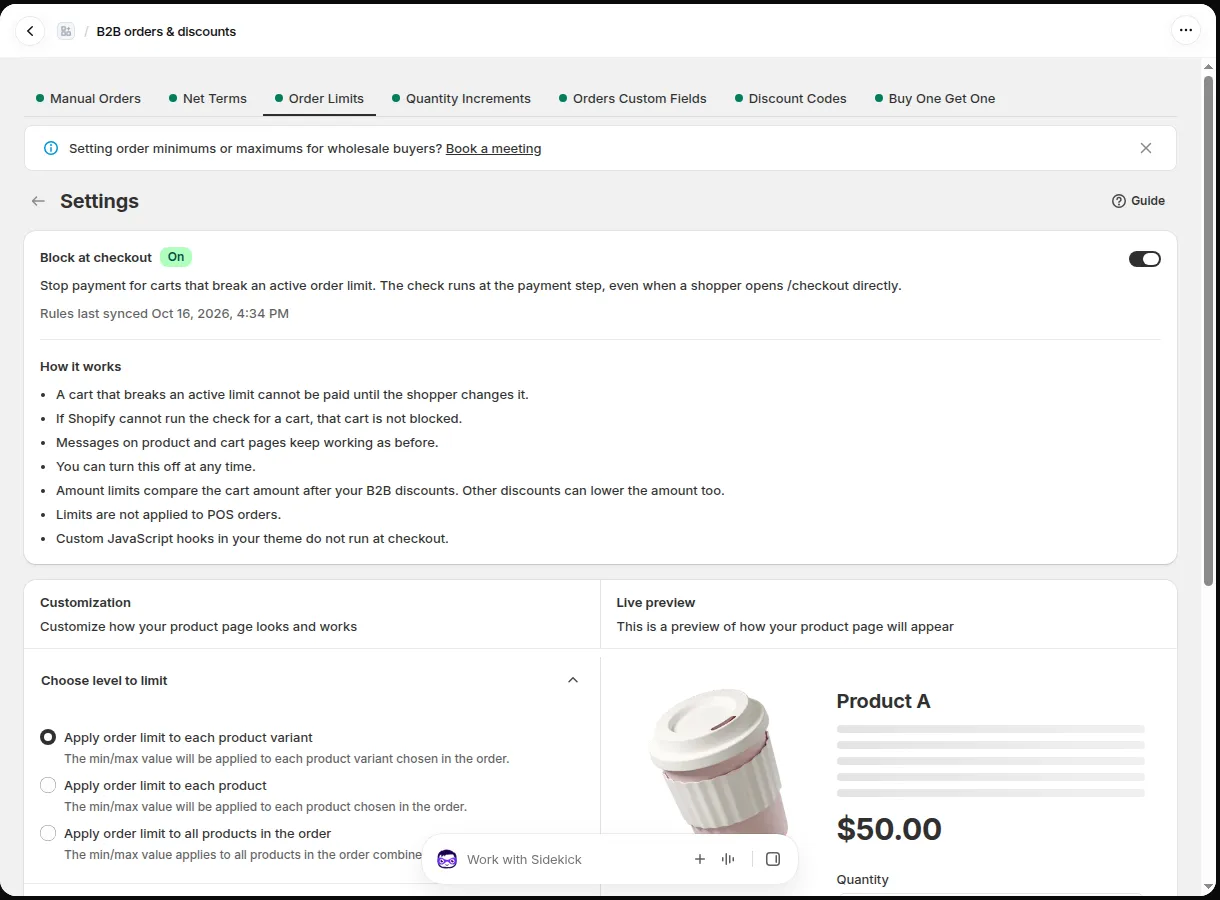
Section titled “Check the status”The status changes to On and the block shows when your rules were last synced.
Turn it off
Section titled “Turn it off”Use the same switch. Blocking stops within a few seconds. Your rules stay as they are, and the pop-up on your cart page and Buy it now keeps working.
What shoppers see
Section titled “What shoppers see”A shopper whose cart breaks a limit sees the message at the top of checkout and cannot pay until they change the cart. The message uses the texts you set in Order Limits > Translations, followed by the limit value. Edit them there to change the wording.
When rule changes apply
Section titled “When rule changes apply”Checkout uses a new, edited or switched-off rule within a few seconds after you save it. You do not need to turn Block at checkout off and on.
How amounts are compared
Section titled “How amounts are compared”Amount limits compare the cart amount after your B2B discounts. Other discounts can lower the amount too.
Statuses
Section titled “Statuses”| Status | Meaning | What to do |
|---|---|---|
| Off | Checkout is not blocked. | Turn the switch on when you are ready. |
| On | Your active rules are checked at checkout. | Nothing. |
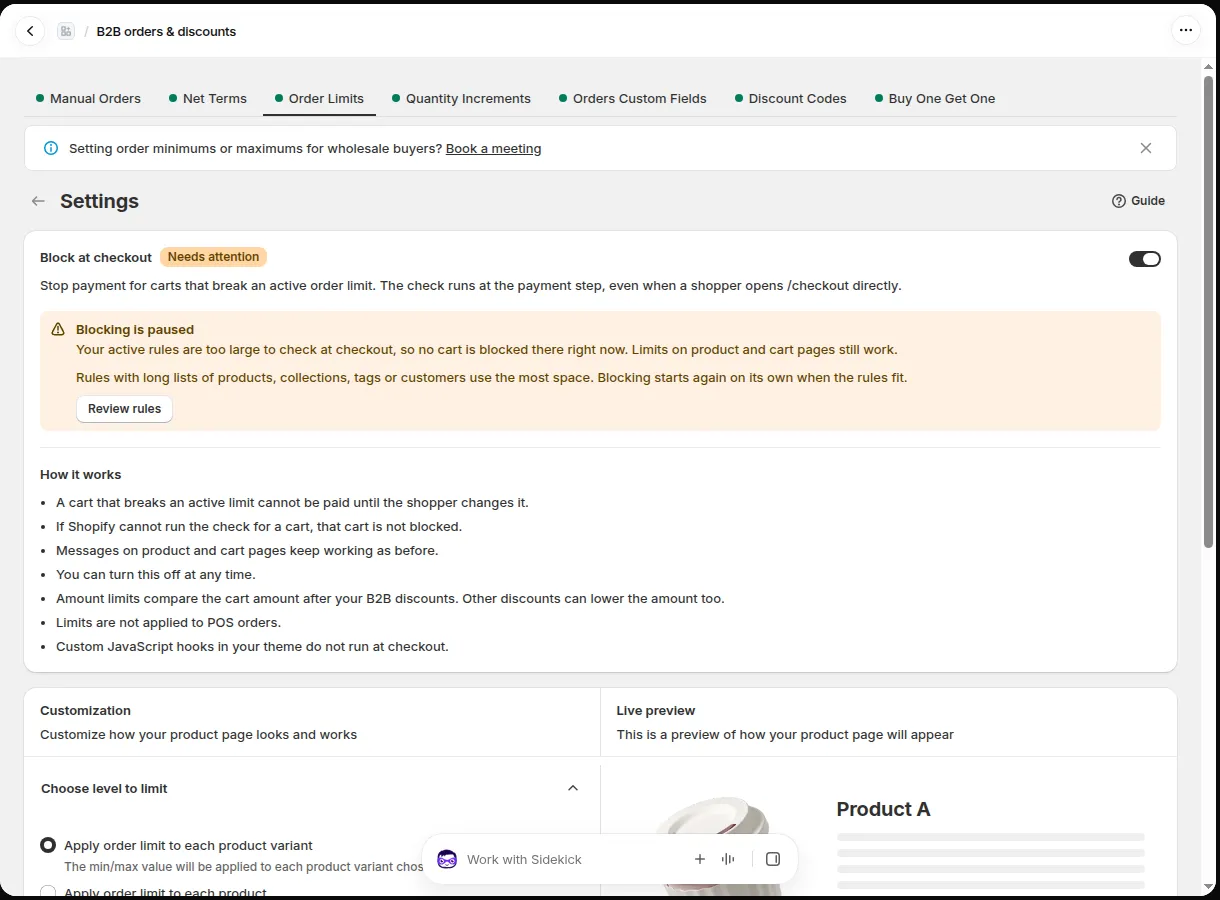
| Needs attention | Blocking is not working yet. The banner says why. | Follow the banner: Grant permission, Review rules, Try again or Turn on again. |
Limits
Section titled “Limits”Checkout checks your active rules in one compact configuration. These limits apply:
- Up to 200 active rules.
- Up to 2 different lists of product collections and 2 different lists of product tags across your active rules. Rules that use the same list share it.
- The whole configuration must stay under about 9,500 bytes. Long lists of products, collections, tags or customers use the most space.
If your active rules do not fit, the status changes to Needs attention and no cart is blocked at checkout. The limits on product and cart pages still apply to every rule. Shorten long lists, or turn off rules you no longer use. Blocking starts again on its own when the rules fit.
If the banner says Checkout skips part of your rules, some rules cannot be checked at checkout. The banner names them. Product and cart pages still apply every rule.
What it does not cover
Section titled “What it does not cover”- POS orders.
- Custom JavaScript hooks in your theme. They do not run at checkout.
- A cart that Shopify cannot check. If Shopify cannot run the check for a cart, that cart is not blocked.
- Quantity Increments. Block at checkout applies to Order Limits only.
If your plan changes
Section titled “If your plan changes”If your store no longer has a plan that includes Order Limits, a daily job turns Block at checkout off within a day.
Do shoppers still see the pop-up on my cart page?
Section titled “Do shoppers still see the pop-up on my cart page?”Yes. The pop-up on the cart page and on Buy it now works as before. Block at checkout adds the check at the payment step.
Does it block adding to the cart?
Section titled “Does it block adding to the cart?”No. It stops payment only. Shoppers can add products and change quantities freely.
I turned it on, but a customer still paid below my minimum. Why?
Section titled “I turned it on, but a customer still paid below my minimum. Why?”Check that the status is On, not Needs attention. Then check that the customer and the products match the rule, and that the rule is enabled. Amount limits use the cart amount after B2B discounts, and other discounts can lower it. POS orders are not checked.