
How Do I Run Retail and Wholesale on the Same Store?
Many stores sell to both everyday shoppers and business buyers. BSS B2B Solution supports this with one idea: every rule says who it applies to. A shopper who matches no rule keeps your normal Shopify price, so retail customers see your store as usual while wholesale customers see their own prices and conditions.
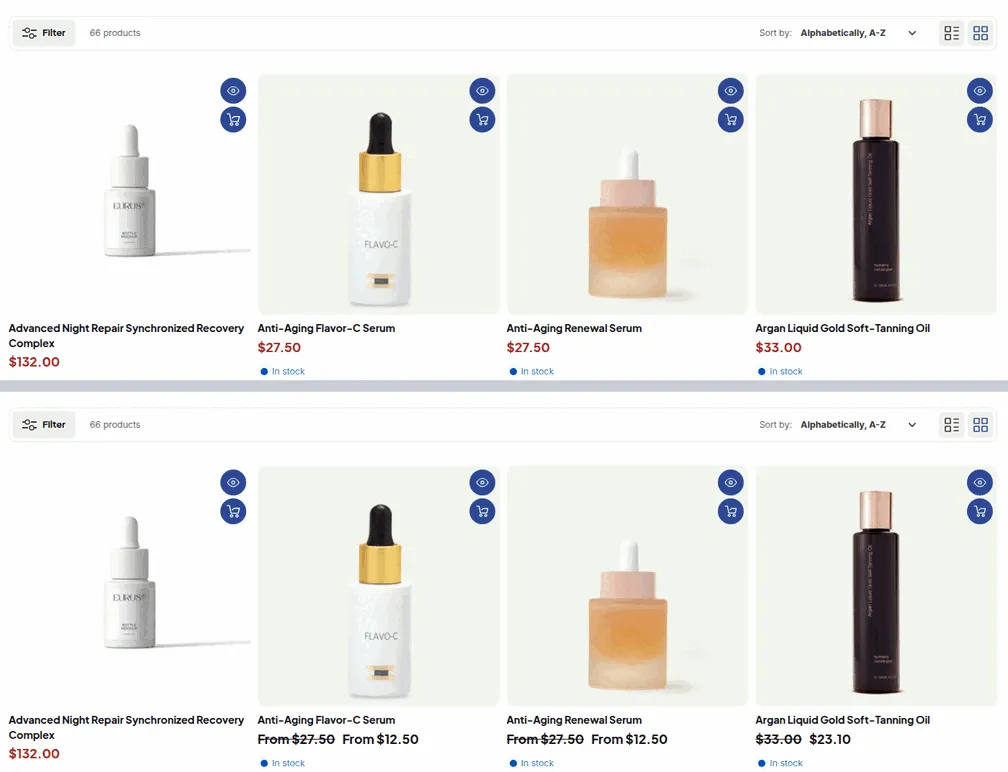
This guide shows how to set that up and how to double-check that no wholesale rule reaches retail visitors by mistake.
Before you start
Section titled “Before you start”- Plan: Custom Pricing by Customer tags is available on every plan (the Free plan keeps one active Custom Pricing rule, so running a wholesale rule and a retail promotion together needs Essentials or higher). Auto Tags and tag assignment in the Registration Form need Essentials or higher. Tax Display, Shipping Rate, Order Limits and Discount Codes need the Advanced plan or higher, and Price List is Platinum only. See Pricing plans and details.
- The BSS B2B Solution app embed is turned on in your theme. See Enable or disable the app in your theme.
Step 1. Give wholesale customers a tag
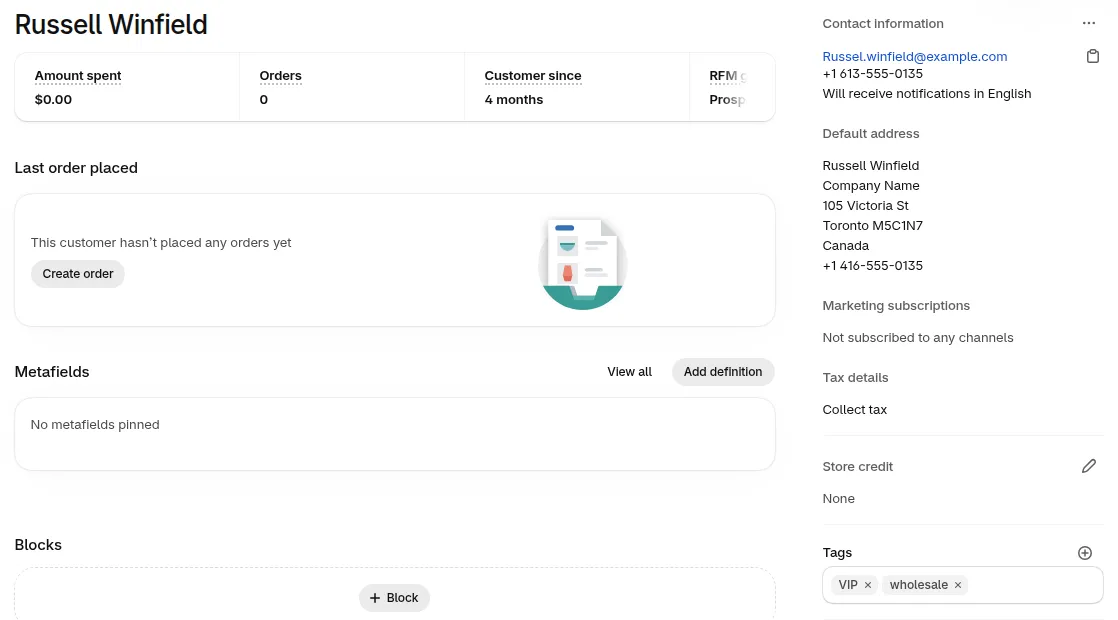
Section titled “Step 1. Give wholesale customers a tag”A tag is what separates a wholesale buyer from a retail shopper. Pick one name, for example wholesale, and use it everywhere.
- New accounts: in your Registration Form, fill Assign tag when customer is approved with
wholesale. Every applicant you approve gets the tag. - Existing accounts: create an Auto Tags rule that adds the tag, then use Auto Tags > Apply to existing customers & orders to tag customers you already have.
See Build a wholesale registration form and Automatically tag orders and customers.
Step 2. Point every wholesale rule at the tag
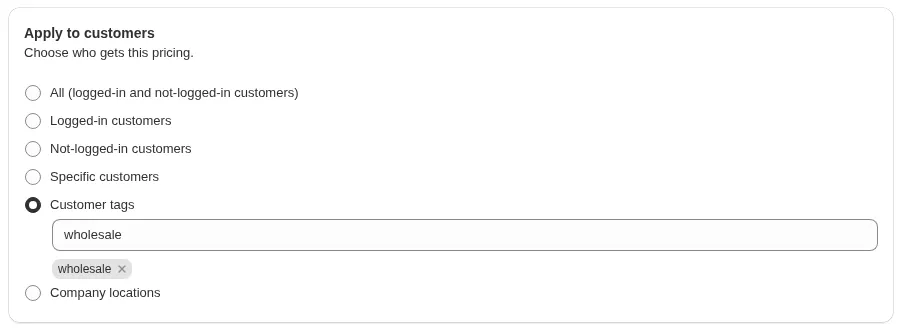
Section titled “Step 2. Point every wholesale rule at the tag”In each module you use (Custom Pricing, Price List, Volume Pricing, Tax Display, Shipping Rate, Order Limits and others; Price List is Platinum only), open the rule and set the customer option to Customer tags, then enter wholesale.
Retail shoppers do not have the tag, so they match nothing and see your normal prices, shipping and checkout.
Which options can reach retail shoppers
Section titled “Which options can reach retail shoppers”Use this table when you review a rule. “Retail” means a guest or a logged-in customer without your wholesale tag.
| Option in the editor | Who matches | Can reach retail shoppers? |
|---|---|---|
| All (logged-in and not-logged-in customers) | Everyone, including guests | Yes |
| Logged-in customers | Anyone with an account, retail accounts included | Yes |
| Not-logged-in customers | Guests only | Yes |
| Specific customers | Only the customers you pick | No |
| Customer tags | Logged-in customers with at least one of the tags | No, unless a retail customer carries the tag |
| Company locations | Logged-in B2B buyers of the selected locations | No |
Two things to know:
- Exclude customers (Essentials or higher) can narrow a rule. For example, a rule for Logged-in customers that excludes the tag
retaildoes not reach your retail accounts. A rule with exclusions may still reach some retail shoppers, so check the exclusion too. - Not every module offers every option. Net Terms has no guest option. The full list is in How customer targeting works.
Step 3. Run a retail promotion on purpose
Section titled “Step 3. Run a retail promotion on purpose”If you want a discount for retail shoppers, create a separate rule with All or Not-logged-in customers. Give it a priority that fits: when several rules match the same customer and product, the lower number wins. See How rule priority works.
Keep retail rules and wholesale rules as separate rules with clear names, such as “Retail summer sale” and “Wholesale base price”. It makes the review in Check your setup much faster.
Step 4. Show tax the right way for each group
Section titled “Step 4. Show tax the right way for each group”- Tax Display: create a rule for the tag
wholesalethat shows prices without tax, and leave retail on your Shopify setting. See Display prices with and without tax. - Tax Exempt: limit the exemption to the customers who should get it. See Tax Exempt.
Step 5. Hide products or prices from retail shoppers (optional)
Section titled “Step 5. Hide products or prices from retail shoppers (optional)”BSS B2B Solution changes prices and conditions, it does not hide products. To keep some products or prices away from retail visitors, add BSS B2B Lock and use a tag-based lock rule with the same wholesale tag. See How to combine BSS B2B Solution and B2B Lock.
Step 6. Decide about script loading for guests
Section titled “Step 6. Decide about script loading for guests”In Settings > General, Optimize B2B script loading is disabled by default. When you enable it, B2B scripts load only for logged-in customers, which keeps the page lighter for retail visitors. The Registration Form and Multiple Currency scripts still load for everyone.
Enable it only when none of your rules target guests. A rule set to All or Not-logged-in customers, such as a retail promotion from Step 3, does not run for guests while it is on. See Advanced Settings.
Check your setup
Section titled “Check your setup”Do this once after setup and again after you add rules.
- Open each module you use and look at the Apply to customers setting of every enabled rule. Any rule set to All, Logged-in customers or Not-logged-in customers can reach retail shoppers. That is fine for a retail promotion, and a mistake for a wholesale price.
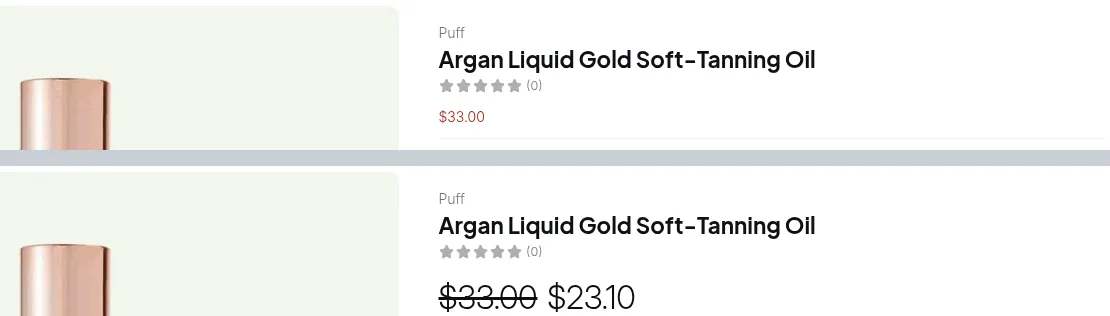
- Open your store in a private window without logging in. Prices should match your normal Shopify prices, apart from retail rules you created on purpose.
- Log in as a test customer with no tag. The result should be the same.
- Add the
wholesaletag to the test customer, reload the page, and check that the wholesale price appears. A new tag takes effect on the next page load.
Example
Section titled “Example”A store sells candles at $50.00.
| Rule | Customers | Result |
|---|---|---|
| Wholesale base price (Custom Pricing, 20% off) | Customer tags: wholesale |
Wholesale customers pay $40.00 |
| Retail summer sale (Custom Pricing, 10% off) | Not-logged-in customers | Guests pay $45.00 |
| Retail account with no tag, logged in | matches neither rule | Pays $50.00 |
The Optimize B2B script loading option must stay disabled here, because the summer sale targets guests. Running both rules at once needs Essentials or higher, because the Free plan keeps one active Custom Pricing rule.
Troubleshooting
Section titled “Troubleshooting”- Retail customers see wholesale prices. A rule is set to All or Logged-in customers, or the
wholesaletag was added to a retail account. Check the rule’s Apply to customers setting and the customer’s tags. See My B2B prices don’t show for some customers for the matching checks. - A retail promotion does not show for guests. Optimize B2B script loading is enabled. Disable it in Settings > General.
- A wholesale customer sees retail prices. The tag is missing, or the customer is not logged in. Check Auto tag history and ask the customer to log in.