
Checkout Version and Checkout Method
The Checkout version page shows how B2B prices reach checkout on your store, and lets a version 3 store move to version 5. On version 5 it also lets you choose how B2B customers pay. Your rules, settings and orders stay as they are when you move.
To open it, open Settings in the app, then click Checkout version. The row shows the version in use, for example Version 3 in use.

The checkout versions
Section titled “The checkout versions”| Version | What it is |
|---|---|
| Version 1 | Draft order checkout. When a B2B customer checks out, BSS B2B Solution creates a draft order with their prices and sends them to that draft order’s checkout. |
| Version 3 | Draft order checkout, the same way. |
| Version 5 | Product pages, cart and checkout take prices from one pricing service, and prices are checked again on our server before the order is created. Checkout is draft order checkout until you choose Shopify checkout. |
Version 5 also adds a Checkout method section, where you can choose Shopify checkout. See Checkout method.
Why move to version 5
Section titled “Why move to version 5”- One source of prices. Product pages, cart and checkout take B2B prices from the same pricing service, so buyers see the same price everywhere.
- Faster B2B prices. Prices start loading as soon as the page opens.
- A second check before the order. Our server prices the cart again before the order is created.
- More checkout choice. On version 5 you can let B2B customers pay in your own Shopify checkout, with B2B prices on express checkout buttons too.
Move a version 3 store to version 5
Section titled “Move a version 3 store to version 5”Only the store owner or staff with access to Shopify admin can move a store. Only stores on version 3 can move straight to version 5.
A store that is on version 3 stays there until you move it here. A new install starts on version 5 and needs no move. See Turn On B2B Prices on Version 5.
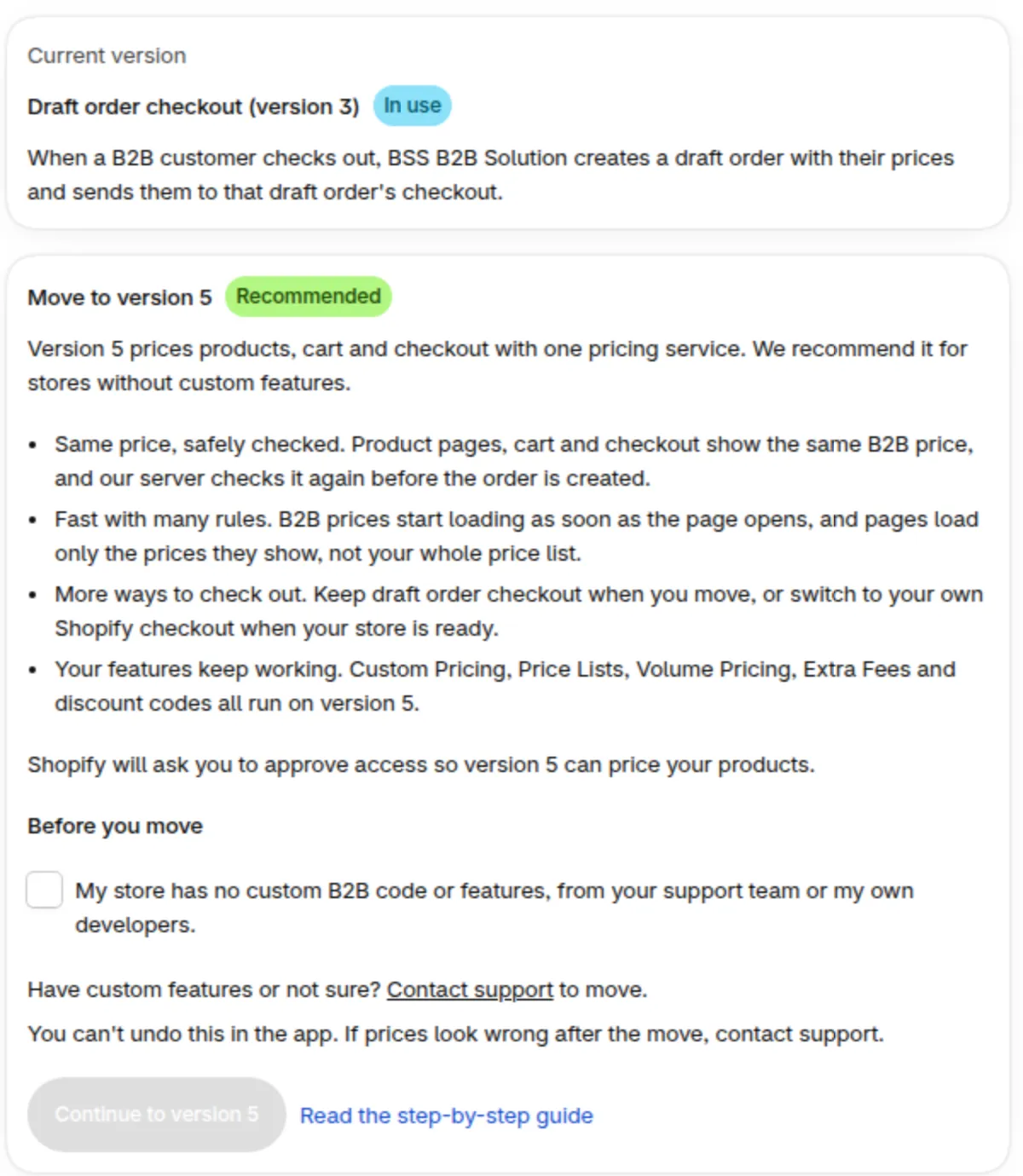
- In Settings, click Checkout version.
- On the Move to version 5 card, under Before you move, tick My store has no custom B2B code or features, from your support team or my own developers. Then click Continue to version 5. The button stays disabled until you tick the box. Nothing changes before you click it. If you have custom features or are not sure, click Contact support on the card.
- If Shopify shows a permission screen, approve it. Version 5 needs this access to price your products. After you approve, come back to the page and click Continue to version 5 again if it is still showing.
- Wait while BSS B2B Solution gets your prices ready. Your store keeps working during this time.
- When the page says Your store is on version 5 with draft order checkout, go through the Check your storefront list under it: a product page, a collection page, the cart and checkout show the right B2B prices. Log in as a B2B customer to check.
Version 5 also needs the app embed on in your live theme before logged-in customers see B2B prices. See Turn on the app embed.
If a permission is still missing, the page shows a banner Allow access to show B2B prices and the App permissions row in Checkout health shows Action required with a Grant permissions button. See Allow access.
You keep draft order checkout when you move. To pay in your own Shopify checkout instead, use the Checkout method section after the move.
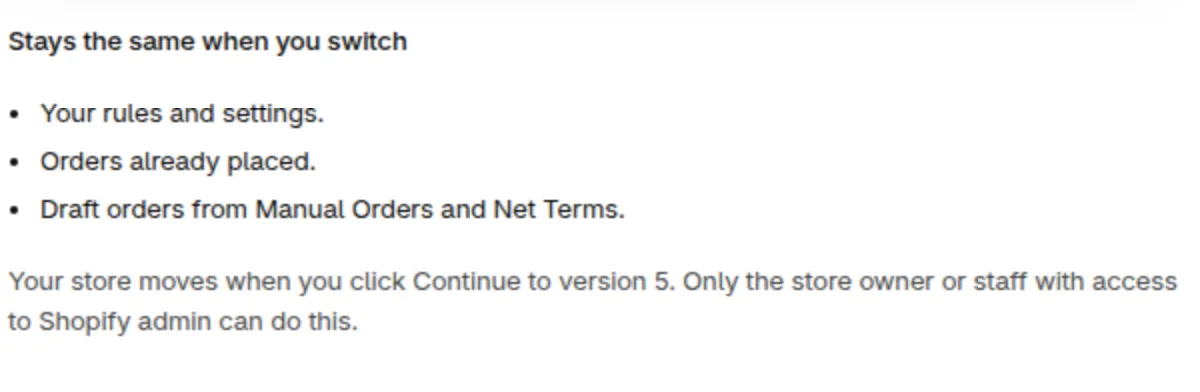
Stores with many Buy One Get One rules
Section titled “Stores with many Buy One Get One rules”Buy One Get One keeps working on version 5, with draft order checkout and with Shopify checkout. You do not need to turn it off before you move.
If the Buy One Get One module is on, the move is refused only when your enabled rules are over these limits:
- More than 200 enabled rules.
- More than 1,000 products, collections, customers or customer tags in one list.
In that case the card shows Too many Buy One Get One rules to move to version 5. The Continue to version 5 button is hidden.
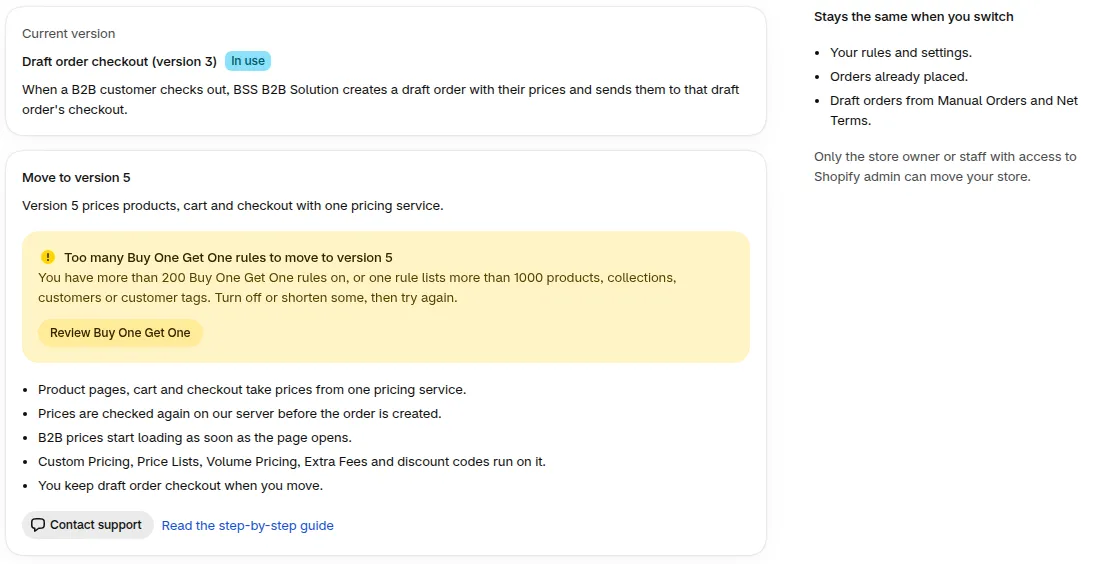
- Click Review Buy One Get One. If you need help, click Contact support.
- Turn off some rules, or shorten the long lists.
- Go back to Settings, then Checkout version, and click Continue to version 5.
On version 5, the same limits apply when you save a rule or turn the module on. If you are over a limit, the rule is not saved or the module stays off, and a message asks you to turn off a rule or shorten the list. Shopify checkout also keeps its own Shopify size limits for Buy One Get One rules.
Stores on version 1
Section titled “Stores on version 1”A store on version 1 cannot use the button. The card says Version 5 opens from version 3. Our support team will move your store. Click Contact support to move, or write to us with the link at the end of this page.
If something goes wrong
Section titled “If something goes wrong”- We could not move your store to version 5. The store stays on version 3. Try again later, or contact support.
- Only the store owner or staff in Shopify admin can do this. Ask the store owner, or a staff member with access to Shopify admin, to click the button.
- To go back to version 3 from version 5, contact support. Our team moves the store back for you, which takes about one business day. The only exception is the Use version 3 instead button in the app. It works only while a version 5 permission is still missing. See Allow access.
Checkout method
Section titled “Checkout method”On version 5, the page has a Checkout method section with two methods:
| Method | What it does |
|---|---|
| Draft order checkout | BSS B2B Solution creates a draft order with B2B prices when a buyer checks out. |
| Shopify checkout | Buyers pay in your own Shopify checkout. A discount named B2B Discount applies their prices there. |
Draft order checkout is the default. You can switch to Shopify checkout on version 5 once your store passes the check, and switch back at any time. The section marks the method in use with (in use). Net Terms and Manual Orders still create draft orders with either method.
Choose Shopify checkout
Section titled “Choose Shopify checkout”Nothing changes on your store until you confirm the switch in the last step.
- In Settings, click Checkout version. In the Checkout method section, select Shopify checkout.
- If you see BSS B2B Solution needs permission to manage discounts, click Grant permission and allow access in Shopify. The check then runs again.
- Under Before you switch to Shopify checkout, confirm each item. If the app cannot read your theme, the list shows We could not check the app embed in your live theme. This does not block the switch. Open Online Store > Themes > Customize > App embeds, make sure BSS B2B Solution is on, then tick the item.
- Click Switch to Shopify checkout and confirm in the dialog. Switching takes up to 3 minutes.
Your rules, how prices show on your storefront and your existing orders stay as they are.
What your store needs
Section titled “What your store needs”- Extra permission. Shopify checkout needs the permission to manage discounts, so BSS B2B Solution can set up B2B Discount.
- A Shopify plan or store status that can sell. If it cannot, Shopify checkout is grayed out.
- Rules that Shopify checkout can apply. A rule that raises a price, for example, blocks the switch until you change it.
- The app embed on in your live theme. Shopify checkout needs the BSS B2B Solution app embed to be on. To check it, go to Online Store > Themes > Customize > App embeds. If it is off, the switch is blocked until you turn it on, select Save, then click Check again. You can also click Turn on app embed in the app.
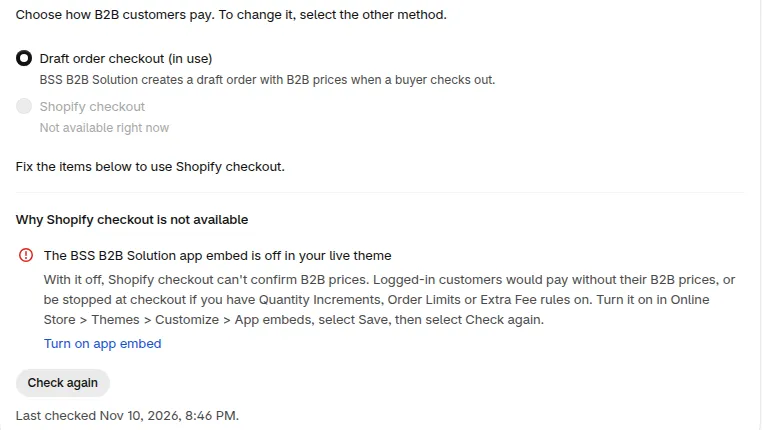
If Shopify checkout is grayed out
Section titled “If Shopify checkout is grayed out”Read the text under the two methods. It tells you which case you are in:
| Text under the methods | What it means | What to do |
|---|---|---|
| Shopify checkout is not available for your store right now. | Shopify checkout is not open for your store yet. | Chat with us and we will check your store. |
| Fix the items below to use Shopify checkout. | Some rules or settings cannot work in Shopify checkout. The Why Shopify checkout is not available list shows each one. | Click the link next to each item, change the rule, then click Check again. |
| The BSS B2B Solution app embed is off in your live theme (in the list) | Without the app embed, Shopify checkout cannot confirm B2B prices. If your store has an active quantity, order limit or extra fee rule, logged-in customers are stopped at checkout. If it has none, they check out without B2B prices. | Click Turn on app embed, or turn it on in Online Store > Themes > Customize > App embeds. Select Save, then click Check again. |
| Your Shopify plan does not support this (in the list) | B2B Discount is not available for your Shopify plan or store status. | Check your plan in Shopify, then run the check again. |
| BSS B2B Solution needs permission to manage discounts | The app does not have the permission yet. | Click Grant permission and allow access in Shopify. |
These rules block the switch until you change them:
- A Custom Pricing rule that raises a price. Shopify checkout can only lower prices.
- Rules with very long lists of products, collections, tags or customers, or that use more than 100 customer tags.
- A Discount Codes code that allows more than one use per customer, or that has the same code as a discount already in Shopify.
- A Tax Exempt rule for everyone, including guests, or exemption by VAT number.
- An Extra Fee rule with free shipping.
- A Shipping Rate rule with a usage limit.
If a rule must stay as it is, keep Draft order checkout. Your store still gets all the version 5 pricing.
Switch back to draft order checkout
Section titled “Switch back to draft order checkout”- In the Checkout method section, select Draft order checkout.
- Click Switch to draft order checkout and confirm. This takes up to 3 minutes.
B2B customers check out through draft orders again. B2B Discount is turned off in Shopify but kept, so you can switch to Shopify checkout again later.
If logged-in customers can’t check out with Shopify checkout
Section titled “If logged-in customers can’t check out with Shopify checkout”On Shopify checkout, a logged-in customer may be stopped with the message We couldn’t check this store’s prices, fees and order limits for your cart. Go back to your cart and click Checkout again. This happens when your store has an active quantity, order limit or extra fee rule. If it has none, customers check out, but without B2B prices. The cause is that the BSS B2B Solution app embed is off in your live theme. It happens when someone turns it off in the theme editor, or publishes a theme without it.
To fix it:
- In Settings, click Checkout version.
- In Checkout health, find the App embed in your theme row. It shows Action required when the embed is off.
- Click Turn on app embed. Or go to Online Store > Themes > Customize > App embeds, turn on BSS B2B Solution and select Save.
- Click Re-check. The row shows Passed and says The BSS B2B Solution app embed is on in your live theme.
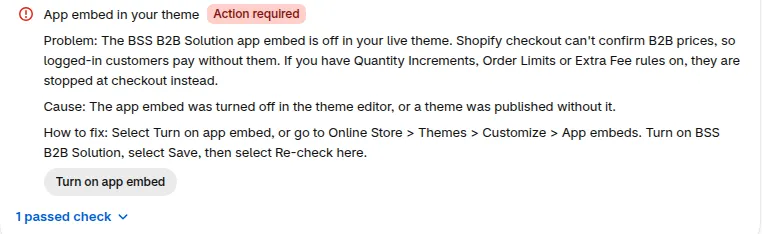
If the app cannot read your theme, the row shows Could not check. It does not block anything. Check App embeds yourself, then click Re-check.
If your store already uses Shopify checkout and the embed is turned off later, we tell you in two places:
- Home. A banner reads Checkout can’t confirm B2B prices. Click Turn on app embed or Open Checkout version. The same banner also shows on the Checkout version page.
- Email. We email the store owner, at most once every 24 hours while the state stays the same.

Stores that use draft order checkout do not see the banner and get no email.
Compare version 3, version 5 and Shopify checkout
Section titled “Compare version 3, version 5 and Shopify checkout”Use these tables to pick the setup that fits your store. Not sure? Chat with us and we will compare them for your rules.
At a glance
Section titled “At a glance”| Version 3 | Version 5, draft order checkout | Version 5, Shopify checkout | |
|---|---|---|---|
| Where prices come from | Storefront script | One pricing service for product pages, cart and checkout | One pricing service for product pages, cart and checkout |
| Price check before the order | - | Our server prices the cart again | Shopify applies B2B prices with B2B Discount |
| Where buyers pay | Draft order checkout | Draft order checkout | Your own Shopify checkout |
| Express checkout buttons (Shop Pay, Apple Pay…) | No B2B prices, so the app hides them for customers with a B2B price or discount | No B2B prices | B2B prices apply |
| If BSS B2B Solution cannot be reached | Checkout stops, buyer is asked to try again | Checkout stops, buyer is asked to try again | Checkout keeps working |
| Order Limits and Quantity Increments at checkout | Checked before the draft order | Checked before the draft order | Checked in Shopify checkout |
| Net Terms and Manual Orders | Draft orders | Draft orders | Still draft orders |
| How to get there | - | Click Continue to version 5 | Move to version 5, then switch the checkout method |
| How to go back | - | Contact support (about one business day) | Switch to draft order checkout yourself, any time |
Module by module in Shopify checkout
Section titled “Module by module in Shopify checkout”Draft order checkout on version 5 works like version 3 for every module. The table lists what changes when you switch to Shopify checkout. Before you switch, the page asks you to confirm each item that applies to your store.
| Module | What changes in Shopify checkout | Blocks the switch |
|---|---|---|
| Custom Pricing | Can only lower prices. Fixed prices and fixed amounts off in other currencies use the rule value multiplied by the exchange rate, and market price adjustments are ignored. | A rule that raises a price |
| Volume Pricing | Applied by B2B Discount. Some tier setups cannot apply yet. | Tiers Shopify checkout cannot apply |
| Price Lists | Do not apply in Shopify checkout yet. Keep draft order checkout if you rely on them. | - |
| Discount Codes | Codes become Shopify discount codes, entered in the discount field of Shopify checkout, in any letter case. Several product codes can apply at once. On a line that already has a B2B price, only the larger discount applies. Fixed amounts and minimum purchases are in your shop currency. “Once per customer” counts start again. Order-wide codes also reduce the extra fee. | More than one use per customer, or a code that already exists in Shopify |
| Buy One Get One | Your storefront adds the gift to the cart. If a buyer removes it, the order has no gift discount. The cart notice shows only if your theme has its block. A large Volume Pricing discount can stop the gift discount on the same cart. | Rules over Shopify’s size limits |
| Shipping Rate | Your B2B rate works as a maximum: buyers pay your rate or the Shopify rate, whichever is lower. The option keeps the Shopify rate name. Order value tiers do not take free gifts off the cart total. | A rule with a usage limit |
| Extra Fee | Added as a separate fee product in the cart. Percent fees are worked out on the price before B2B discounts. Carts over 250 lines and recurring subscription orders carry no fee. | A rule with free shipping, or a rule Shopify checkout cannot read |
| Tax Exempt | Matching logged-in customers are marked tax exempt in Shopify and stay marked until the rule stops applying. | A rule for everyone including guests, or exemption by VAT number |
| Order Limits | Checked at checkout only when Block at checkout is on in Order Limits settings. | - |
| Quantity Increments | Checked in Shopify checkout. Very large or some special rules are checked on the storefront only. | - |
| Net Terms, Manual Orders | Still create draft orders, priced as today. Manual Orders no longer offers Discount Codes and B2B shipping rates. | - |
| Subscriptions | Recurring orders are charged the selling plan price, without B2B discounts. | - |
| Product Options app | Your Product Options app decides add-on prices. | - |
| Other Shopify discounts | By default, B2B Discount combines with order and shipping discounts, not with other product discounts. On Shopify Plus you pick the product discounts that add up with it in the app: see Combine with your product discounts. A percentage discount gives a different price than in draft order checkout: see Why the same discount costs a different price. | - |
| All rules | Carts with more than about 100 lines at different prices may miss B2B prices on some lines. | Rules with very long lists, or more than 100 customer tags |
Combine with your product discounts
Section titled “Combine with your product discounts”In Shopify checkout, each item gets one product discount: B2B Discount or yours, whichever saves more. On Shopify Plus, you can pick Shopify product discounts that add up with B2B Discount on the same item. Codes and automatic discounts both work.
Each pick is saved in Shopify. The app adds the tag B2B to the discount (or the tag in the B2B discount tag field) and lets it combine with other product discounts. The window shows the exact tag before you save.
- In Settings, click Shopify checkout settings. In the Shopify automatic discounts card, find Combine with your product discounts.
- Click Manage discounts. It reads Choose discounts until you have picked one.
- In Combine discounts with B2B prices, search by name and tick the discounts. Active and scheduled product discounts are listed, each marked Code or Automatic.
- Click Save. It reads Save (2 changes) when you changed two discounts. The message Discounts updated confirms it.
The block shows only when your checkout method is Shopify checkout. These limits apply:
- Shopify Plus only. On other plans the block shows a Shopify Plus badge and Manage discounts is off. Each item gets one product discount.
- Five tags per discount. A discount that already has 5 tags shows Has 5 tags already. and cannot be ticked. Remove a tag in Shopify first.
- Other apps’ discounts. They show Created by another app. Add it under Discounts from other apps. and cannot be ticked.
- Use whichever saves more. If you choose it in the same card, the block only says it is not used, because that choice never adds two product discounts on one item.
For a discount from another app, click Discounts from other apps or custom tags. The note there says which tag to give the discount in that app. Then add the tags under Tags of other discounts (up to 9) and click Save in the Save bar. If you change the B2B discount tag field, open Manage discounts and save again.
Why the same discount costs a different price
Section titled “Why the same discount costs a different price”When a Shopify product discount adds up with your B2B price on the same item, it takes off a different amount in each checkout method. In Shopify checkout this happens only for discounts picked in Combine with your product discounts. Example: a $100.00 item with a 5% B2B discount and a 10% Shopify discount.
| Draft order checkout | Shopify checkout | |
|---|---|---|
| How the 10% is worked out | On the B2B price, after the B2B discount | On the original price, like B2B Discount |
| Calculation | $100.00 x 0.95 = $95.00, then 10% off | $10.00 (10% of $100.00) + $5.00 B2B Discount = $15.00 off |
| Buyer pays | $85.50 | $85.00 |
In Shopify checkout, B2B Discount is a fixed amount per item: the original price minus the B2B price. Shopify applies percentage discounts before fixed-amount ones, so your percentage is also worked out on the original price and the two amounts are added. See Shopify’s discount combinations.
Two cases give the same price in both methods:
- A fixed-amount discount, for example $10 off: $85.00 in both.
- An order discount: it comes off the subtotal after B2B prices.
Place a test order as a B2B customer to check the final total.
Does my checkout change when I move to version 5? Draft order checkout stays. Your rules and settings, your orders already placed, and the draft orders from Manual Orders and Net Terms stay the same.
Can I try version 5 before I move my store? There is no trial mode. Your store moves as soon as you click Continue to version 5. Chat with us first and we will check your rules and theme, so you know what to expect.
Can I go back to version 3? Yes. Contact support and our team moves your store back. It takes about one business day. While a version 5 permission is still missing, you can also click Use version 3 instead in the app. Once every permission is granted, the app refuses it and you contact support. See Allow access.
Can I choose Shopify checkout on version 5? Yes. Select Shopify checkout in the Checkout method section and confirm the switch. If it is grayed out, the page lists what to fix.
Can I go back to draft order checkout? Yes, at any time. Select Draft order checkout and click Switch to draft order checkout.
Why are my logged-in customers stopped at Shopify checkout, or why do they not get B2B prices? The BSS B2B Solution app embed is probably off in your live theme. If your store has an active quantity, order limit or extra fee rule, logged-in customers are stopped with a message to go back to their cart and click Checkout again. If it has none, they check out without B2B prices. Turn it on in Online Store > Themes > Customize > App embeds and select Save. See If logged-in customers can’t check out.
Why does the same discount give a different price in Shopify checkout and draft order checkout? A percentage product discount comes off the B2B price in draft order checkout. In Shopify checkout it is worked out on the original price and added to B2B Discount. A $100.00 item with a 5% B2B discount and a 10% discount costs $85.50 in draft order checkout and $85.00 in Shopify checkout. See Why the same discount costs a different price.
Which version am I on? Open Settings and look at the Checkout version row, or open the page and read Current version.