
Email Order Summary PDFs to Buyers: Statuses and Versions
You can email each Invoice PDF order summary to the buyer, automatically or by hand, from the Order summaries list in the Invoice PDF tab. The list shows every summary with its status, and from a row you can also download the PDF, create it again or create a new version. Net Terms orders also show their summary in the Net Terms Orders tab.
Key takeaways
Section titled “Key takeaways”- Find the list in B2B orders & discounts > Invoice PDF > Order summaries.
- A summary is Creating, Ready, Failed or Removed. The email has its own status.
- A summary is a snapshot of the order. Create new version reads the order again and keeps the older versions.
- Emails to buyers are off until you turn on Email each summary to the buyer. You can always send one by hand.
- Net Terms buyers get the summary email in addition to the Net Terms order email.
Where do I find my order summaries?
Section titled “Where do I find my order summaries?”Open the Invoice PDF tab in B2B orders & discounts. It has two sub-tabs: Order summaries and Settings.
The list has these columns: Order, Type (Net Terms or Paid order), Created, Total, Summary and Email. The last column has no heading. It holds the download icon and the three-dot menu of each row.
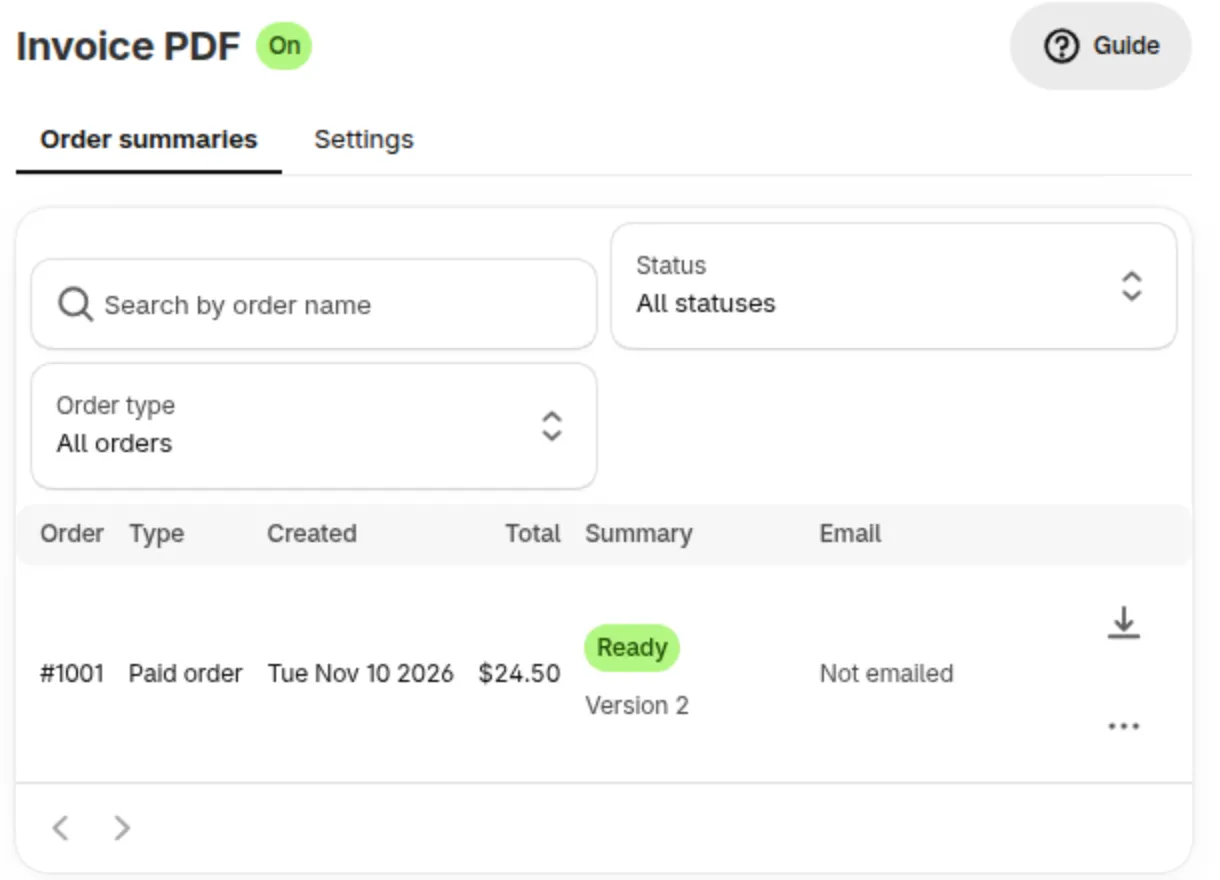
The Order summaries list with one row. Version 2 means a new version of the summary was created.
| To do this | Use |
|---|---|
| Find one order | Search by order name |
| See only some summaries | The Status filter: All statuses, Needs attention, Creating, Ready, Failed, Email sent, Email not delivered |
| See only one kind of order | The Order type filter: All orders, Net Terms, Paid orders |
| Reset the filters | Clear filters |
While a summary is Creating or an email is Sending, the list refreshes on its own for a short time.
What do the statuses mean?
Section titled “What do the statuses mean?”The Summary column shows the PDF. The Email column shows the email for that PDF. Each version has its own email status, so a new version starts at Not emailed even if the earlier version was Sent.
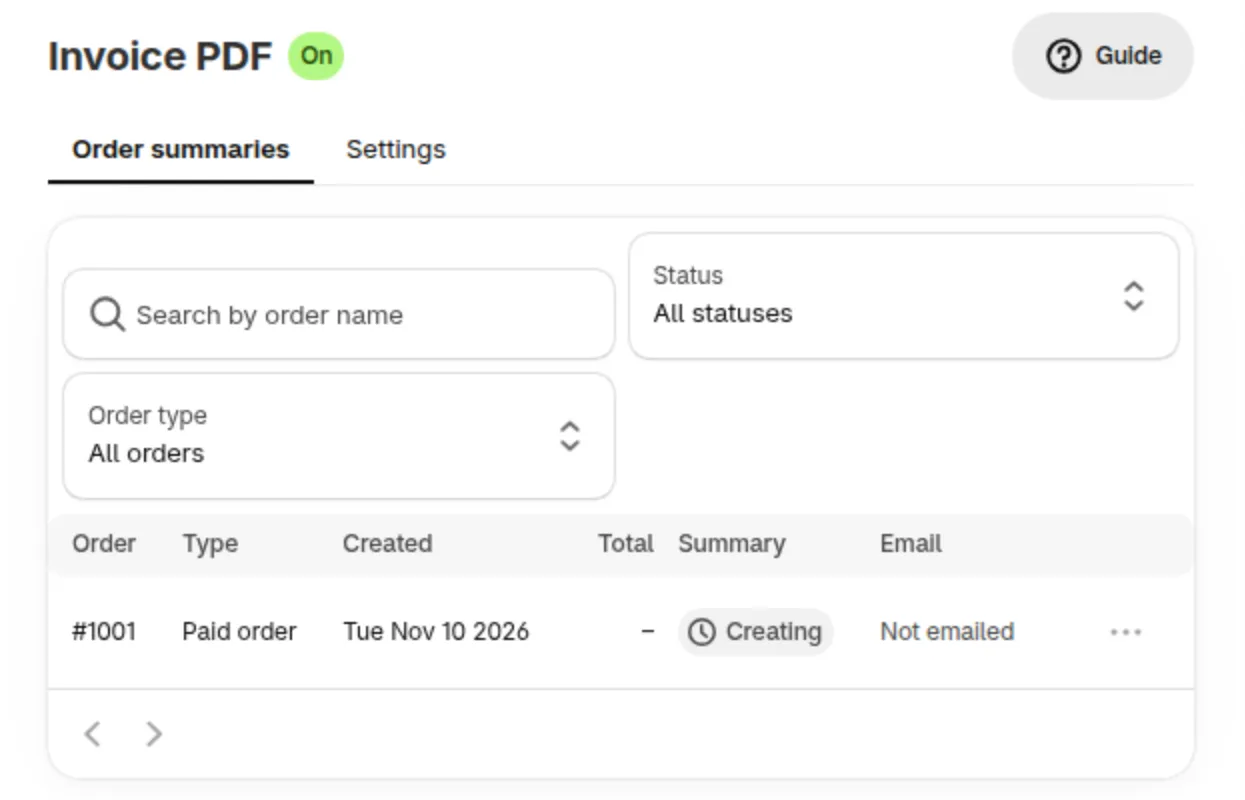
A row while the summary is Creating.
| Summary status | What it means |
|---|---|
| Creating | The PDF is being made. The row shows no total yet and has no download icon until it is Ready |
| Ready | The PDF can be downloaded or sent. A newer version shows Version 2, Version 3 and so on |
| Failed | The order could not be read. Click Try again |
| Removed | The order data was removed, so there is no PDF |
| Email status | What it means |
|---|---|
| Not emailed | No email was sent for this PDF |
| Sending | The email is on its way |
| Sent | The email was sent. The date shows next to it |
| Not delivered | The email did not go out. Check the email address on the order |
| No email on the order | The Shopify order has no email address, so there is nobody to send to |
How do I download a summary?
Section titled “How do I download a summary?”Click the download icon on a row, or open the row menu and click Download PDF. The icon has no text label. The app opens the PDF in a new tab, and your browser then shows it or saves it as a file. The file is named with your file name pattern.
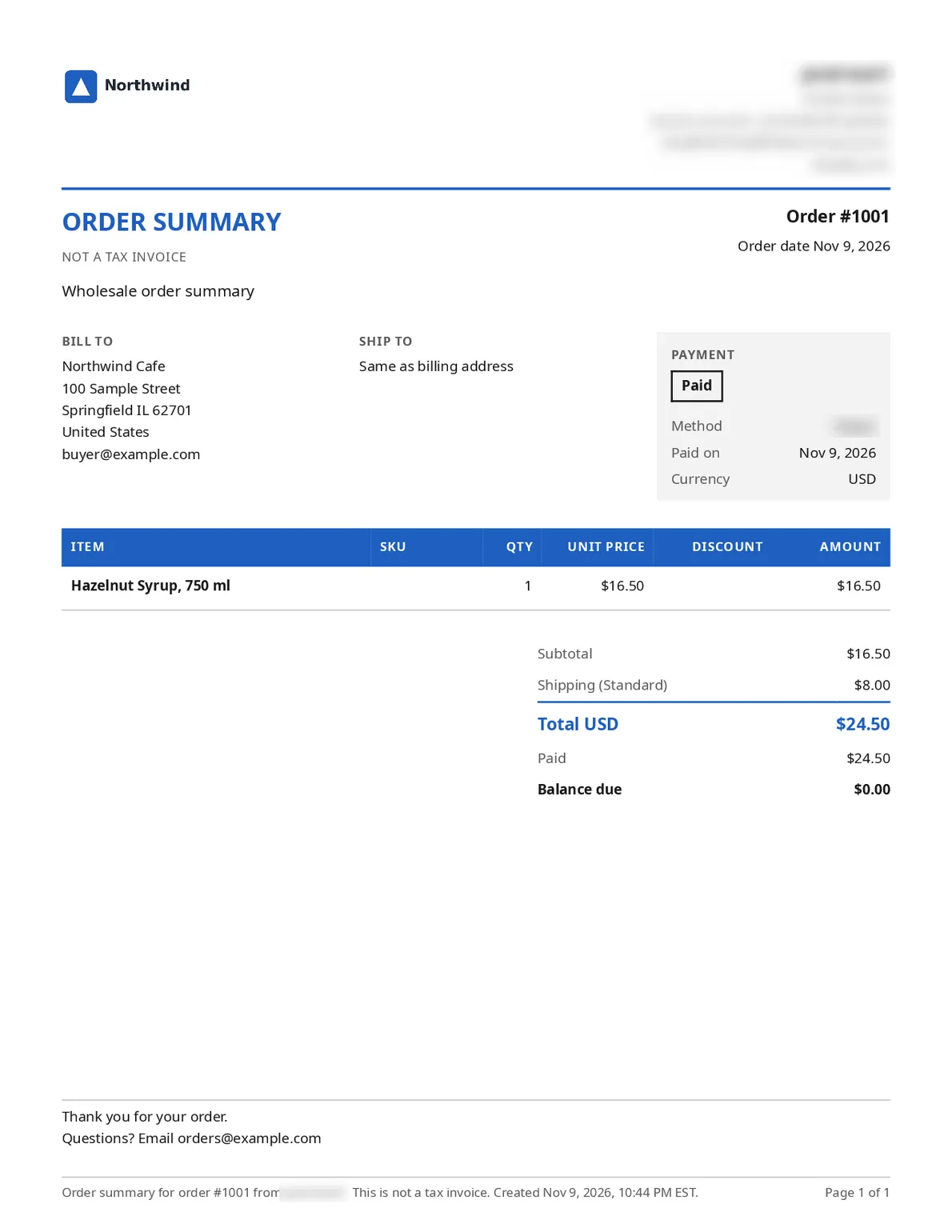
Page 1 of a downloaded order summary. Click the image to open it larger and read the full page.
The download link works for 5 minutes. If it has expired, download again for a fresh one.
What if a summary fails?
Section titled “What if a summary fails?”Click Try again on the failed row. Creating the summary again confirms it, and the row goes back to Creating.
A banner at the top of the list says how many summaries need attention, for example “2 order summaries need attention”. Click Show them to filter the list.
BSS B2B Solution also checks every 10 minutes for summaries that stay in Creating and starts them again. If a row stays in Creating or Failed after you tried again, contact us with the order number.
How do I send a summary to the buyer?
Section titled “How do I send a summary to the buyer?”Open the row menu and click Send to buyer. Email queued confirms it. The email goes to the address on the Shopify order, read at the moment you send.
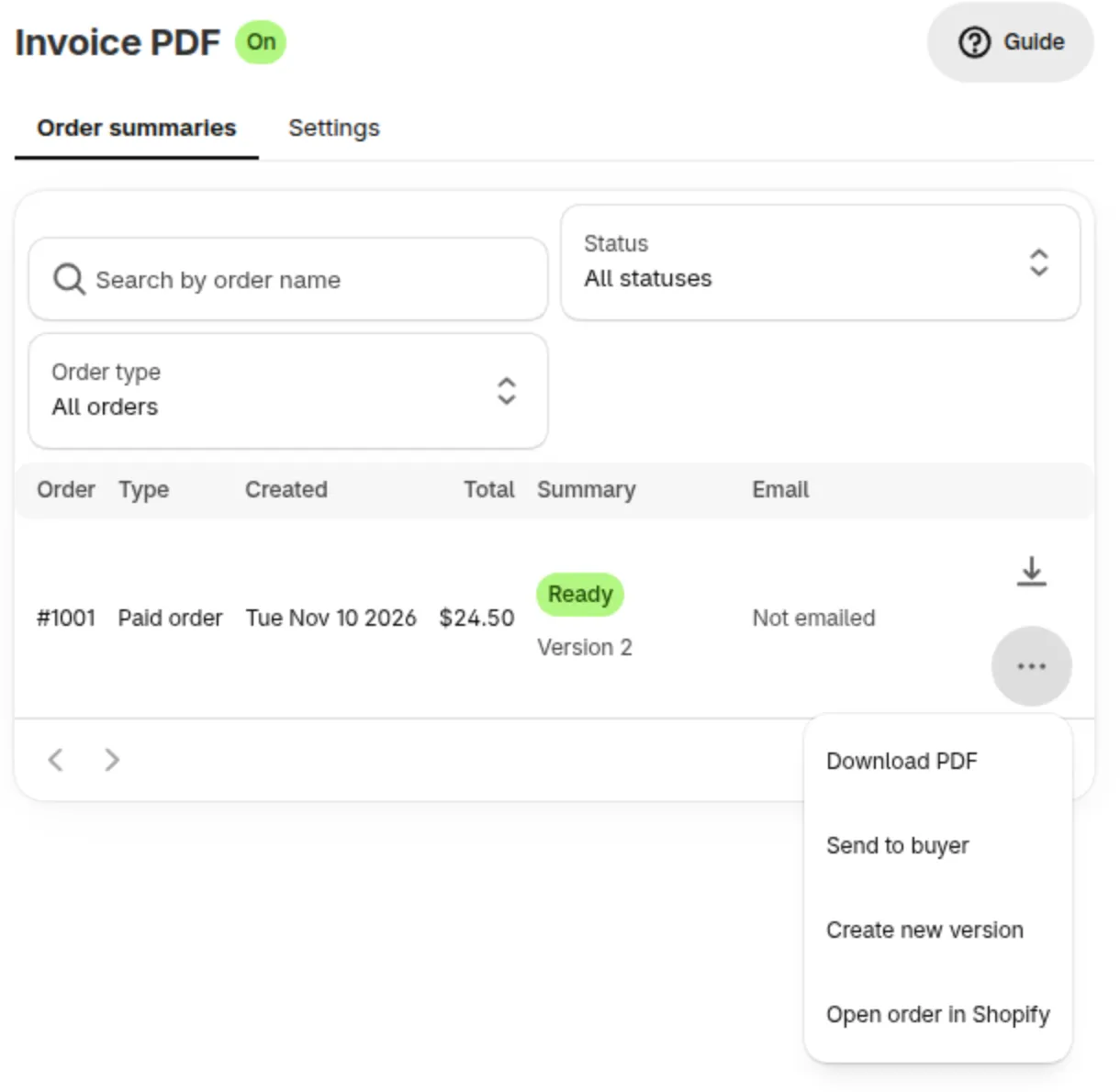
The row menu of a Ready summary.
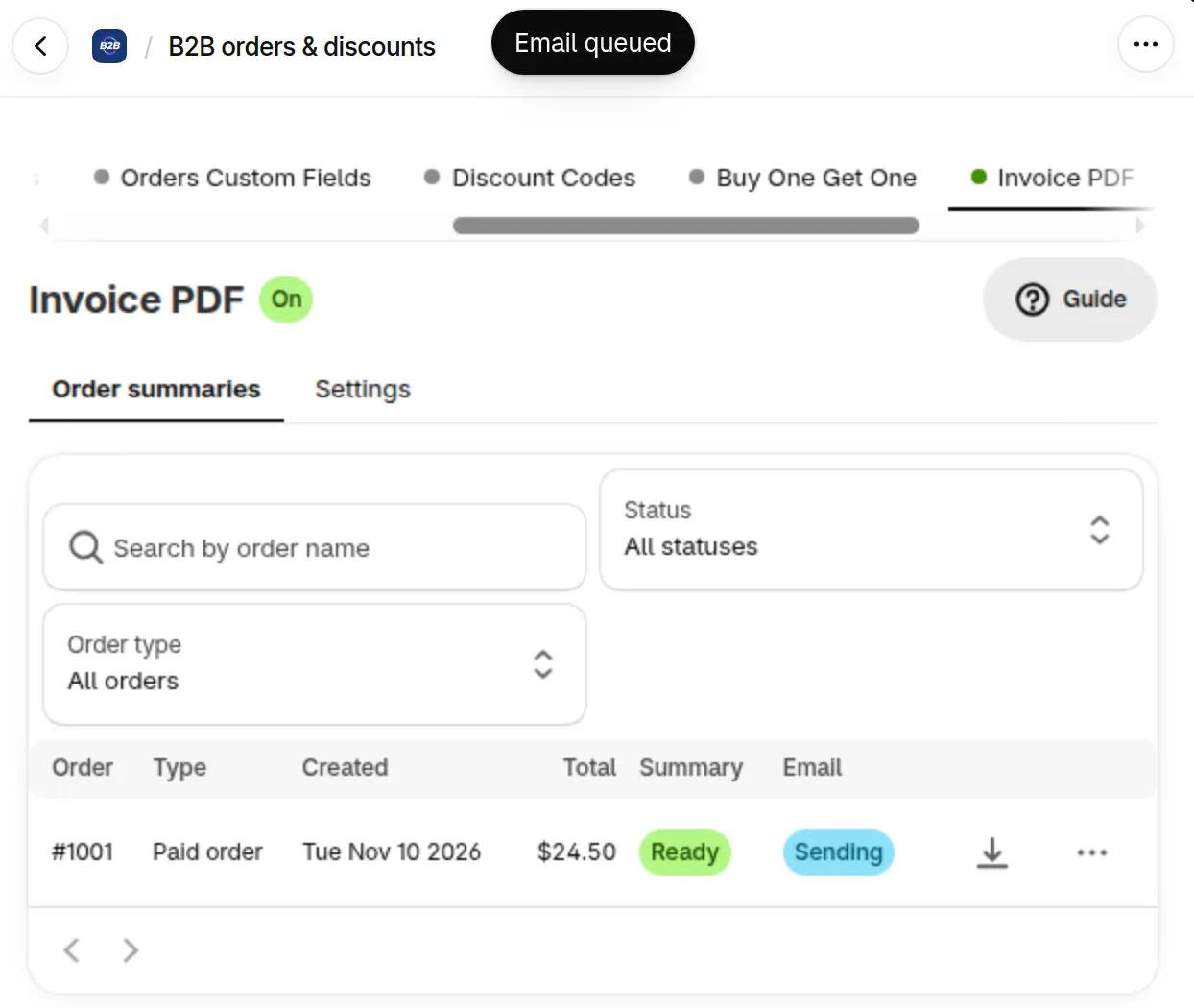
The message and the Sending status right after you click Send to buyer.
| Email status | Action in the row menu |
|---|---|
| Not emailed or No email on the order | Send to buyer |
| Sent | Resend to buyer |
| Not delivered | Try sending again |
After a successful send, wait a minute before you send the same PDF again. The list then says “Please wait a minute before sending this PDF again.” A send that did not go out can be tried again at once.
If an email shows Not delivered, check the email address on the order, then click Try sending again.
What does the email look like?
Section titled “What does the email look like?”The email is plain and always in English. It has the PDF attached and says:
- Subject: “Order summary #1001 from Your Store”.
- Body: “Hello, Your order summary for order #1001 from Your Store is attached as a PDF.”
- A payment line, either “Balance due:” with the amount or “Paid in full.”
- “This is an order summary, not a tax invoice.”
- A sign-off with your store name.
It is sent from the From address you set in Settings > Email settings. If you have not set one, the default BSS B2B Solution sender is used. The reply address is your store email. See Email Sender to set your own sender.
How do I turn on automatic email?
Section titled “How do I turn on automatic email?”-
Open Settings
Section titled “Open Settings”Go to Invoice PDF > Settings.
-
Turn on Email each summary to the buyer
Section titled “Turn on Email each summary to the buyer”In the Email to buyers card, switch on Email each summary to the buyer. The PDF is emailed to the address on the order as soon as it is ready.
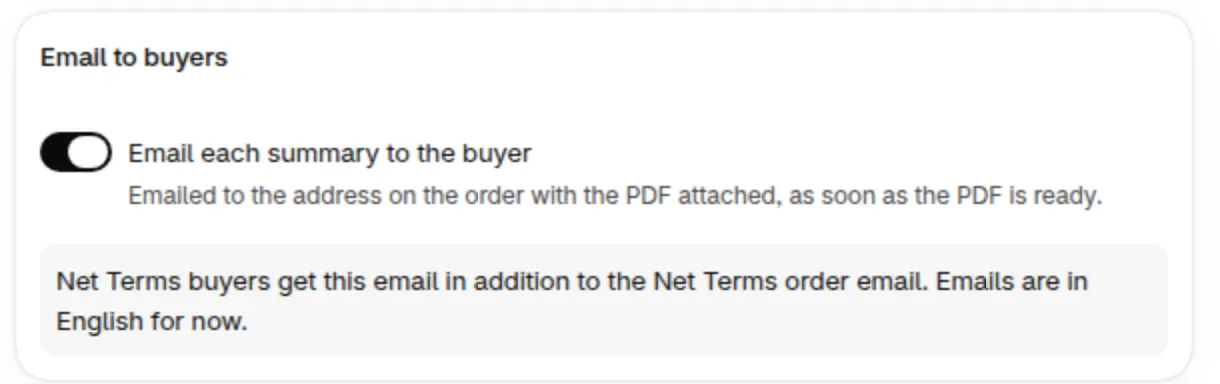
The Email to buyers card with the switch on.
-
Click Save
Section titled “Click Save”The switch applies to new summaries. Summaries that already exist keep their email status, and you can send them by hand.
What are versions?
Section titled “What are versions?”A summary shows the order as it was when it was created. Refunds, edits and payments made later do not change it. To bring it up to date, click Create new version in the row menu.
The dialog Create a new version? explains the result. A new version reads the order again, so refunds, edits and payments appear in it. The current version is kept and stays available to download. New version requested confirms it.
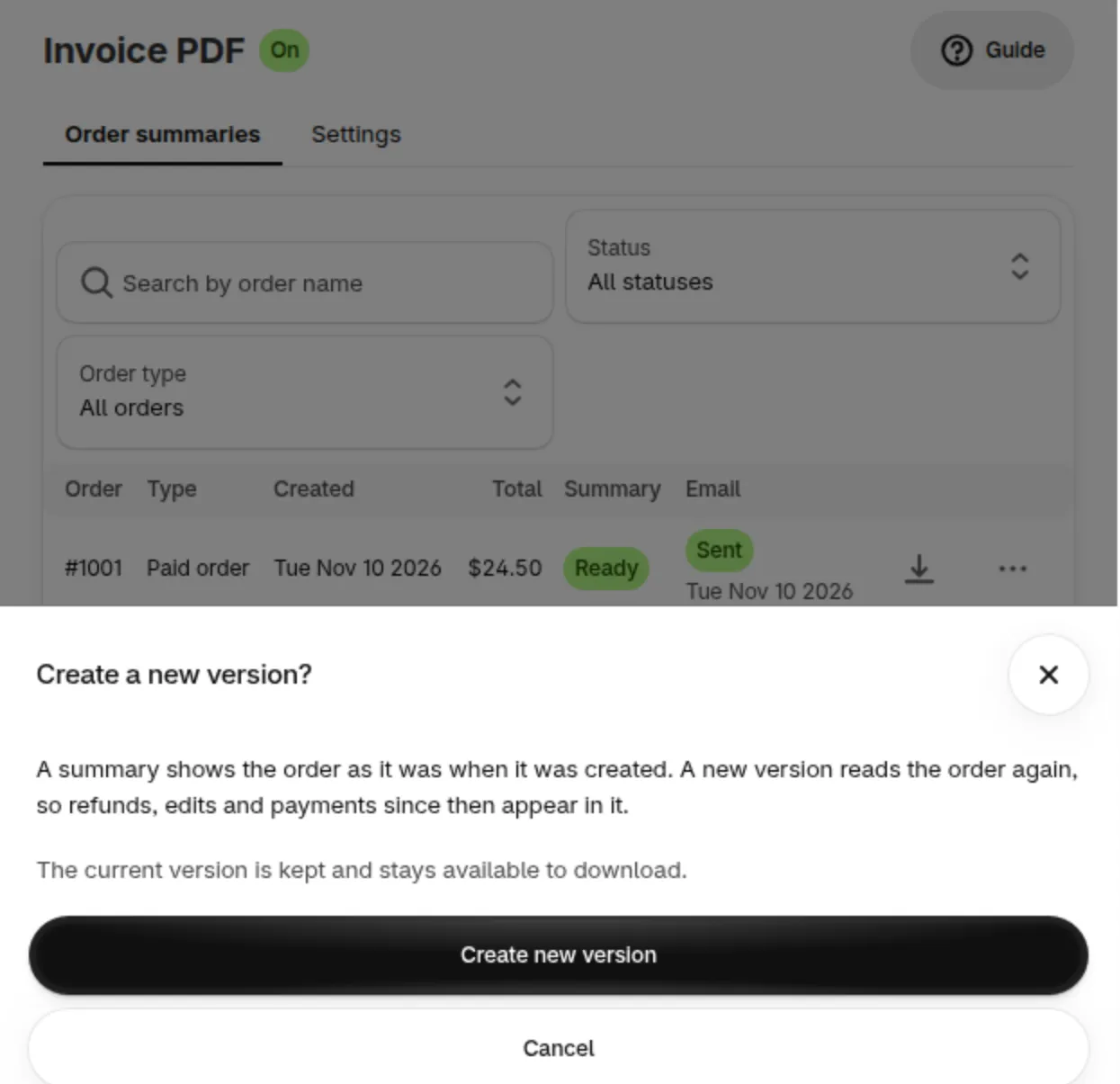
The Create a new version dialog.
The newest version is the one in the list, marked Version 2, Version 3 and so on. Create new version is only in the row menu of a Ready summary. It is not there while the summary is Creating, after it Failed (use Try again), or after the order data was removed. It also uses your current design, so it is the way to give an older summary a new look.
Where are Net Terms summaries?
Section titled “Where are Net Terms summaries?”A Net Terms order gets its summary when the Net Terms order is created, whatever you chose under Which orders.
You also see it in the Net Terms Orders tab, in the Order summary column:
| Cell | What it means |
|---|---|
| Download | The summary is ready. Click to download |
| Creating | The summary is being made |
| Failed | The summary failed. Open the Invoice PDF tab and click Try again |
| None | There is no summary for this order |
Next to the export menu you will find the Order summaries button. It opens the Invoice PDF tab, filtered to Net Terms orders. To manage Net Terms orders, read Manage Net Terms orders.
This email is separate from the Net Terms order email: Net Terms buyers get both.
Can I pass B2B details to my invoice app?
Section titled “Can I pass B2B details to my invoice app?”Yes. Turn on Share B2B details with invoice apps in Invoice PDF > Settings > Invoice apps to add your buyers’ company name, Tax ID and PO number to new orders as order attributes that other apps can read. It is off by default.
This works on its own. You do not need Create order summaries to be on, but the Invoice PDF add-on must be active.
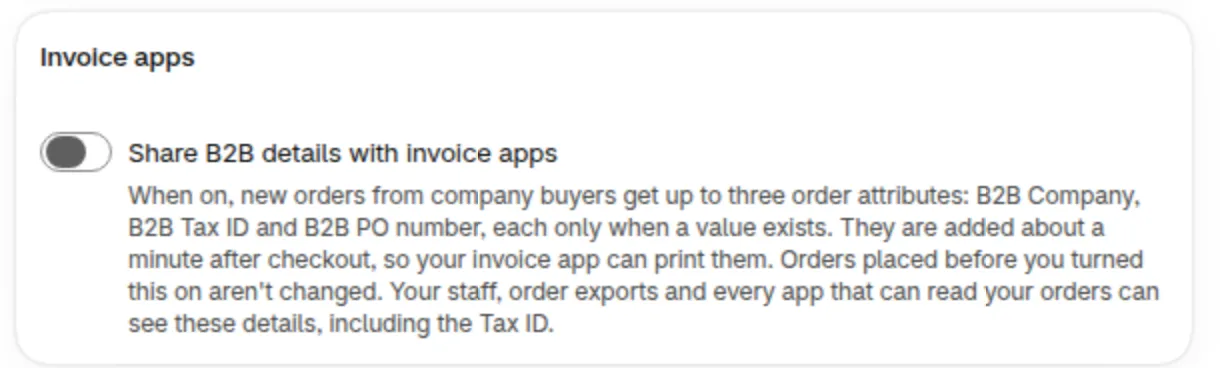
The Invoice apps card in Settings.
| Attribute | Value | Added when |
|---|---|---|
| B2B Company | The company name | The order is placed for a company |
| B2B Tax ID | The Tax ID of the company location | The location has a Tax ID |
| B2B PO number | The PO number | The order has a PO number and the B2B PO number attribute is not there yet |
New orders from company buyers get up to these three order attributes, each only when a value exists. They are added about a minute after checkout. B2B Company and B2B Tax ID always match what Shopify holds for the company. Orders placed before you turned the setting on are not changed. Turning it off stops new attributes, and the ones already added stay.
What do I do when there is no summary yet?
Section titled “What do I do when there is no summary yet?”| What you see | Why | What to do |
|---|---|---|
| No order summaries yet | Order summaries are off | Click Go to Settings and turn on Create order summaries |
| Waiting for your next order | The switch is on and no matching order has arrived | Nothing. New matching orders appear here |
| No order summaries match these filters | Your filters hide every row | Click Clear filters |
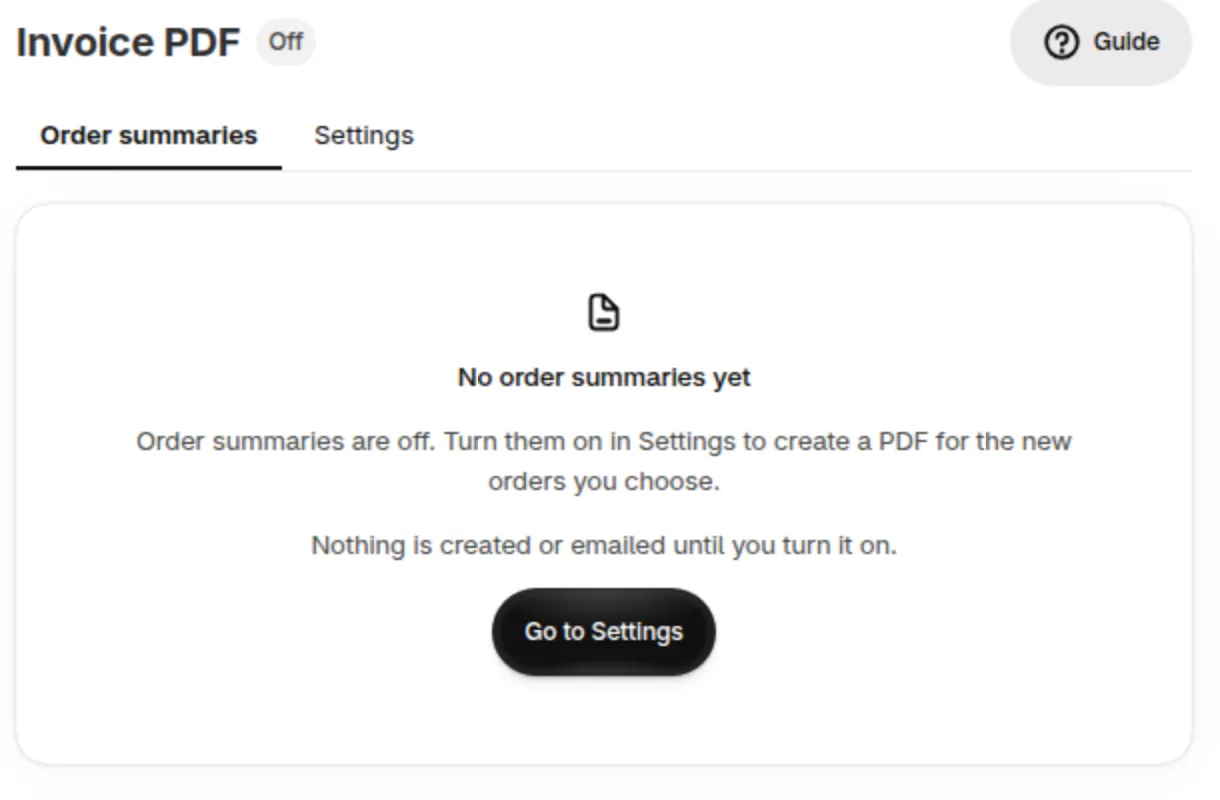
The empty list with the switch off.
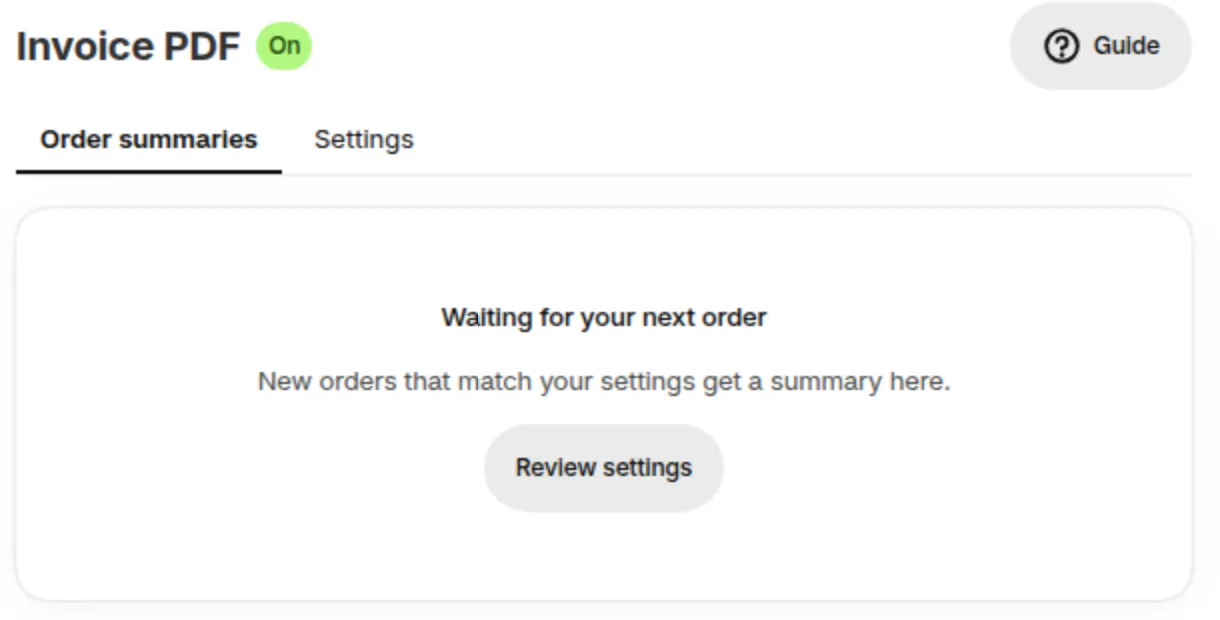
The empty list with the switch on.
For price and trial, see the Invoice PDF overview. To change the look, see Design your order summary PDF. For limits and data, see the Invoice PDF FAQ.